
Vous souhaitez que les nouveaux vendeurs saisissent le nom de leur boutique avant leur numéro de téléphone, ou que le champ des détails de paiement soit plus bas sur la page ? Le constructeur de formulaires d'inscription de WC Vendors Signup vous permet de faire glisser et déposer les champs dans l'ordre qui convient le mieux à votre marketplace, sans code. Voici comment réorganiser les champs d'inscription en quelques clics, ainsi que ce qu'il faut vérifier si une réorganisation ne s'enregistre pas.
Avant de commencer
Vous aurez besoin de :
- WC Vendors Marketplace installé et actif
- WC Vendors Signup installé et actif
- Un compte administrateur avec le rôle de gestionnaire de boutique ou d'administrateur
WC Vendors Signup est livré avec un ensemble par défaut de champs d'inscription (comme Adresse e-mail, Mot de passe et Nom de la boutique), il n'y a donc rien de plus à configurer avant de commencer la réorganisation. WC Vendors Pro est facultatif. Il n'est nécessaire que pour le mappage avancé des champs, pas pour déplacer les champs.
Réorganiser les champs sur le formulaire d'inscription
- Dans votre tableau de bord WordPress, allez dans WC Vendors > Paramètres, puis cliquez sur l'onglet Formulaire d'inscription.
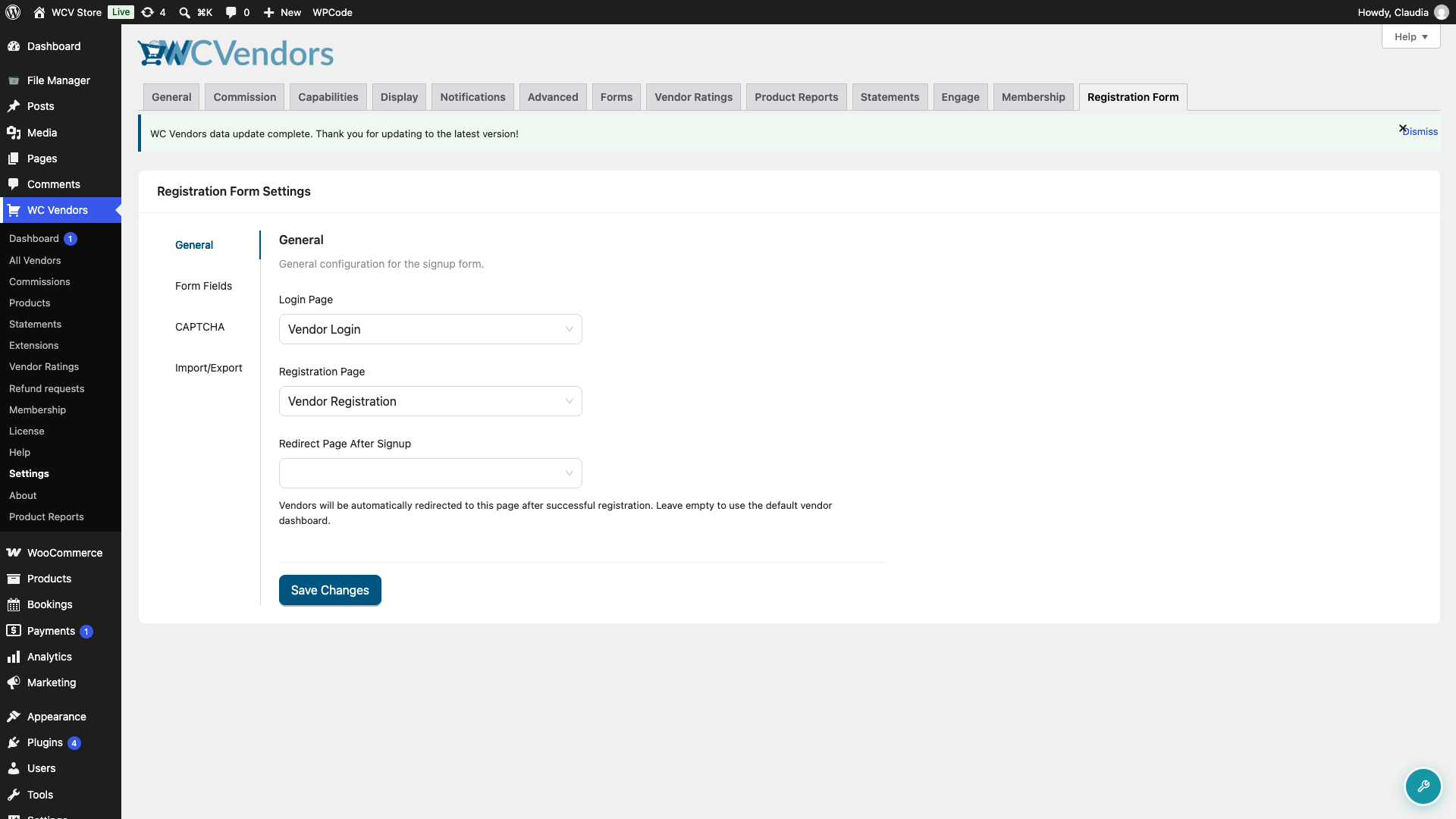
- Sur l'écran des paramètres du formulaire d'inscription, cliquez sur l'onglet Champs du formulaire dans le menu de gauche.
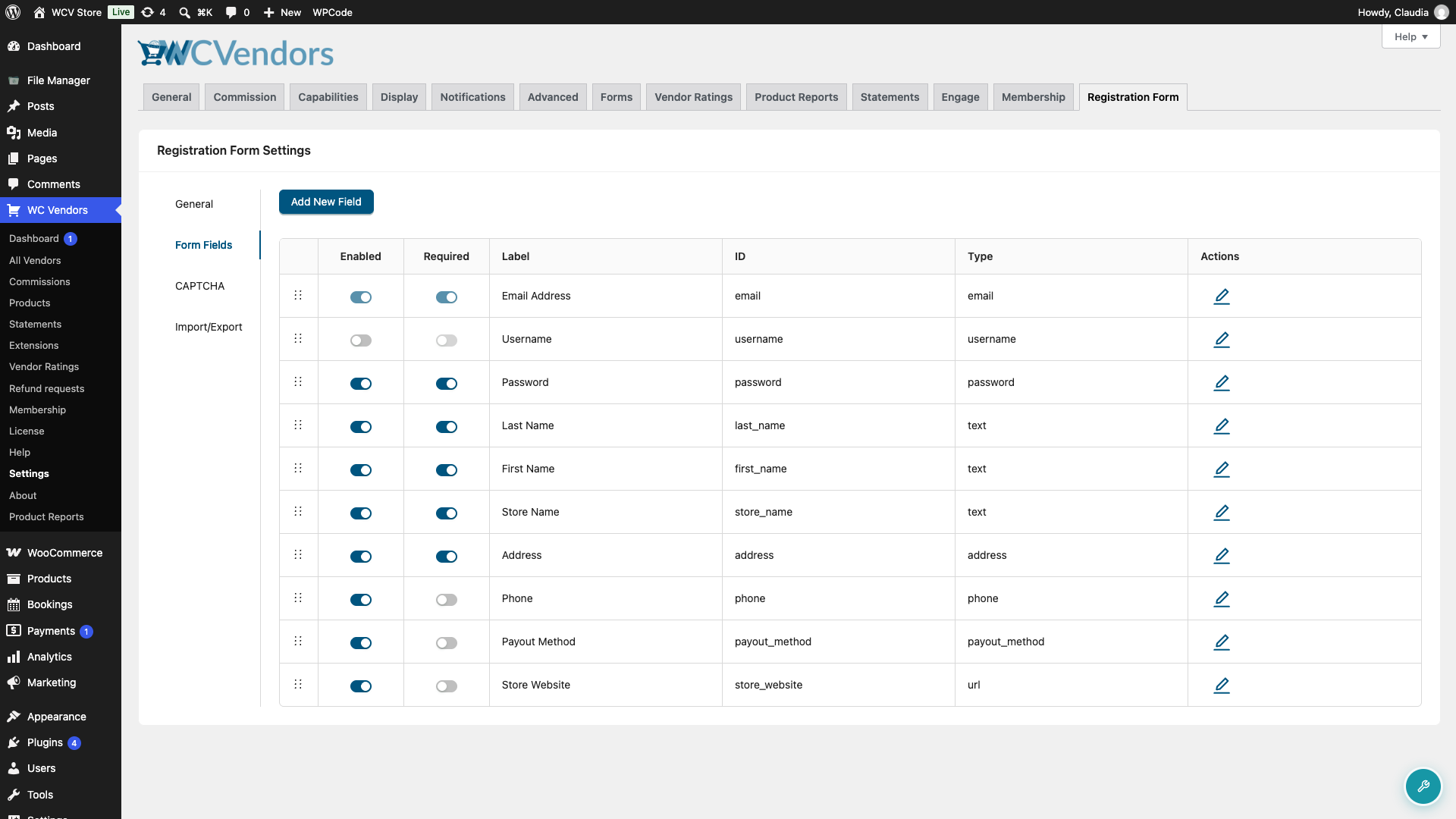
- Trouvez le champ que vous souhaitez déplacer, et survolez l'icône de poignée de déplacement dans la première colonne de sa ligne.
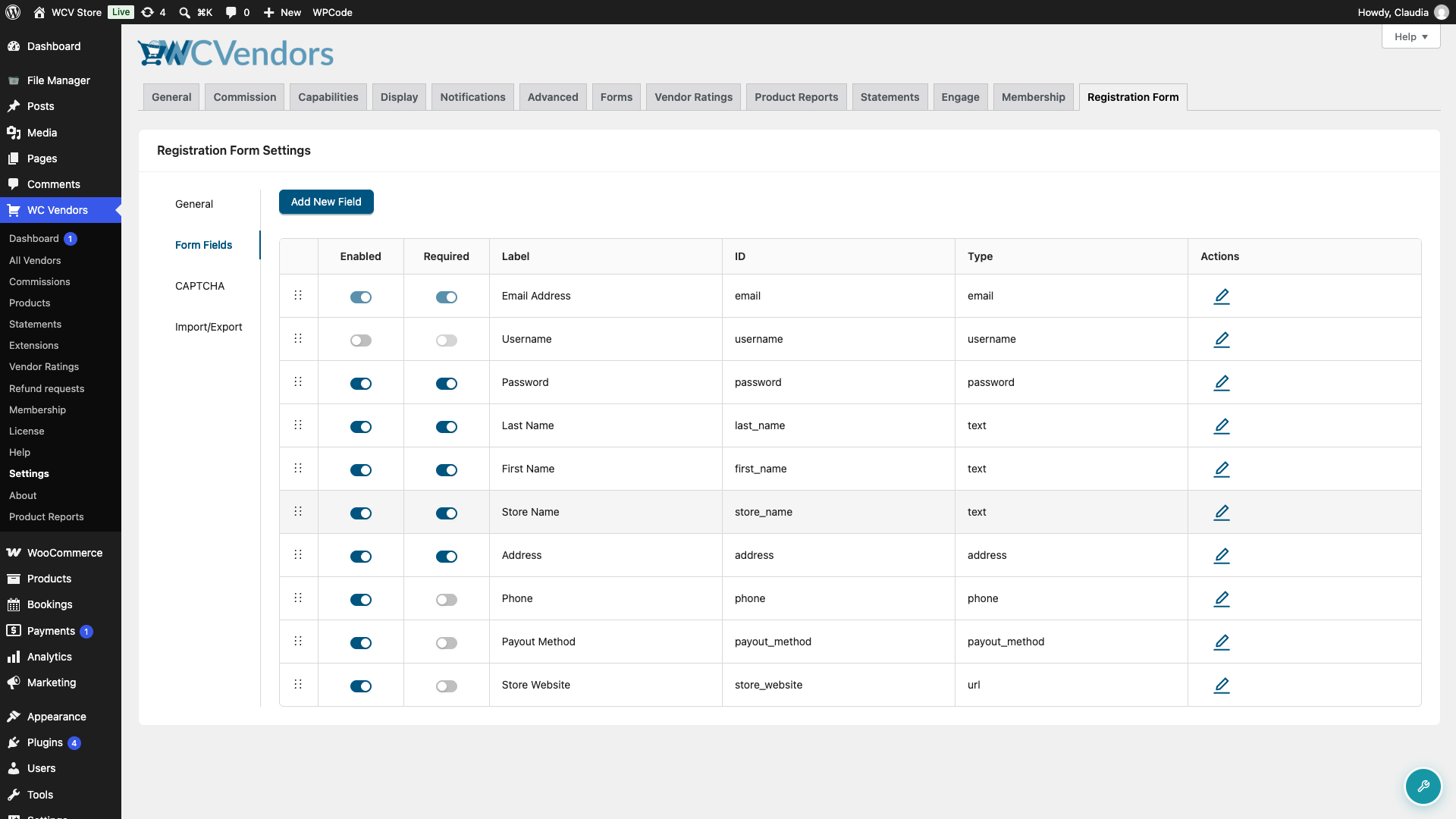
- Cliquez et maintenez la poignée de déplacement, puis faites glisser la ligne vers le haut ou vers le bas jusqu'à sa nouvelle position dans la liste.
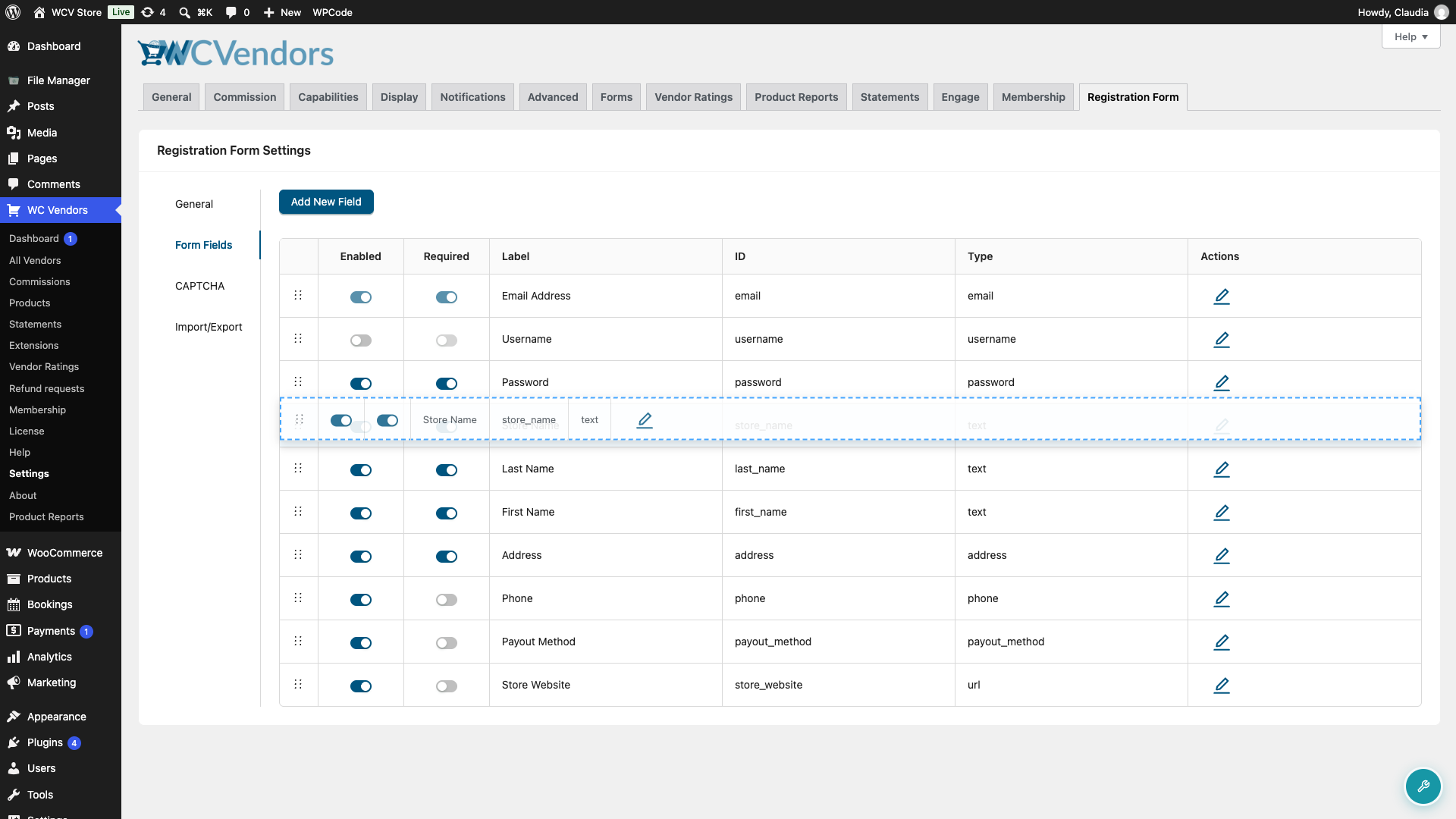
- Relâchez le bouton de la souris pour déposer le champ à sa place. WC Vendors Signup enregistre le nouvel ordre immédiatement, et vous verrez une notification Paramètres enregistrés avec succès dans le coin supérieur droit.
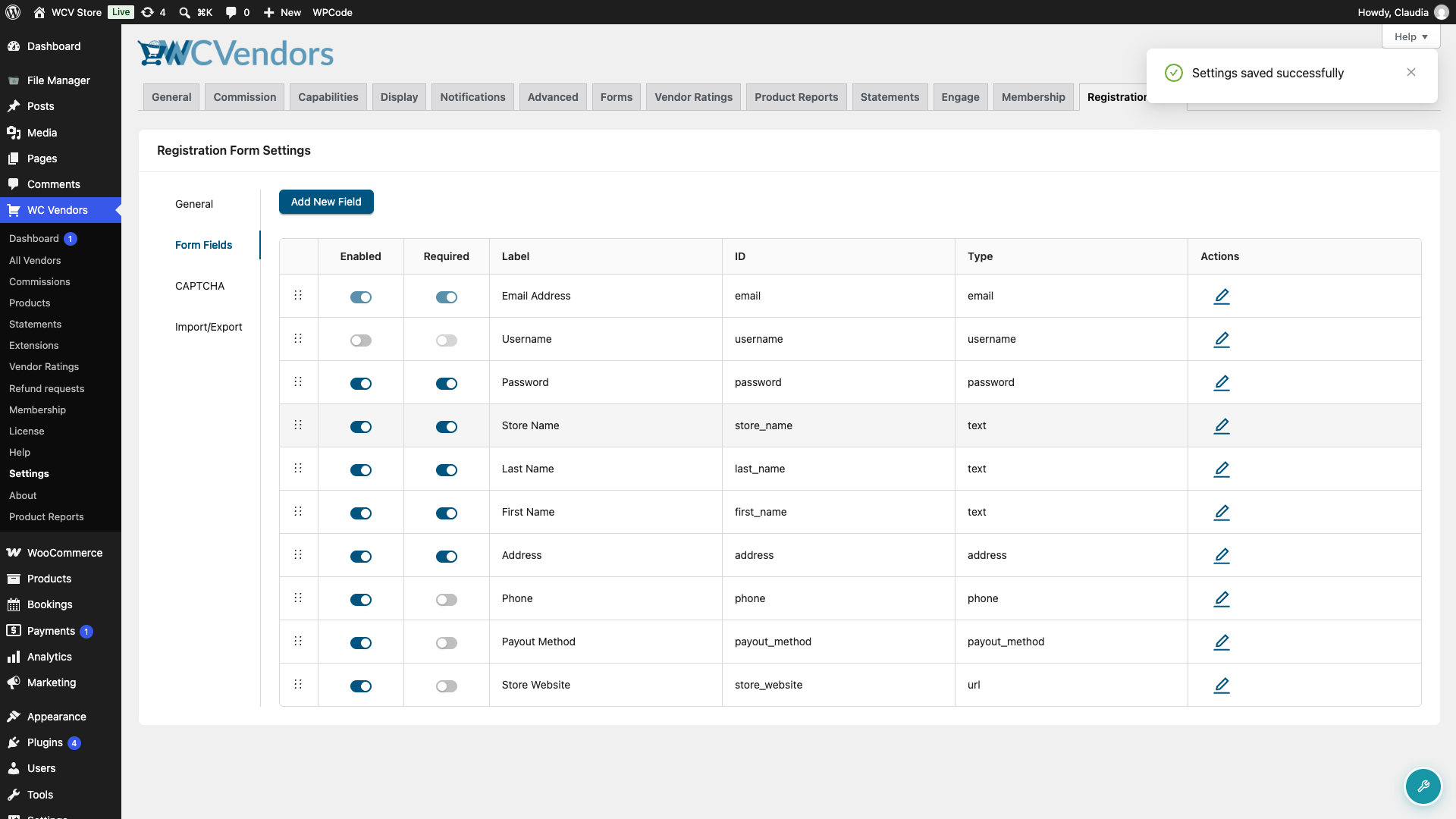
- Répétez l'opération pour tous les autres champs que vous souhaitez déplacer, puis ouvrez votre page d'inscription de vendeur pour vérifier le nouvel ordre.
Si vous n'avez pas configuré vous-même de page d'inscription, WC Vendors Signup crée automatiquement une page Inscription du vendeur pour vous lors de l'activation du plugin, en utilisant le shortcode [wcv_registration_form].
Dépannage
Faire glisser un champ ne le déplace pas
Assurez-vous de cliquer sur l'icône de poignée de déplacement, ou sur la cellule Libellé, ID ou Type du champ, et non sur les commutateurs Activé/Requis ou les icônes de modification et de suppression dans la colonne Actions. Ce sont des contrôles distincts et ils ne commenceront pas un glisser-déposer.
Le nouvel ordre ne reste pas après que j'ai actualisé la page
Cela signifie généralement que la requête d'enregistrement a échoué. WC Vendors Signup nécessite le rôle de gestionnaire de boutique ou d'administrateur pour enregistrer les modifications, vérifiez donc d'abord votre rôle utilisateur. Si vous voyez une notification d'erreur rouge juste après avoir déposé un champ, cela indique également un enregistrement échoué, essayez de réorganiser à nouveau une fois vos autorisations confirmées.
Je ne peux pas supprimer un champ, seulement le déplacer
Les champs intégrés de l'inscription WC Vendors (Adresse e-mail, Nom d'utilisateur, Mot de passe, Prénom, Nom, Nom de la boutique, Adresse, Téléphone, Méthode de paiement et Site Web de la boutique) ne peuvent pas être supprimés, car leur suppression pourrait perturber le processus d'intégration des vendeurs. Vous pouvez toujours les réorganiser et activer ou désactiver la plupart d'entre eux, mais pas les supprimer.
Questions fréquemment posées
La réorganisation des champs change-t-elle quelque chose pour les vendeurs déjà inscrits ?
Non. La réorganisation n'affecte que ce que les nouveaux visiteurs voient sur le formulaire d'inscription à l'avenir. Elle ne touche pas aux données déjà soumises par les vendeurs existants.
Cela réorganise-t-il également les champs sur le formulaire de connexion du vendeur ?
Non. L'onglet Champs du formulaire ne contrôle que l'ordre des champs sur le formulaire d'inscription. Le formulaire de connexion n'est pas construit avec le même constructeur de champs par glisser-déposer.
Besoin d'aide ?
- Utilisateurs premium : Ouvrir un ticket de support
- Utilisateurs gratuits : Visitez notre forum communautaire