
CAPTCHA helps protect your marketplace from spam registrations, bots, and automated login attempts. By enabling CAPTCHA on vendor registration and login forms, you add an extra layer of security while keeping the experience safe for legitimate users.
WC Vendors Signup supports multiple CAPTCHA providers, giving you flexibility to choose the solution that best fits your site and privacy requirements.
Why You Should Add CAPTCHA to Vendor Registration and Login Forms
Vendor registration and login forms are common targets for automated attacks. Without protection, bots can:
- Create fake vendor accounts
- Attempt brute-force or credential-stuffing login attempts
- Increase unnecessary load on your site
CAPTCHA helps prevent these issues by ensuring only real users can submit these forms.
How CAPTCHA Is Applied in WC Vendors
This CAPTCHA feature is only available for vendor registration and login forms provided by the WC Vendors Signup plugin.
If you are not using the WC Vendors Signup form, vendor registration works differently:
- Vendors first register through the WooCommerce customer registration form on the My Account page
- After logging in, they complete the vendor registration form from the Vendor Dashboard
In this setup, the CAPTCHA option in WC Vendors Signup will not apply to the WooCommerce customer registration form.
Recommended CAPTCHA Solutions for Vendor Registration Without WC Vendors Signup
If vendors are signing up via the WooCommerce My Account registration form, we recommend using a CAPTCHA or anti-spam solution specifically designed for WooCommerce user registration, such as a plugin that adds reCAPTCHA, hCaptcha, or Turnstile to the WooCommerce signup form.
This ensures user registrations are still protected before vendors access the dashboard.
Step-by-Step Guide: Setting Up CAPTCHA for WC Vendors Signup Forms
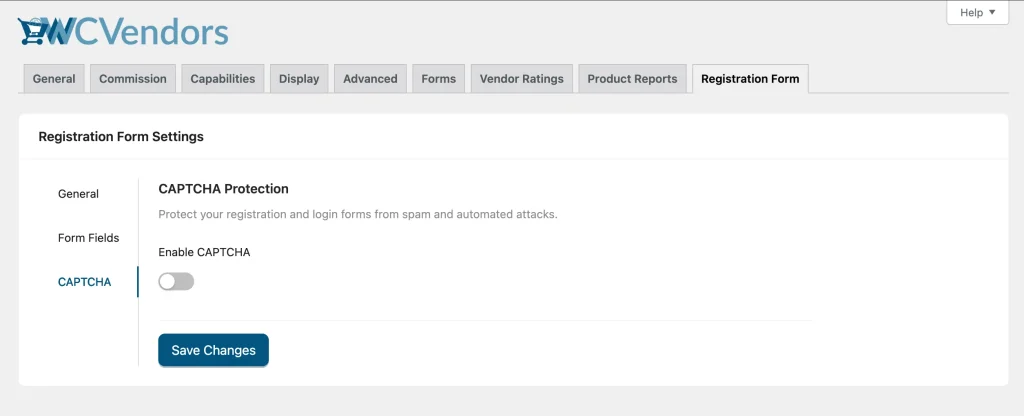
1. Enable the CAPTCHA
- Go to WordPress Dashboard → WC Vendors → Settings
- Open the Registration Form section
- Click the CAPTCHA tab
- Enable the CAPTCHA option
2. Choose a CAPTCHA Provider
WC Vendors supports the following CAPTCHA providers:
- Google reCAPTCHA v2
- Google reCAPTCHA v3
- hCaptcha
- Cloudflare Turnstile
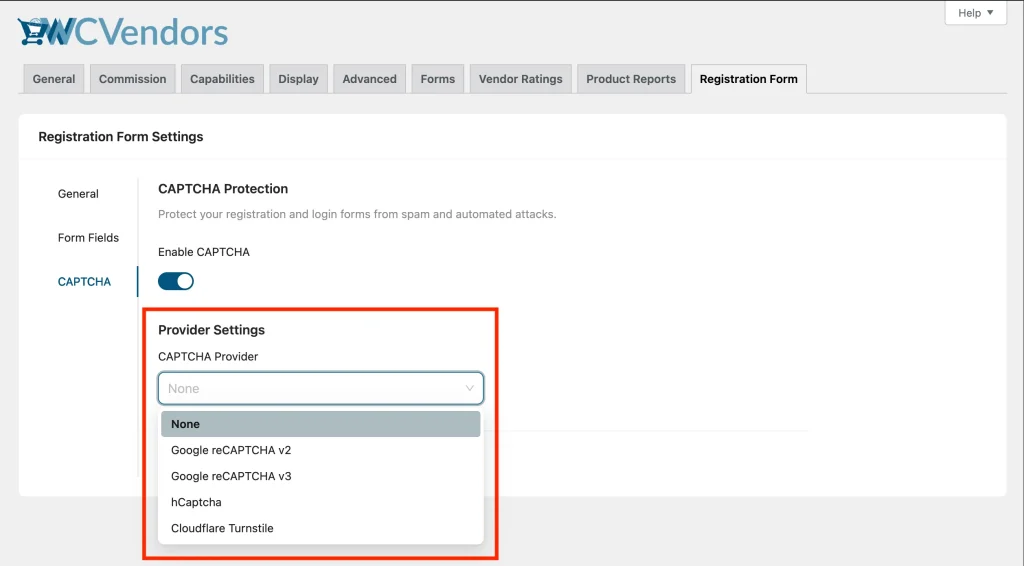
Select the provider that best suits your site’s requirements.
3. Set Up CAPTCHA API Credentials
After selecting a provider, enter the required Site Key and Secret Key.
You can generate these keys from the provider dashboards:
- Google reCAPTCHA (v2 & v3):
https://www.google.com/recaptcha/admin - hCaptcha:
https://dashboard.hcaptcha.com/signup - Cloudflare Turnstile:
https://dash.cloudflare.com/?to=/:account/turnstile
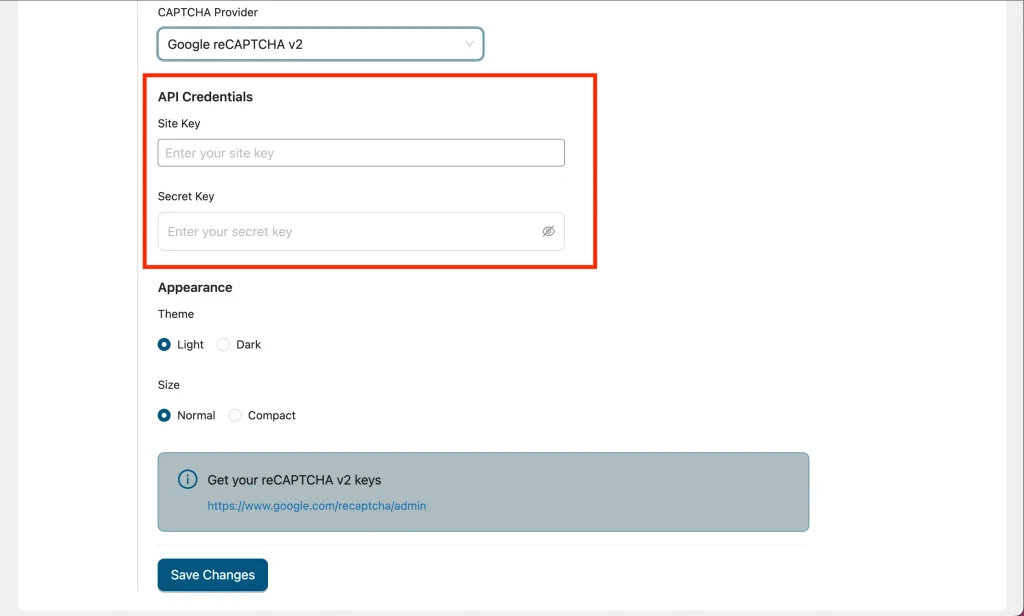
Copy the keys into the corresponding fields in WC Vendors settings.
4. Customise CAPTCHA Appearance
For Google reCAPTCHA v2, hCaptcha, and Cloudflare Turnstile, you can adjust:
- Light or Dark theme
- Normal or Compact size
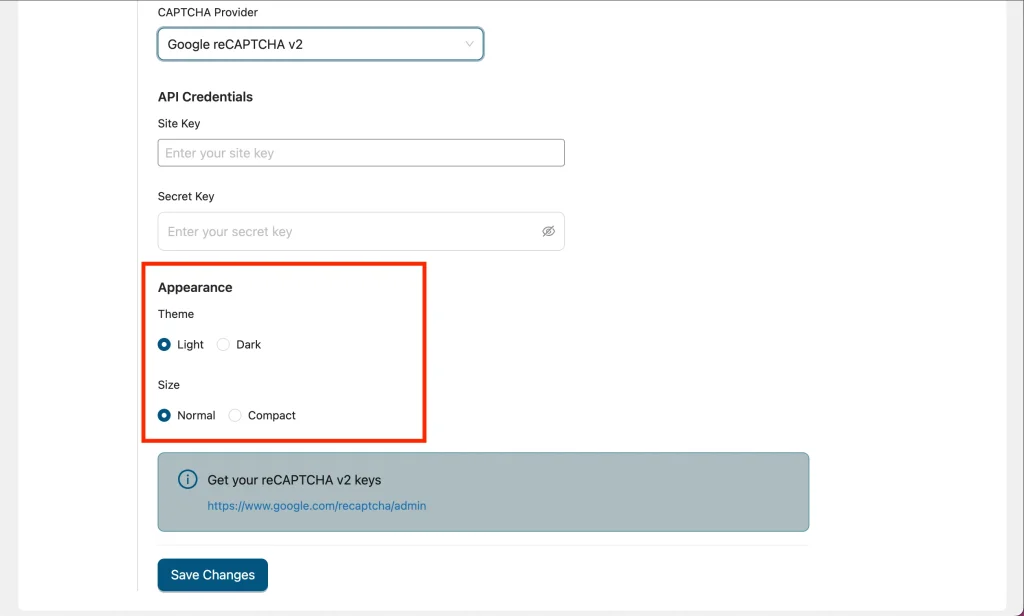
These options help the CAPTCHA match your site’s design.
5. Configure Score Threshold for Google reCAPTCHA v3
Google reCAPTCHA v3 runs in the background and assigns a score based on user behavior.
- Higher scores are more strict
- Lower scores are more lenient
- Recommended score threshold: 0.5
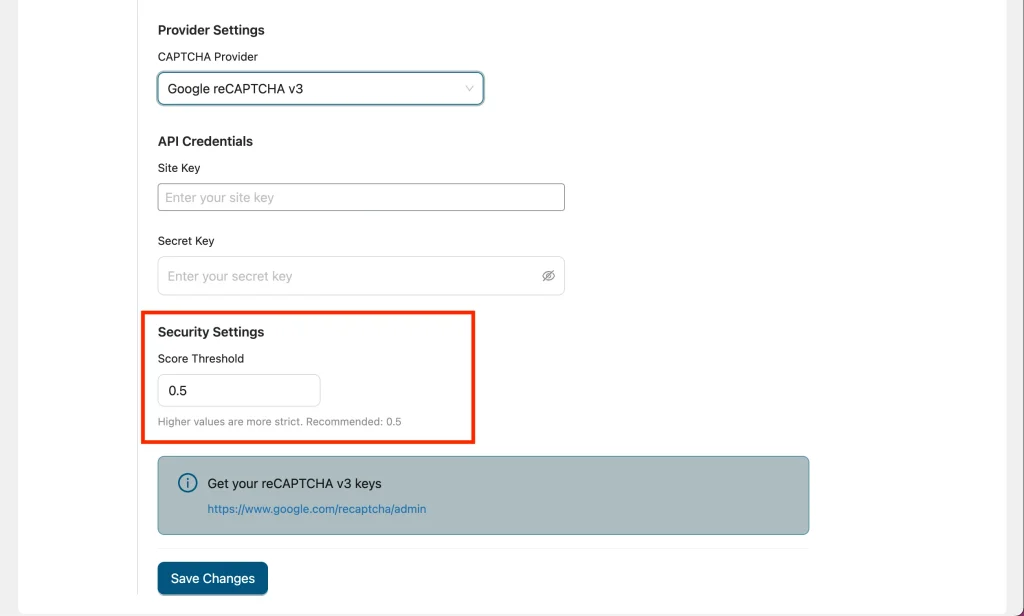
You can adjust this value if you notice legitimate users being blocked or if spam activity persists.
Final Checks and Troubleshooting Tips
Once enabled, CAPTCHA is automatically applied to the WC Vendors Signup registration and login forms.
If CAPTCHA does not appear or does not work as expected, please check:
- The API keys are correct
- Your domain is allowed in the CAPTCHA provider’s dashboard
- Caching or optimization plugins are not blocking CAPTCHA scripts
Need help?
If you have a question or run into any issues, we’re here to help.
- Premium users: Open a support ticket
- Free users: Visit our community forum