If you run a marketplace with bookings, you already know how messy WooCommerce booking cancellation can get when the reason for cancellation cannot be recalled. A booking gets cancelled, and then you are left … guessing.
Honestly, it is not even the cancellation that causes the headache. It is the lack of context. Without a reason, I waste time sending follow-up messages just to understand what went wrong. As a result, a simple cancellation can turn into a long thread of back-and-forth, and that is the part I want to avoid.
In this article, I will walk you through how to turn on this new feature and what everyone will see after a booking is cancelled. Also, know some tips for setting up your reason list so it stays useful.
How To Enable The Cancellation Reason Setting
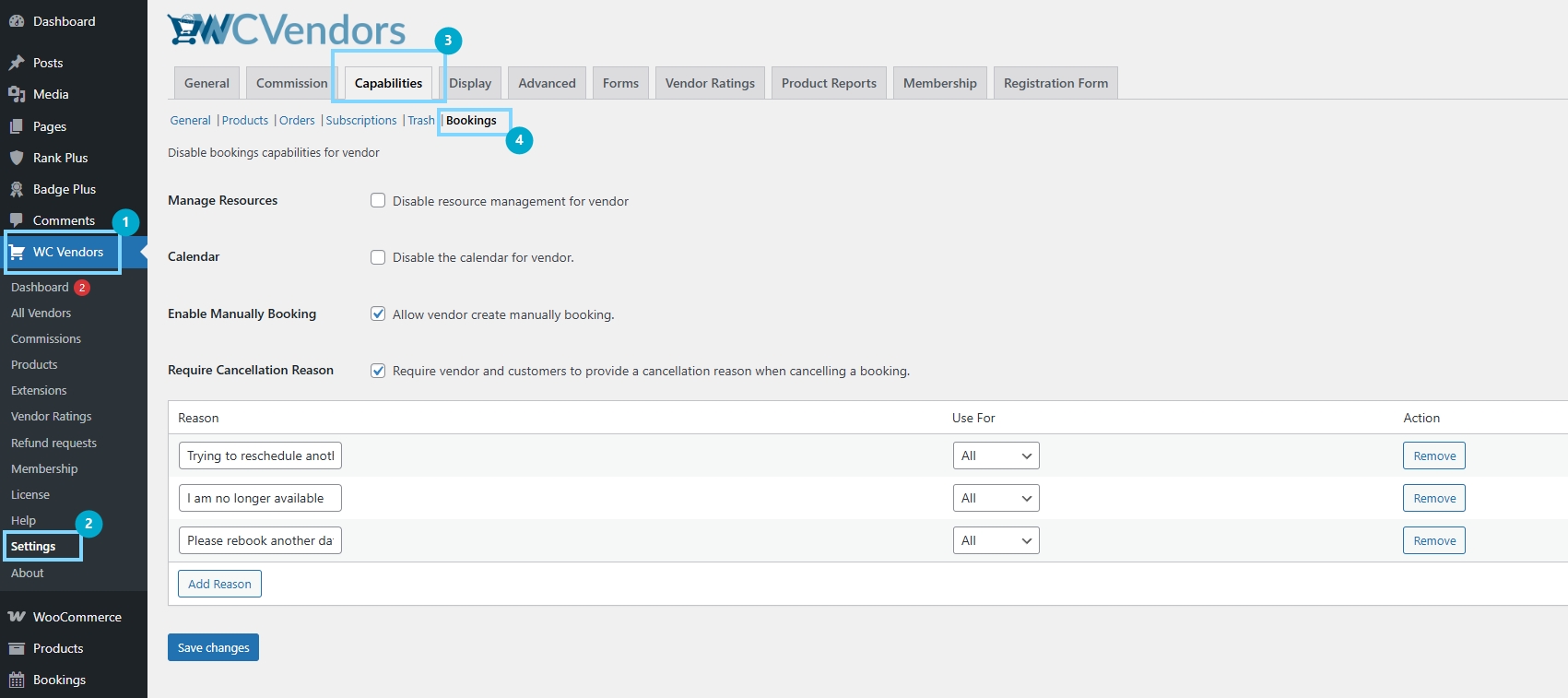
Step 1: Open the bookings settings in WC Vendors
Go to your WordPress admin dashboard, then open WC Vendors and click Settings. From there, head to the Bookings settings area. This is where the cancellation reason option lives.
Step 2: Turn on the cancellation reason requirement
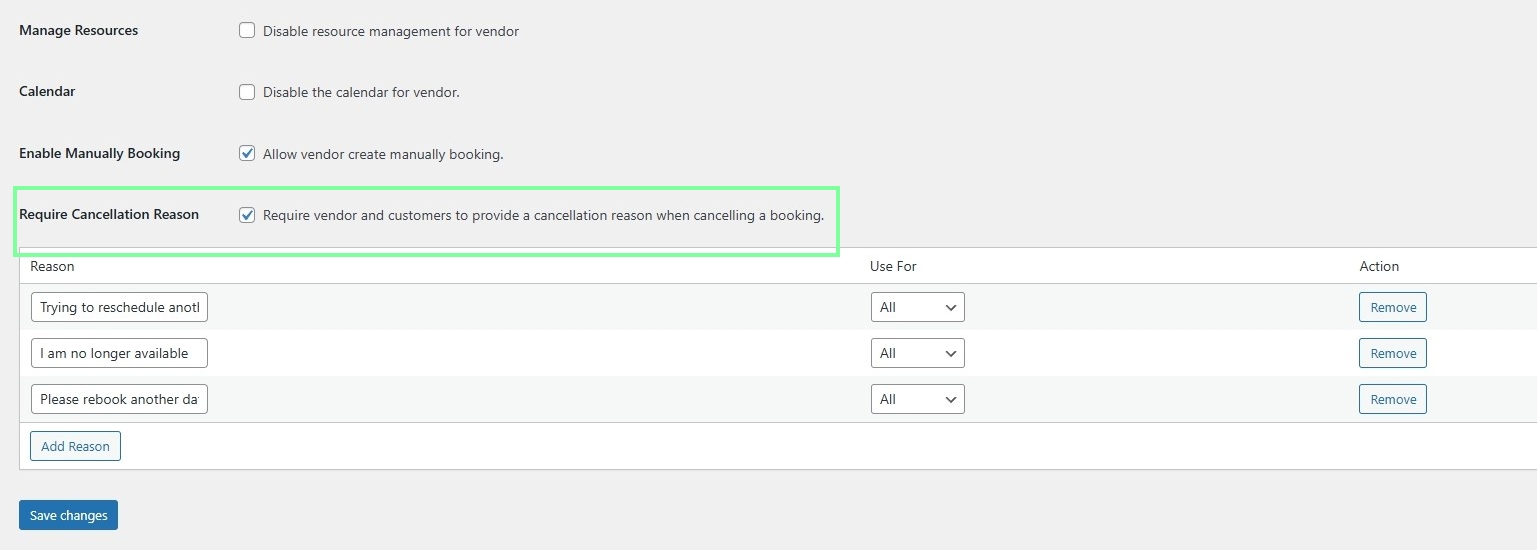
Look for the setting that requires a cancellation reason and switch it on. After that, WooCommerce booking cancellation will prompt the person cancelling to choose or provide a reason before the cancellation goes through.
Step 3: Review and manage the cancellation reasons list
Once the requirement is enabled, check the list of cancellation reasons shown in the settings. You can add new reasons, edit the wording, and keep the options short and clear.

You can also set who each reason applies to, which can be Customer, Vendor, or All, so the choices make sense for the person cancelling.

Step 4: Save and test the flow
Save your changes, then test the cancellation flow on both sides. Try cancelling as a customer, then as a vendor. This helps confirm the reason the prompt appears where it should during WooCommerce booking cancellation.
For example, I tried cancelling as the vendor and this is how it looked like:

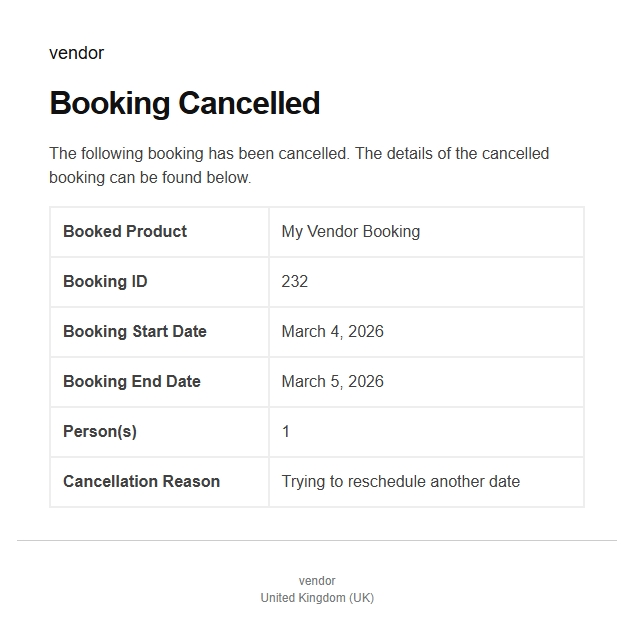
On the customer’s end, they will be receiving this email once their booking is processed as cancelled:
How WooCommerce Booking Cancellation Works With This Feature
Customer cancellation flow
Here is what changes on the customer side once the setting is on. When a customer clicks cancel, the cancellation screen no longer feels like a quick exit. Instead, WooCommerce booking cancellation prompts the customer for a reason before they can complete the action. The customer will see a list of reasons that you set up in the admin settings. Then they pick the option that matches their situation.
After the customer selects a reason, they confirm the cancellation. At that point, the booking is cancelled, and the reason is saved with the booking record.
If the customer tries to cancel without choosing a reason, the system stops the action. It prompts them to select one first.
Vendor cancellation flow
The vendor flow works similarly. When a vendor cancels a booking, WooCommerce booking cancellation also prompts them to provide a reason. They choose from the same reason system, but the list can be filtered based on who the reason applies to.
This is where the “applicable to” option matters. Some reasons make sense only for vendors, like being unavailable or having scheduling conflicts. Other reasons make sense only for customers. Because of that, the vendor will only see reasons that match their role, provided you set the reasons properly in the settings.
After the vendor confirms the cancellation, the reason is saved and linked to the booking record. So later on, if a customer asks what happened, the vendor can point to the cancellation reason. At the same time, you can view the same context from the admin side.
How the reason list affects what people can choose
The experience depends on the reasons you create. If you only add a few broad reasons, people will pick the closest match, even if it is not perfect. On the other hand, if you add too many reasons, the list becomes noisy, and people may choose the first option just to finish. Because of that, the best setup usually sits in the middle.
Also, each reason has a “use for” setting. This controls whether it is shown to customers, vendors, or everyone. When you set that part correctly, WooCommerce booking cancellation feels more natural because each person sees options that actually fit their situation.
Tips For Setting Up Cancellation Reasons
Keep the list short and easy to scan
When people are cancelling, they usually want to finish the action quickly. Because of that, a long list can lead to lazy choices. So I suggest keeping your list of cancellation reasons short. Five to ten options are often enough for most marketplaces. It gives people choices without overwhelming them.
If you notice that most cancellations fall under one or two reasons, that is fine. The goal is not perfect data. The goal is to provide a clearer context during WooCommerce booking cancellations.
Use clear wording that people actually understand
Cancellation reasons should sound like everyday language. If the wording feels too formal, people may not know which one to pick. So keep each reason short and direct. For example, “Schedule changed” is easier to understand than a long sentence. At the same time, you want the reason to be specific enough to explain the situation.
Also, avoid reasons that feel like blame. Neutral options tend to work better because both customers and vendors can select them without feeling defensive.
Set “use for” correctly so the right people see the right reasons
This is one of the most important parts of the feature. Each reason can be set to apply to Customer, Vendor, or All. When you use that setting well, the cancellation screen feels more natural.
For example, vendors should not see customer-only reasons that do not apply to them. Customers also should not see vendor-only reasons that do not match their role. As a result, WooCommerce booking cancellations become cleaner, and the data you collect is easier to trust.
Add reasons based on real cancellation patterns
A good reason list is not something you guess once and never touch again. Over time, you will start seeing patterns. You might notice many vendors cancel because of availability issues. You might notice customers cancel because they want to reschedule. Once you see those patterns, you can adjust your list to match real behavior.
Takeaways
If you manage bookings in a marketplace, this feature makes WooCommerce booking cancellations less confusing by adding a required reason to the cancellation flow. Instead of guessing what happened, you get a clear explanation attached to the booking record. At the same time, both customers and vendors follow the same basic rule, which keeps the process consistent.
Here’s a quick recap of what we discussed about this feature:
- How to enable the cancellation reason setting
- How WooCommerce booking cancellation works with this feature
- Tips for setting up cancellation reasons
Once the setting is enabled, the cancellation reason can also appear in booking details and cancellation emails. Because of that, people get context right away, and you spend less time answering follow-up questions. The only thing to watch is the reason list itself. If you keep it short, clear, and role-based, the feature stays useful over time.
Frequently Asked Questions
Can I require a cancellation reason for both customers and vendors?
Yes. Once the setting is enabled, WooCommerce booking cancellation prompts both customers and vendors to provide a reason when they cancel a booking.
Can I add my own cancellation reasons?
Yes. You can add new reasons in the settings area where cancellation reasons are listed. You can also edit existing reasons so the wording matches your marketplace.
Does this feature change refunds or payment rules?
No. This feature is focused on collecting a reason and displaying it. Refund handling still depends on your WooCommerce and bookings settings. However, having a reason can make refund conversations easier.