If I run a marketplace where people want to shop from nearby sellers, one thing I do not want is to make them guess where each vendor is based. That is why this new vendor location feature in WC Vendors Pro would surely help you out! Instead of making customers scroll through a long vendor list and hope they find someone nearby, I can now give them a better way to search using address details like city, postal code, and region.
In this article, I’m going to walk you through what this feature is, why it matters, and how to turn it on step by step. After that, I’ll also talk about what needs to be set up for it to work well, plus a few practical tips.
Let’s begin!
What The Feature Is Meant To Do
At its core, this feature is meant to help customers find relevant vendors faster. That matters even more when your marketplace serves local communities, city-based shoppers, or buyers who care about distance and convenience. In those cases, location is not just extra information. It is part of how people decide whom to buy from.
This also helps make your marketplace easier to use. If a customer wants a seller from a specific city or region, they can get there with less trial and error. As a result, the search process feels less random. It gives people a better path to the vendors they actually want to see.
For me, that is the real value of vendor location search. It turns address data into something customers can use, instead of leaving it as background information that never helps with discovery.

You may also read about: Effective Hyperlocal Marketing (How To Win Local Customers Fast).
How To Turn On Vendor Location Search In WC Vendors Pro
Step 1: Make sure vendor address details are already saved
Before I turn on anything, I want to make sure the vendor address details are actually there. This matters because the feature depends on saved store address data. If vendors have empty or incomplete address fields, the search results will not be very helpful.
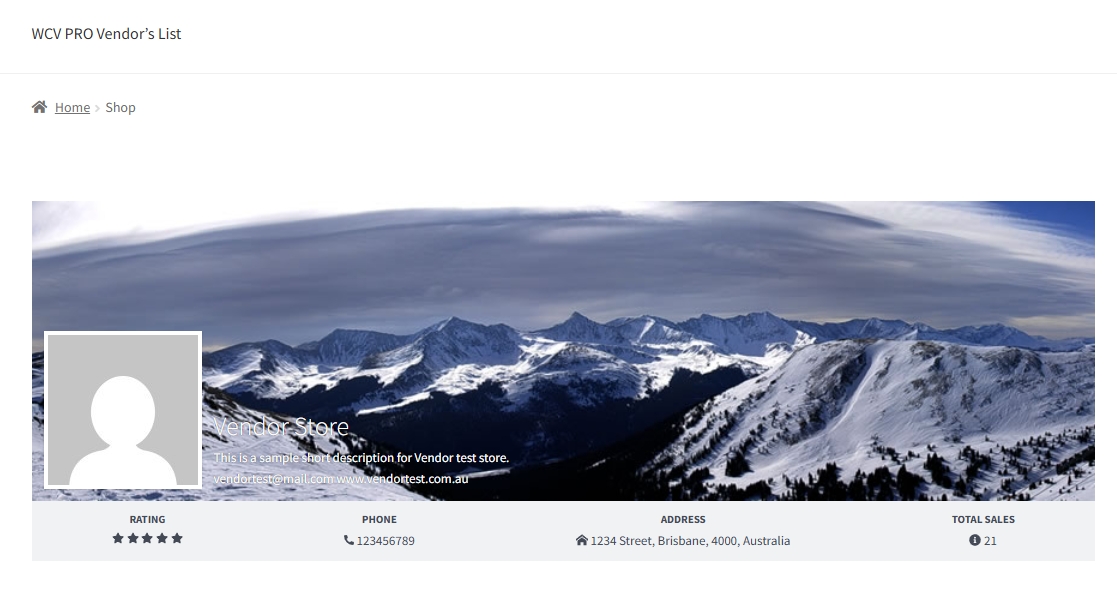
So the first thing I would check is the vendor store information. I want to see if the city, postal code, region, and other related address details are filled in properly. If the address data is messy, then the vendor location feature will also fbe misleading for customers.
This is also a good time to remind vendors to review their store details. A small typo in the city or postal code can affect how they appear in search results. Because of that, clean address data gives you a better starting point.
Step 2: Turn on the location-based search or filter option
Once the address data looks good, the next step is to enable the feature in your marketplace setup. WC Vendors supports location-based filtering and searching using address fields like city, postal code, and region.
Go to Forms > General > Google Maps API.
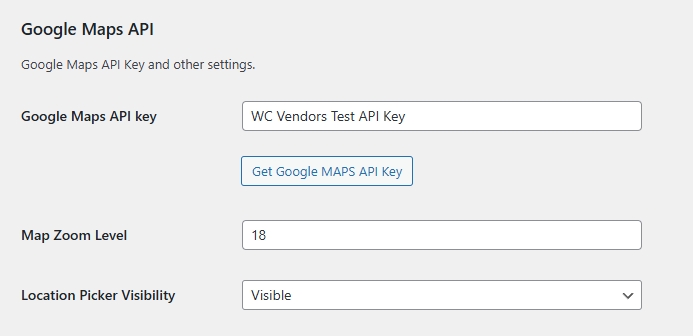
You would first need to enter your Google Maps API Key. If you don’t have one yet, click the Get Google MAPS API Key button to be redirected to instructions on setting up the Maps JavaScript API.
Map Zoom Level can be increased or decreased depending on the level at which your customers can zoom on the map. In many cases, you can just leave this in default value.
The location picker’s visibility can be set to visible or hidden when used by customers. And also, you can just let it run on default.
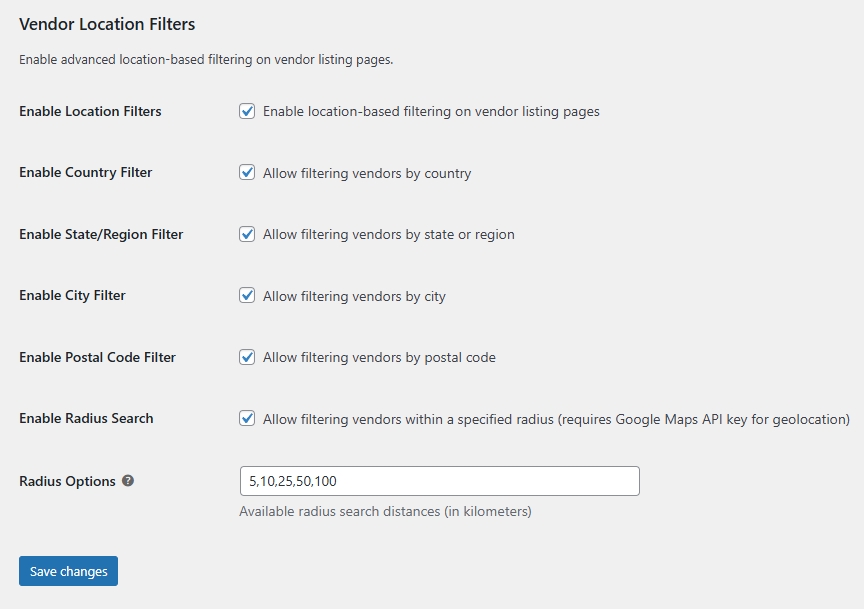
At this point, I would turn on the setting or feature option that allows customers to use vendor location as part of their search experience. Depending on how your marketplace is set up, this can be used as a filter, a search tool, or both.
Step 3: Test the search before going live
📝 NOTE: In order for these changes to appear, you must be using the shortcode [wcv_pro_vendorslist] in order to show the filtering option.
Once everything is turned on, test it right away.
This part is important because you want to confirm that the vendor location results match the address data saved in vendor stores. If something looks off, you can usually trace it back to missing or inconsistent address details.
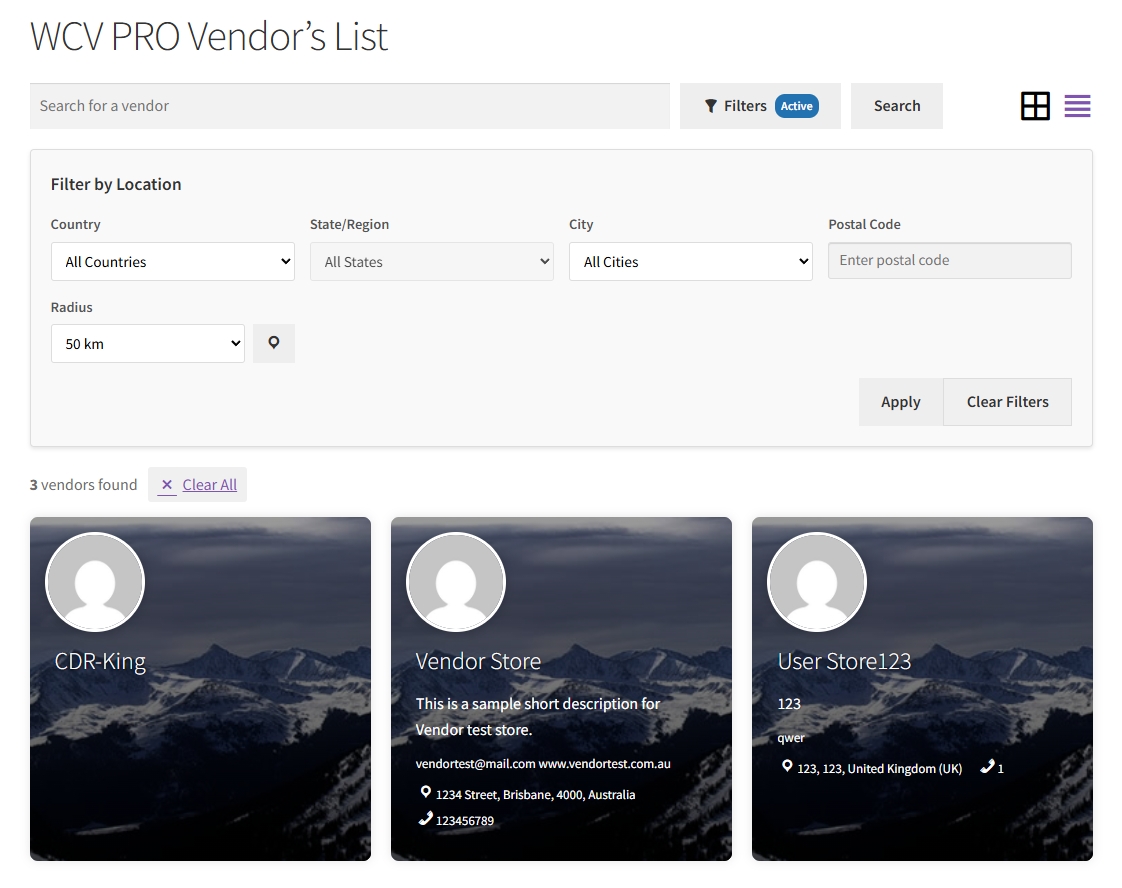
I would also try a few different search terms the way a real customer would. That gives you a better feel for how useful the feature will be in real browsing situations. If the results look clear and relevant, then you know the setup is doing its job.
Tips For Using This Feature Well
Ask vendors to fill in complete address details
If you want location-based search to feel useful, the first thing I would focus on is vendor data quality. A search tool can only work with the details it already has. So if vendors leave out their city, region, or postal code, the results will never feel as accurate as they should.
Because of that, I would encourage vendors to complete their store address during onboarding, not later when the marketplace is already live. The earlier you set that habit, the easier it is to keep your listings clean.
Keep address formatting consistent
This part sounds small, but it matters more than people think. If one vendor writes a full city name and another uses a shortened version, the search results can start to feel uneven. That is why I like keeping address formatting as consistent as possible.
You do not need to make it complicated. A simple note during setup can help a lot. You can tell vendors to use the full city name, the correct postal code, and the proper region name. As a result, the search experience feels more predictable for customers.
Review vendor store data from time to time
Even after the feature is live, I would still check vendor address details once in a while. Vendors may update their stores, move locations, or leave fields unfinished. So if you want the search results to stay helpful, it is worth reviewing the data now and then.
It does not need to be a huge task. A light check every so often can help you keep the marketplace easier to browse and easier to trust.
Takeaways
This feature helps turn store address data into something customers can actually use. Instead of making people scroll through every seller to guess who might be nearby, WC Vendors gives them a better way to search by city, postal code, or region. Because of that, vendor location becomes part of how customers browse, not just a detail hidden inside a store profile.
Take a look on what we’ve discussed by far:
For me, that is what makes this feature useful. It helps local and regional marketplaces feel easier to navigate. At the same time, it gives vendors another way to be found, especially when buyers care about distance or nearby sellers. The main thing I would focus on is keeping vendor address details complete and consistent, because that is what makes the search results more helpful in real use.
Frequently Asked Questions
What address details can be used in search?
The feature is built around location details like city, postal code, and region. Those are the main parts that help narrow down vendor results.
Does this replace normal vendor browsing?
No. Customers can still browse vendors the usual way. This just adds another path that can make discovery feel easier, especially when location matters.
Why are some vendors not appearing in the results?
Most of the time, it comes down to missing or inconsistent address data. A vendor might have left out a field, used a different format, or entered something incorrectly. That is why good profile data matters.