If you have ever built WooCommerce registration fields on a staging site, you already know the pain that comes next. You finish setting up all your custom fields, and everything looks right. However, once it is time to launch on your live site, you suddenly have to do the same work all over again.
That is the part that feels unfair. You are not rebuilding one or two fields. You are rebuilding a full setup, and it can easily reach 10, 20, or even more custom entries. Because of that, the job turns into a long checklist. You copy labels, reselect field types, adjust the order, and mark which fields are required. At the same time, you are trying not to miss anything.
And let us be real. Manual work like this is very time-consuming.
This is why WC Vendors added a new feature that focuses on WooCommerce registration fields. You can now import and export your custom configuration for registration form fields. In simple terms, you can set up your registration form once, export the settings to a file, and then import that same setup into another site.
So in this article, I will walk you through what this feature is and what it includes.
What This Import And Export Feature Is
So here is what you can export: the settings for your WooCommerce registration fields, including the field type, label, field order, and whether each field is required. You can also export other field settings that control how the form behaves. So basically, you build your form once, and you save that setup as a configuration file.
After that, you can import that same file into another website. This is useful when you start on staging, then move to production. It is also useful when you manage more than one marketplace site. For example, if you are an agency building client sites, you can reuse a standard registration form setup without rebuilding everything from scratch.
The export creates a downloadable configuration file, usually a JSON file. You will download it and keep it as a backup. Then, when you need to reuse the setup, you upload that same file in the Import area. As a result, your WooCommerce registration fields can be recreated in seconds rather than minutes or hours.
Where To Find It In WC Vendors
You can access it from your WordPress admin dashboard. Go to WC Vendors > Settings > Registration Form.
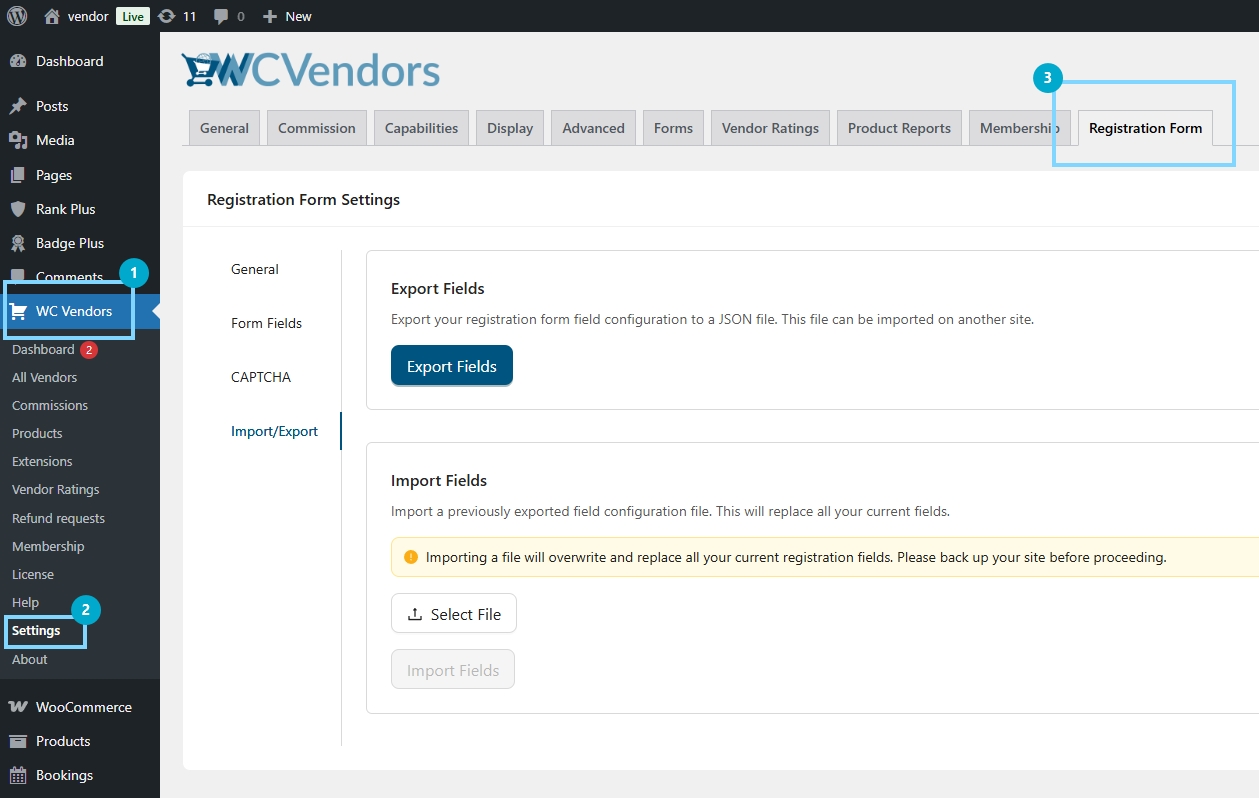
📝 You will also notice a warning message in the Import area. That warning is there for a reason. Importing will overwrite your existing setup. Because of that, you should treat the Import button like a “replace everything” action, not like a “merge” action.
How to export registration fields
- Go to your WordPress admin dashboard.
- Click WC Vendors, then click Settings.
- Open the Registration Form section.
- Review your current setup for WooCommerce registration fields. Check labels, field types, field order, and required fields.
- Click Export Fields.
- Download the configuration file to your computer.
- Save the file somewhere safe. Also, rename it using the site name and date if you want it to be easier to track later.
How to import registration fields
- Find the Import Fields area on the page.
- Upload the configuration file you exported earlier.
- Click the Import button.
- Read the confirmation warning carefully, then confirm the import.
- After the import finishes, review your registration form fields to confirm everything looks right.
After that, your registration field setup should match what’s in the file. This is the part that makes the feature so useful. You can also copy the same setup across multiple sites without rebuilding.
However, I always recommend doing a quick check after importing. Open the registration form preview if you have it. If not, open the registration page and walk through it as if you were a vendor signing up. Check the field order, required fields, labels, and placeholders so you can spot mistakes before real vendors run into them.
Best Practices Before You Import
Treat import like a full replacement
Import will overwrite your current setup, so I treat it like I am replacing the whole form. Because of that, I always pause first and make sure I am ready before I upload anything.
Confirm you are on the right site
If you manage staging and production, the tabs can look the same. So always check the site URL first, then move forward.
Back up before you import
I back up the site before importing, even if I’m confident about it. That way, I have a way to recover if I upload the wrong file or change my mind right after.
Label your export files clearly
If you have multiple sites, it is easy to mix files up. So I name the file with the site name and date, because it helps me avoid importing an older setup by mistake.
Review the form right after import
After importing, I open the registration page and go through it as if I were a vendor signing up. I check the field order, required fields, and labels, especially if the WooCommerce registration fields collect important vendor details.
Test on staging first when possible
I test the import on staging before I touch the live site. After that, once everything looks right, I import the same file on production with more confidence.
Other Related Features
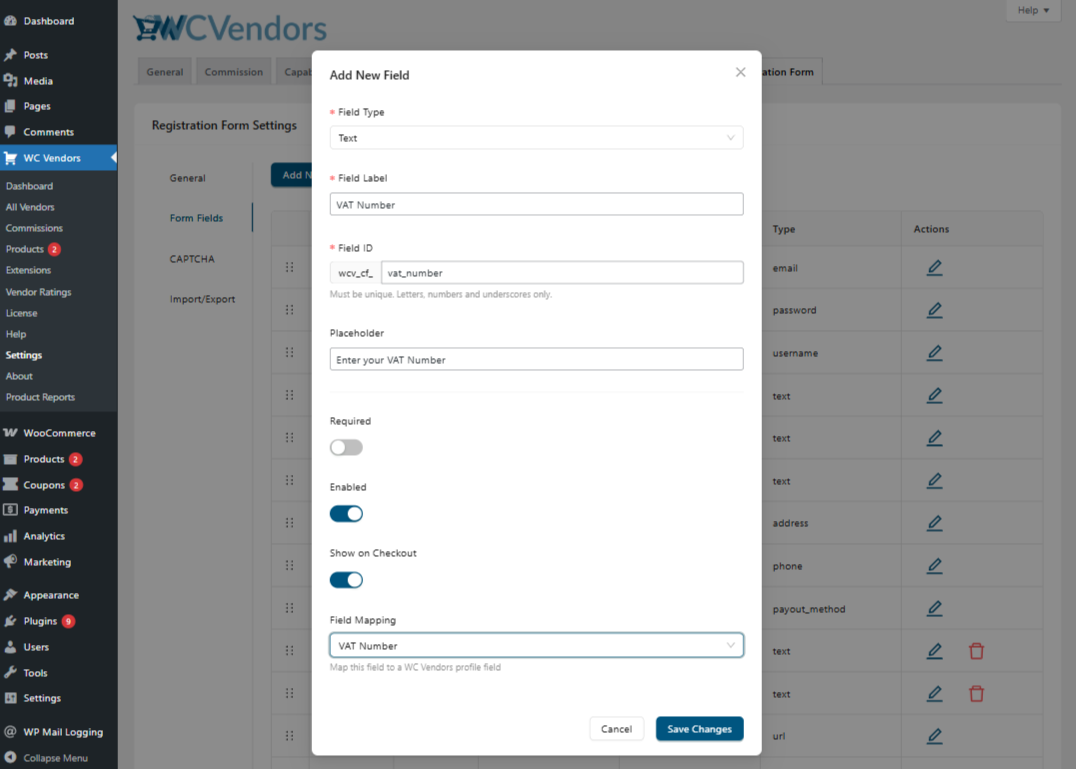
WC Vendors now supports a VAT number field that vendors and regular customers can fill out during registration. This helps store owners collect VAT details early and display the correct VAT information where it matters, such as on invoices and key customer-facing pages. If you sell to the EU market, this update makes it easier to stay consistent with VAT requirements without relying on manual follow-ups or custom workarounds.
Learn how to apply it in your marketplace: Click HERE.
Takeaways
This new Import and Export feature saves me from rebuilding WooCommerce registration fields every time I move from staging to production or set up a new site. Because it exports the full field configuration, I can keep my registration form consistent without relying on memory or a split screen. The import step is something I handle carefully, since it replaces the current fields rather than merging them. So if you manage multiple marketplaces or build sites for clients, this feature gives you a faster way to reuse the same form setup and avoid mistakes that happen during manual rebuilds.
To recall, here are the steps on how you can import and merge WooCommerce registration fields in WC Vendors:
Frequently Asked Questions
What file type does Export create?
Export creates a configuration file, which is usually a JSON file. That file contains the settings for your WooCommerce registration fields, like labels, field types, order, and required rules.
Will this move vendor user data?
No. The import and export feature is only for field configuration. It does not move vendor accounts, registration submissions, or any user data connected to those fields.
What happens if I import the wrong file?
Your current fields will be replaced by whatever is inside the file. If that happens, the quickest fix is to import the correct file right away. This is also why I like exporting my current setup before I do any import, so I always have something to restore.
Can I edit the exported file before importing it?
You can, especially if it is a JSON file. However, I only recommend this if you are comfortable working with that format. A small formatting mistake can cause the import to fail. If you are not sure, it is safer to edit the form inside the settings page instead.
Does this feature move other WC Vendors settings too?
No. This feature is scoped to the registration form field configuration only. It is meant to move the setup for WooCommerce registration fields, not your other plugin settings.