If you have ever tried to charge for shipping in a marketplace, you already know how limiting a single flat fee can feel. WC Vendors Pro now gives vendors a way to use a table rate shipping method with tiered rules. Instead of charging the same shipping cost regardless of order size, you can now set shipping rates based on quantity or weight.
In this article, I’m going to walk you through how to set up the feature, how rate priority works, and why this matters for marketplace owners and vendors. So if you want shipping rules that feel more practical for real orders, this feature is worth reading!
How To Set Up The Table Rate Shipping Method In WC Vendors
📝 Before you proceed with these steps, make sure your plugin is updated to the latest version.
Step 1: Go to the shipping settings
The first thing I would do is open the shipping area in WordPress. From there, go to WooCommerce> Settings> Shipping. After that, open the section for Vendor Shipping. This is where the new shipping option lives.
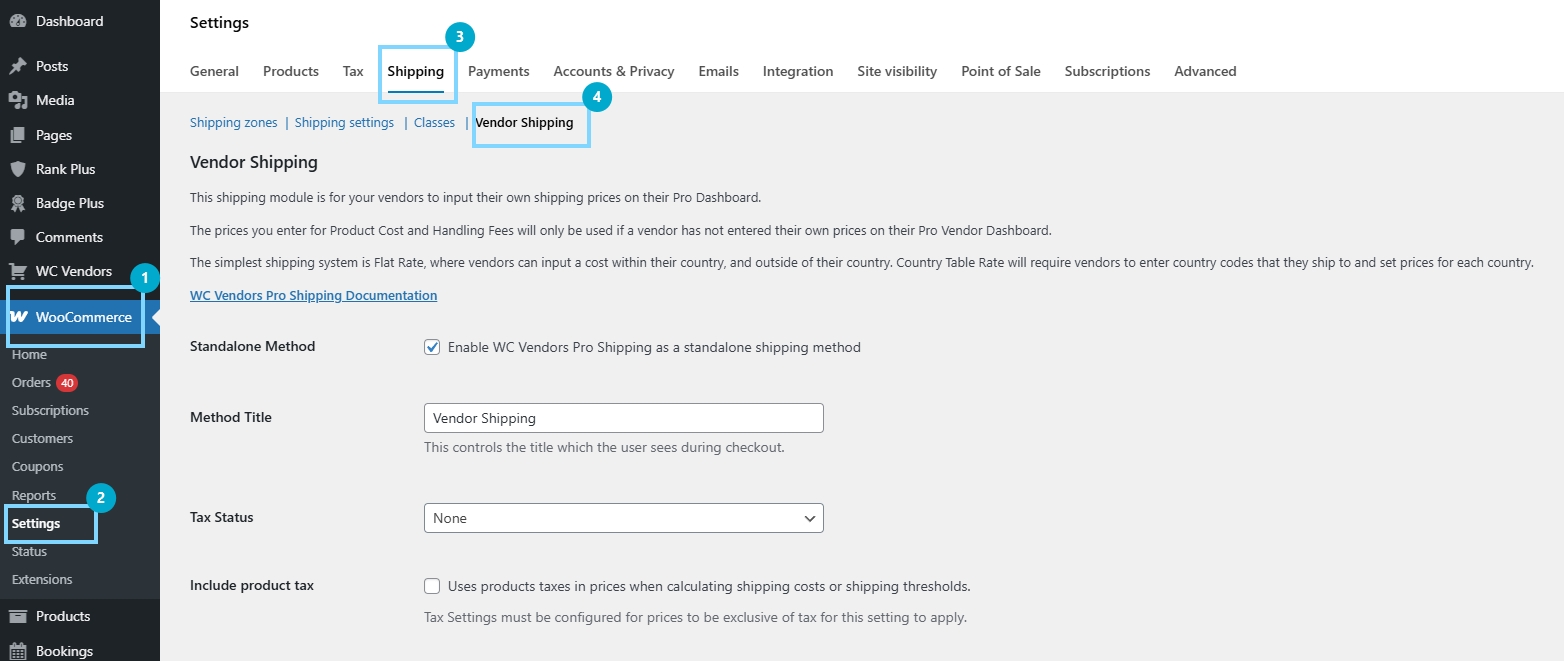
If you have used vendor shipping settings before, the screen will feel familiar. However, you will now see that the table rate shipping method sits alongside the other shipping options rather than feeling like a separate workaround.
Before making any changes, you should take a quick look at your current shipping setup. If a vendor is already using a flat rate or a country table rate, it helps to know what is currently active. That way, when you switch over, you can tell what changed and what needs attention.
Step 2: Choose Tiered Rate as the shipping type
Once you are in the right settings area, the next step is to choose Tiered Rate as the shipping type. This is the option that powers the new table rate shipping method feature.
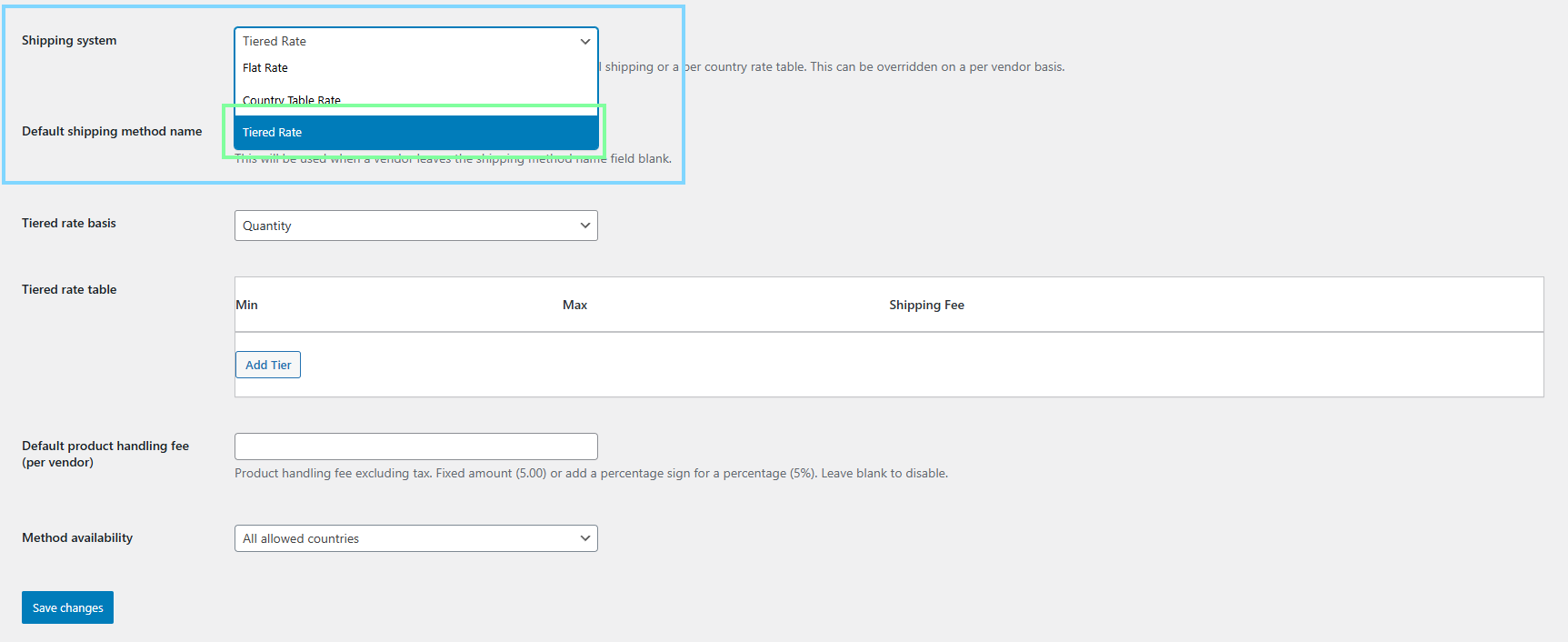
When you select it, the shipping screen should change to show the tiered rate controls. These let you build shipping ranges rather than giving you a single fixed amount.
This part is important because the shipping type controls the logic behind the vendor’s shipping charge. If the wrong shipping type is still selected, the tiered rules will not do the work. So you would always double-check that the Tiered Rate option is active before moving on.
Step 3: Set the tiered rate basis
After choosing Tiered Rate, the next decision is the basis for the shipping tiers. This means choosing what the system should measure when it decides which shipping charge to apply.

The feature gives two main choices:
- Quantity
- Weight
If you choose quantity, the shipping cost will change based on how many items are in the cart. So a cart with 2 items may use one rate, while a cart with 8 items may use another. This works well for stores where shipping costs rise as item count goes up.
If you choose weight, the shipping cost will change based on the order’s total weight. So a lighter cart may stay in one tier, while a heavier cart moves into another. This is useful when shipping costs are tied more closely to total load than to item count.
This is one of the best aspects of the table-rate shipping method. You are not locked into one rule for every kind of product. You can pick the basis that matches how the store actually ships orders.
Step 4: Add the shipping tiers
Now comes the part where you build the actual shipping table. This is where you create ranges and assign a shipping amount to each one.
For example, if you are using quantity, you might set rules like these:
- 1 to 5 items = one shipping price
- 6 to 10 items = a higher shipping price
- 11 and above = another price
If you are using weight, the logic is similar. You might set one price for lighter orders, then another for medium orders, and then a higher one for heavier carts.
The good thing here is that the table rate shipping method is meant to follow clear brackets. So instead of guessing what to charge for each order, you map out the rules in advance. Then the system checks the cart total against those ranges and picks the matching rate.
There is also an important detail to note about. The last tier serves as a catch-all for totals that exceed the earlier limits. That is useful because you do not want very large orders to fall outside your table with no clear rate. So when you build your last row, think of it as the safety net for bigger carts.
Step 5: Save and test the rates
Once the tiers are in place, save the shipping settings. After that, do not stop there. I always test shipping rules before I trust them on a live store.
The easiest way is to add products to the cart and see which shipping amount appears. If the basis is set to quantity, test a small cart first, then a larger one. If the basis is set to weight, test light and heavy combinations. This helps you confirm that the table rate shipping method is actually using the ranges you created.
I would also test edge cases. For example, if one tier ends at 5 items and the next starts at 6, I would test both numbers. That way, you can see whether the jump between tiers behaves the way you expect.
Once that is working, you have moved from a fixed shipping fee to a table rate shipping method that responds to real cart conditions, which is a much better fit for many marketplace stores.
Other Features You Should Know About
As part of our latest plugin update, another feature worth noting is the option to have the customer pay the commission as an additional fee rather than deducting that amount from the vendor’s earnings. This is useful if you want vendors to retain their full commission payout while the buyer sees the fee clearly at the cart and checkout. In WC Vendors Pro, this appears as a separate fee line, so the charge is more visible and easier to explain. You can also customize the fee label, which means you are not stuck with a generic name if you want something clearer for your store.
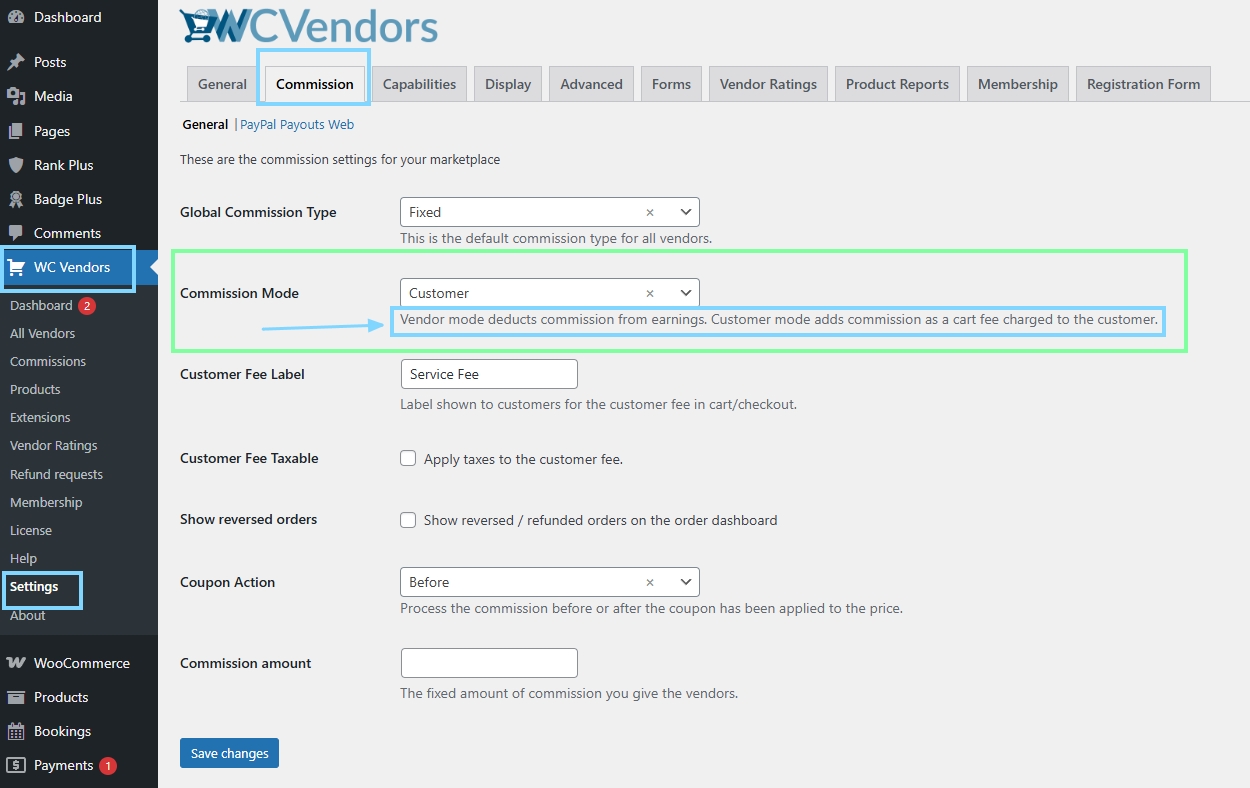
To turn it on, go to WC Vendors > Settings > Commission, then change Commission Mode to Customer and save your settings. After that, set your Buyer Fee Label if you want to rename the added charge, and enable Buyer Fee Taxable if the fee should be taxed in your setup. Once saved, add a vendor product to the cart and check the cart or checkout page to confirm the fee appears as its own line item. If needed, you can also control this at the vendor or product level, so you are not limited to one site-wide rule.
If you want to know more, here’s an in-depth discussion: Click Our Guide On Charging Commission As A Service Fee.
Takeaways
This feature gives vendors a smarter way to charge shipping when order size or weight changes. Instead of forcing every cart into one fixed amount, the table rate shipping method lets shipping costs follow clear tier rules.
- Go to the shipping settings
- Choose Tiered Rate as the shipping type
- Set the tiered rate basis
- Add the shipping tiers
- Save and test the rates
For me, that makes it a better fit for real marketplace orders, especially when vendors sell products with very different shipping needs. It also helps that WC Vendors Pro has a clear priority order, so product-level, vendor-level, and global rules do not feel random when they apply.
Frequently Asked Questions
What happens if a product does not have its own shipping table?
If a product does not have its own shipping rules, WC Vendors Pro checks the vendor-level shipping rules next. If those are also missing, the system falls back to the global shipping table.
Which rate is used first: product, vendor, or global?
The order is product-level first, vendor-level second, and global last. This helps the system use the most specific shipping rule before falling back to broader rules.
Is this better than flat rate for bulk orders?
In many cases, yes. Bulk orders often cost more to ship than small orders, so tiered shipping can match those changes more closely than one fixed amount.
Can I use this for both light and heavy products?
Yes. If quantity matters more, you can build tiers around item count. If shipping cost changes more with weight, you can use weight-based tiers instead.