
In a traditional marketplace model, the site owner takes a percentage of each sale by deducting it from the vendor’s earnings. However, many modern platforms, such as Vinted or Fiverr, prefer a different approach: charging a service fee directly to the customer at checkout.
WC Vendors Pro lets you shift the commission cost from your vendors to your customers. This means your vendors keep 100% of their listed price (minus any other fees), while the customer pays a transparent “Service Fee” or “Buyer Protection Fee” to support your platform.
By the end of this guide, you’ll know how to configure your marketplace to charge commissions as an added fee in the cart and checkout.
Prerequisites
- WC Vendors Pro must be installed and active.
- Standard WooCommerce tax settings should be configured if you plan to tax the service fee. See the WooCommerce Tax Documentation for setup help.
Setting up global commission fees
To begin charging customers a fee instead of deducting from vendors, you need to adjust your global settings.
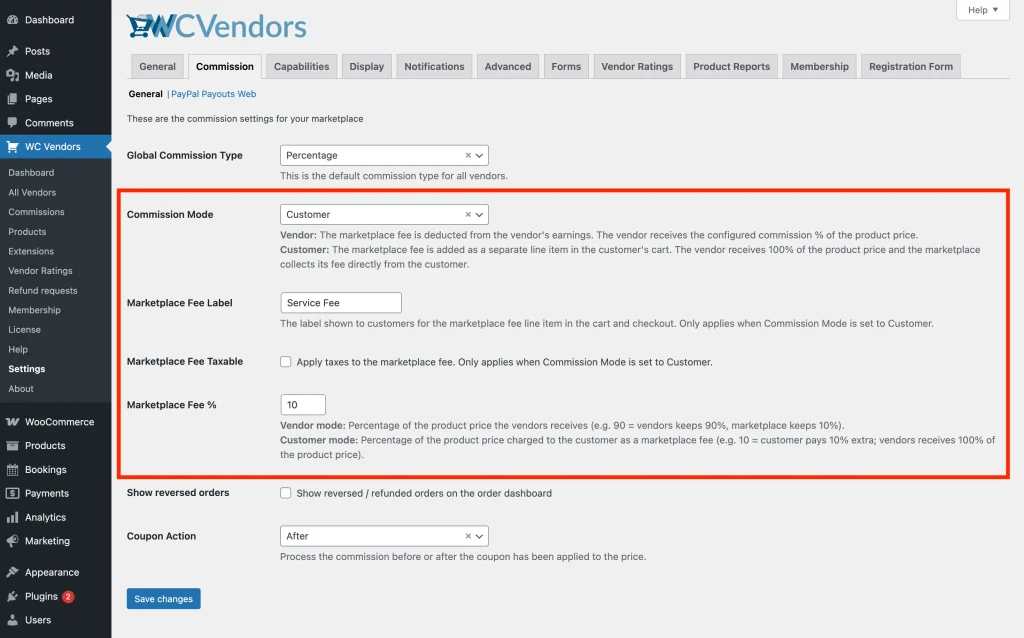
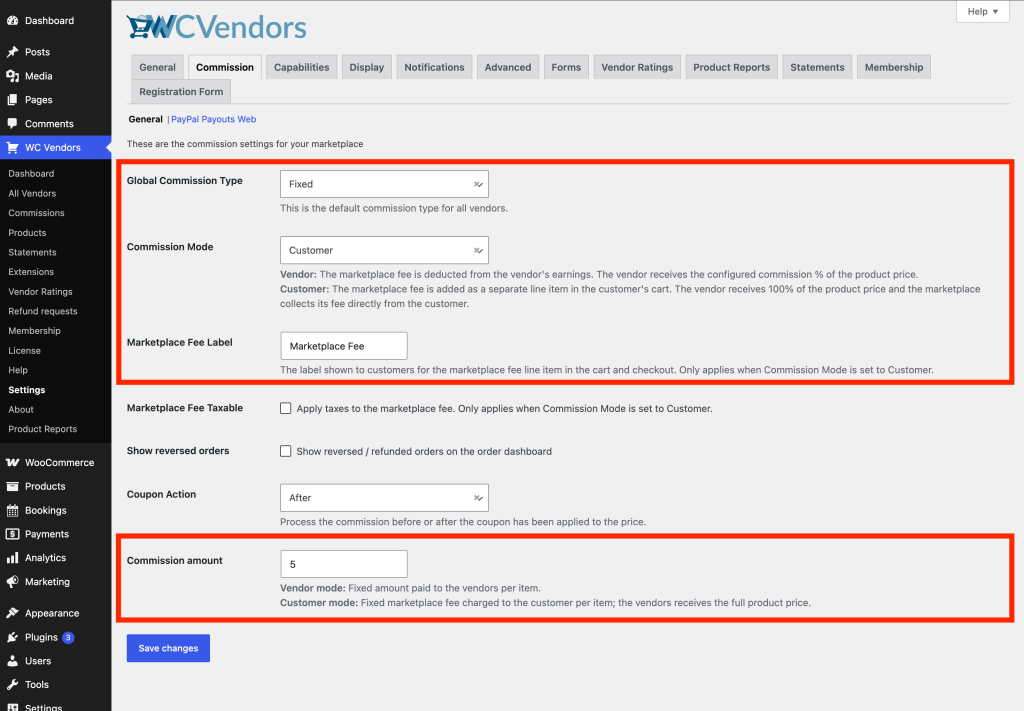
- Navigate to WC Vendors → Settings → Commission.
- Locate the Commission Mode dropdown.
- Select Customer. This ensures that, by default, all commissions in your marketplace are added as a fee to the customer’s total.
- Enter a Marketplace Fee Label. This is the text the customer will see in their cart (e.g., “Service Fee” or “Marketplace Fee”).
- Check the Marketplace Fee Taxable box if you need to apply sales tax to this fee.
- Enter your desired rate in the Marketplace Fee % field, or set a fixed amount in the Commission amount field.
- Click Save Changes.
💡 Tip:
Being transparent about fees builds trust. We recommend using a label like “Buyer Protection Fee” or “Service Fee” so customers understand what they are paying for.
Override commission mode for specific vendors
Sometimes you may want to offer “No Fee” shopping for your top-tier vendors while charging a fee for others. WC Vendors lets you override the global setting on a per-vendor basis.
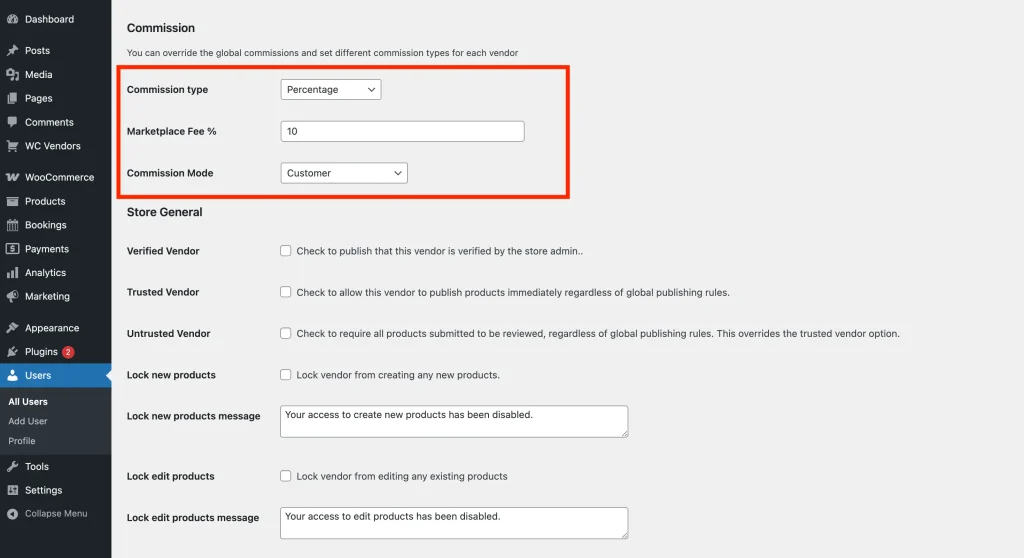
- Go to Users → All Users and select the Edit link for a specific vendor.
- Scroll down to the Commission section.
- Find the Commission Mode setting.
- Change it from “Use global setting” to either “Vendor” (deduct from earnings) or “Customer” (charge customer).
- Enter your desired rate in the Marketplace Fee % field, or set a fixed amount in the Marketplace fee amount field.
- Click Update User.
Override commission mode per product
You can also get granular and apply these rules to specific products. This is perfect for high-ticket items where you might want the customer to pay the fee to keep the vendor’s profit margin high.
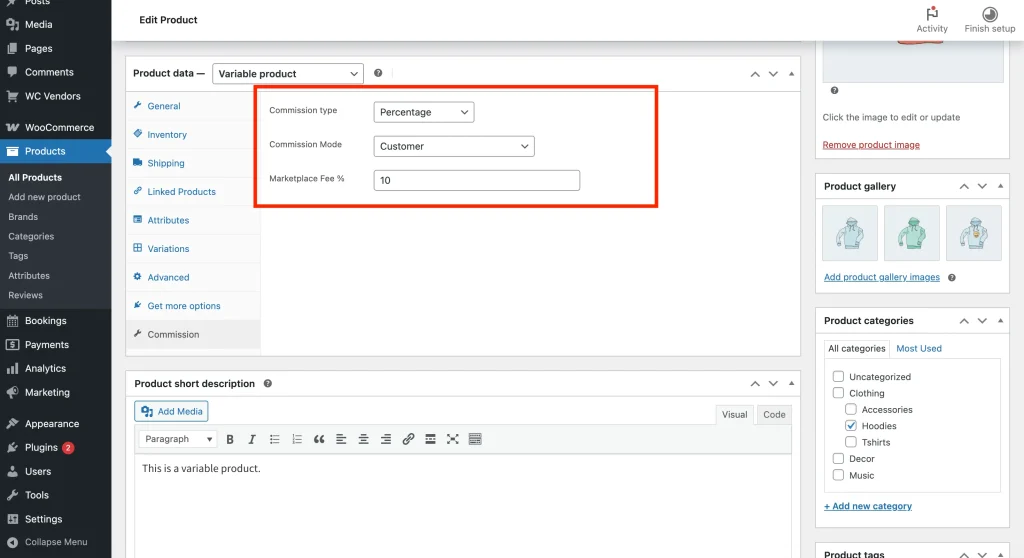
- Go to Products → All Products and edit a product.
- In the Product Data box, click the Commission tab.
- Locate Commission Mode and select your preference for this specific item.
- Enter your desired rate in the Marketplace Fee % field, or set a fixed amount in the Marketplace fee amount field.
- Click Update to save the product.
💡 Tip:
To learn more about how to set the actual percentage or flat rates, see our guide to Marketplace Commissions.
Verify the customer fee appears in the cart
Test the new flow to confirm the customer-paid fee appears correctly in the cart.
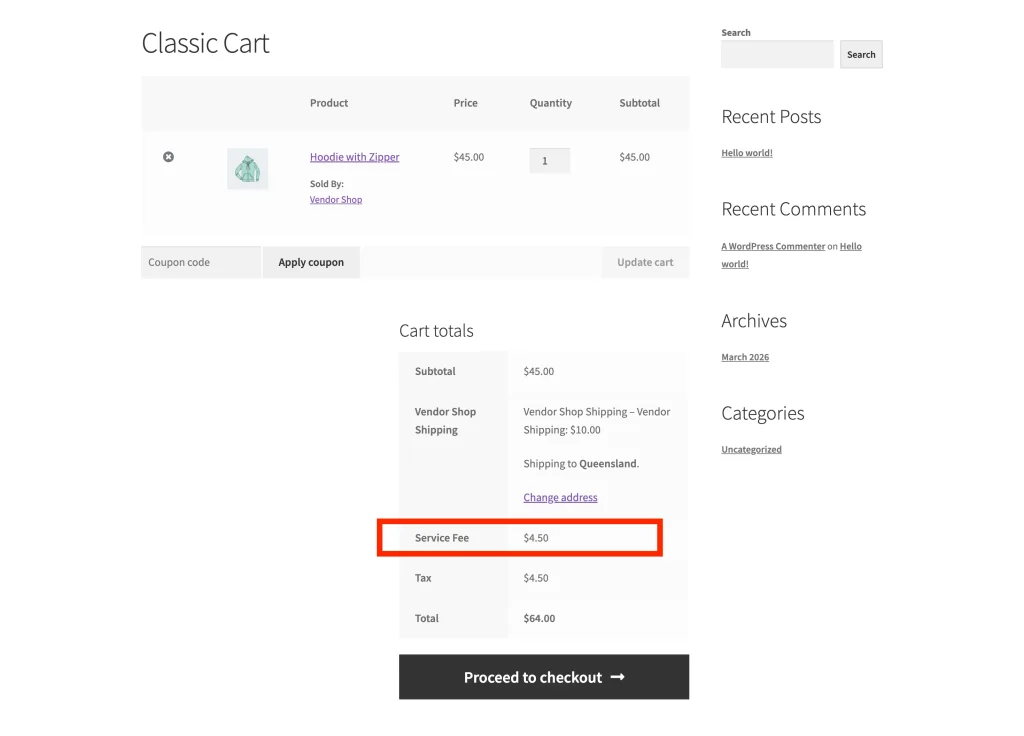
To ensure everything is working perfectly, we recommend completing these steps:
- Log out as the admin, then log in to a vendor account.
- Add a product with a 10% commission.
- Add that product to your cart as a customer and verify the marketplace fee line item appears correctly using the label you configured in your settings.
Troubleshooting common roadblocks
The fee isn’t showing up in the cart!
Ensure you have set a commission rate (percentage or flat) for the product or vendor. If the commission amount is $0, no fee line item will appear.
The fee amount looks wrong after a coupon is applied.
Check your settings in WC Vendors → Settings → Commission → Coupon Action.
- Before: The fee is calculated on the original price.
- After: The fee is calculated on the discounted price.
Taxes aren’t appearing on the Service Fee.
Ensure Marketplace Fee Taxable is enabled in settings and that you have valid Tax Rates set up in WooCommerce → Settings → Tax.
Frequently asked questions
Does the vendor still see the commission amount?
Yes, the system still calculates the commission. However, instead of subtracting it from the vendor’s total, it adds it to the customer’s total. The vendor receives their full requested price.
Can I have a mixed cart with some “Vendor” fees and some “Customer” fees?
Yes! WC Vendors calculates the fees only for items set to “Customer” mode and displays the total as a single line item in the cart.
Need help?
If you have a question or run into any issues, we’re here to help.
- Premium users: Open a support ticket
- Free users: Visit our community forum