
Don’t want vendors on your marketplace to find an order by typing in a customer’s email address? Turn off the Customer Email setting in WC Vendors. In WC Vendors 2.7.1 or later, this one setting hides the email from vendors and also stops the vendor dashboard’s Orders search from matching it. This article shows you where the setting is, what each customer setting removes from the search, and how to test it.
Before you begin
- WC Vendors 2.7.1 or later, with vendors who already have access to their Orders page in the vendor dashboard
- A vendor account you can log in with to test the search
What the customer settings control
The customer settings under WC Vendors → Settings → Capabilities → Orders control two things: which customer details vendors can see on their orders, and which details they can search by. When a setting is off, that detail is hidden and the Orders search no longer matches it.
Here’s what each setting removes from the search when you turn it off:
- Customer Email: the customer’s billing email address.
- Customer Name: the customer’s billing name, and the shipping name too.
- Customer Shipping Name: the shipping name. Vendors can only search the shipping name when both this setting and Customer Name are on.
- Customer Billing Address and Customer Shipping Address: the matching address fields, including the company name.
- Customer Phone: the billing and shipping phone numbers.
Because each setting works on its own, you can stop email matching and still let vendors search by customer name or address. Searches by product name or order ID keep working no matter which customer settings are off.
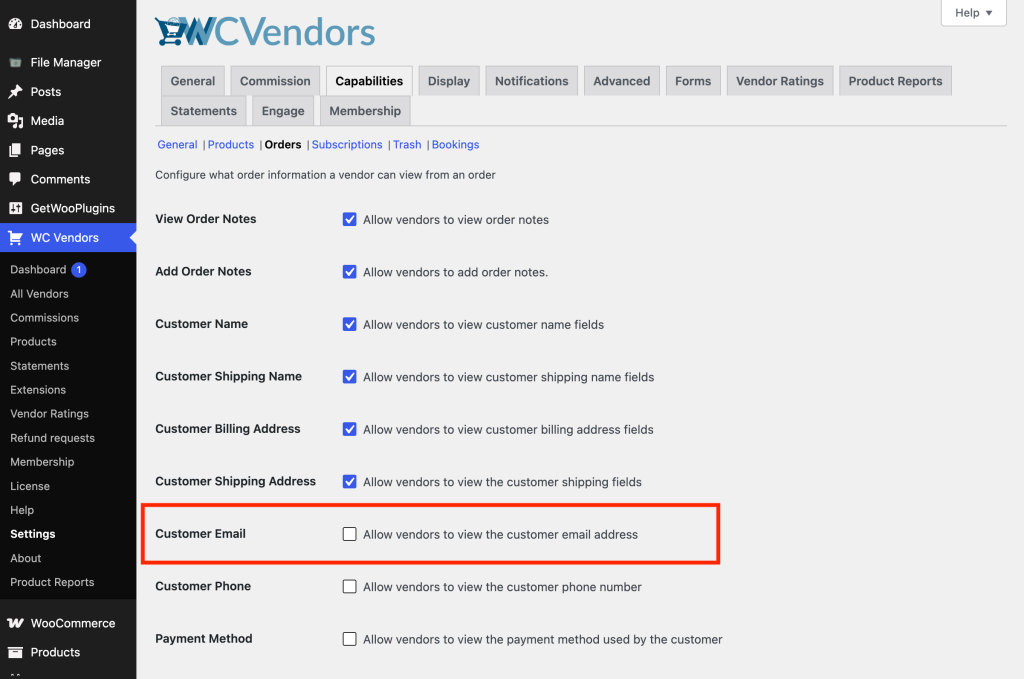
Turn off Customer Email
- Go to WC Vendors → Settings → Capabilities → Orders.
- Clear the Customer Email checkbox (“Allow vendors to view the customer email address”).
- Click Save changes.
Test the search as a vendor
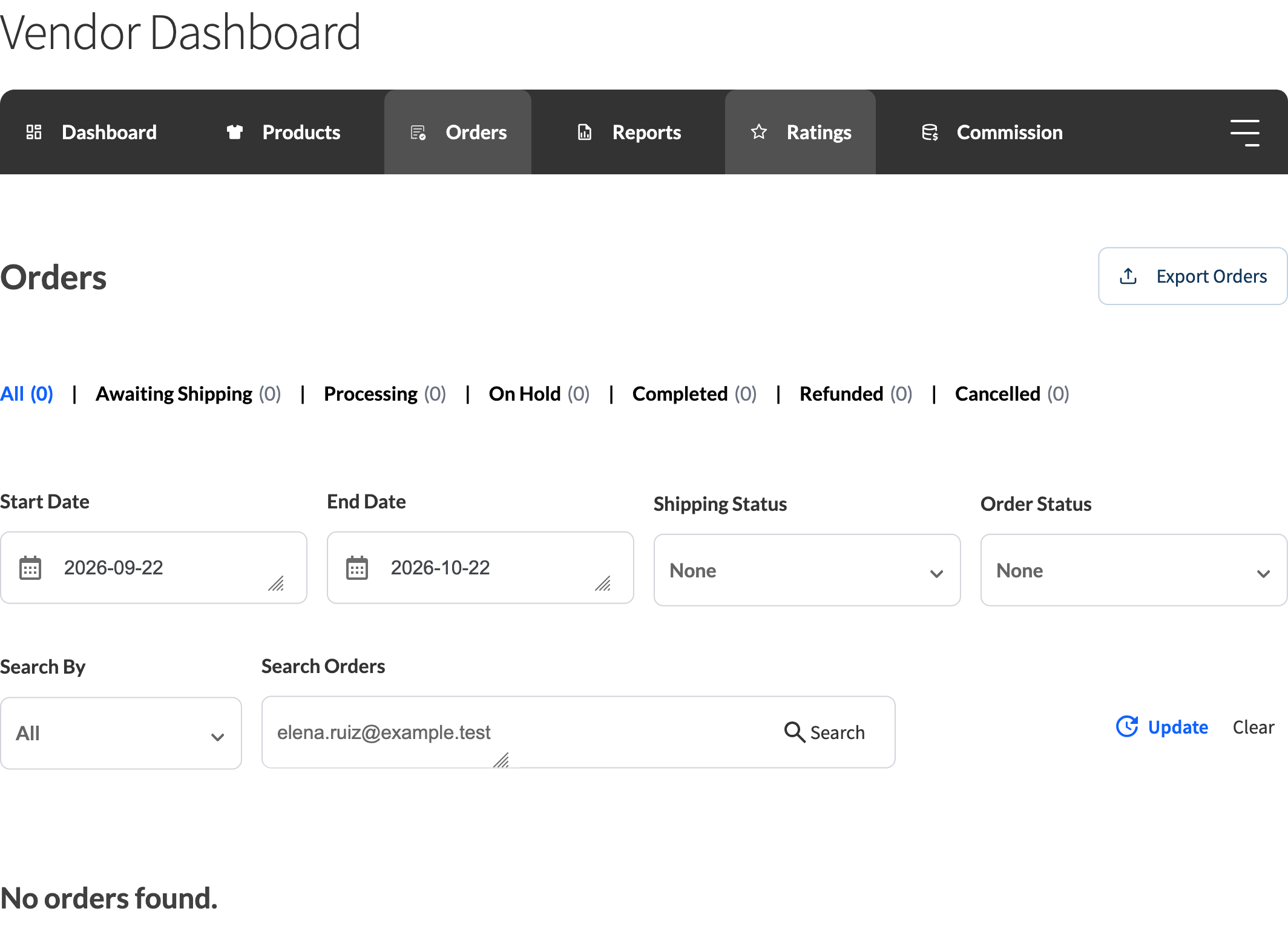
- Log in as a vendor and go to Vendor Dashboard → Orders.
- Set Search by to All or Customer.
- Search for the email address of a customer who ordered from this vendor. No orders should match.
- Search for a product name or an order ID. The matching orders still show.
Optional: change the search box placeholder
The search box placeholder still reads “Search by ID, customer, product, or customer email” after you turn off Customer Email. To change it, add this code to your child theme’s functions.php file, a site-specific plugin, or a new snippet in the WPCode Lite plugin:
add_filter( 'wcv_order_search_input', function( $args ) {
    $args['placeholder'] = __( 'Search by ID, customer, or product', 'wc-vendors' );
    return $args;
} );
Troubleshooting
A vendor can still find an order by searching a customer’s email. Update WC Vendors to 2.7.1 or later. Earlier versions matched the email in the search even when Customer Email was off. If you’re already on 2.7.1 or later, check that Customer Email is cleared and saved, then clear any page or object cache and reload the Orders page.
A vendor can still find an order by the customer’s name. Turning off Customer Email only removes the email from the search. To stop name matching too, turn off Customer Name. If the name still matches the shipping name, also turn off Customer Shipping Name.
Frequently asked questions
Does turning off “Customer Email” also stop vendors from searching by email?
Yes, in WC Vendors 2.7.1 or later. The setting hides the email from the vendor’s orders table and CSV exports, and the Orders search no longer matches it.
Can I remove only email from the search and keep customer name or address search working?
Yes. Turn off Customer Email and leave Customer Name and the address settings on. Each customer setting only removes its own detail from the search.
Does this affect the WooCommerce admin orders screen too?
No. These settings only change what vendors see and search on the vendor dashboard’s Orders page. WooCommerce‘s own admin order search is a separate feature and isn’t affected.
Need help?
- Premium users: Open a support ticket
- Free users: Visit our community forum