Running a multi-vendor store involves a lot of copying and pasting. Commission totals go into a spreadsheet, new vendor applications get forwarded to a team chat, and vendors ask for exports so they can update their own inventory or shipping tools. Each of those jobs is a person moving data by hand. WC Vendors 2.7.3 changes that. It adds a WooCommerce marketplace API that lets other apps read and update your marketplace safely: vendors, vendor orders, commissions, commission rates, and sales summaries. It also adds marketplace webhooks and a set of abilities that AI assistants can discover and run on your site.
In this article, we’ll explain what the new API includes, who can use it, and what you can build with it. Then we’ll walk through the setup step by step, from the first credential to your first webhook.
What Is The WooCommerce Marketplace API?
It’s a set of web addresses on your site that other software can call to read or change marketplace data. Developers call these addresses endpoints. Every one of them starts with /wp-json/wcvendors/v1, and they ship in the free WC Vendors plugin from version 2.7.3.
The release has three parts that work together.
REST endpoints for vendors, orders, and commissions
The endpoints cover the records a marketplace runs on. Apps can list and read vendors, update a vendor’s store profile and payout details, and approve, deny, activate, or deactivate vendors. They can also read commission records, read vendor orders, read and change commission rates, and pull a sales summary for any date range.
Webhooks for marketplace events
Webhooks work in the other direction. Instead of an app asking your site for news, your site tells the app the moment something happens. WC Vendors adds 11 marketplace events to WooCommerce webhooks, such as a new vendor application, a vendor approval, a new commission, and a new vendor order.
Abilities for AI agents
WC Vendors also registers 10 marketplace abilities with the WordPress Abilities API. An ability is a named action with a clear input and output that AI tools can find and run. Five abilities only read data, like a marketplace summary. The other five make changes, like approving a vendor or a pending product, so a well-built AI tool asks a person to confirm first.
This is what lets an assistant connected through the Model Context Protocol answer questions such as “Which vendors are waiting for approval?” using your live marketplace data.
Why A Multi-Vendor Store Needs Its Own API
WooCommerce already has a REST API for products, orders, and customers. It doesn’t know vendors exist, though. It can’t tell an app which vendor owns an order, how much commission is due, or whether a seller is still waiting for approval.
A WooCommerce marketplace API fills that gap. It speaks in marketplace terms, so an app asks for “commissions due to vendor 42” instead of piecing the answer together from raw order data.
It’s also built for a store with many sellers. A vendor’s credential only reaches that vendor’s own records. That means you can let vendors connect their own tools without exposing anyone else’s orders, customers, or earnings.
Who Can Use It And What Each User Can See
Every request signs in with a credential, and what comes back depends on who that credential belongs to.
- Store owner: Any user who can manage WooCommerce, such as an Administrator or a Shop Manager, sees all vendors, orders, commissions, and reports. Only the store owner can approve, deny, activate, or deactivate vendors and change commission rates.
- Active vendor: Sees only their own records. Asking for another vendor’s data returns an error.
- Pending or inactive vendor: Gets no access, even with a valid credential.
- Anyone else: Gets no access.
Private details stay private
Bank and payout fields only appear when an app reads or updates a single vendor. Vendor lists and webhook messages never include them, so one request can’t pull every seller’s bank details at once.
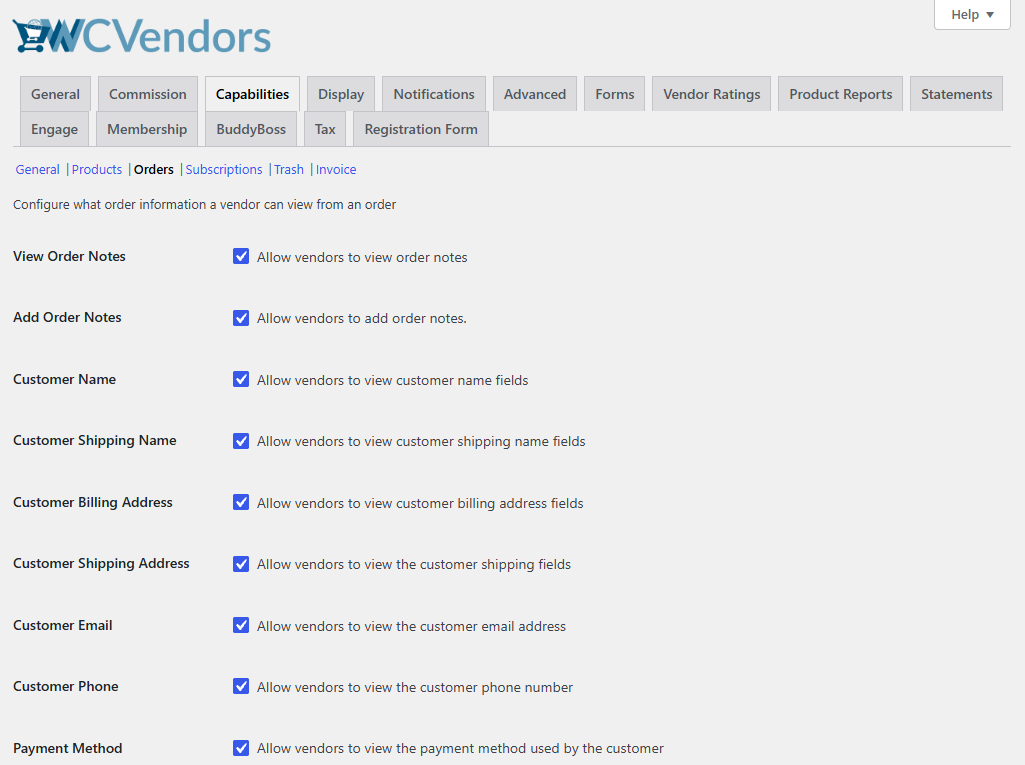
Customer details on vendor orders follow the settings you already use for the vendor dashboard. You’ll find them under WC Vendors > Settings > Capabilities > Orders, as explained in our capabilities settings guide. If you hide a customer’s email or phone number from vendors there, the API hides it too, even when the store owner calls it.
Built-in rate limits
Each user can make 100 requests per minute to each endpoint. Going over the limit returns a “too many requests” error until the minute ends. Rate limits are switched off on sites set to a local or development environment, so you won’t see them on most test sites.
What You Can Build With It
Here are a few ideas that use only what ships in WC Vendors 2.7.3.
- Commission reports for your bookkeeper: Pull every commission with the status “due” for one vendor before payout day. If you’re still setting up your rates, our guide on how to charge vendors commission covers the options.
- Instant application alerts: Send the “Vendor application submitted” webhook to your team chat or CRM. Your team can review the applicant and approve them through the API, using the same vendor approval process as the admin screen.
- Vendor-owned integrations: A vendor creates their own credentials and connects an inventory tool or shipping app. That app sees the vendor’s orders, and nobody else’s.
- Weekly marketplace reports: Request a sales summary for last week and get total orders, gross revenue, commission owed, marketplace earnings, and your top 10 vendors in one response.
- An AI assistant for marketplace admin: Ask an assistant for last month’s summary or the list of products waiting for approval. Our sister brand StoreAgent shows how to connect Claude and ChatGPT to your store.
Before this release, each of these meant a custom plugin or a manual export. With the WooCommerce marketplace API, they’re a handful of requests that any automation tool or developer can set up.
How To Set Up The WooCommerce Marketplace API
There’s no setting to switch on. Once WC Vendors 2.7.3 is active, the endpoints are live, and every request needs a credential. Follow these steps to connect your first app.
Step 1: Update WC Vendors and check Application Passwords
- Update WC Vendors to version 2.7.3 or later. If WordPress shows a “WC Vendors Update Required” notice afterward, click Run the update.
- Go to Users > Profile in your WordPress admin and scroll to Application Passwords.
- If you see a form to add a new password, you’re ready. If the section says it needs HTTPS, turn on HTTPS for your site first.
- If the section is missing, a security plugin or your host has turned Application Passwords off. You can turn them back on, or use a WooCommerce REST API key instead.
Step 2: Create a credential for the store owner
The API accepts two kinds of credentials, and both sign in over HTTPS.
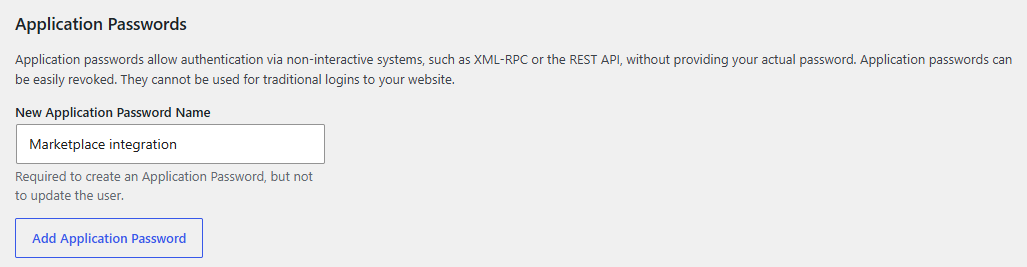
- Application Password: In Users > Profile > Application Passwords, enter a name for the app, create the password, and copy it right away. WordPress shows it only once. The official Application Passwords guide explains how they work.
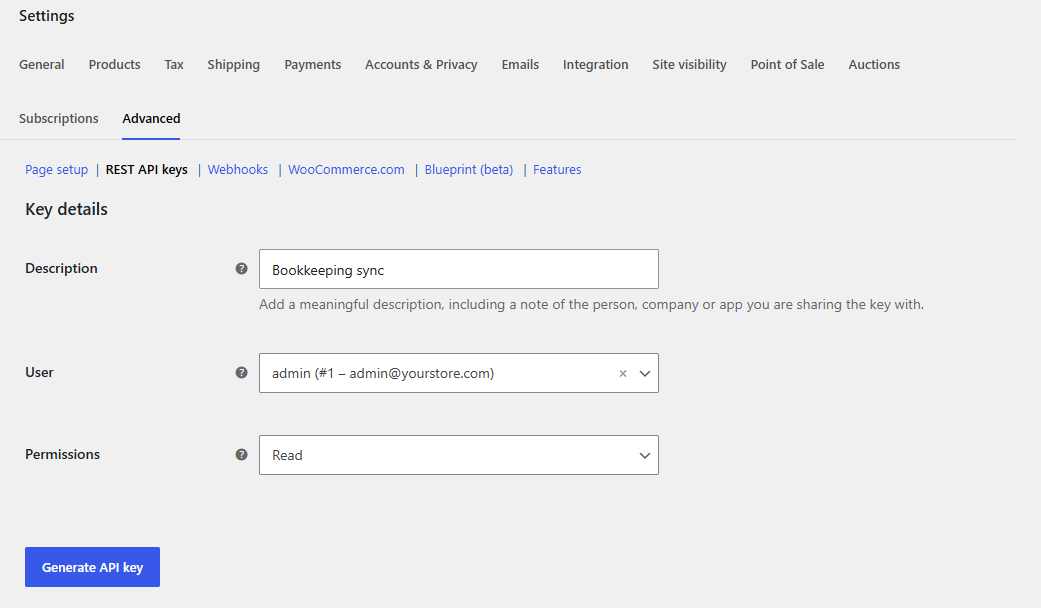
- WooCommerce REST API key: Go to WooCommerce > Settings > Advanced > REST API and add a key for your user. A Read key can only read data. Choose Read/Write if the app needs to change anything.
If you plan to use the AI abilities, create an Application Password. WooCommerce REST API keys don’t work for abilities.
Step 3: Let vendors create their own credentials
Vendors don’t need you to create credentials for them. They can do it from their own dashboard.
- The vendor opens their vendor dashboard and goes to Settings, then the API tab.
- They click Generate API credential.
- The new credential appears once with a Copy button and the warning “Save this now. For security, it will not be shown again.”
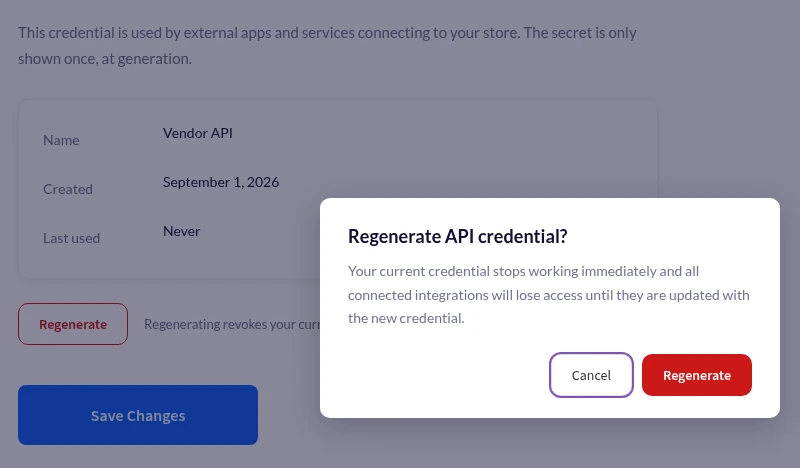
- After that, the tab shows the credential’s name, the date it was created, when it was last used, and a Regenerate button.
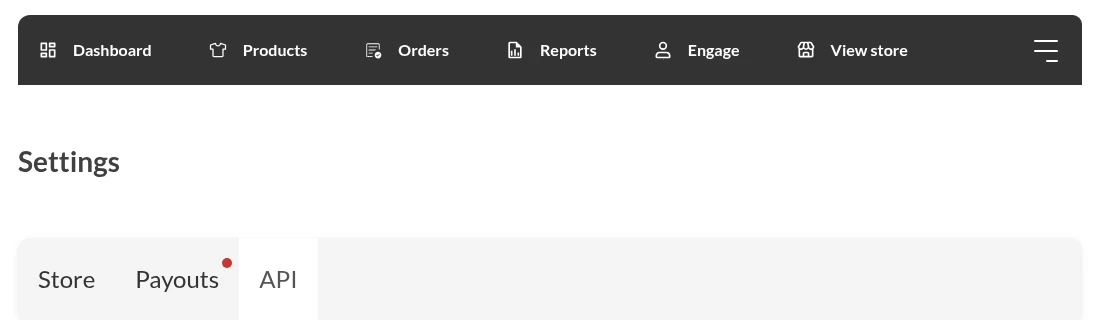
Each vendor can hold one credential at a time. Regenerating it asks for confirmation, then switches off the old one immediately, so any app using it must be updated. The API tab only appears when Application Passwords are available on your site.
Step 4: Make your first request
Sign in with the WordPress username and the Application Password. This request lists the first five vendors:
curl -u "USERNAME:APPLICATION_PASSWORD" \
  "https://your-site.com/wp-json/wcvendors/v1/vendors?per_page=5"
The response is a list of vendors in JSON format. Two response headers, X-WP-Total and X-WP-TotalPages, tell you how many records and pages exist, and you can request up to 100 records per page.
Here’s a request a vendor’s app might make to see commissions that haven’t been paid yet:
curl -u "VENDOR_USERNAME:APPLICATION_PASSWORD" \
  "https://your-site.com/wp-json/wcvendors/v1/commissions?status=due"
Step 5: Add a marketplace webhook
- Go to WooCommerce > Settings > Advanced > Webhooks and click Add webhook.
- Enter a name and the delivery URL where your app should receive the message.
- Open the Topic dropdown and pick a marketplace topic, for example, Vendor approved or Commission created.
- Set Status to Active and save.
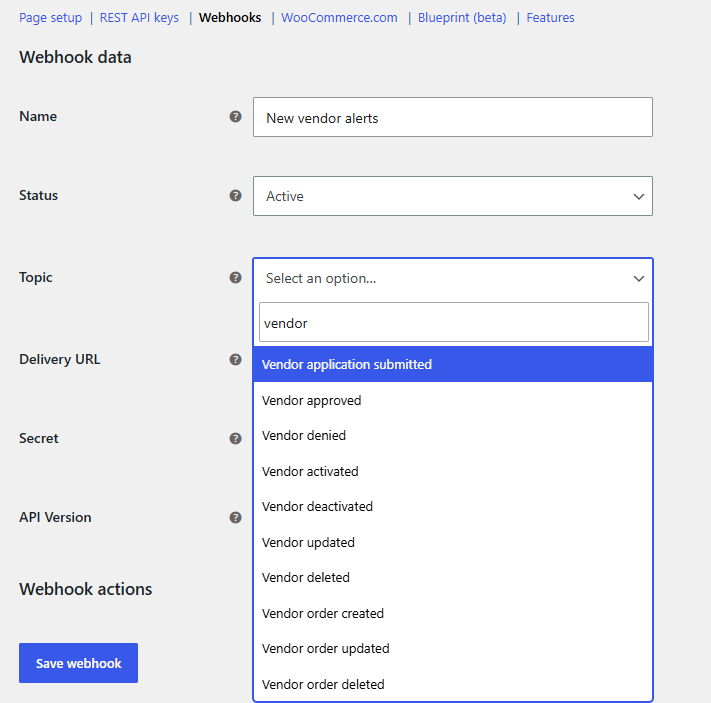
WooCommerce handles delivery, signing, and delivery logs. Its webhook documentation explains how to check that a message really came from your store.
Step 6: Connect an AI agent with abilities
Abilities need WordPress 6.9 or later and a store owner’s Application Password. To see what’s available, request the list of abilities in the wcvendors category:
curl -u "OWNER_USERNAME:APPLICATION_PASSWORD" \
  "https://your-site.com/wp-json/wp-abilities/v1/abilities?category=wcvendors"
Most people won’t call this by hand. An MCP-compatible AI tool reads the same list and decides which ability to run. For a worked example from our sister brands, see how Advanced Coupons lets you manage coupons with the WordPress Abilities API, or how Wholesale Suite runs wholesale tasks from Claude or ChatGPT.
Run your marketplace from Claude or ChatGPT with StoreAgent
Want an AI assistant to use these abilities without setting up an MCP server yourself? StoreAgent, our sister plugin, gives your store its own MCP connection for Claude and ChatGPT. You approve the connection with a sign-in, so there’s no API key to copy, and you choose read-only or read-and-write access.
Abilities from your other plugins appear in StoreAgent’s ability list grouped by plugin, and each one stays off until you switch it on. StoreAgent also includes a WC Vendors Product Moderator that screens pending vendor products with AI before you approve them. MCP works on every StoreAgent plan, including the free one.
Want to connect an AI assistant? Our step-by-step guide, How to use AI abilities in WC Vendors, shows you how to connect Claude or ChatGPT to your marketplace through StoreAgent. It also explains what each of the 10 abilities can do, who can run them, and how to fix common setup problems.
Every Endpoint, Webhook, And Ability At A Glance
Endpoints
All routes start with /wp-json/wcvendors/v1.
| Method | Route | What it does | Who can use it |
|---|---|---|---|
| GET | /vendors | List vendors | Store owner, vendor (own record) |
| GET, PUT | /vendors/{id} | Read or update a vendor’s store profile and payout details | Store owner, vendor (own record) |
| POST | /vendors/{id}/approve, /deny | Decide on a pending application | Store owner |
| POST | /vendors/{id}/activate, /deactivate | Suspend or restore a vendor | Store owner |
| GET, PUT | /vendors/{id}/commission | Read or set a vendor’s own commission rate | Store owner (vendors can read their own) |
| GET, PUT | /settings/commission | Read or change the global commission rate | Store owner |
| GET | /commissions, /commissions/{id} | Read commission records | Store owner, vendor (own records) |
| GET | /orders, /orders/{id} | Read vendor orders | Store owner, vendor (own orders) |
| GET | /reports/sales | Sales summary for a date range | Store owner, vendor (own sales) |
Webhook topics
- Vendors: Vendor application submitted, Vendor approved, Vendor denied, Vendor activated, Vendor deactivated, Vendor updated, and Vendor deleted.
- Commissions: Commission created.
- Vendor orders: Vendor order created, Vendor order updated, and Vendor order deleted.
Abilities
- Read: list vendors, get a vendor, list pending products, get commission settings, and get a marketplace summary.
- Write: approve a vendor, reject a vendor, update a vendor’s store profile, approve a product, and reject a product.
No ability moves money, changes a commission rate, changes where a vendor gets paid, or deletes a record. The write abilities send the same emails as the matching buttons in your WordPress admin, and a rejected product goes back to the vendor as a draft with your reason attached.
Best Practices For A Safe Marketplace Integration
Treat the WooCommerce marketplace API like any other door into your store. These habits keep it secure and reliable.
- Give each app the least access it needs. If an app only reads reports, give it a Read key rather than a Read/Write key.
- Plan for vendor credential changes. A vendor holds one credential, and regenerating it cuts off every app that used the old one straight away.
- Check customer settings before you connect a shipping or accounting tool. If the customer details come back empty, review Capabilities > Orders and click Save.
- Keep your own copy of anything you might need later. The “Vendor deleted” and “Vendor order deleted” webhooks send only the ID, because the record no longer exists.
- Watch webhook health. WooCommerce doesn’t resend a failed delivery, and it switches a webhook off after more than five failed deliveries.
- Know which commission types need Pro. Without WC Vendors Pro, the API accepts only percentage commission. New rates apply to new commissions, and existing records don’t change.
- Switch off what you don’t use. Adding
define( 'WCV_DISABLE_ABILITIES', true );towp-config.phpremoves the abilities, anddefine( 'WCV_DISABLE_REST_API', true );removes the whole API.
For a broader checklist, read our guide to WooCommerce marketplace security.
Conclusion
WC Vendors 2.7.3 gives your store something it never had before: a public, documented way for other software to work with vendors, orders, and commissions. The WooCommerce marketplace API takes over the daily jobs that used to mean exports and copy and paste, from reconciling commissions to approving new sellers.
It was built with a multi-vendor store’s risks in mind. Vendors only ever see their own data, payout details stay out of lists and webhooks, and customer information follows the same rules as your vendor dashboard. Webhooks keep your other tools up to date without polling, and abilities let an AI assistant handle routine admin while you stay in control of every change.
Start small. Create one credential, connect one webhook, and see how much manual work disappears. Then build from there as your marketplace grows.
Here is what we covered in this article:
- What is the WooCommerce marketplace API
- Why a multi-vendor store needs its own API
- Who can use it and what each user can see
- What you can build with it
- How to set up the WooCommerce marketplace API
- Every endpoint, webhook, and ability at a glance
- Best practices for a safe marketplace integration
Frequently Asked Questions
Do I need WC Vendors Pro to use the WooCommerce marketplace API?
No. The API, the webhooks, and the abilities are all part of the free WC Vendors plugin from version 2.7.3. Two things depend on Pro: commission types other than percentage, and the pending products list, which is usually empty unless Pro is set to review new products before they go live.
Can a vendor see another vendor’s orders or commissions?
No. A vendor’s credential only returns that vendor’s own records. If a vendor’s app asks for another vendor’s order or commission, the API responds as if the record doesn’t exist.
What happens to the older wcv-api/v1 routes?
They stay in place and keep working, but they’re frozen and won’t get new features. New integrations should use the wcvendors/v1 routes described in this article.
Which WordPress version do I need for the AI abilities?
The abilities need WordPress 6.9 or later, because that’s where the Abilities API was added. The REST endpoints and webhooks work on older supported versions too.
Can I turn the API off?
Yes. Add define( ‘WCV_DISABLE_REST_API’, true ); to your wp-config.php file to remove every route, webhook topic, and ability. To remove only the abilities, use define( ‘WCV_DISABLE_ABILITIES’, true ); instead.