
As a marketplace owner, you decide what your vendors can see and do. The Capabilities settings control this for products, orders, deletions and invoices. This guide explains each setting, so you know what turning it on or off changes.
To open these settings, go to WC Vendors > Settings > Capabilities.
The settings are split into sub-tabs. WC Vendors has three: General, Products and Orders. WC Vendors Pro adds two more: Trash and Invoice. WC Vendors Pro also adds extra settings to the General, Products and Orders sub-tabs. These are marked “(WC Vendors Pro)” below.
General tab
The General sub-tab holds the main permissions for vendor products and orders.
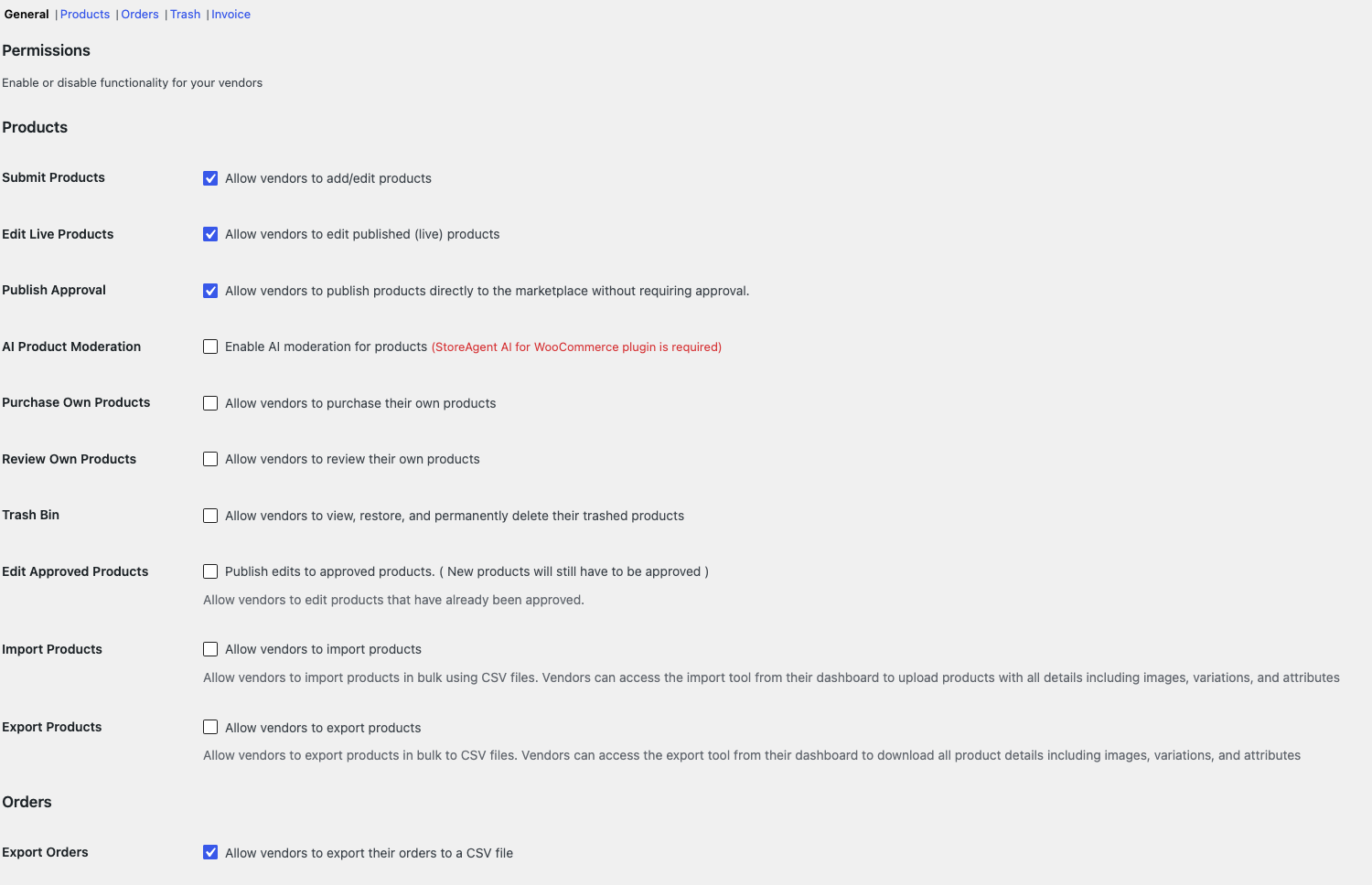 Products
| Setting | What it does | Default |
|---|---|---|
| Submit Products | Lets vendors add and edit products. | On |
| Edit Live Products | Lets vendors edit products that are already published. | On |
| Publish Approval | Lets vendors publish new products without your approval. Turn it off if you want to review new products first. | On |
| AI Product Moderation | Checks new vendor products with AI before they go live. Needs StoreAgent AI for WooCommerce, installed and connected. Turning it on also turns off Publish Approval. See StoreAgent Integration: Product Moderation with AI. | Off |
| Purchase Own Products | Lets vendors buy their own products. | Off |
| Review Own Products | Lets vendors review their own products. | Off |
| Trash Bin | Lets vendors view, restore and permanently delete their trashed products. See How to enable and use the vendor product trash bin. | Off |
| Edit Approved Products (WC Vendors Pro) | Publishes vendor edits to approved products without a new review. New products still need approval. | Off |
| Import Products (WC Vendors Pro) | Lets vendors import products in bulk from a CSV file. | Off |
| Export Products (WC Vendors Pro) | Lets vendors export their products to a CSV file. | Off |
Orders
| Setting | What it does | Default |
|---|---|---|
| Export Orders | Lets vendors export their orders to a CSV file. | On |
Pro features (WC Vendors Pro)
With WC Vendors Pro, the General sub-tab also has a Pro Features section. Most options here switch a feature off. Tick a box to remove that feature from the vendor dashboard or the store.
| Setting | What it does | Default |
|---|---|---|
| Product management | Removes product management from the vendor dashboard. | Off |
| Order management | Removes order management from the vendor dashboard. | Off |
| Coupon management | Removes coupon management from the vendor dashboard. | Off |
| Settings management | Removes store settings management from the vendor dashboard. | Off |
| Commission management | Removes commission management from the vendor dashboard. | Off |
| Ratings | Turns off the ratings system on your store. | Off |
| Vendor shipping | Turns off the vendor shipping system on your store. | Off |
| View store | Removes the view store button from the vendor dashboard navigation. | Off |
| Export Commission | Lets vendors export their commission to a CSV file. | On |
Products tab
The Products sub-tab controls which product options vendors see when they add or edit a product.
Add / edit product
| Setting | What it does | Default |
|---|---|---|
| Product Types | Hides the product types you select from vendors. | None hidden |
| Product Type Options | Hides the Virtual or Downloadable options from vendors. | None hidden |
| Product Data Tabs | Hides the product data tabs you select, for example Inventory, Shipping or Attributes. | None hidden |
| Featured Product | Lets vendors mark their products as featured. | Off |
| Delete product (WC Vendors Pro) | Removes the delete button from the vendor product table. | Off |
| Duplicate Product | Lets vendors duplicate their products. | Off |
| SKU | Hides the SKU field from vendors. | Off |
| Taxes | Hides the tax fields from vendors. | Off |
| Minimum Order Quantity (WC Vendors Pro) | Lets vendors and admins set the minimum number of units a customer must order for each product. See How to set minimum order quantity for vendors. | Off |
| Create New Tags | Lets vendors create new product tags. | On |
Product visibility
| Setting | What it does | Default |
|---|---|---|
| When a Vendor Is Set to Pending | Sets what happens to a vendor’s published products when you move their account to Pending. Choose Leave products as is, Set products to Draft or Set products to Pending Review. | Leave products as is |
Orders tab
The Orders sub-tab controls which order details vendors can see.
Order information
| Setting | What it does | Default |
|---|---|---|
| View Order Notes | Lets vendors view order notes. | On |
| Add Order Notes | Lets vendors add order notes. | On |
| Customer Name | Lets vendors see the customer name. | On |
| Customer Shipping Name | Lets vendors see the customer shipping name. | On |
| Customer Billing Address | Lets vendors see the customer billing address. | On |
| Customer Shipping Address | Lets vendors see the customer shipping address. | On |
| Customer Email | Lets vendors see the customer email address. | On |
| Customer Phone | Lets vendors see the customer phone number. | On |
| Payment Method | Lets vendors see which payment method the customer used, on the order details screen. | Off |
Payment Method is the only option in this section that is off by default.
Order table (WC Vendors Pro)
These settings change the orders table in the vendor dashboard.
| Setting | What it does | Default |
|---|---|---|
| Customer address | Sets which customer address shows in the orders table: Shipping address or Billing address. | Shipping address |
| Vendor orders | Shows the billing address when the customer shipping address is empty. | Off |
| Orders table actions | Four checkboxes. Each one hides a button from the orders table: View order details, Shipping label, Tracking number and Mark shipped. | All buttons show |
| Order status | Sets which order statuses show in the orders table. Select at least one. | Processing, Completed, On hold, Cancelled |
Order administration (WC Vendors Pro)
| Setting | What it does | Default |
|---|---|---|
| Order | Marks all items as shipped when the order is completed. | Off |
| Order Status Update | Completes the order automatically when all vendors mark it as shipped. | Off |
| Order Completion Delay | Sets how many days to wait after all vendors mark the order as shipped, before it completes. Enter 0 to complete it at once. This field shows only when Order Status Update is on. | 0 |
Trash tab (WC Vendors Pro)
The Trash sub-tab sets what happens when a vendor deletes a product or coupon.
| Setting | What it does | Default |
|---|---|---|
| Product Delete | Deletes vendor products permanently, instead of moving them to the trash. | Off |
| Coupon Delete | Deletes vendor coupons permanently, instead of moving them to the trash. | Off |
Invoice tab (WC Vendors Pro)
The Invoice sub-tab lets vendors send PDF invoices to customers, and sets what those invoices show. For setup steps and examples, see How to send separate PDF invoices for each vendor.
Invoices
| Setting | What it does | Default |
|---|---|---|
| PDF Invoices | Adds a Send Invoice button to the vendor’s order list, so vendors can send PDF invoices to customers. | Off |
| Marketplace Branded Invoices | Shows your marketplace details in the PDF invoice header instead of the vendor’s details. The invoice email still shows the vendor’s details. | Off |
| Invoice Logo | The logo for marketplace branded invoices. If you leave it empty, the site logo is used. | Empty |
| Invoice Phone | An optional phone number for the header of marketplace branded invoices. | Empty |
| Invoice Email | An optional email address for marketplace branded invoices. If you leave it empty, the site admin email is used. | Empty |
Invoice fields
These checkboxes choose which contact and branding fields show on invoices. All of them are on by default. Untick a field to hide it.
| Setting | What it does | Default |
|---|---|---|
| Invoice Vendor Logo | Shows the logo in the PDF invoice header. | On |
| Invoice Shop Name | Shows the shop name in the invoice email and the PDF header. The email subject and heading still show the shop name. | On |
| Invoice Store Address | Shows the store address in the invoice email and PDF. | On |
| Invoice Phone Number | Shows the phone number in the invoice email and PDF. | On |
| Invoice Email Address | Shows the email address in the invoice email and PDF. | On |
Saving your changes
Each sub-tab saves on its own. Click Save changes before you move to another sub-tab.
Frequently asked questions
Why don’t my vendors see the Send Invoice button?
The button shows only when PDF Invoices is on. Go to WC Vendors > Settings > Capabilities > Invoice, tick PDF Invoices and click Save changes.
Why can’t I see the Order Completion Delay field?
Tick Order Status Update on the Orders sub-tab. The Order Completion Delay field then shows below it.
Need help?
If you have a question or run into any issues, we’re here to help.
- Premium users: Open a support ticket
- Free users: Visit our community forum