
When vendors sell items where buying one at a time doesn’t really make sense — say, screws, sample sachets, or any small thing where the shipping costs more than the product — you can set a Minimum Order Quantity (MOQ) so customers have to add at least a fixed number of units to cart.
This article shows you how to enable the feature for your marketplace, how vendors set the limit per product, and how customers see it on the storefront.
Prerequisites
- WC Vendors Pro must be installed and active—this feature is built-in, so no third-party plugins are required.
- WooCommerce must be installed and configured.
Step 1: Enable the MOQ feature globally
Before your vendors can set their limits, you must activate the feature within your marketplace settings.
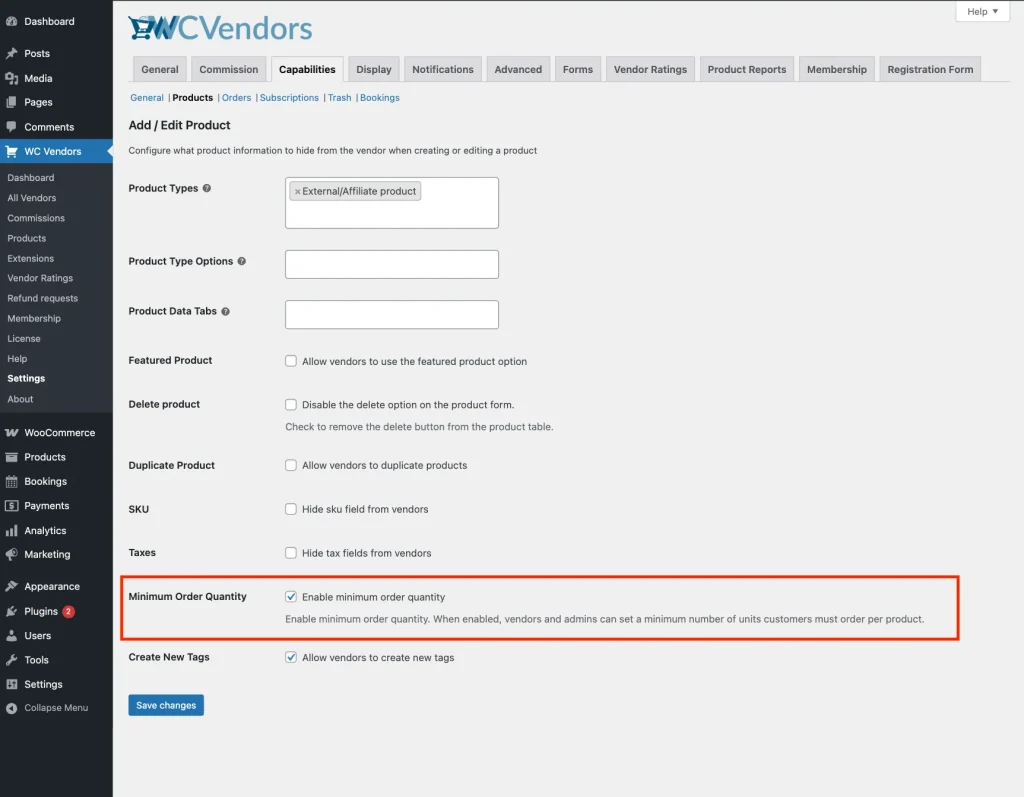
- Navigate to WC Vendors → Settings → Capabilities → Products.
- Locate the Minimum Order Quantity option.
- Check the Minimum Order Quantity checkbox.
- Click Save Changes.
💡 Tip:
Disabling this toggle will hide all MOQ fields from the vendor dashboard and stop enforcing purchase limits on the front end.
Step 2: Setting limits in the vendor dashboard
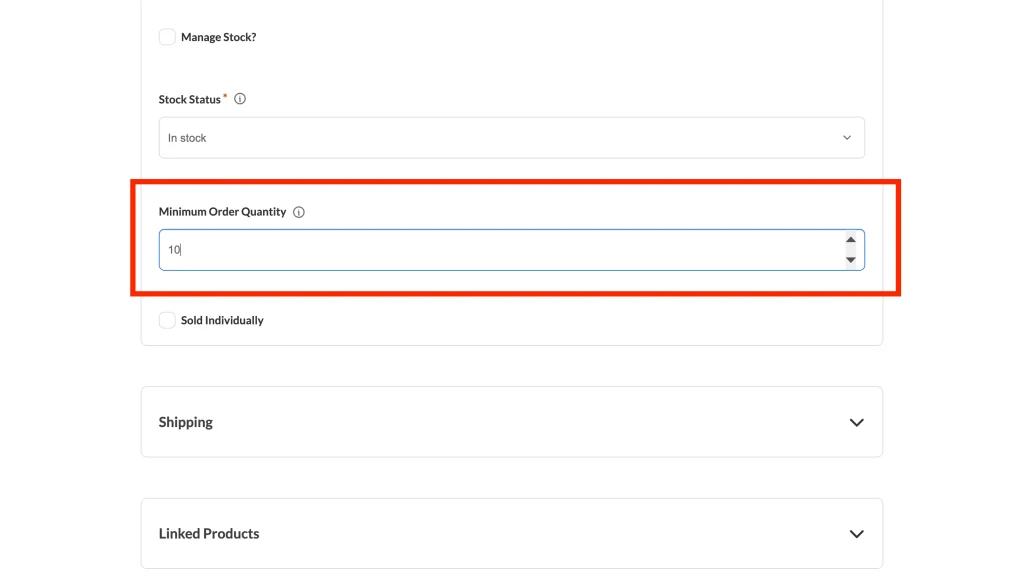
Once enabled, vendors see a new field in their product editor.
For simple products
- Go to the Vendor Dashboard → Product → Add/Edit Product.
- Navigate to the Inventory tab.
- Locate the Minimum Order Quantity field and enter the desired number (e.g., “5”).
- Save the product.
For variable products
This lets vendors require a higher MOQ for bulk-style variations while keeping others lower.
- Navigate to the Variations tab in the product editor.
- Expand a specific variation.
- Enter the limit in the Minimum Order Quantity field located below the Stock Status or Stock Qty settings.
- Save the product.
💡 Test Your Setup:
We recommend logging in as a test vendor and setting an MOQ of “3” on a sample product. Try adding that product to your cart as a customer to see the automated quantity bump in action!
Step 3: Managing MOQ as a marketplace admin
Use this to audit vendor settings or pre-fill requirements for your own house-brand products. As an administrator, you manage these limits within the WordPress backend.
For simple products
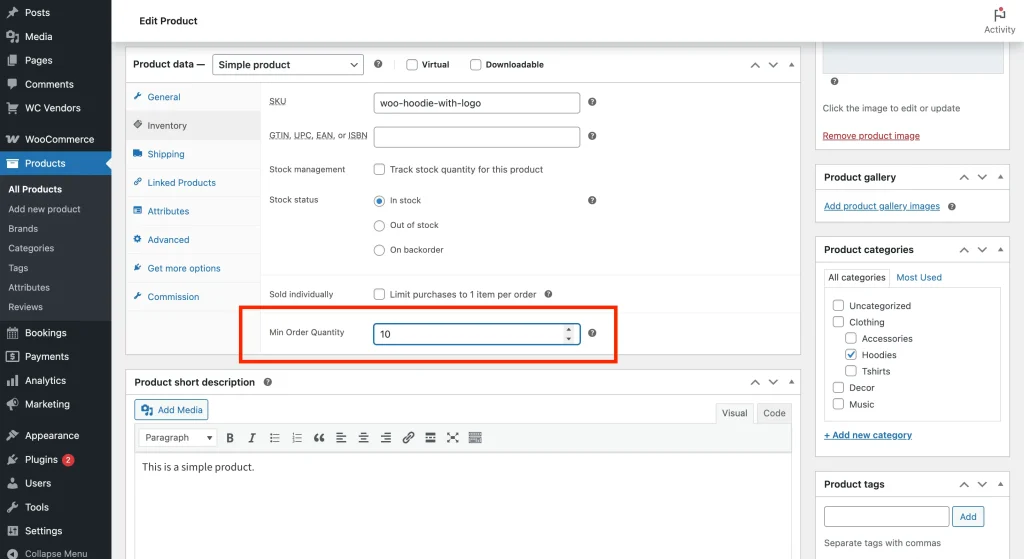
- Navigate to Products → All Products and click Edit on your chosen product.
- In the Product Data meta box, click the Inventory tab.
- Enter the numeric value in the Min Order Quantity field.
- Click Update.
For variable products
- In the Product Data meta box, click the Variations tab.
- Expand the variation you wish to edit.
- Find the Min Order Qty field under the Description field.
- Enter the numeric value.
- Click Save Changes.
- Click Update.
How customers experience MOQ
WC Vendors automatically handles the heavy lifting on the storefront to manage customer expectations.
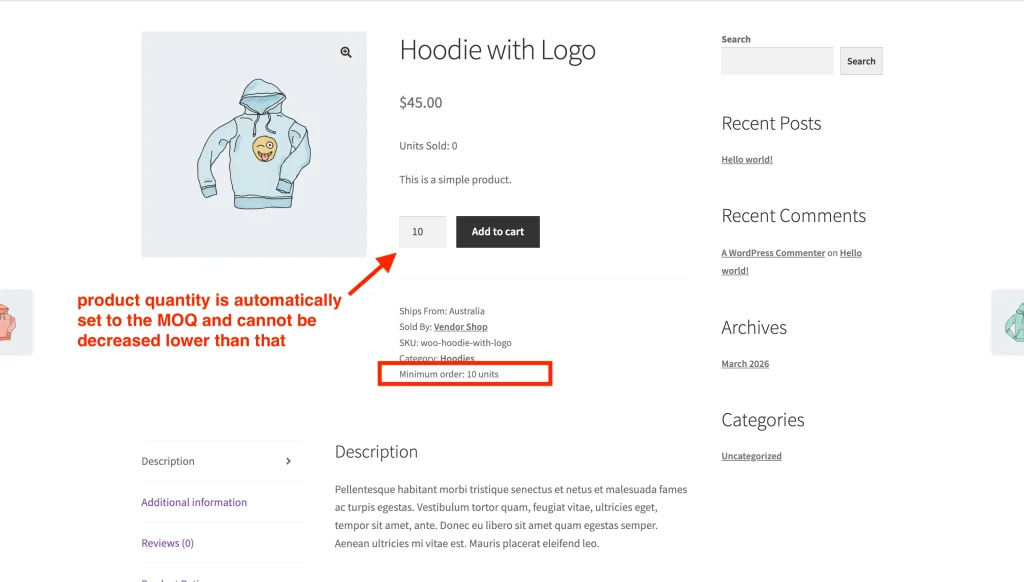
Product page notice. A minimum order notice appears in the product meta area. For variable products, this notice updates instantly when a customer selects a specific variation.
Enforced minimum entry. When a customer adds an item to their cart, the system automatically defaults the quantity to your required minimum rather than starting at one.
Cart quantity locking. Customers cannot type or select a value lower than the minimum requirement. The system blocks the decrease, ensuring the cart meets your specifications before checkout.
Troubleshooting
MOQ field is missing from the vendor dashboard. The capability toggle in Step 1 isn’t enabled. Go to WC Vendors → Settings → Capabilities → Products and check the Minimum Order Quantity checkbox, then save.
Customer can buy fewer than the MOQ. Check that the MOQ field isn’t blank or set to 0—both are treated as no minimum. For variable products, the limit is per-variation, so make sure each variation has its own value set.
Cart accepts a lower quantity. This is usually a theme or plugin conflict overriding the quantity input. Test with a default WooCommerce theme or by temporarily deactivating other plugins. Also make sure WC Vendors Pro is up to date.
Frequently asked questions
➤ What happens if a vendor leaves the MOQ field empty?
The system treats an empty field or a “0” as no minimum requirement. The customer will be able to purchase a single unit as usual.
➤ Does this work with my theme’s quantity buttons?
Yes! The integration automatically sets the min_value of the WooCommerce quantity input field, meaning theme-provided “plus” and “minus” buttons will respect the MOQ limit.
➤ Can I set different MOQs for different variations?
Yes. Each variation has its own MOQ field, so vendors can require larger minimums on specific sizes or colors while keeping single-unit minimums on others.
Need help?
If you have a question or run into any issues, we’re here to help.
- Premium users: Open a support ticket
- Free users: Visit our community forum