A customer books a surf lesson on your marketplace, and a few minutes later the WooCommerce Bookings email lands in their inbox. It confirms the date, the time, and the price. What it leaves out is the one thing the customer needs on the morning of the lesson: who they booked with and how to reach them.
On a single-seller store, that gap barely matters because the store and the service provider are the same business. On a booking marketplace, the provider is one of your vendors, and customers end up emailing you to ask for a phone number or an address you already have on file. That means extra support work for you and a worse experience for everyone else.
WC Vendors WooCommerce Bookings 1.4.8 fixes this. You can now add the vendor’s store name, phone number, and address to five customer booking emails with one checkbox per email. This guide shows you how to set it up, what customers see, and what else shipped in the release, including three new AI abilities for reading vendor booking data.
What’s New In WC Vendors WooCommerce Bookings 1.4.8
Version 1.4.8 of the WC Vendors WooCommerce Bookings add-on is a focused release. It adds two features, makes two behind-the-scenes improvements, and fixes one bug that some marketplace owners have been running into.
- Vendor details in customer booking emails: a new per-email setting adds a vendor information block to the customer’s WooCommerce Bookings email.
- Three read-only AI abilities: AI assistants connected to your store can list a vendor’s bookings, read their availability, and check their Google Calendar sync status.
- No more duplicate vendor emails: the vendor New Booking email now goes out once per booking.
- Housekeeping: the minimum WordPress version is now 5.9, and an unused Google Calendar option was removed from the vendor dashboard.
The add-on still needs WC Vendors Pro and WooCommerce Bookings to run. Most of this article covers the email feature, since that’s the change your customers will actually notice.
Why Vendor Details Belong In Every WooCommerce Bookings Email
Bookings work differently from regular product orders. A customer who buys a T-shirt never needs to talk to the vendor, but a customer who books a massage, a photography session, or an equipment rental usually does. They need to know where to go, who to call if plans change, and which business they’re dealing with.
WooCommerce Bookings sends its own set of emails on top of the regular WooCommerce order emails, as WooCommerce’s Bookings emails documentation explains. Out of the box, though, every WooCommerce Bookings email speaks for your marketplace as a whole. Nothing in it points the customer to the vendor who will deliver the service.
Adding vendor contact details closes that gap in a few useful ways:
- Fewer “how do I reach them?” tickets. Customers get the phone number and address in the same message that confirms the booking.
- Smoother appointments. The address is right there while the customer plans the trip, so fewer people show up at the wrong place.
- More trust in your vendors. A real store name, phone number, and address make a booking feel like it’s with a real business, not an anonymous listing.
If you’ve already added vendor details to regular orders, this is the same idea applied to bookings. Our guide to the WooCommerce order confirmation email with vendor details covers the order side.
Which Customer Emails Can Show Vendor Details
The new setting appears on the five emails that WooCommerce Bookings sends to customers. Each one has its own checkbox, so you decide exactly where the vendor block shows up.
| When customers get it | |
|---|---|
| Booking Confirmed | When a booking’s status changes to confirmed |
| Booking Pending Confirmation | When a booking needs approval before it’s confirmed |
| Booking Notification | When you send a manual notification from Bookings > Send Notification |
| Booking Cancelled | When a booking’s status changes to cancelled |
| Booking Reminder | One day before the booking, with a calendar file attached |
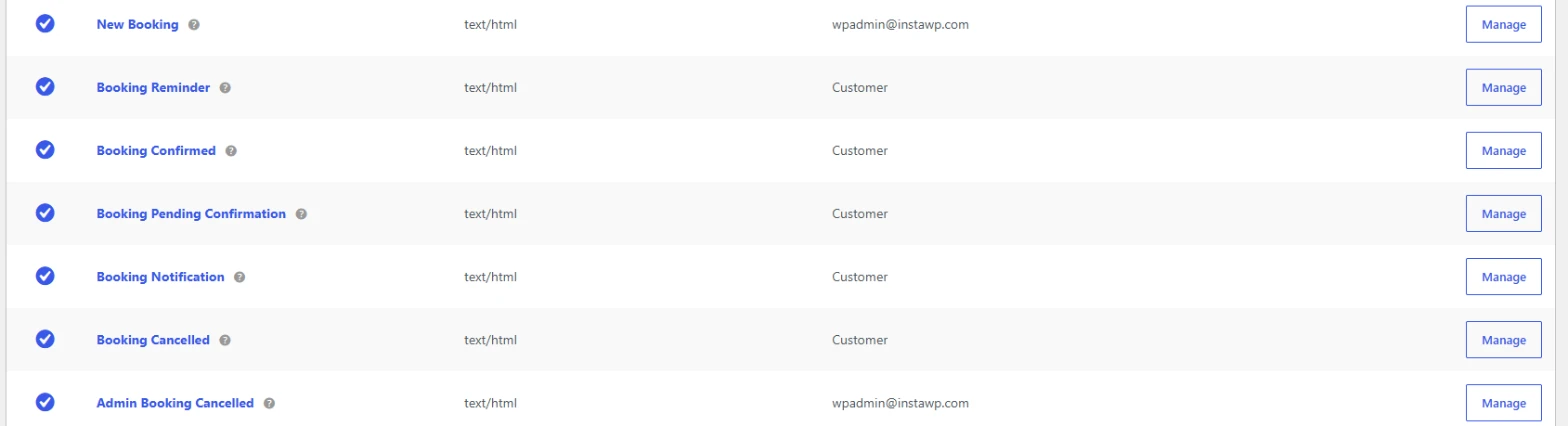
Admin and vendor emails don’t get the checkbox. Those messages go to people who already know who the vendor is, so the block would add nothing. If you also want customers to explain why they cancel, pair this with the booking cancellation reason requirement.
How To Add Vendor Details To A WooCommerce Bookings Email
Setup takes a few minutes. You’ll update the add-on, make sure vendors have contact details saved, and then switch the block on for the emails you want.
Step 1: Update to version 1.4.8
Go to Plugins in your WordPress dashboard and update WC Vendors WooCommerce Bookings to 1.4.8. Once it’s active, the plugin row shows Version 1.4.8. This release requires WordPress 5.9 or newer.

Step 2: Check your vendors’ phone and address
The vendor block pulls the store name, phone number, and address from each vendor’s store details. As the admin, you can review or fill them in under Users by opening a vendor’s profile and scrolling to the Store address section, where Telephone sits below the address fields.
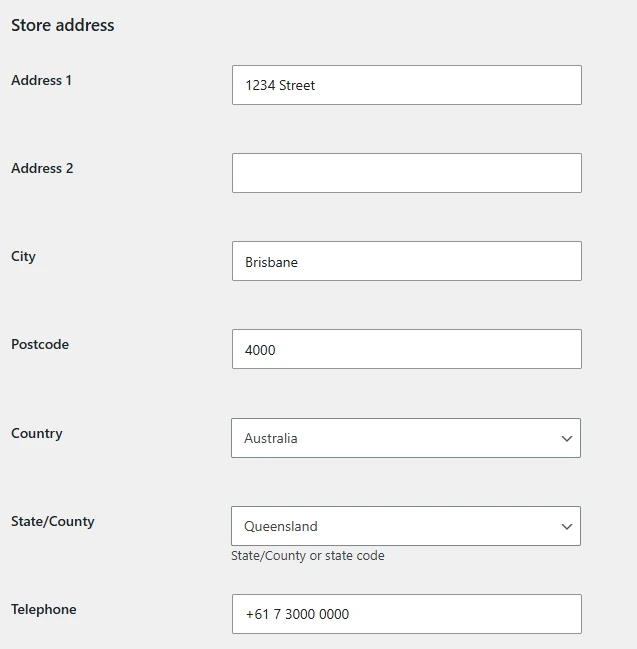
The block skips any empty row. If a vendor has neither a phone number nor an address saved, the block doesn’t show at all for that vendor’s bookings, because a store name alone won’t help a customer get in touch.
Step 3: Turn on vendor details for each email
- Go to WooCommerce > Settings > Emails.
- Click Manage next to Booking Confirmed.
- Tick the Vendor details checkbox, labelled “Show the vendor store name, phone and address in this email.”
- Click Save changes.
- Repeat for Booking Pending Confirmation, Booking Notification, Booking Cancelled, and Booking Reminder if you want the block in those emails too.
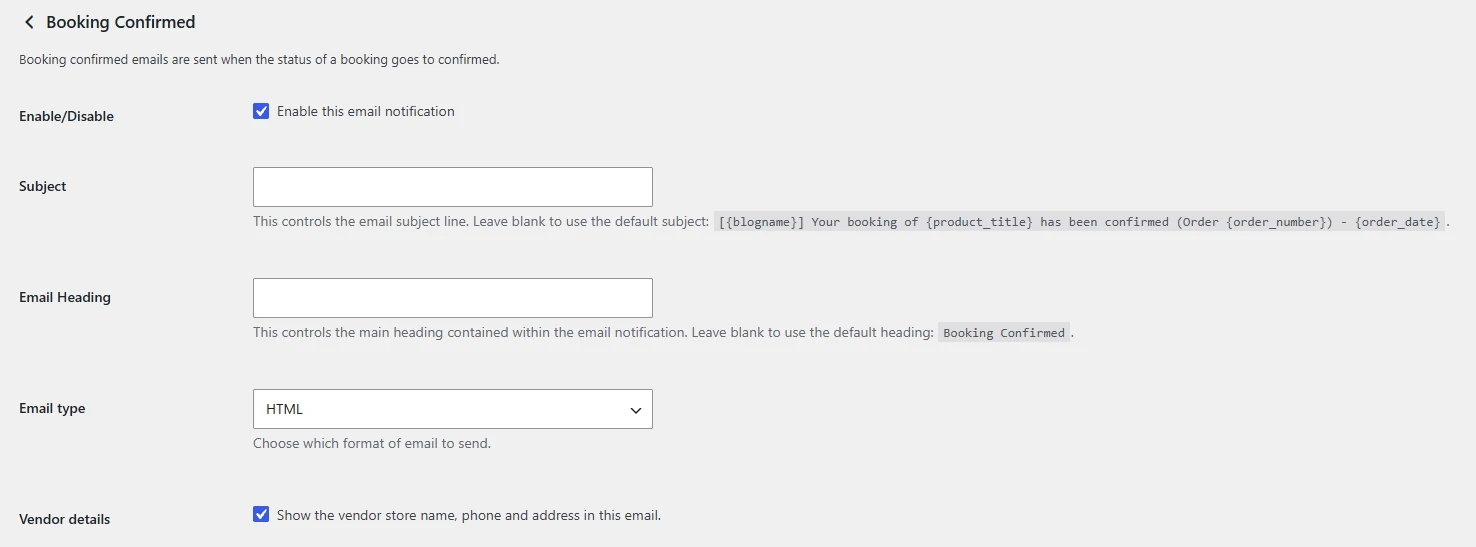
The checkbox is off by default on every email. Nothing changes for your customers after the update until you turn it on, so you can roll it out one WooCommerce Bookings email at a time.
Step 4: Test with a real booking
Place a test booking for a product owned by a vendor who has a phone number and address on file, and confirm it if the product requires confirmation. Then open the customer’s Booking Confirmed email and look for the new section near the bottom.
Skip the built-in email preview for this check. WooCommerce previews booking emails with a sample booking that isn’t tied to any vendor, so the vendor block can’t appear there.
What Customers See In The Email
When the setting is on, the email gets a new Vendor Information section with up to three rows: Store, Phone, and Address. Here’s how it looks in the WooCommerce Bookings email for a confirmed booking:
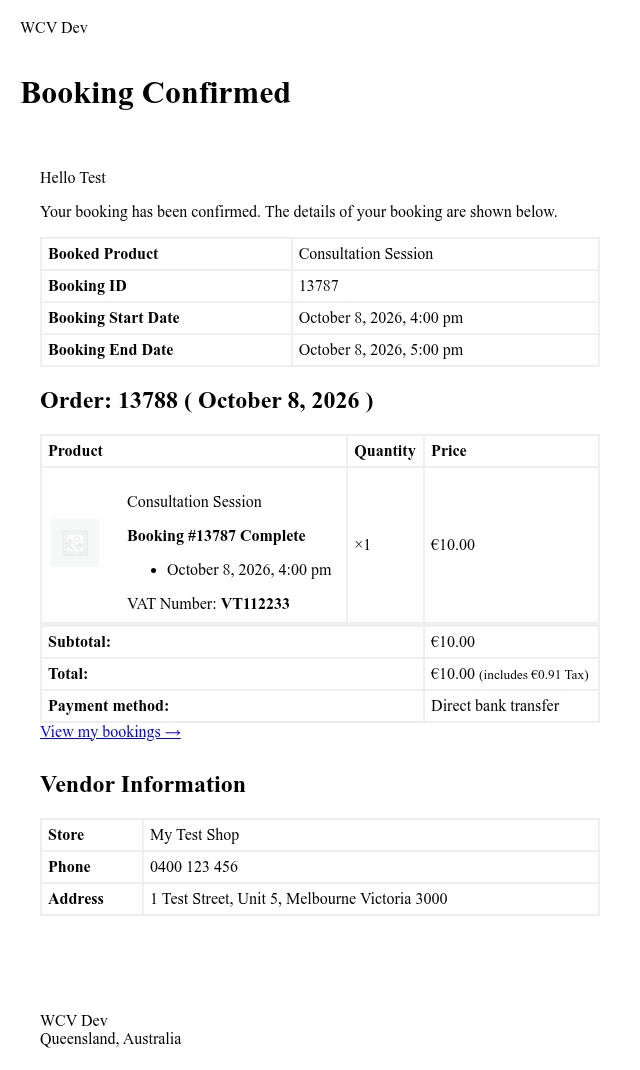
A few details are worth knowing before you switch it on:
- It follows your vendor label. If you call vendors “Sellers” or “Hosts” in WC Vendors, the setting and the heading use that word instead, so the block reads “Seller Information,” for example.
- Placement depends on the email format. HTML emails show the block just above the footer. Plain text emails show it at the very end, after the footer text.
- Addresses use the standard WooCommerce format. Address line 2 and the state are included. When the vendor’s country matches your store’s base country, WooCommerce leaves the country off, which is its normal behavior for local addresses.
- Your own products are left alone. Bookings for products you sell yourself, rather than a vendor, don’t show the block.
- Rows only appear with data. A vendor with a phone number but no address gets a two-row block.
Customizing The Vendor Details Block
The block is built from two template files, so your developer can restyle it like any other WooCommerce email template. To override them, copy them into a wc-vendors-woocommerce-bookings/emails/ folder inside your theme:
customer-vendor-details.phpfor HTML emailsplain/customer-vendor-details.phpfor plain text emails
To change the data itself, such as showing a central support line instead of each vendor’s own number, use the wcv_wcb_customer_email_vendor_details filter. It receives the store name, phone, and address along with the vendor ID and the booking, so you can adjust the details per vendor or per booking. The address formatting filters from WC Vendors Pro don’t apply to this block, so this filter is the one to use.
Ask AI About Vendor Bookings With The New Abilities (New!)
The second feature in 1.4.8 is for marketplace owners who manage their store with an AI assistant. WordPress 6.9 added the Abilities API, which lets plugins describe what they can do in a format AI tools understand. WC Vendors 2.7.3 introduced a set of marketplace abilities, covered in our WooCommerce marketplace API article, and this release adds three more for bookings.
| Ability | What it returns |
|---|---|
| List vendor bookings | One vendor’s bookings, filterable by status and start date, 20 per page by default and up to 100 |
| Get vendor availability | The availability rules on a vendor’s bookable products and resources, plus busy blocks synced from Google Calendar (today and the next 90 days when no dates are given) |
| Get Google Calendar status | Whether the vendor’s Google Calendar is connected, the calendar ID, and whether sync runs one way or both ways |
To use them, connect an AI assistant such as Claude or ChatGPT to your store through StoreAgent’s WooCommerce MCP server or the official WordPress MCP adapter. In StoreAgent, the three abilities appear under Settings > MCP > Abilities in the WC Vendors group, and they’re on by default because they only read data. Our knowledge base walks through the full setup in how to use AI abilities in WC Vendors.
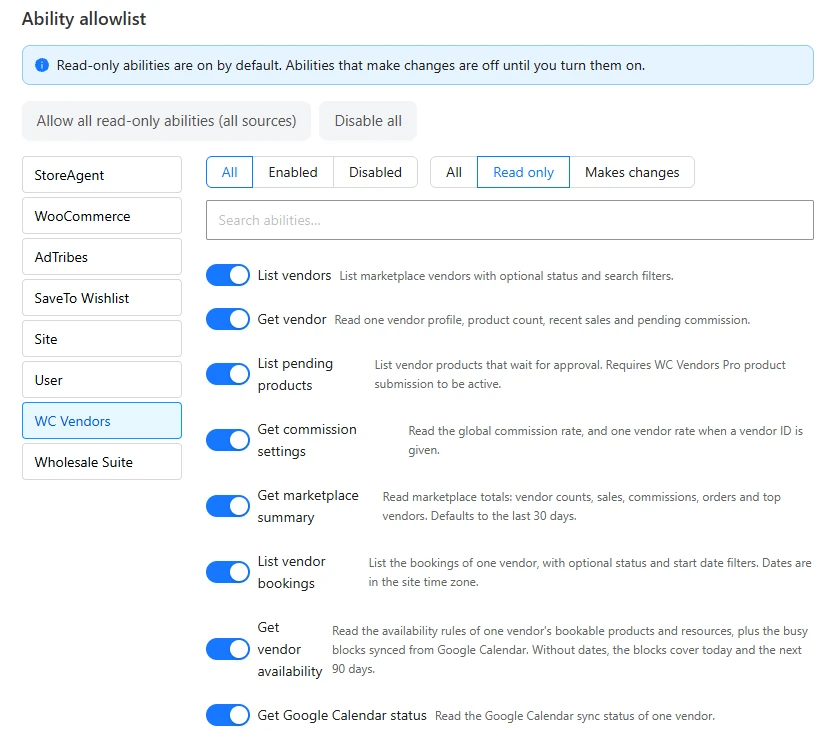
Once your assistant is connected, you can ask questions like these:
- “How many confirmed bookings does vendor 12 have next week?”
- “Show me the availability rules on this vendor’s bookable products.”
- “Is this vendor’s Google Calendar connected, and does it sync both ways?”
Built with privacy in mind
These abilities are deliberately limited. Only users who can manage WooCommerce, such as administrators and shop managers, can run them, so a vendor, a customer, or a logged-out visitor gets an error. The bookings list returns a customer ID only, with no names, emails, phone numbers, or addresses, and the calendar status never exposes Google sign-in tokens.
All three abilities need WordPress 6.9 and WC Vendors 2.7.3 or newer. On an older version of WC Vendors, the add-on keeps working and simply registers no abilities. If you’d rather not expose any WC Vendors abilities, your developer can turn them all off with the WCV_DISABLE_ABILITIES constant in wp-config.php.
Other Fixes And Improvements In This Release
Vendors no longer get duplicate New Booking emails
Some vendors were receiving the same New Booking email twice for a single booking. It happened when an order moved from Processing to Completed, because WooCommerce Bookings saves the booking again at each step. The add-on now remembers which booking emails it has already sent, so each vendor gets one New Booking email per booking.
Bookings that need approval still send two different emails by design: one asking the vendor to review the request, and one announcing the new booking once it’s confirmed. Orders with several bookings still send one email per booking.
WordPress 5.9 is now the minimum
The add-on now requires WordPress 5.9 or newer, up from 5.5. Almost every store already runs a newer version, so most marketplace owners won’t notice anything.
A small cleanup on the vendor Bookings page
An old Google Calendar setting that no screen could change has been removed from the vendor dashboard’s Bookings page. The buttons look and work the same as before, and the Google Calendar button on the calendar page is still there.
Conclusion
Booking a service is a promise between a customer and a real person, and the confirmation email is where that promise gets written down. Until now, the WooCommerce Bookings email on a WC Vendors marketplace left the vendor out of it. With version 1.4.8, one checkbox per email puts the vendor’s store name, phone number, and address right where customers look first.
The setup is light: update the add-on, make sure vendors have their contact details saved, and switch the block on for the emails that matter most. Booking Confirmed and Booking Reminder are a good place to start, since customers open those right before an appointment. From there, the three new abilities give you an AI-friendly way to check vendor bookings and availability without clicking through a single dashboard screen.
If you run a services or rentals marketplace, this is one of those small changes that removes a whole category of support tickets. Grab the update, turn on vendor details for your first WooCommerce Bookings email, and let your customers reach the people they booked with.
Here is what we covered in this article:
- What’s new in WC Vendors WooCommerce Bookings 1.4.8
- Why vendor details belong in every WooCommerce Bookings email
- Which customer emails can show vendor details
- How to add vendor details to a WooCommerce Bookings email
- What customers see in the email
- Customizing the vendor details block
- Ask AI about vendor bookings with the new abilities
- Other fixes and improvements in this release
Frequently Asked Questions
How do I add the vendor’s phone number to a WooCommerce Bookings email?
Update WC Vendors WooCommerce Bookings to 1.4.8, go to WooCommerce > Settings > Emails, and click Manage next to a customer booking email such as Booking Confirmed. Tick Vendor details and save. The phone number appears as long as the vendor has one saved in their store details.
Which WooCommerce Bookings email types support vendor details?
Five customer emails support it: Booking Confirmed, Booking Pending Confirmation, Booking Notification, Booking Cancelled, and Booking Reminder. Each has its own Vendor details checkbox. Admin and vendor emails don’t include the option.
Will vendor details show up automatically after I update?
No. The Vendor details checkbox is off by default on every email, so your customers see no change until you turn it on for the emails you choose.
Why isn’t the vendor block showing in my WooCommerce Bookings email?
Check that Vendor details is saved on that specific email, that a vendor owns the booked product, and that the vendor has a phone number or an address on file. Test with a real booking, because WooCommerce’s built-in email preview uses a sample booking that has no vendor.
Do the new booking abilities share customer personal data with AI tools?
No. The bookings list returns only a customer ID, never names, emails, phone numbers, or addresses, and the Google Calendar status never includes sign-in tokens. Only administrators and shop managers can run the abilities at all.