
Customers on a marketplace often don’t know who to contact about their order. You can add each vendor’s store name, phone number and email address to the emails customers get about their order. This guide shows you how to turn the option on, which emails include the details, and how to do the same for booking emails.
This is an admin setting in WC Vendors Pro. Your vendors don’t need to do anything, except keep their store details up to date.
Prerequisites
- WC Vendors and WC Vendors Pro 2.0.0 or later, both active.
- For booking emails: WC Vendors WooCommerce Bookings 1.4.8 or later and WooCommerce Bookings.
Turn on vendor details in order emails
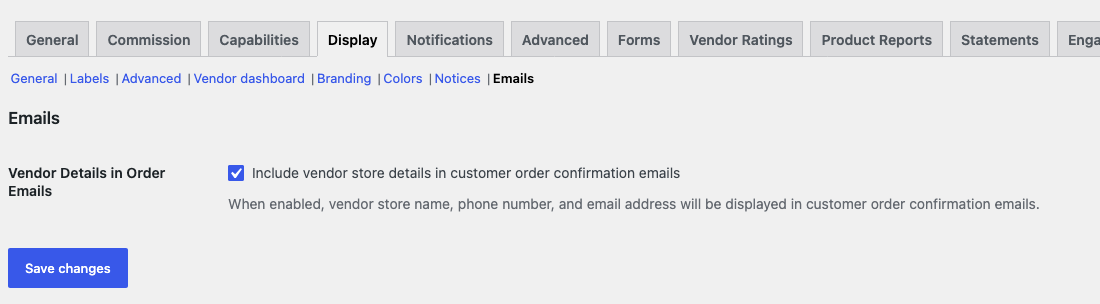
- Go to WC Vendors > Settings.
- Click the Display tab.
- Click Emails.
- In Vendor Details in Order Emails, tick Include vendor store details in customer order confirmation emails.
- Click Save changes.
The option is off by default. The Emails section only shows when WC Vendors Pro is active. If you renamed “Vendor” in WC Vendors > Settings > Display > Labels, the setting uses your term, for example Seller Details in Order Emails.
For an overview of all the Display settings, see WC Vendors display settings.
What customers see
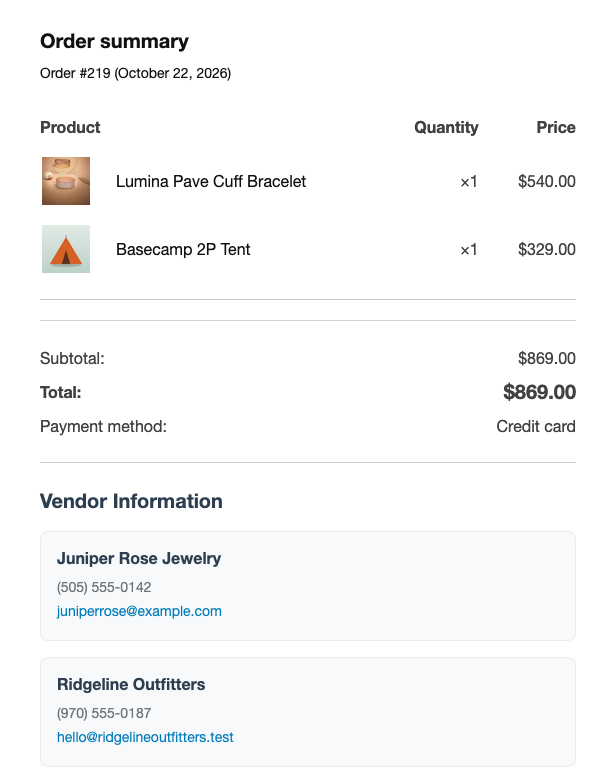
A Vendor Information section appears below the order table. It has one entry for each vendor in the order, so a customer who buys from two vendors sees two entries. Each entry shows the vendor’s store name, the store phone number and the vendor’s email address as a clickable link.
The phone number only shows if the vendor saved one. The email address is the email on the vendor’s WordPress user account. Products your marketplace sells itself, not a vendor, get no entry.
Plain-text emails get the same details under a VENDOR INFORMATION heading, with Phone: and Email: labels.
Which emails include the vendor details
Only these customer emails from WooCommerce > Settings > Emails get the Vendor Information section:
- Processing order
- Completed order
- Order on-hold
- Order details, the email you send to a customer by hand from the order screen
If your store uses the WooCommerce block email editor, these emails have other names: Order confirmation, Order fulfilled, Order on hold and Payment request. The Vendor Information section shows in these emails too.
Admin emails, such as New order, never include the section. The per-vendor invoice email is a separate email with its own settings. See how to configure per-vendor invoice emails.
Show vendor details in customer booking emails
If you sell bookable products with WC Vendors WooCommerce Bookings, you can also add vendor details to the customer booking emails. This option is separate from the order email setting above. You turn it on for each booking email, and it works whether the order email setting is on or off.
- Go to WooCommerce > Settings > Emails.
- Click a customer booking email from WooCommerce Bookings, for example the booking confirmed email.
- In Vendor details, tick Show the vendor store name, phone and address in this email.
- Click Save changes.
- Repeat for each booking email that should show the details.
If you renamed “Vendor” in WC Vendors > Settings > Display > Labels, this setting uses your term too, for example Seller details.
The option is off by default on every booking email. These five customer booking emails have it:
- The booking confirmed email
- The booking pending confirmation email
- The booking notification email
- The booking cancelled email that goes to the customer
- The booking reminder email
The booking email shows a Vendor Information table with the vendor’s Store name, Phone and Address. It doesn’t show an email address. The heading follows your vendor term, so a store that calls vendors “Sellers” sees Seller Information. Rows with no value are left out. If the vendor has no store phone and no store address, the whole section is left out.
Troubleshooting
The vendor details don’t show in the order email
Check that Include vendor store details in customer order confirmation emails is ticked and saved. Then check the email type: only the four customer emails listed above get the section. Last, make sure the product belongs to a vendor and that the vendor has a store name. A vendor with no store name is left out of the section. You can add one in the Shop name field of the vendor’s user profile under Users.
The Vendor Information heading shows with no vendor under it
No vendor in the order has a store name. Add a Shop name to each vendor’s user profile.
The phone number is missing
The vendor hasn’t saved a store phone number. Ask the vendor to add one in the Store Phone field under Settings > Store in their Vendor Dashboard, or add it yourself in the Telephone field under Store address on the vendor’s user profile.
The vendor details don’t show in a booking email
Tick Vendor details on that booking email in WooCommerce > Settings > Emails. Each booking email has its own checkbox. If it is ticked, check that the vendor has a store phone number or a store address. Also check that the bookable product belongs to a vendor.
Frequently asked questions
Can I change the email address shown in the order email?
Not from the settings. The order email always shows the email address on the vendor’s WordPress user account. To show a different address, change the email on the vendor’s user account.
Doesn’t the Sold By label already do this?
Not fully. When Sold By is turned on in the Labels settings, it shows which vendor sells each product. On stores that use the classic checkout, new orders also get a “Sold By” line (or your custom label) in the order emails. It never adds a phone number or email address. Use the setting in this guide when customers need a way to contact the vendor.
Do vendors need to turn anything on?
No. Only the marketplace admin can turn on these settings. Vendors only need to keep their store name, phone number and address up to date.
Need help?
If you have a question or run into any issues, we’re here to help.
- Premium users: Open a support ticket
- Free users: Visit our community forum