
Running your marketplace on a BuddyBoss community? You can make your vendors part of it. WC Vendors Pro connects vendor stores to BuddyBoss profiles, the member directory, the activity stream, notifications, messaging, groups and forums. This guide shows you how to turn the integration on, choose which parts you want, and what your vendors can control from their own dashboard.
Before you begin
You need these installed and active:
- WC Vendors Pro 2.0.9 or later
- BuddyBoss Platform 2.5.0 or later
- WordPress 6.3 or later, WooCommerce 8.0 or later, and PHP 7.4 or later
- MySQL 5.7 or later (or MariaDB 10.4 or later)
- The BuddyBoss Theme, 2.3.0 or later, only if you want the matching theme styling
There is no separate switch to turn the integration on. It starts working as soon as BuddyBoss Platform is active alongside WC Vendors Pro. On a site without BuddyBoss, nothing changes.
If your server, WordPress, WooCommerce or BuddyBoss Platform is below one of these versions, the integration stays off and the BuddyBoss settings tab doesn’t appear. In most cases you’ll see an admin notice listing what needs updating. An older BuddyBoss Theme only shows a warning. The rest of the integration still works.
Step 1: Open the BuddyBoss settings
- In your WordPress admin, go to WC Vendors → Settings.
- Click the BuddyBoss tab.
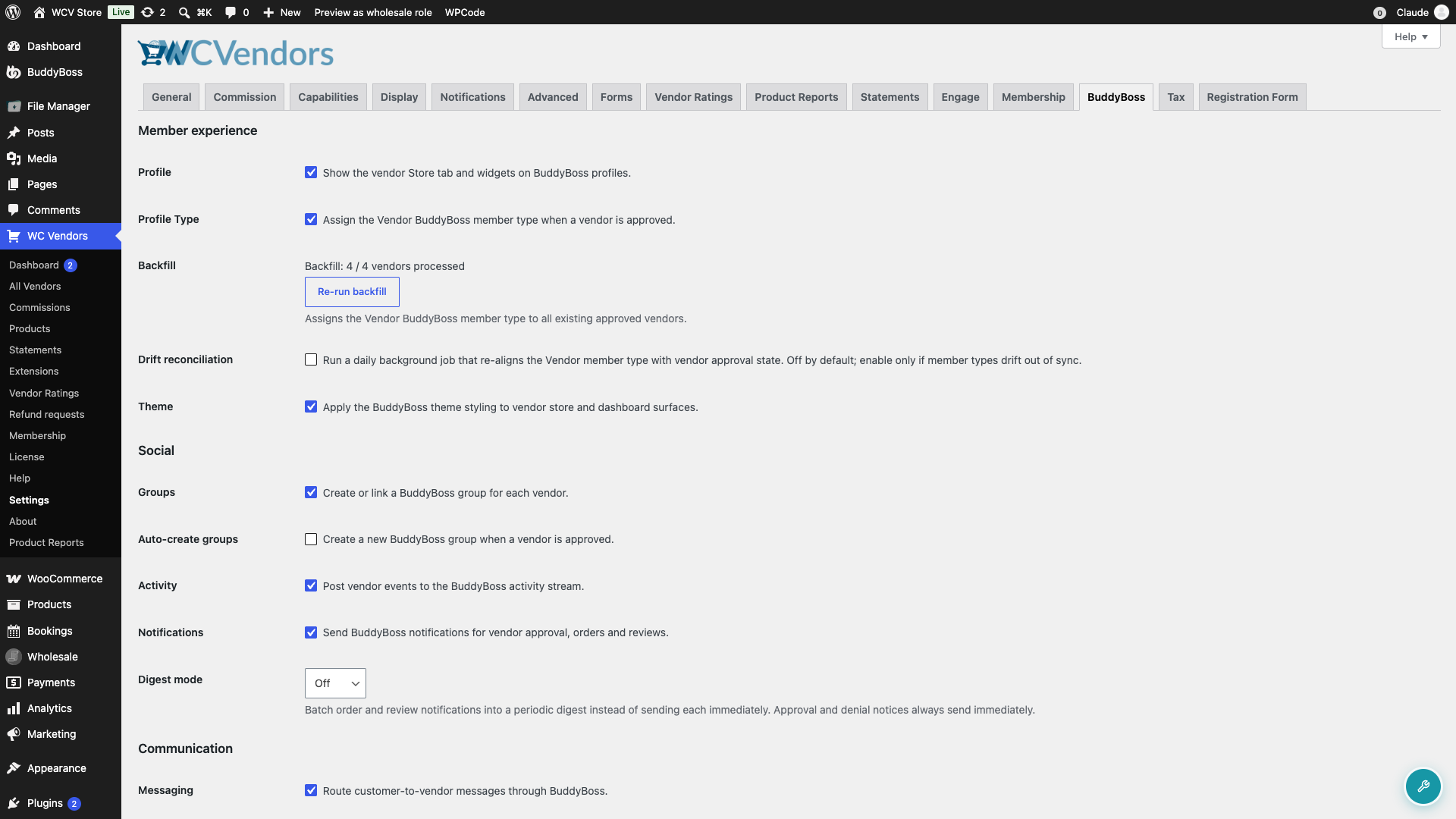
The settings are grouped into Member experience, Social and Communication. Every main option is turned on by default. Some options also need a BuddyBoss Platform component turned on:
| WC Vendors Pro option | BuddyBoss component |
|---|---|
| Activity | Activity Feeds |
| Notifications and Digest mode | Notifications |
| Groups and Auto-create groups | Social Groups |
| Messaging | Private Messaging |
| Forums | Forum Discussions |
The Vendors directory filter from Profile Type also needs profile types turned on in BuddyBoss Platform. This is a setting, not a component. Turn on profile types in your BuddyBoss Platform profile settings.
Untick anything you don’t want, then save.
Step 2: Choose your member experience options
| Setting | What it does | Default |
|---|---|---|
| Profile | Adds a Store tab to each approved vendor’s BuddyBoss profile, with their shop name, rating, sales, latest products and recent reviews. | On |
| Profile Type | Gives approved vendors the Vendor member type, which adds a Vendors filter to the member directory. | On |
| Drift reconciliation | Runs a daily background check that keeps the Vendor member type in step with each vendor’s approval status. Turn it on only if member types get out of sync. | Off |
| Theme | Restyles the vendor store, vendor dashboard and vendor directory to match the BuddyBoss Theme. | On |
The first time Profile Type is on, WC Vendors Pro tags all your existing approved vendors in the background. You’ll see a progress line under Backfill, such as “Backfill: 12 / 40 vendors processed”. If you ever need to run it again, click Re-run backfill.
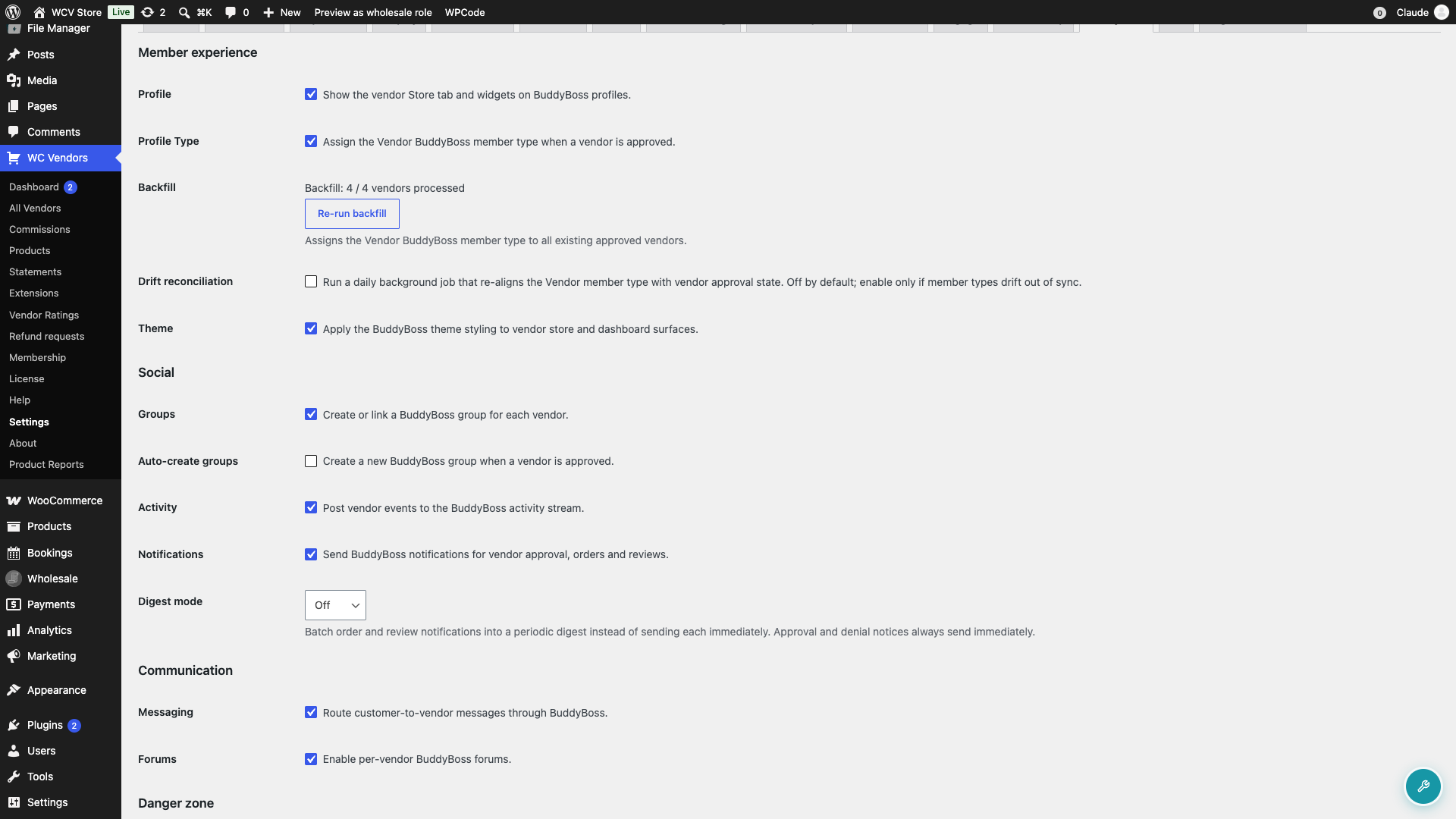
The Vendors directory filter also needs the BuddyBoss Profile Types feature switched on in your BuddyBoss settings. If it’s off, you’ll see a warning on the BuddyBoss tab. Your vendors are still tagged, so the filter appears as soon as you turn Profile Types on.
The Theme option only has an effect when the BuddyBoss Theme (or a child theme of it) is your active theme. On any other theme it does nothing.
Step 3: Choose your social options
| Setting | What it does | Default |
|---|---|---|
| Groups | Lets each vendor have a BuddyBoss group linked to their store. A store card appears on the group’s home page. | On |
| Auto-create groups | Creates a BuddyBoss group automatically when a vendor is approved. The vendor needs a store name. Existing vendors are not affected. Without this option, and for existing vendors, vendors link a group they already manage from their dashboard. | Off |
| Activity | Posts vendors’ new products and new reviews to the activity stream. Bursts of activity are rolled up into one post so the stream isn’t flooded. | On |
| Notifications | Sends vendors BuddyBoss notifications when their application is approved or denied, when they get a new order, and when they get a new review. | On |
| Digest mode | Batches order and review notifications into one periodic notice. Choose Off, Hourly or Daily. Approval and denial notices always send right away. | Off |
Groups need the BuddyBoss Social Groups component. Activity needs the Activity Feeds component. Notifications and Digest mode need the Notifications component. Vendors can override the digest setting for themselves (see Step 5).
Step 4: Choose your communication options
| Setting | What it does | Default |
|---|---|---|
| Messaging | Sends messages from logged-in customers to the vendor’s BuddyBoss inbox and adds a Send Message button to vendor store pages and vendor list cards. | On |
| Forums | Lets each vendor turn on their own BuddyBoss forum from their dashboard. | On |
Messaging needs the BuddyBoss Private Messaging component, and Forums needs the BuddyBoss Forum Discussions component. Without Private Messaging, contact messages go by email as before. Without Forum Discussions, vendors can’t turn on a forum.
Guests don’t see the Send Message button. They can still reach vendors through the existing contact form, which sends an email. To stop spam, the contact form lets each customer send one message per minute and ten per hour to the same vendor.
Forums aren’t created for every vendor. A vendor’s forum only exists once they switch it on.
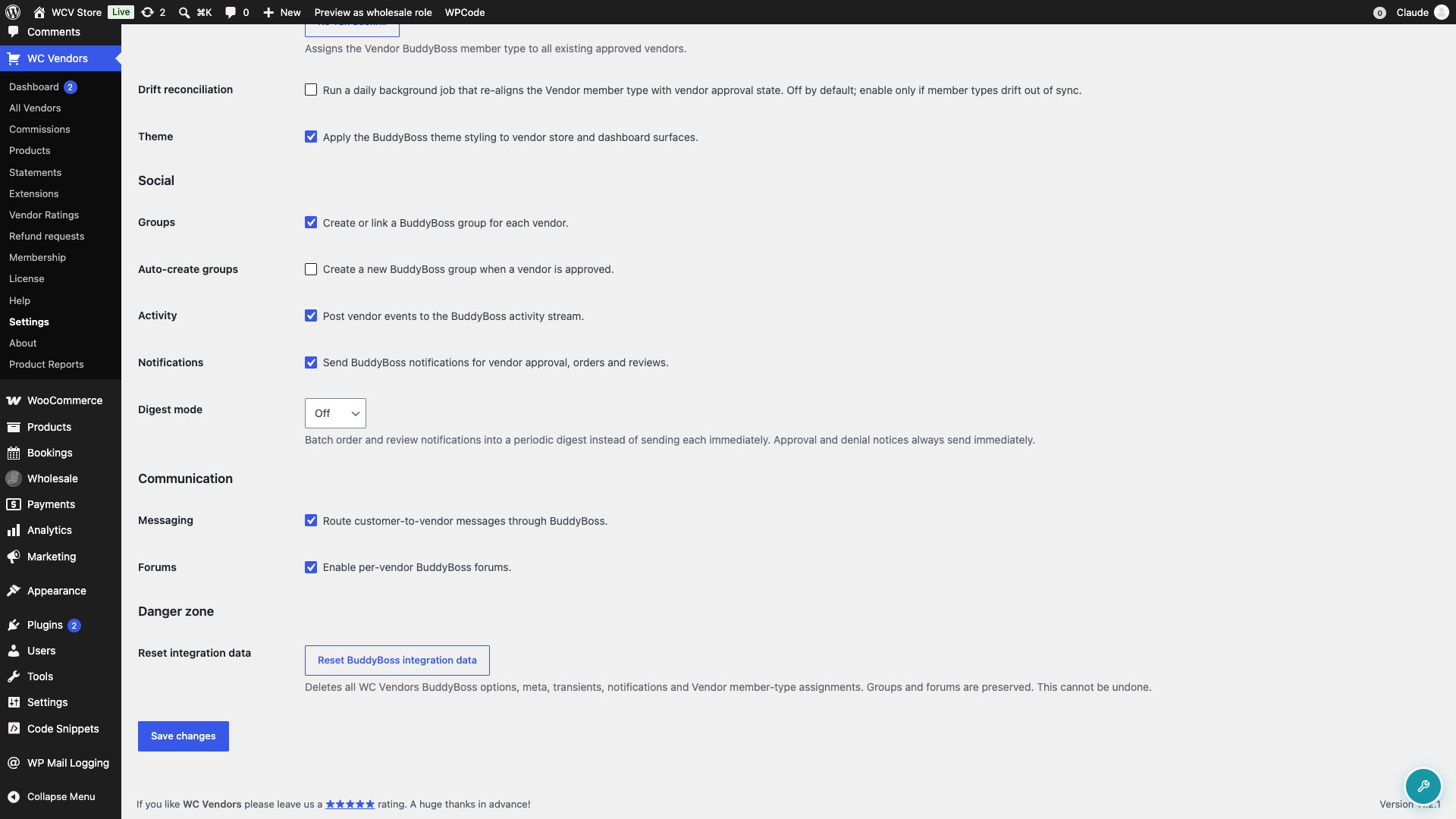
When you’re done, click Save changes.
Step 5: What your vendors can control
Approved vendors get a BuddyBoss tab under Settings in their vendor dashboard. It appears when at least one of Activity, Groups, Forums or Notifications is on. Each control shows when its matching setting (Activity, Groups, Forums or Notifications) is on. The forum control also needs the BuddyBoss Forum Discussions component.
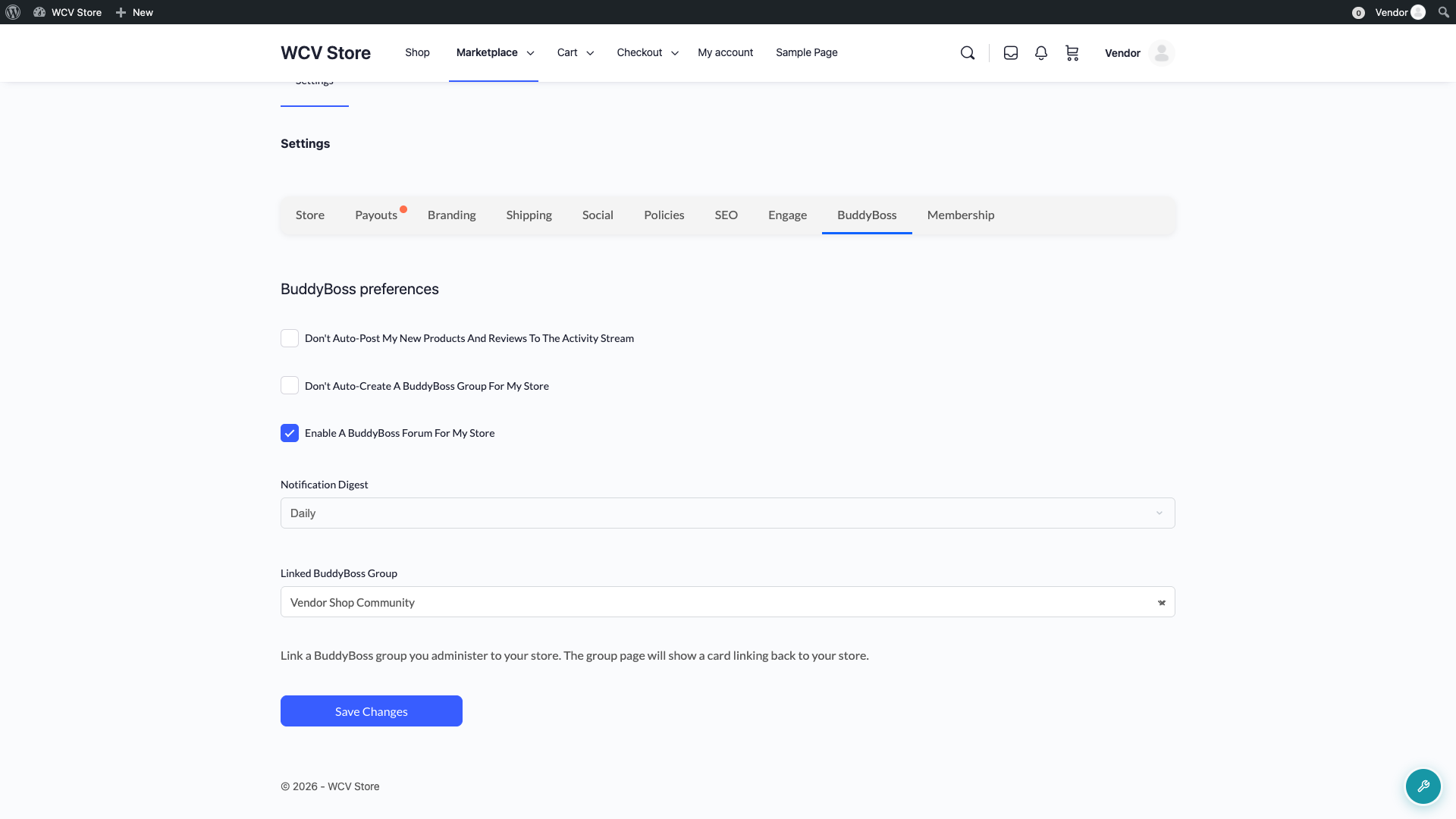
| Control | What it does |
|---|---|
| Don’t auto-post my new products and reviews to the activity stream | Keeps the vendor’s activity out of the community stream. |
| Don’t auto-create a BuddyBoss group for my store | Stops a group being created for this store. This only has an effect when you turn on Auto-create groups. |
| Enable a BuddyBoss forum for my store | Creates a forum named after the shop, with a Visit Forum link on their profile’s Store tab. |
| Notification digest | Overrides the site digest setting. Options: Use site default, Off (send each notice right away), Hourly or Daily. |
| Linked BuddyBoss group | Links a group the vendor already administers to their store. Choose None to unlink. |
A vendor needs a store name before turning on their forum, because the forum is named after the shop. If they later untick the box, the forum is hidden but every discussion is kept. Ticking it again brings back the same forum.
A group can only be linked to one store. If another vendor has already linked it, the vendor’s choice won’t save.
Removing the integration’s data
If you reset the integration’s data, you can’t undo it. If you still want a clean slate, scroll to the Danger zone at the bottom of the BuddyBoss tab and click Reset BuddyBoss integration data. This deletes the integration’s settings, vendor preferences, notifications and the Vendor member type. Your BuddyBoss groups and forums are kept. The reset runs in the background. After the reset, every setting goes back to its default.
The reset also removes the links between stores and their forums. If a vendor ticks the forum box again after a reset, they get a new forum, not the old one.
Nothing is set up again until you click Re-run backfill. After the reset, Profile Type already shows as ticked. To set up vendors again without the button:
- Untick Profile Type.
- Click Save changes.
- Tick Profile Type.
- Click Save changes again.
Troubleshooting
The BuddyBoss tab is missing from WC Vendors → Settings
Check that BuddyBoss Platform (not BuddyPress) is active and that every item in the requirements list above meets the minimum version. Look for an admin notice listing what needs updating.
The Vendors filter doesn’t appear in the member directory
Turn on the Profile Types feature in your BuddyBoss settings and make sure Profile Type is ticked. Only approved vendors appear in the filter, not pending ones.
The Theme option doesn’t change anything
The BuddyBoss Theme, or a child theme of it, must be your active theme. The vendor directory styling only applies to a page that uses the [wcv_pro_vendorslist] shortcode. A vendor list built with [wcv_vendorslist], a block or a widget is not restyled.
Customers don’t see the Send Message button
The button only shows to logged-in customers, and only when the BuddyBoss Private Messaging component is on. Vendors don’t see it on their own store.
A vendor can’t find the linked group picker
The picker needs the BuddyBoss Social Groups component turned on. If the vendor sees the BuddyBoss tab but not the picker, check that component first.
Frequently asked questions
Do I need to set up anything for my existing vendors?
No. When Profile Type is on, WC Vendors Pro tags all existing approved vendors in the background. You can follow its progress under Backfill.
Can vendors turn off the activity posts or notifications for themselves?
Yes. Vendors can opt out of activity posts and choose their own notification digest from the BuddyBoss tab under Settings in their vendor dashboard.
What happens to vendor forums if I turn Forums off?
Existing vendor forums stay in BuddyBoss as they are. The Visit Forum link disappears from the vendor’s Store tab, and vendors can no longer turn their forum on or off until you turn Forums back on.
What’s next
- How to Let Customers Contact Vendors
- WC Vendors Display Settings – General
- How to configure vendor ratings
- WC Vendors Pro Getting Started Guide
Need help?
If you have a question or run into any issues, we’re here to help.
- Premium users: Open a support ticket
- Free users: Visit our community forum