
Want to let customers rate their experience with your marketplace vendors? WC Vendors Pro includes a built-in ratings system that lets buyers leave star ratings and written feedback after an order. This article walks you through enabling ratings, configuring how they work, and moderating the feedback your vendors receive.
Requirements
- WC Vendors Pro installed and activated
- WC Vendors (free) installed and activated
- A WordPress page to host the feedback form (you’ll set this up in Step 1 below)
Step 1: Create a feedback page
The ratings system needs a dedicated WordPress page to display the feedback form to customers. Before configuring the settings, create this page first.
- Go to Pages → Add New in your WordPress admin.
- Give the page a title like “Leave Feedback”.
- In the page content, add the shortcode
[wcv_feedback_form]. - Click Publish.
![A WordPress page editor with the title "Leave Feedback" and the shortcode [wcv_feedback_form] in the content area.](https://www.wcvendors.com/wp-content/uploads/2026/05/wcvp-vendor-rating-leave-feedback-page-1024x582.webp "wcvp - vendor rating - leave feedback page - WC Vendors")
Step 2: Open the ratings settings
- In your WordPress admin, go to WC Vendors → Settings.
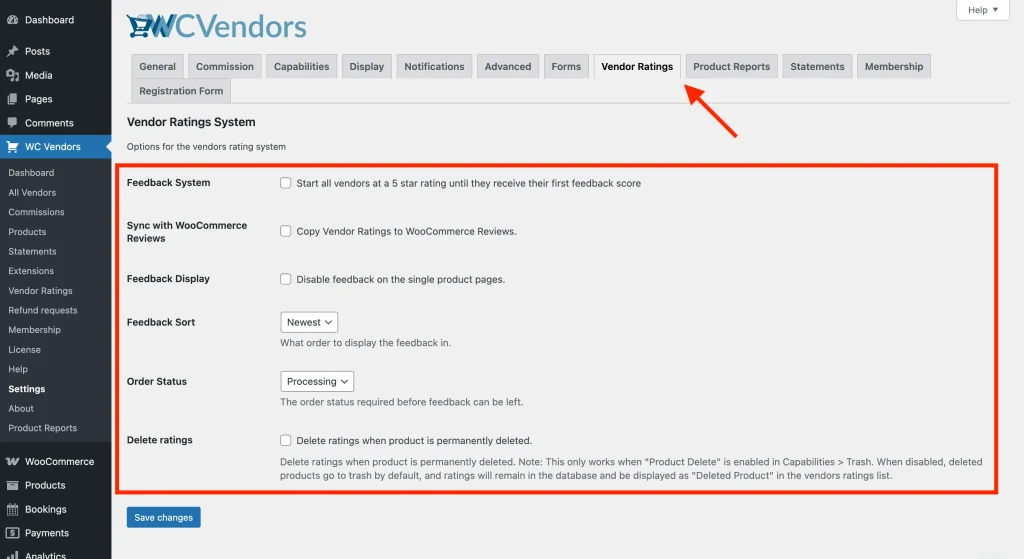
- Click the Vendor Ratings tab.
Step 3: Configure the ratings settings
You’ll find these options in the Vendor Ratings System section:
| Setting | Description | Default |
|---|---|---|
| Feedback System | When enabled, every new vendor displays 5 filled stars by default until they receive their first review. When disabled, vendors with no reviews show 5 empty stars and a “(0 ratings)” label instead. | Enabled |
| Sync with WooCommerce Reviews | Copies vendor ratings to WooCommerce’s built-in product reviews so they count toward the product’s review score. | Disabled |
| Feedback Display | When enabled, hides the ratings panel from individual product pages. Ratings will only appear on the vendor’s store page. | Disabled |
| Feedback Sort | Controls the order feedback is displayed, newest first or oldest first. | Newest |
| Order Status | The minimum order status a customer must reach before the Leave Feedback button appears. Choose between Processing and Completed. | Processing |
| Delete ratings | When enabled, permanently deletes a vendor’s ratings when a product is permanently deleted. Only applies when vendors have the Product Delete capability enabled. | Disabled |
Click Save Changes when you’re done.
How customers leave feedback
Once ratings are enabled, a Leave Feedback button appears on the customer’s My Account → Orders page for any order that has reached the required status. If the customer has already left feedback for that order, the button changes to Revise Feedback so they can update their review.
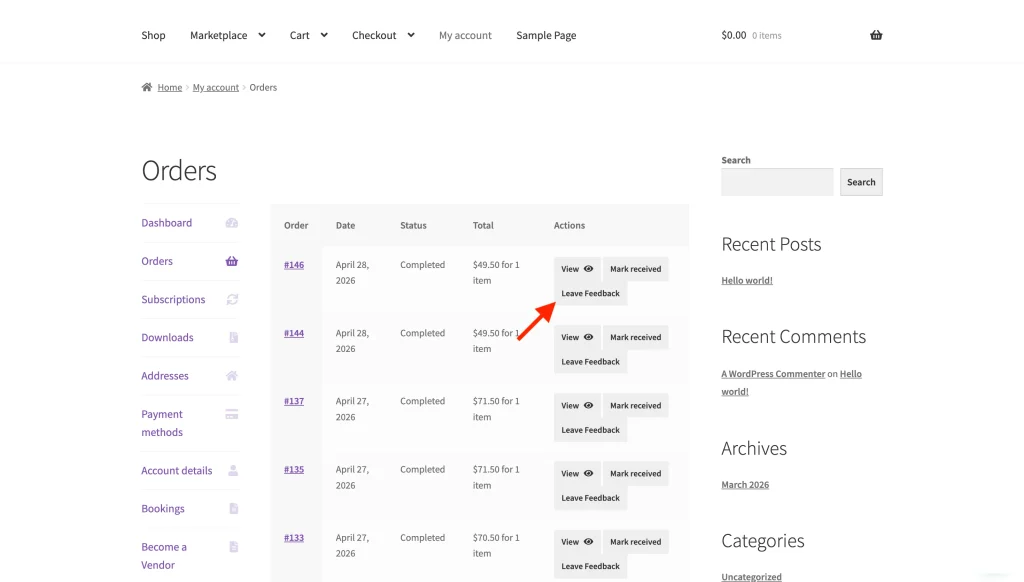
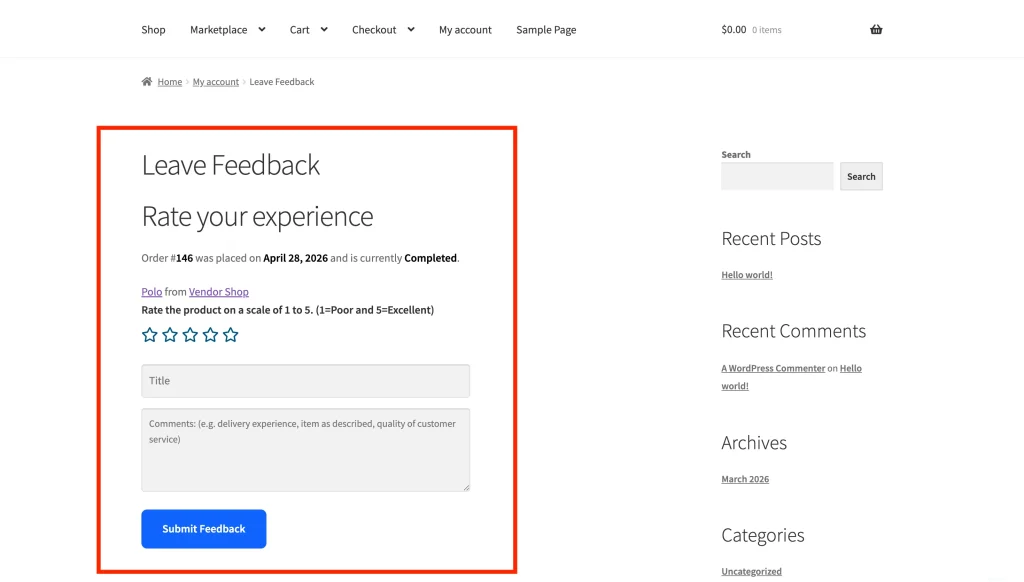
Clicking the button takes the customer to your feedback page. They’ll see a form for each product in the order, one section per item. For each product, they can:
- Select a star rating from 1 to 5 (required)
- Enter a short title for their review (required)
- Write a comment (optional, but at least 20 characters if you fill it in)
- Click Submit Feedback to save the review
After submitting, the customer is redirected back to their orders page and a confirmation notice appears.
If the order has more than one product, the customer must complete every product they started before the form will save. One invalid entry, such as a missing star rating or a comment under 20 characters, rejects the whole submission and nothing is saved.
Ratings on product pages
By default, a Product ratings tab appears on each vendor product page. It shows all feedback left for that specific product: star rating, review title, date, customer name, and their comments. A “View All Ratings” link at the top takes the visitor to the vendor’s full store ratings page.
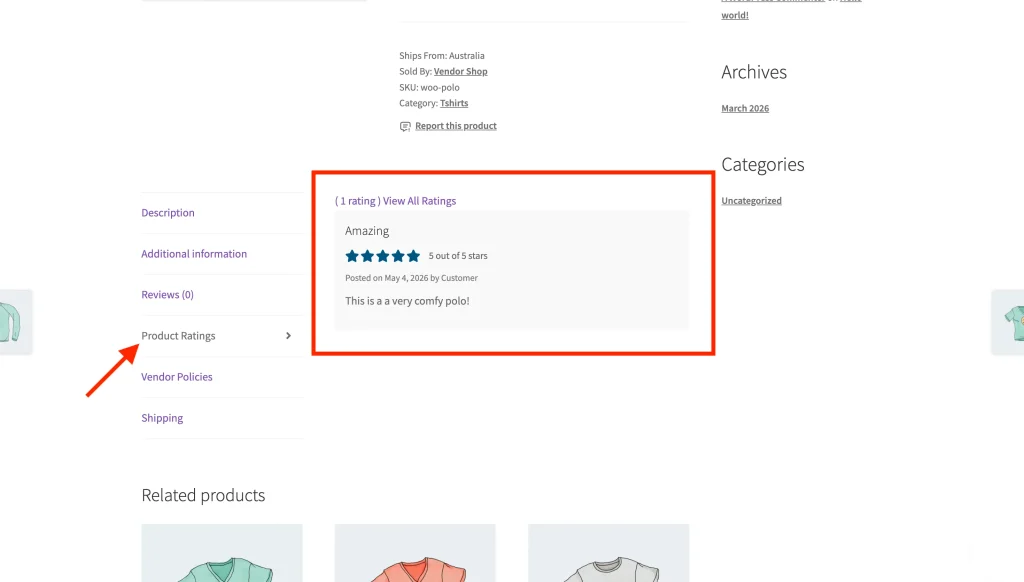
If you’d rather ratings only show at the store level and not on individual product pages, enable the Feedback Display – Disable feedback on the single product pages option in your settings.
Moderating ratings as admin
You can view and manage all ratings across your marketplace from WC Vendors → Vendor Ratings.
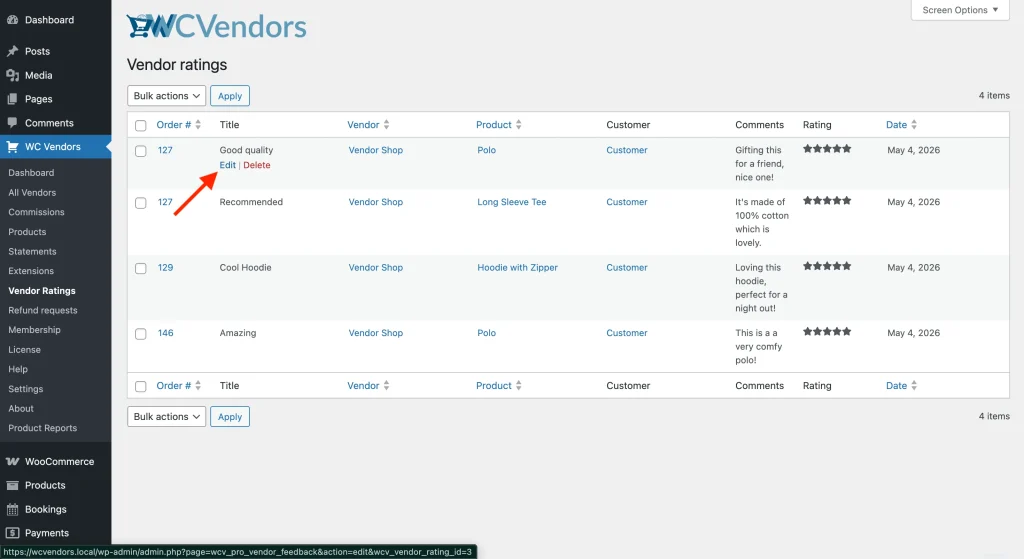
The ratings table shows every piece of feedback submitted, with columns for Order #, Title, Vendor, Product, Customer, Comments, Rating, and Date. You can sort the list by vendor, product, order number, or date. If you have renamed vendors in your settings, the Vendor column shows your own term instead.
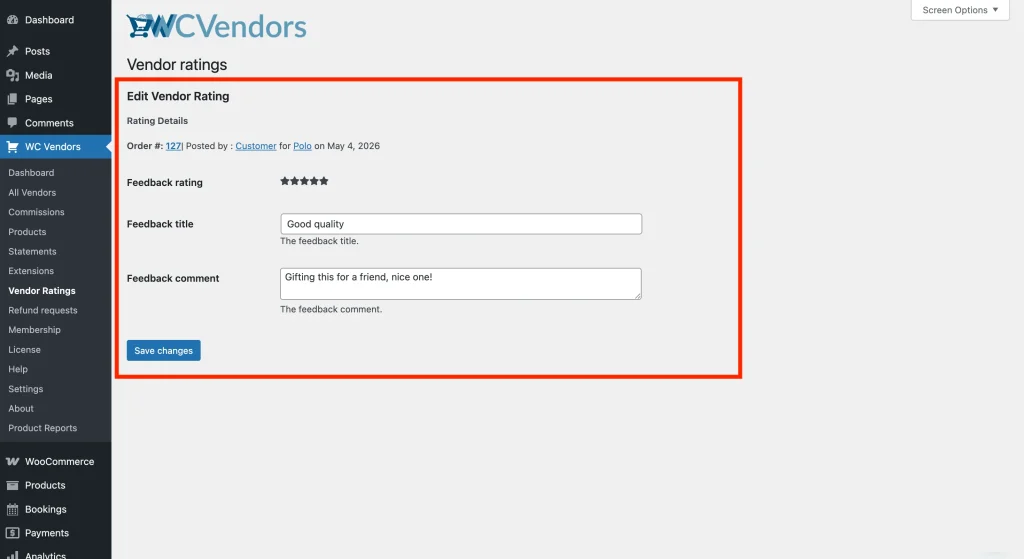
To edit a rating: hover over the rating title and click Edit. You can update the title and comments, then save your changes.
To delete a rating: hover over the rating title and click Delete, or use the checkbox to select multiple ratings and run the Delete bulk action.
Available shortcodes
WC Vendors Pro includes three shortcodes for displaying ratings on your site:
[wcv_feedback_form]: displays the customer feedback form. Place this on your dedicated feedback page (the one you created in Step 1).
[wcv_vendor_total_ratings]: displays a vendor’s overall star rating and a link to their ratings page. This works automatically on vendor store pages and individual product pages. You generally do not need to add it manually unless you’re building a custom layout.
[wcv_feedback vendor="USER_ID"]: displays a ratings link for a specific vendor. Replace USER_ID with the vendor’s WordPress user ID. Useful for adding a ratings link in a custom template or sidebar widget.
Troubleshooting
The Leave Feedback button doesn’t appear after an order is processed.
Check the Order Status setting under WC Vendors → Settings → Vendor Ratings. The button only appears once an order reaches the status you’ve selected. “Processing” shows it immediately after payment, and “Completed” waits until the order is fully finished.
A customer submitted feedback but it isn’t showing on the product page.
Check the Feedback Display setting. If “Disable feedback on the single product pages” is enabled, ratings are hidden from product pages and only appear on the vendor’s store page.
The feedback form shows a 404 error.
The feedback page needs to exist and contain the [wcv_feedback_form] shortcode. Go to Pages and confirm the page you created in Step 1 is published. If it was deleted or the shortcode is missing, recreate it following Step 1 above.
The customer sees “We could not save your feedback. Please return to your account and try again.”
This is a single catch-all message, so it does not name the field that caused the problem. Check every product in the order: each one the customer started needs a star rating, and any comment they wrote must be at least 20 characters. Fix the incomplete entry and submit the form again.
Frequently asked questions
When can a customer leave feedback?
By default, the Leave Feedback button appears once an order reaches “Processing” status. If you want to wait until the order is fully finished, change the Order Status setting to “Completed”.
What happens to ratings if a product is deleted?
By default, ratings stay in the database and show as “Deleted Product” in the vendor ratings list. To remove ratings automatically when a product is permanently deleted, enable the Delete ratings setting. This only works when vendors have the Product Delete capability turned on.
Can a customer update their feedback?
Yes. Once feedback has been submitted, the button on the orders page changes to “Revise Feedback”. The customer can click it to edit their star rating, title, and comments for any product in that order.
Need help?
If you have a question or run into any issues, we’re here to help.
- Premium users: Open a support ticket
- Free users: Visit our community forum