Instead of hoping vendors remember to check old stock issues on their own, you can now send scheduled reminder emails when products stay out of stock for too long. That is why this new WooCommerce automated emails feature in WC Vendors matters.
In this article, I’m going to walk you through what this feature does, how to turn it on, and what you should know before using it. So if you want a cleaner way to remind vendors about products that have been out of stock for too long, this feature is worth paying attention to.
What This Feature Does
At the most basic level, this feature sends reminder emails to vendors when their products stay out of stock for a set number of days. If you also run a wholesale operation, our sister brand covers the full picture of WooCommerce wholesale email automation, from approval emails to reorder reminders.
So instead of relying on vendors to manually check their catalogs, the system can follow up for you. For me, that is the main value of WooCommerce automated emails here. They help keep old out-of-stock products from getting forgotten.
You may also read about: WooCommerce Payment Reminder Email For Wholesale.
This is not just a one-time notice either. The reminders can continue according to the schedule you set in the settings. So if a product remains out of stock long enough, the vendor can continue to receive reminders on a weekly or monthly basis. Because of that, the feature works more like a follow-up system, not just a single alert that disappears after the first send.
How To Turn On WooCommerce Automated Emails
Step 1: Open the Notifications settings
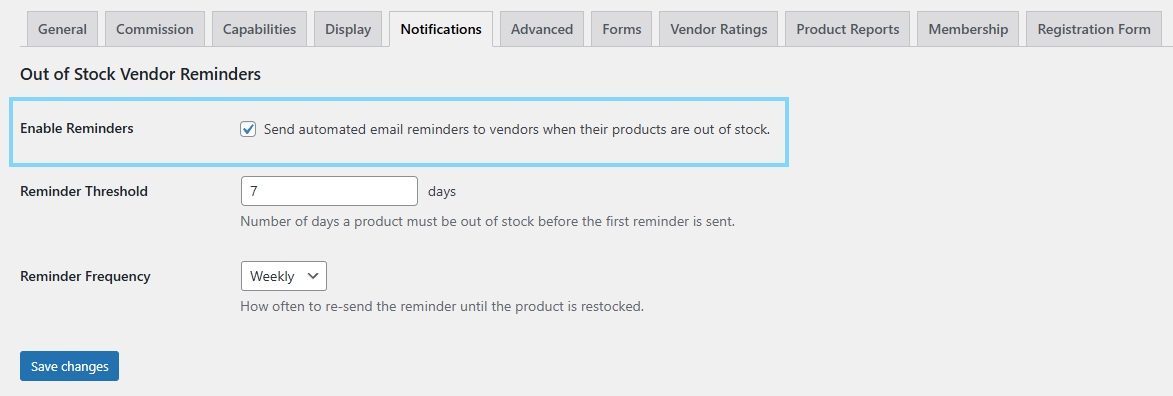
To start, go to your WordPress admin dashboard, open WC Vendors, click Settings, and then go to the Notifications tab. This is where the reminder settings live. If you are trying to enable WooCommerce automated emails for out-of-stock product reminders, this is the first place to check.

Step 2: Enable reminder emails
Once you are inside the Notifications tab, look for the setting called Enable Reminders and switch it on. After that, save your changes. This tells WC Vendors to start using the reminder system instead of leaving out-of-stock follow-ups completely manual.
Step 3: Set the reminder threshold
After enabling reminders, choose the number of days a product must stay out of stock before it gets included in the reminder email. For example, if you set it to 7 days, the system will only include products that have been out of stock for at least a week. I like this part because it prevents WooCommerce from sending automated emails too early for products that may be restocked quickly.
Step 4: Choose the reminder frequency
Next, choose how often the reminders should be sent. The feature gives you a simple choice between Weekly and Monthly. If your marketplace moves fast and vendors restock often, weekly reminders may make more sense. On the other hand, if your catalog changes more slowly, monthly reminders may be enough.
Step 5: Review the email settings
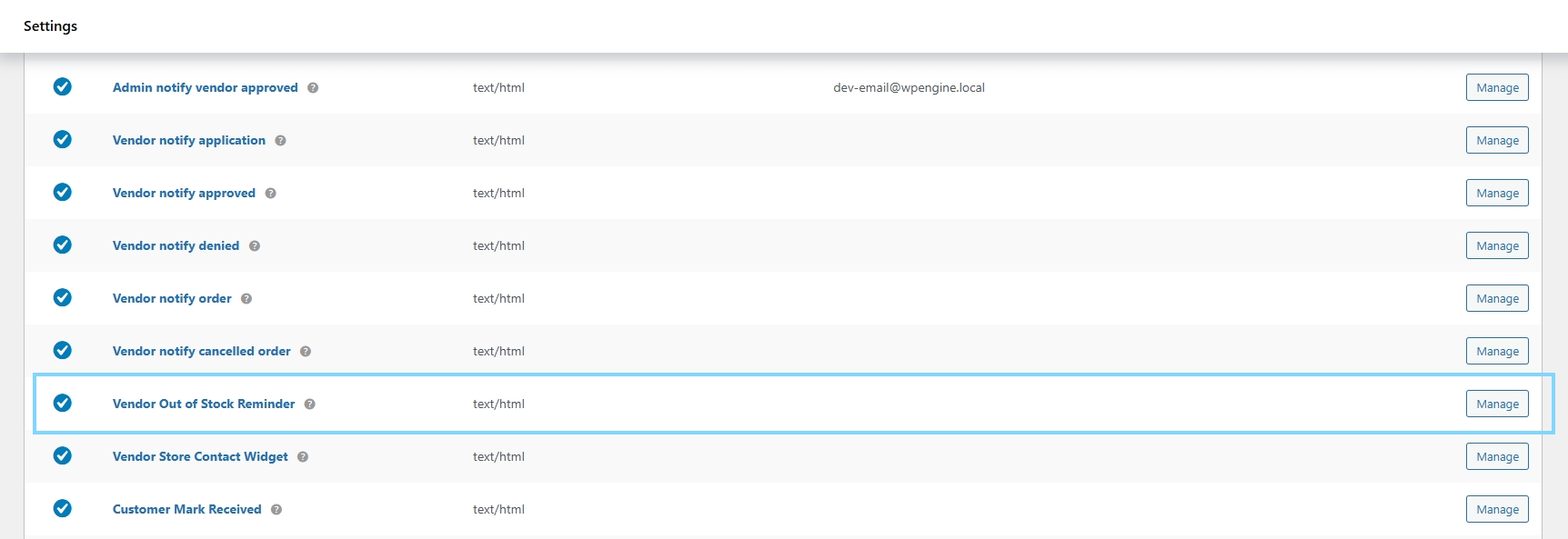
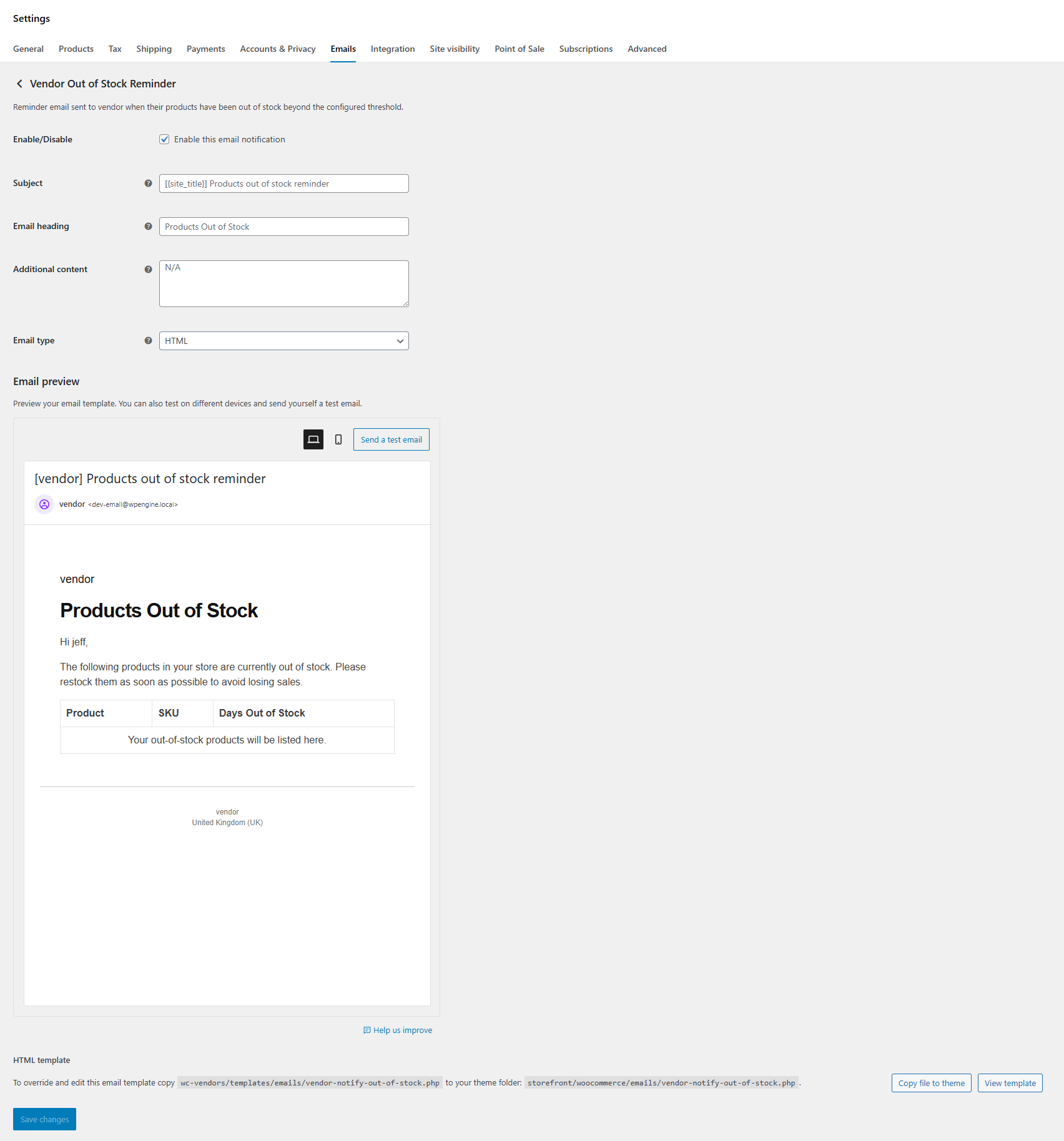
After that, go to WooCommerce > Settings > Emails and look for the Vendor Out Of Stock Reminder email.
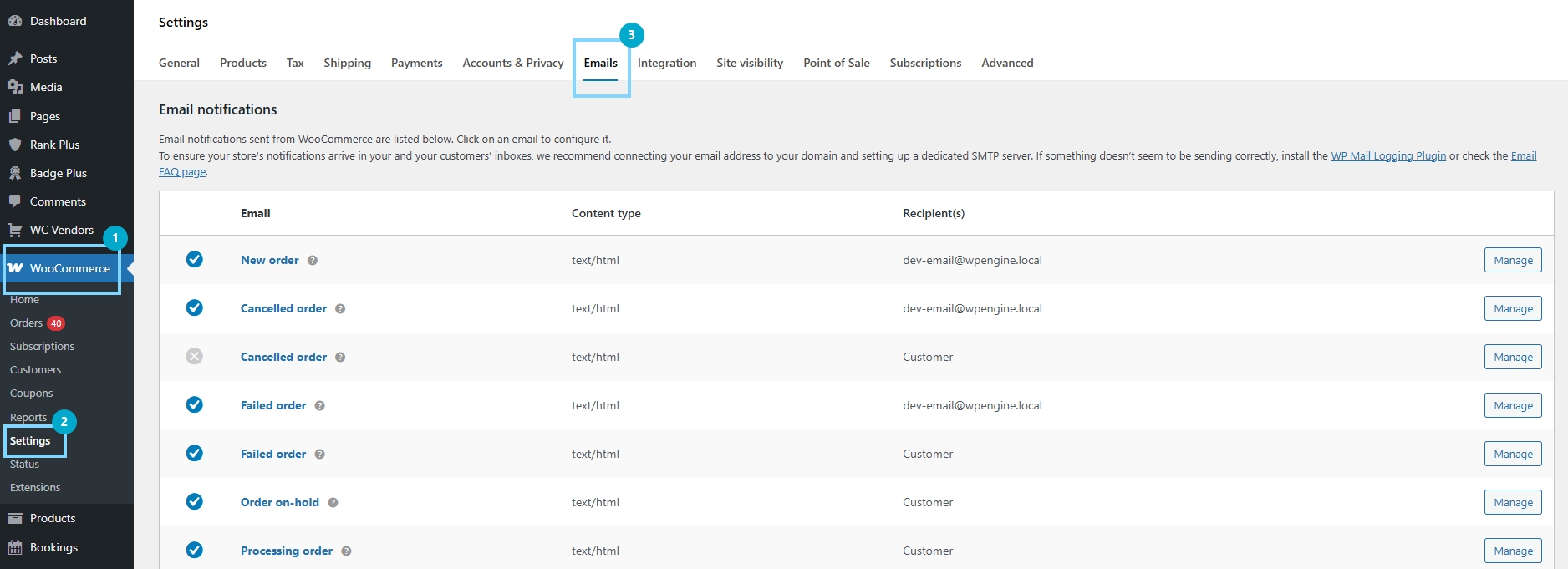
This is where you can review the email subject, heading, extra content, and email type. I always suggest checking this before going live, because even useful WooCommerce automated emails work better when the message is clear and easy for vendors to understand.
Conclusion
This feature gives vendors a more reliable way to monitor products that remain unavailable for too long. Instead of waiting for someone to notice an out-of-stock issue by chance, WooCommerce automated emails can send scheduled reminders to keep those products on the vendor’s radar. For me, that makes the feature useful right away, especially in a marketplace where vendors are managing many products at once.
Look back on the steps on how to activate it on your marketplace:
- Open the Notifications settings
- Enable reminder emails
- Set the reminder threshold
- Choose the reminder frequency
- Review the email settings
Frequently Asked Questions
What are WooCommerce automated emails in this feature?
In this feature, WooCommerce automated emails are scheduled reminder emails sent to vendors when products remain out of stock for more than the number of days you set in the admin settings.
What does the reminder threshold mean?
The reminder threshold is the number of days a product must remain out of stock before it gets included in the reminder email. This helps woocommerce automated emails avoid sending alerts too early for products that may be restocked soon.
Does the system send one email per product or one email per vendor?
It sends one digest email per vendor. So instead of getting one message for every product, vendors receive a single email that groups qualifying products together. That makes woocommerce automated emails easier to manage.
What happens when a product comes back in stock?
Once a product is back in stock, it should no longer qualify for the reminder flow. In other words, WooCommerce automated emails focus on items that are still out of stock, not products that have already been restocked.