
Running a multi-vendor marketplace involves a constant balancing act between vendor freedom and admin control. When a vendor needed to be moved back to Pending Vendor status, their existing listings would stay live until you manually changed each one. That gap is now closed. The latest WC Vendors release introduces a setting that automatically unpublish vendor products when their role changes to Pending Vendor. This update solves a real moderation pain point and gives admins a cleaner way to handle re-review cycles, compliance checks, and vendor disputes.
Why Marketplaces Need To Unpublish Vendor Products On Demand
Marketplace trust is fragile. According to Statista, e-commerce payment fraud losses worldwide totaled more than 40 billion U.S. dollars in 2022, and the global fraud detection market is projected to surpass 100 billion dollars by 2027. Every listing that stays visible during a vendor review represents potential exposure for the marketplace. The ability to unpublish vendor products quickly is now considered a baseline moderation control rather than a nice-to-have.
Without an automated path, admins spend hours flipping product statuses one by one, and live listings sometimes slip through the cracks. That delay can lead to unintended sales, customer complaints, or compliance issues that become harder to undo. Being able to unpublish vendor products predictably is exactly the kind of operational discipline marketplaces need.
Inside The New Pending Vendor Product Setting
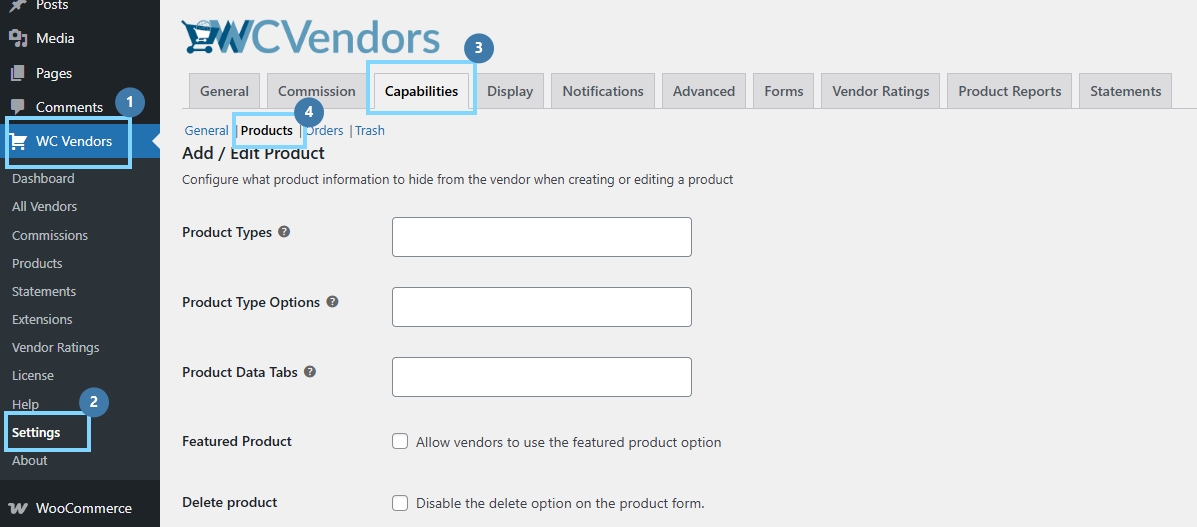
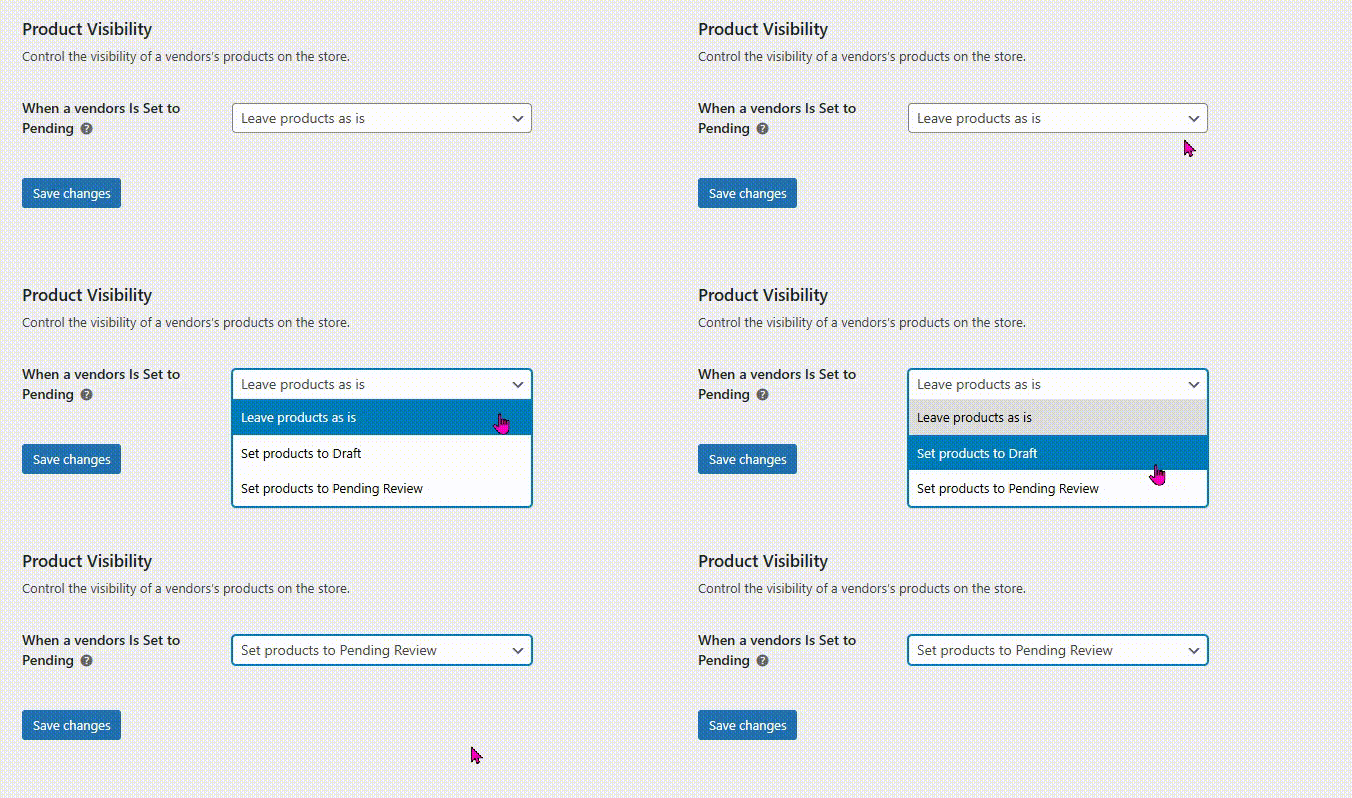
WC Vendors ships with a new option called Pending Vendor Product Action. You will find it inside WC Vendors → Settings → Capabilities → Products → Product Visibility. The dropdown gives admins three choices for what should happen the moment a vendor’s role flips back to Pending:
- Do nothing (default, mirrors the old behavior)
- Set published products to Draft
- Set published products to Pending
Each option only affects products owned by the specific vendor whose role has changed. Other vendors and their inventory stay untouched. The system also stores the previous status of each affected listing in a meta field, so when a vendor is re-approved later, their products can be restored to the state they were in before. There’s also a clean audit trail every time you unpublish vendor products through this automation.
How the feature works to unpublish vendor products automatically
When you flip a user from Vendor to Pending Vendor, WC Vendors checks your selected option and runs the corresponding action. If you choose Draft, every published listing owned by that account moves to Draft status. Picking Pending instead routes those listings to the Pending Review queue, which is appropriate when re-approval is likely within a day or two. The transition only fires when the role changes from active vendor to pending vendor. It will not run repeatedly if the vendor is already in a pending state, which keeps your database clean and prevents accidental status overwrites.
Step-by-step guide to unpublish vendor products in WC Vendors
Here is the exact process to enable and use this setting on your marketplace:
- Update WC Vendors to version 2.6.9 or newer through your WordPress admin → Plugins page.
- Navigate to WC Vendors → Settings → Capabilities → Products → Product Visibility.
- Scroll until you see the new option labeled Pending Vendor Product Action.
- Pick a value from the dropdown: Do nothing, Set published products to Draft, or Set published products to Pending.
- Save your changes at the bottom of the settings page.
- Open WordPress Admin → Users and locate the vendor you want to demote.
- Click the user, then change their role from Vendor to Pending Vendor.
- Save the user. WC Vendors will automatically unpublish vendor products belonging to that account based on your chosen option.
- Review the admin notes and product list to confirm how many listings were updated.
That is it. The full process to unpublish vendor products takes less than a minute once the setting is configured. For a refresher on the broader vendor approval workflow, the WC Vendors guide on setting up vendor registrations covers the surrounding pieces.
Best Practices When You Unpublish Vendor Products
A few habits help when admins unpublish vendor products at scale. Send the affected vendor a quick email so they understand why their store went quiet. Document your re-approval criteria so every team member applies the same standard. Pick the right option based on your typical timeline: Draft fits longer review cycles, while Pending suits faster turnarounds. For an even stronger workflow, pair this setting with the new AI content moderation feature so risky listings are flagged before they ever go live.
Final Thoughts
The new Pending Vendor Product Action setting is one of those small features that quietly change how confidently you can run your marketplace. Being able to unpublish vendor products through an automatic role change closes a long-standing gap and brings WC Vendors closer to the moderation tools you would expect from larger marketplaces. Whether you are handling a quick re-review or a longer compliance investigation, this option provides a clean, repeatable way to keep your catalog aligned with your vendor approval status.
Across the article, we walked through:
- Why marketplaces need to unpublish vendor products on demand
- Inside the new pending vendor product action setting
- Best practices when you unpublish vendor products
Try the new option on your next vendor review cycle and let your moderation workflow do the heavy lifting. The result is a tidier catalog, fewer live exposure risks, and clearer signals to your vendors about where they stand.
Frequently Asked Questions
Will this setting unpublish vendor products from other vendors as well?
No. The action targets only listings owned by the specific vendor whose role has just changed to Pending Vendor. Every other vendor and their inventory stay completely untouched.
What happens to a vendor’s listings when they are re-approved later?
WC Vendors stores the previous status of each affected listing in a meta field before making any changes. When you move the user back to Vendor, those products are restored to their original state, so you don’t have to manually re-publish each one.
Should I pick Draft or Pending as my default?
It depends on your typical review cycle. Draft suits longer investigations where you don’t want products sitting in the review queue for weeks. Pending works better for quick turnarounds, since those listings appear in your normal Pending Review workflow alongside fresh submissions.
Does the setting run every time the vendor logs in or saves their profile?
No. It only runs once, when the role transitions from active Vendor to Pending Vendor. If the user is already pending, the action will not fire again, which protects your database from repeated overwrites.
Can I still unpublish vendor products manually if I leave the option set to Do Nothing?
Yes. Choosing Do Nothing simply preserves the old behavior, so you keep full manual control. You can edit each listing one at a time or use bulk actions in WooCommerce to unpublish vendor products on your own schedule.
Which version of WC Vendors do I need to unpublish vendor products this way?
You need WC Vendors version 2.6.9 or newer. Older versions don’t include the Pending Vendor Product Action setting, so updating is required before the option appears in your General settings tab.