

If you operate a marketplace in the European Union or sell to EU-based customers, transparency regarding Value Added Tax (VAT) is often a legal requirement. Specifically, marketplaces are often required to display the vendor’s registered VAT number on product pages, storefronts, and invoices.
This guide will walk you through setting up a custom VAT number field for your vendors. By following these steps, you will allow vendors to manage their own tax information via their dashboard and ensure that this data is automatically shared with customers during the purchase process.
Why Collecting Vendor VAT Numbers is Important
For marketplaces operating under EU tax laws, displaying the seller’s VAT number is a key part of compliance. It provides transparency to the buyer and ensures that the “tax identity” of the vendor is clear on all official communications, such as order emails and invoices.
By providing a dedicated field, you achieve three things:
- Automation: Once set up, the information flows from the vendor’s settings to the customer’s view without manual entry.
- Compliance: You meet regional legal requirements for displaying seller information.
- Professionalism: Your vendors appear more credible to business-to-business (B2B) buyers.
How to Enable VAT Fields for Vendors
To allow your vendors to add their VAT details, you will need to add a custom field to the Vendor Registration settings page.
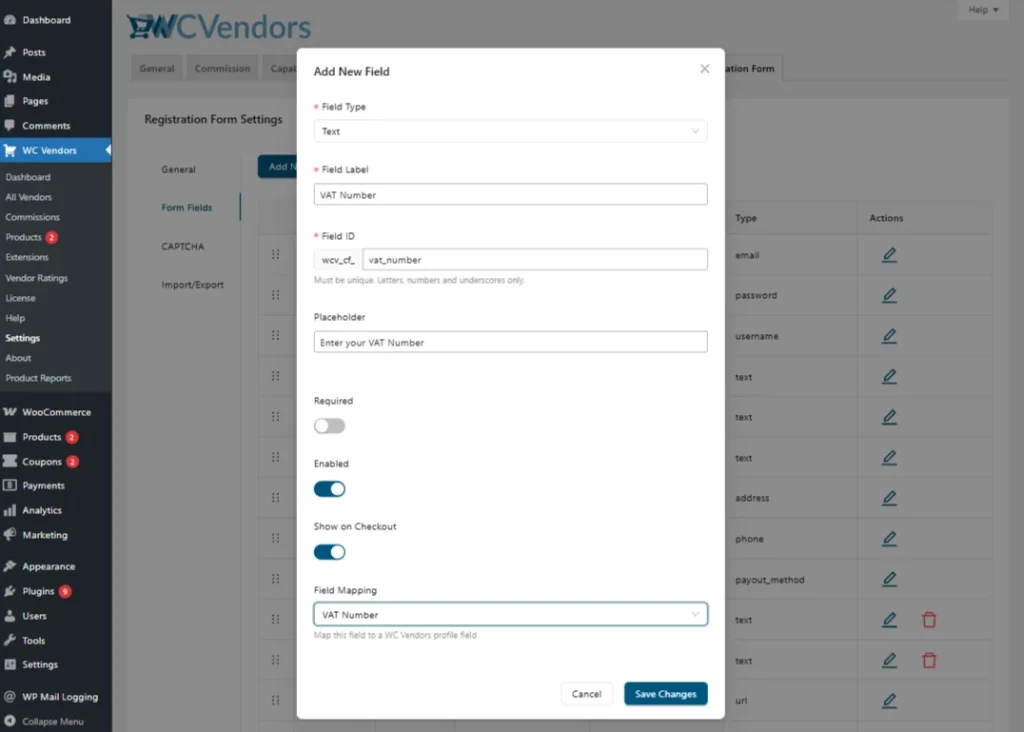
- Navigate to Settings: Go to WC Vendors → Settings → Vendor Registration.
- Access Form Fields: Click on the Form Fields tab to manage the fields vendors must complete during signup or within the Vendor Dashboard (for existing vendors).
- Add the VAT Number Field: click on the Add New Field button to add the VAT Number field.
- Configure the Field:
- Type: Select Text.
- Label: Enter “VAT Number”.
- Placeholder: Add a helpful tip like “Enter your registered business VAT number for tax compliance“.
- Enable this field.
- Enable the “Show on Checkout” option if you wish to show the field on checkout.
- Mapping: Choose the “VAT Number” option in the dropdown.
- Save Changes: Click the Save Settings button at the bottom of the page.
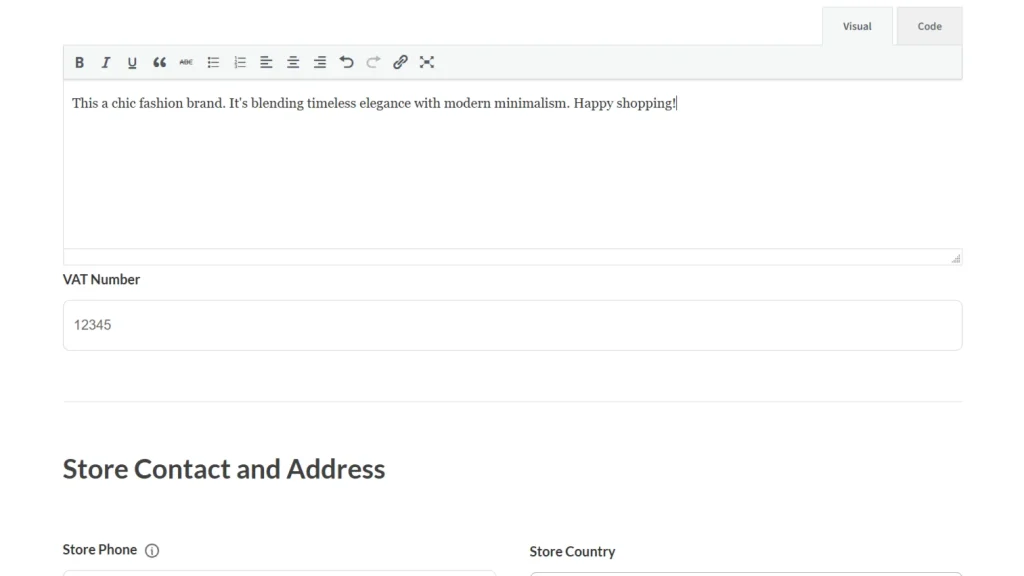
Once saved, vendors will see this field in their Vendor Dashboard at Settings → Store under the Store Description, allowing them to input and update their VAT information at any time.
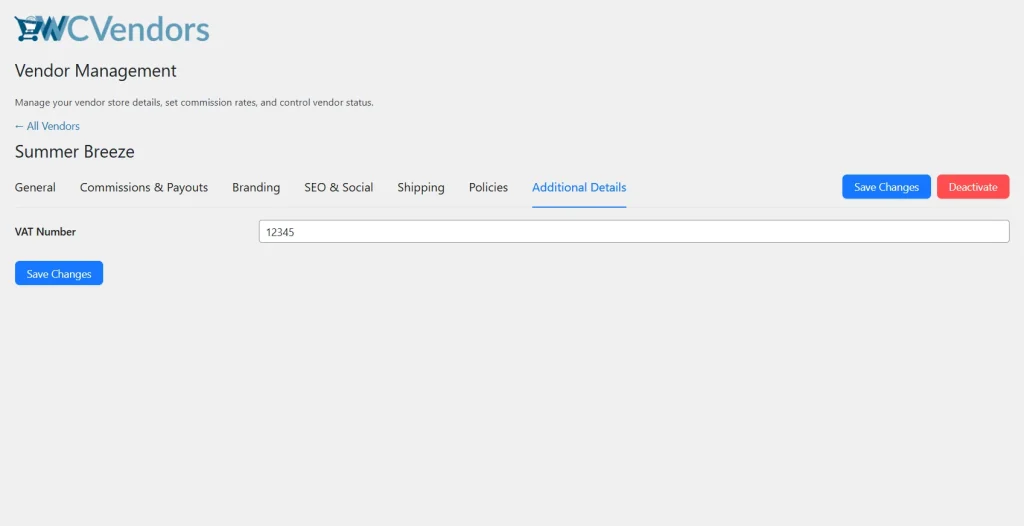
As an admin, you can also manage this on their behalf by going to WC Vendors → All Vendors, editing the specific vendor, and opening the Additional Information tab.
💡 Pro-Tip:
Before adding your VAT number, you can verify its status using the official EU VIES Validation tool. For more information on why these numbers are required for online sales, see the EU VAT E-commerce guide.
Displaying Vendor VAT Numbers on Your Site
Once a vendor has entered their VAT number in their dashboard, WC Vendors simplifies your compliance efforts by handling the display for you. There are no additional complicated settings to toggle; the information is automatically integrated into the most important customer-facing areas of your marketplace.
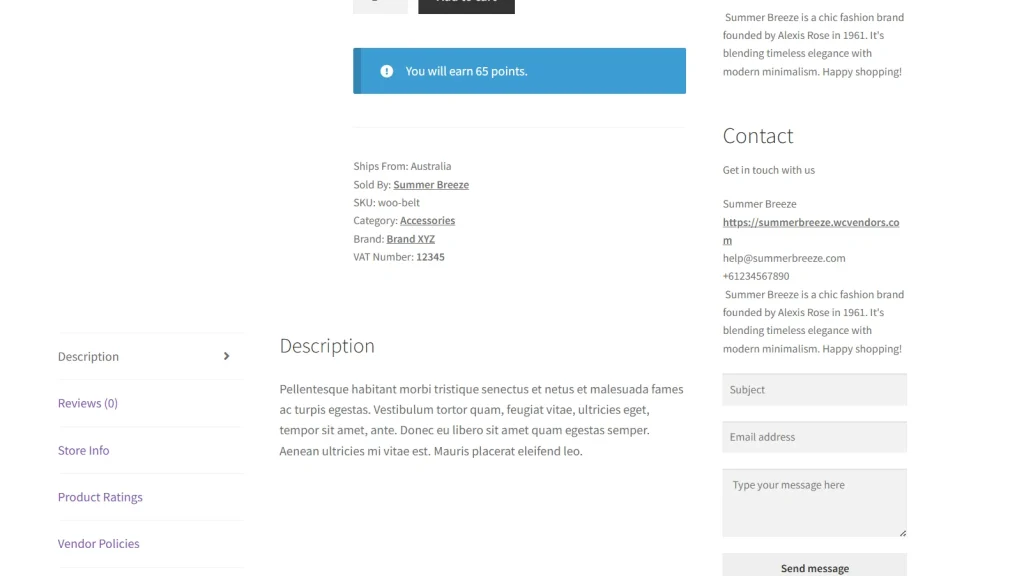
To ensure your marketplace meets EU transparency requirements, the VAT number is automatically included in the product metadata.
Single Product Page: The VAT number will appear within the product details section (meta area) whenever it is available for that specific vendor.
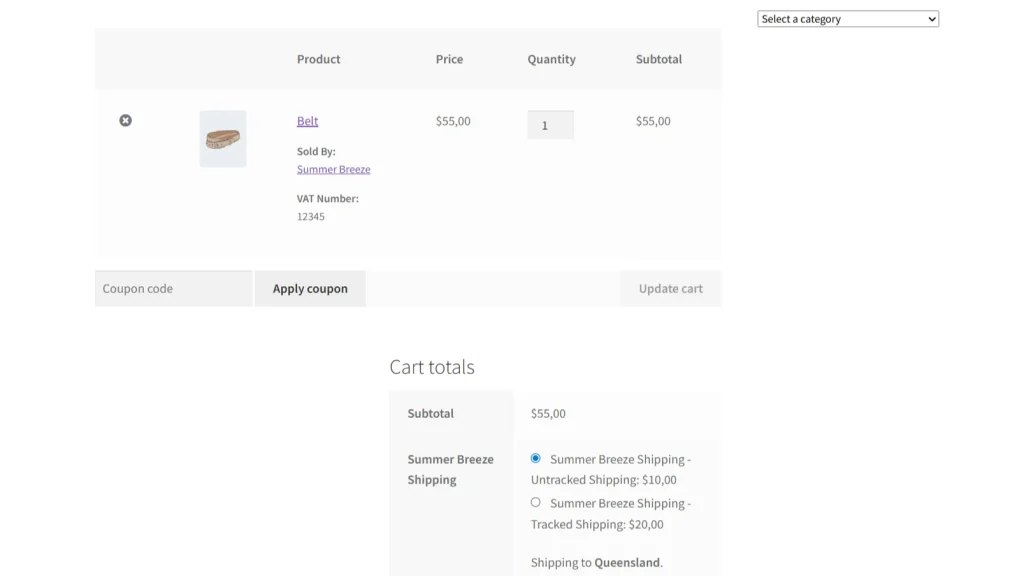
Cart Page: Customers will also see the vendor’s VAT number listed under the product name in the cart, providing a clear tax record before they proceed to payment.
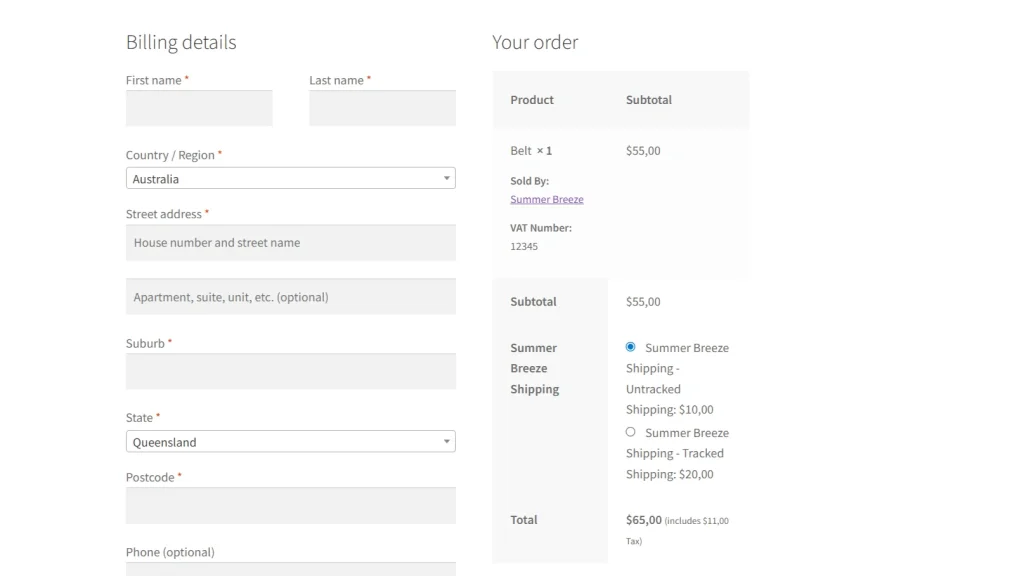
Checkout Page: If the “Show on Checkout” option is enabled, the vendor’s VAT number will be displayed during the final payment steps, ensuring all necessary tax information is visible before the order is placed.
Best Practices for VAT Compliance
- Make the Field Optional: Not every vendor or customer will have a VAT number. Ensure the field is not marked as “Required” unless your marketplace specifically only accepts registered businesses.
- Verify Numbers: Periodically remind your vendors to ensure their VAT details are up to date.
- Run a Test Purchase: After setting up the fields, perform a test purchase to ensure the VAT number appears correctly in the product page, cart page, and checkout page.
Wrapping Up Your VAT Configuration
By following these steps, you have successfully automated the collection and display of vendor VAT numbers. This setup ensures that from the moment a customer views a product to checkout, the necessary tax transparency is maintained without any manual work on your part.
If you run into any issues with fields not appearing, double-check your form settings or reach out to our support team for further assistance.