

Designing the perfect vendor onboarding experience takes time. Whether you are using text fields, file uploads, or custom dropdowns, recreating a complex form on a new site can be a hassle.
With the WC Vendors Signup import/export feature, you can now move your entire registration form configuration between websites in seconds. This guide will show you how to move your field settings from a staging site to your live store, or simply keep a backup of your configuration.
Why Use the Import/Export Feature?
If you manage multiple marketplaces or use a staging site for testing, this feature is built for you. It solves several common problems:
- Speed Up Deployment: Move your custom forms from a test environment to production without manual rebuilding.
- Prevent Errors: Avoid the risk of missing a required field or misspelling a label during manual setup.
- Easy Backups: Keep a local copy of your form structure to restore it at any time.
- Scale Your Business: Agencies can quickly deploy a standard “starter form” across multiple client marketplaces.
How to Export Your Registration Form Settings
Exporting creates a small .json configuration file containing all your field types, labels, and requirement settings. It does not include any user-submitted data or vendor applications.
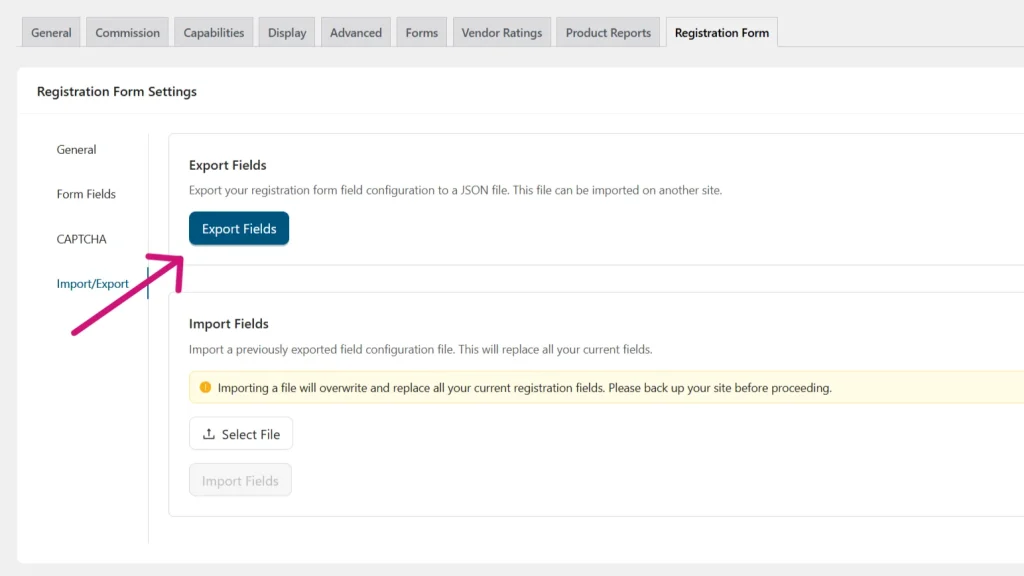
- Navigate to WC Vendors → Settings in your WordPress dashboard.
- Click on the Registration Form tab and navigate to the Import/Export section at the bottom.
- Look for the Export Fields button at the top or bottom of the form builder section.
- Click the button to download your configuration file (e.g.,
wcv-form-fields-export.json).
How to Import Registration Form Settings
Importing a file will automatically rebuild your signup form based on the settings in the exported file.
⚠️ Important Warning:
Importing a configuration file will overwrite and replace all current fields in your WC Vendors Signup form. Please ensure you have a full backup of your site before proceeding.
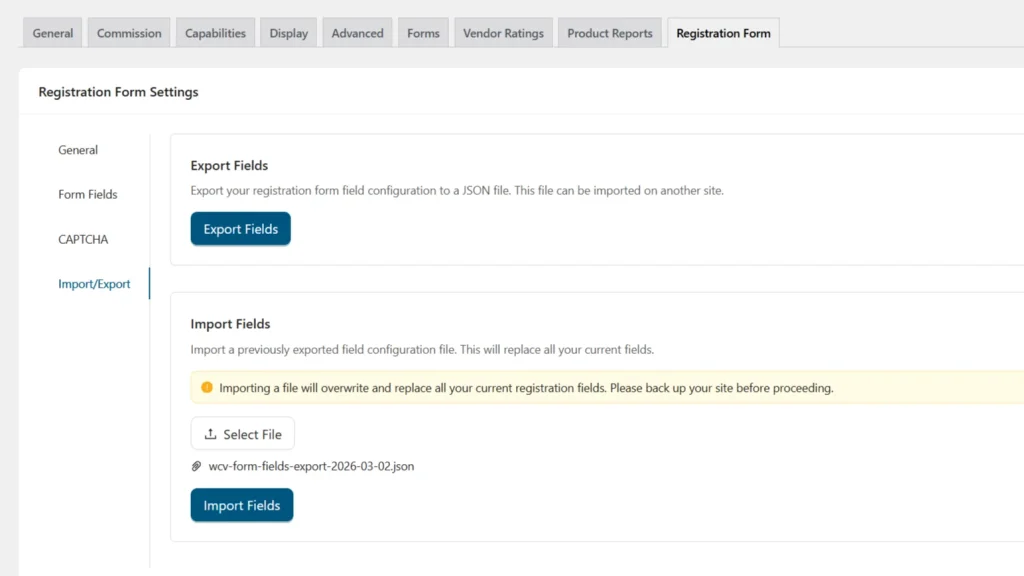
- Navigate to WC Vendors → Settings → Registration Form on the site where you want to import the settings.
- Locate the Import/Export Fields section at the bottom.
- Click Choose File and select the
.jsonfile you exported previously. - Click the Import Fields button.
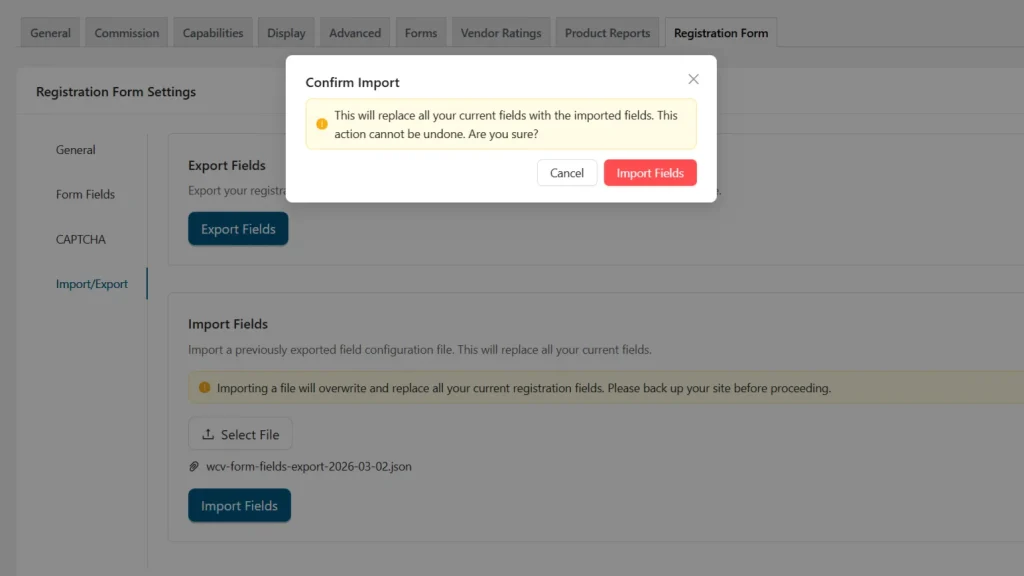
- A confirmation pop-up will appear: “This will overwrite your current fields. Are you sure?”
- Click Import Fields to complete the process.
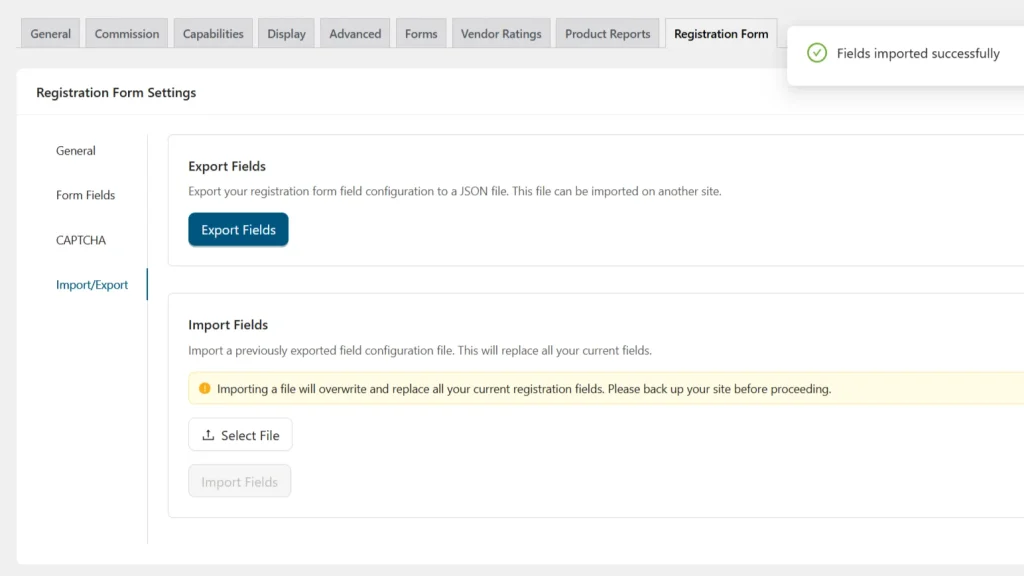
- Wait for it to finish, and your form is now ready to use!
Best Practices
- Backup First: Always perform a full site backup before importing, as the import process completely replaces your current form structure.
- Test the Flow: After importing, visit your Vendor Registration page as a guest to ensure all fields appear in the correct order and that conditional settings are working.
- Version Control: Name your exported files with the date or version (e.g.,
registration-form-v2-2024.json) so you can easily revert to older designs if needed.
Frequently Asked Questions
➤ Does this move my existing vendor applications?
No. This feature only moves the structure and settings of the form. It does not move any vendor data, user accounts, or previous applications.
➤ Will this affect my general WC Vendors settings?
No. This tool is scoped specifically to the WC Vendors Signup registration form fields. Your commissions, shipping, and other plugin settings remain unchanged.
➤ What happens if the import fails?
The plugin performs a validation check. If the file is corrupted or not a valid WC Vendors Signup configuration, the import will stop to prevent damaging your existing form.
Streamline Your Marketplace Onboarding
You have successfully learned how to use the import and export functionality for the WC Vendors Signup plugin. By following these steps, you can maintain a consistent onboarding experience across all your marketplaces while saving hours of manual work.
Now, try exporting your form to keep a secure backup of your hard work!
If you encounter any issues or need assistance, please don’t hesitate to reach out to our support team.