

By default, WC Vendors adds an “Apply to become a vendor” checkbox to the standard WooCommerce registration form on the My Account page. With this setup, users can first sign up as vendors during registration. After logging in, they can then complete the vendor registration form from the Vendor Dashboard to finalize their application process.
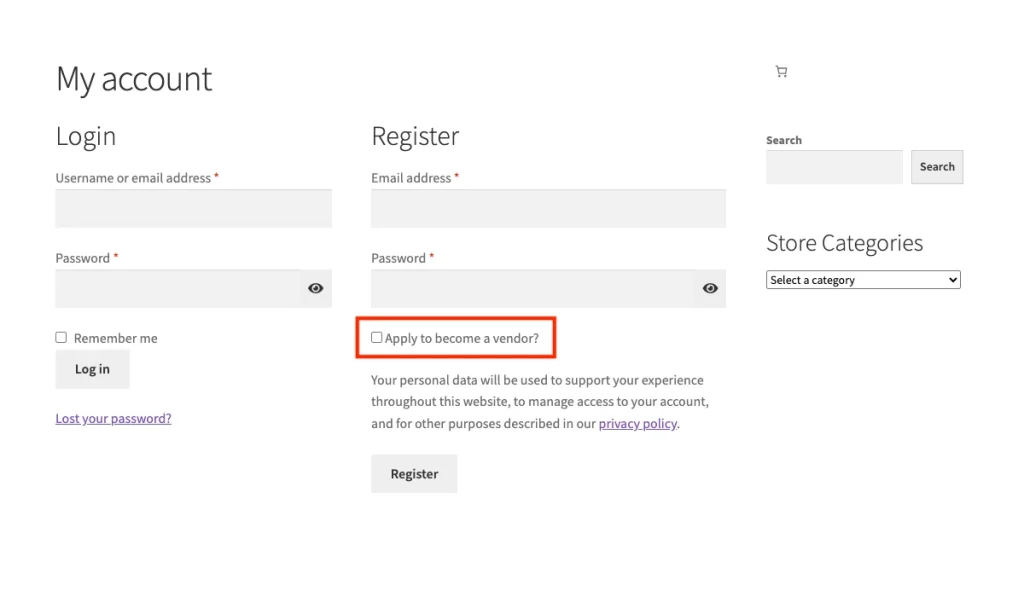
However, many store owners prefer to keep customer and vendor registrations completely separate. If you want to force potential vendors to sign up only through your dedicated Vendor Dashboard page while keeping standard customers on the My Account page, this guide is for you.
By following these steps, you will learn how to use a simple code snippet to hide that checkbox while keeping vendor registration active in your backend settings.
Why Remove the Vendor Checkbox?
While the checkbox is convenient, there are several reasons you might want to remove it:
- Cleaner User Experience: Keep the customer registration form simple and focused on shoppers.
- Reduced Spam: Avoid accidental vendor applications from customers who just want to track their orders.
- Professional Onboarding: Direct serious applicants to a dedicated registration page where you can provide more information about your marketplace.
Step 1: Enable Vendor Registration
Before applying the code snippet, ensure that your marketplace is actually open for new sign-ups. You can do this without showing the checkbox.
- Navigate to WC Vendors → Settings in your WordPress dashboard.
- Click on the General tab.
- Ensure the Vendor Registration box is checked.
- Click Save Changes.
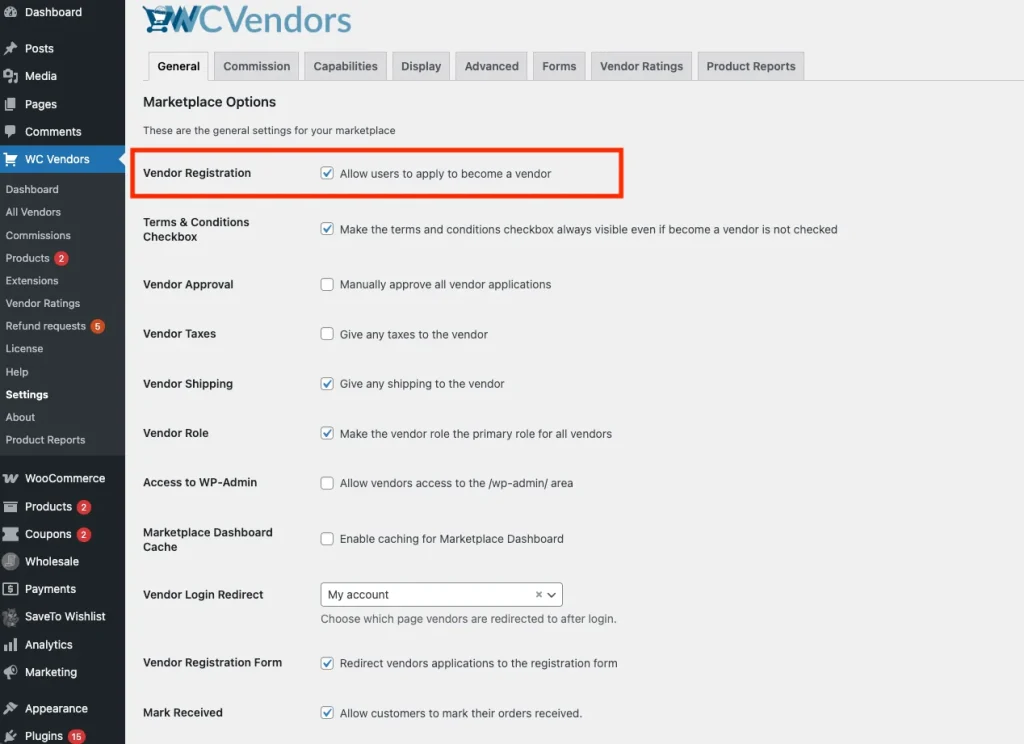
Note: Keeping this enabled ensures that your dedicated Vendor Dashboard registration link still works, even though the checkbox on the My Account page will be hidden.
Step 2: Add the Code Snippet
To remove the checkbox, we need to add a small piece of code to your site. We recommend using a plugin like Code Snippets to do this safely, but you can also add it to your child theme’s functions.php file.
By applying this snippet, you have streamlined the user experience: standard shoppers can register without distraction, and only logged-in users can now sign up to become vendors by completing the registration form from the Vendor Dashboard.
Troubleshooting Tips
We recommend testing the flow by logging in as a standard customer and visiting your dashboard to ensure the application process works exactly as you intended.
- Checkbox is still showing: If you are using a caching plugin (like WP Rocket or LiteSpeed Cache), make sure to clear your site cache after activating the snippet.
- Registration is disabled: If users see a message saying “Your account is not setup as a vendor.” on your Vendor Dashboard, go back to WC Vendors → Settings → General and verify that “Allow users to register to be a vendor” is enabled.
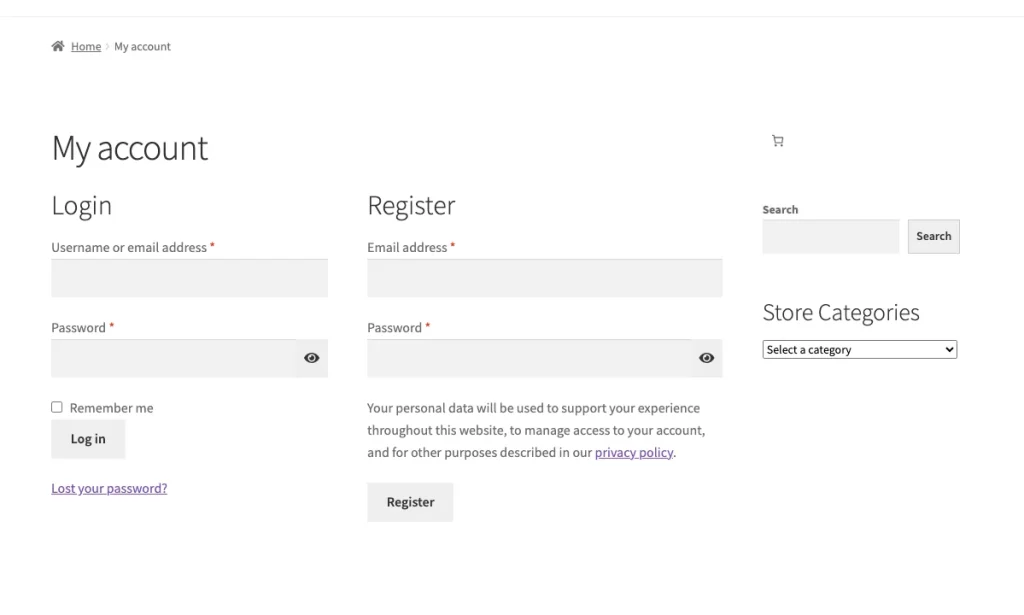
Final Result: Separate Customer and Vendor Registration Flows
You have now successfully separated your customer and vendor registration flows! This simple change helps maintain a professional appearance and ensures that only those intentionally looking to sell on your platform find the registration form.
For an even more streamlined experience, you can also use WC Vendors Signup to create a dedicated vendor signup page, instead of relying on the default Vendor Dashboard registration form.
Feel free to explore other WC Vendors settings to further customize your marketplace onboarding process.