We have shipped significant updates to the WC Vendors Stripe Connect gateway that together make your marketplace more transparent for vendors and more accessible to sellers worldwide. This update shows vendors the exact Stripe fees computation that applies to each of their orders, along with their commission, on both the vendor dashboard and the vendor’s new order email. Another update adds cross-border payout support, which lets your marketplace pay international vendors in countries other than your platform. If you are also tackling the buyer-facing side of currency handling, our guide to setting up a multi-currency WooCommerce marketplace covers the storefront currency plugins that work alongside cross-border payouts.
If you want that same financial clarity consolidated into a monthly record, WC Vendors Pro also recently introduced an automatic vendor monthly statement — a PDF generated at the end of each month summarising every vendor’s gross revenue, commissions, Stripe fees, refunds, and net payable in one place.
This article walks through what each feature does, why you would want to enable it, and how to configure both in your Stripe Connect settings.
Why Fee Transparency And Global Reach Matter For Marketplaces
Research published in the Harvard Business Review found that companies prioritizing transparency can meaningfully increase retention rates, and that a 5% increase in customer retention can raise profits by 25% to 95%. For a two-sided marketplace, vendor retention is just as critical as buyer retention. Every churned vendor means rebuilding inventory from scratch.
Global reach compounds this picture. Stripe’s Connect documentation confirms that platforms based in the United States, United Kingdom, EEA, Canada, and Switzerland can transfer funds to connected accounts located across the same regions, which means a UK-based marketplace can pay a US seller, or a German platform can pay a Canadian vendor. Without native cross-border support, marketplace operators had to either restrict their vendor pool to their home country or build custom workarounds. The new WC Vendors Stripe Connect release removes that barrier.
In layman’s terms, clearer stripe fees computation builds vendor trust, and cross-border payouts expand your addressable vendor pool.
Stripe Fees Computation Display For Vendors
Vendors see the proportional Stripe fee and net payout for every order
A new opt-in setting called Show Stripe Fees to Vendors adds two columns to the vendor commission dashboard and two rows to the vendor new order email: Stripe Fee (the proportional fee deducted from that vendor’s share of the order) and Net Payout (what the vendor actually receives after the stripe fees computation is applied).
The feature is off by default. When you enable it under the Stripe Connect admin settings, the plugin loads a dedicated display class (WCV_SC_Commission_Fee_Display) that registers its hooks only while the setting is active, so there is zero overhead when the feature is disabled.
The feature applies when your marketplace uses Direct Charge mode or Charge & Transfer with fee splitting enabled. These are the two scenarios where Stripe fees are proportionally distributed across multiple vendors on a single order. The stripe fees computation runs on the balance transaction data returned by Stripe’s API, which guarantees the numbers match what Stripe actually billed.
Why vendors need this
Without the stripe fees computation breakdown, vendors have to do the math themselves. They see a commission amount in the email, then a smaller deposit in their bank account, and they do not know whether the difference came from Stripe, your platform, or a mistake. Transparency eliminates the guessing. Vendors see exactly what Stripe took and exactly what hit their bank.
Activating Stripe fees computation display
This shows vendors the Stripe fee and net payout breakdown on their dashboard and email.
Go to WooCommerce → Settings → Payments → Stripe Connect. On the same Stripe Connect settings page, scroll down and find the setting labeled “Show Stripe Fees to Vendors”. Toggle it ON.
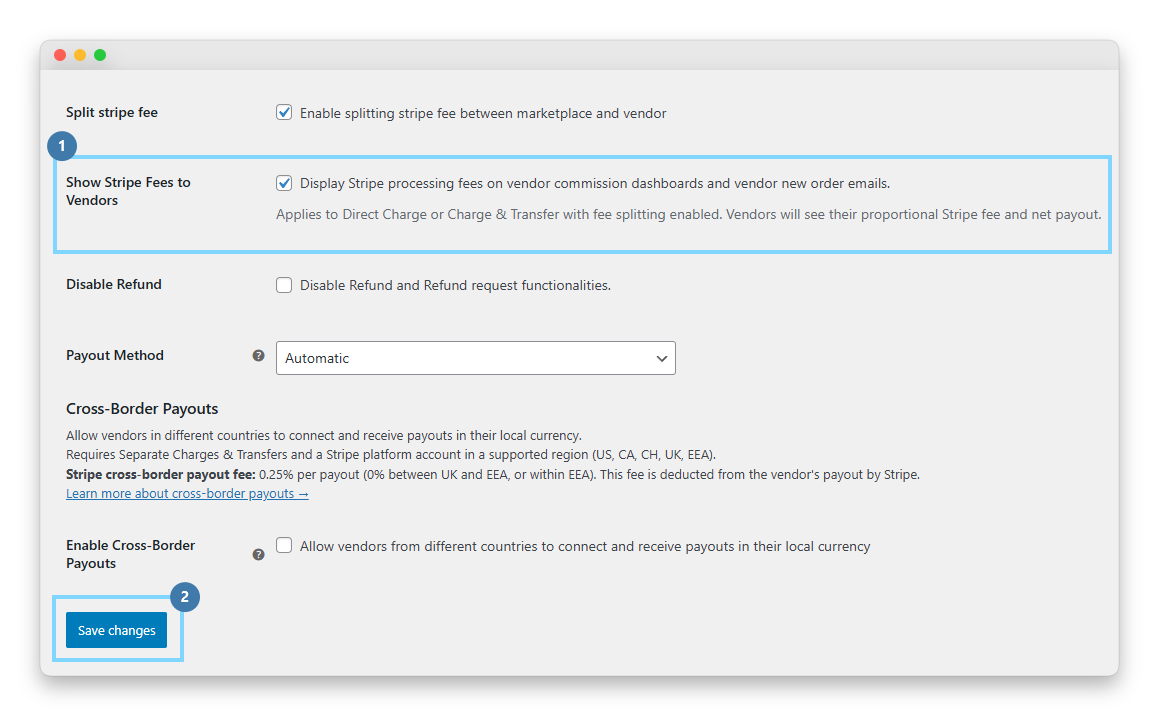
Click Save changes at the bottom of the page.
Test with a real order
- Place a test order as a customer using Stripe’s test card.
- Check the vendor new order email. You should see two new rows: Stripe Fee and Net Payout.
- Log in as the vendor and go to their commission dashboard. Two new columns should appear: Stripe Fee and Net Payout.
If you don’t see the columns, double-check that you’re using Direct Charge or Charge & Transfer with fee splitting (it won’t work with Destination Charges).
Cross-Border Payout Support For International Vendors
Pay vendors located in different countries than your platform
The new Cross-Border Payouts setting in Stripe Connect admin settings enables your marketplace to pay connected vendor accounts located in a different country than the platform, as long as both the platform and vendor country are in Stripe’s supported region list.
The new cross-border support leverages Stripe Connect’s native cross-border payouts capability, which Stripe introduced to let platforms pay connected accounts in countries where the platform does not locally acquire funds.
Supported regions and fees for cross-border payouts
Cross-border payouts in WC Vendors Stripe Connect follow Stripe’s supported region list:
- United States
- United Kingdom
- Canada
- Switzerland
- The full EEA (European Economic Area), including Austria, Belgium, Bulgaria, Croatia, Cyprus, Czech Republic, Denmark, Estonia, Finland, France, Germany, Greece, Hungary, Iceland, Ireland, Italy, Latvia, Liechtenstein, Lithuania, Luxembourg, Malta, Netherlands, Norway, Poland, Portugal, Romania, Slovakia, Slovenia, Spain, and Sweden
Platforms based in any of these regions can transfer funds to connected accounts in any other region on the list. For example, a UK marketplace can pay a US seller. A German platform can pay a Canadian vendor. A Dublin-based marketplace can pay a vendor in Poland. All of these flows are supported natively once you enable the setting.
Fee structure
According to Stripe’s official documentation, each cross-border payout incurs a 0.25% fee to cover regulatory and processing costs. There is one important exception: fees are waived to 0% for payouts sent between the UK and the EEA, or within the EEA itself. So a UK-to-Germany payout is free, but a UK-to-US payout costs 0.25%.
The WC Vendors Stripe Connect implementation automatically detects each vendor’s default currency from their Stripe account and uses it for the cross-border payout currency, so vendors receive funds in their local currency rather than being forced to accept the platform’s currency.
Activating Cross-Border Payouts
This lets you pay vendors in different countries than your platform.
Step 1: Confirm your platform is in a supported region
Your platform’s Stripe account must be based in one of: US, UK, Canada, Switzerland, or any EEA country. If you’re in an unsupported region, an admin notice will appear when you try to enable this feature.
Step 2: Enable Cross-Border Payouts
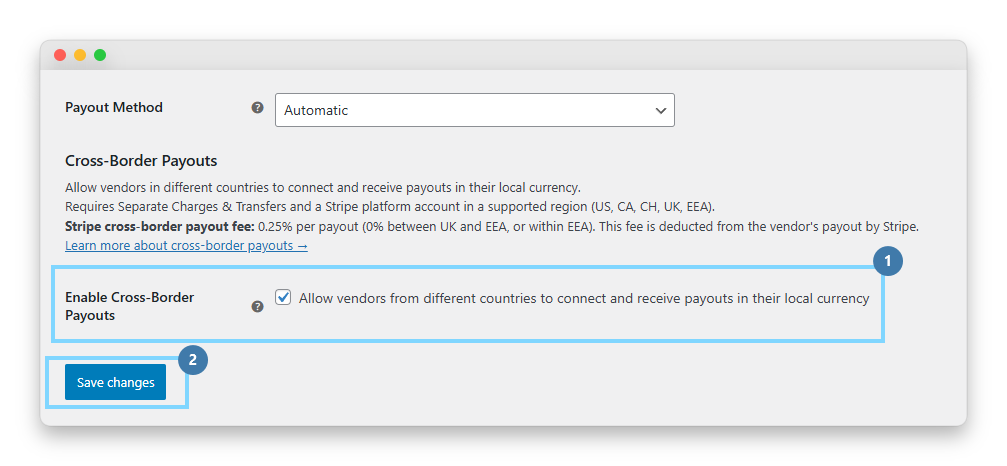
- Go to WooCommerce → Settings → Payments → Stripe Connect.
- Scroll to the Cross-Border Payouts section.
- Toggle the setting ON.
- Click Save changes.
Step 3: Verify separate charges & transfers is automatically enabled
After saving, confirm that Separate Charges & Transfers has been automatically turned on (cross-border requires this mode). You should also see a fee info reminder showing 0.25% standard / 0% within EEA or UK-EEA.
How These Features Work Together
Running cross-border payouts means your vendors may face both the standard Stripe processing fee on the original payment and the 0.25% cross-border payout fee on the transfer. Without the stripe fees computation breakdown in place, an international vendor sees an even larger gap between their commission and their bank deposit than a domestic vendor would, which magnifies the trust problem that the first feature solves.
Enabling the stripe fees computation display on a cross-border marketplace is particularly important because international vendors are the most likely to feel confused by fee deductions. They may be in a different time zone, unfamiliar with your platform’s policies, and unable to reach your support team quickly. Every unclear deduction costs you credibility. Both features enabled together mean every vendor, regardless of location, sees exactly what Stripe took and exactly what they receive.
💡 Tip: If you enable cross-border payouts, enable the stripe fees computation display on the same day. International vendors benefit disproportionately from fee transparency because they cannot always verify deductions through their local banking system the way a domestic vendor might. Making the breakdown visible upfront prevents support tickets later.
Conclusion
These WC Vendors Stripe Connect updates each solve a specific pain point that marketplace operators have. The stripe fees computation display finally gives vendors a clear line-by-line view of exactly what Stripe deducts from their commission. Cross-border payout support removes the geographic wall that limited US-based marketplaces to US vendors, UK marketplaces to UK vendors, and so on. Together, these features let you build a marketplace that is both more transparent and more global without switching away from Stripe.
In this guide, we walked through everything you need to know about both updates:
- Why fee transparency and global reach matter for marketplaces
- Stripe fees computation display for vendors
- Cross-border payout support for international vendors
- Supported regions and fees for cross-border payouts
- How these two features work together
If you are ready to try these features, update your WC Vendors Stripe Connect plugin and head to the settings screen. If you are not yet on WC Vendors Pro, this includes the Stripe Connect gateway alongside every other tool you need to run a modern multi-vendor marketplace. For additional reading on marketplace growth strategy, explore our knowledge base or the guide to charging marketplace vendors.
Frequently Asked Questions
Do I need to upgrade to a specific WC Vendors plan to use these features?
Both features ship with the WC Vendors Stripe Connect payment gateway. Check the current WC Vendors pricing page for the latest plan inclusions. The stripe fees computation display is an opt-in setting available to all Stripe Connect users, regardless of region.
Is the stripe fees computation accurate to the cent?
Yes. The fee amount is pulled directly from Stripe’s balance transaction data, not estimated. When multiple vendors share an order, the stripe fees computation distributes the fee proportionally based on each vendor’s share of the total, with a divide-by-zero guard to handle edge cases safely.
What happens to the Net Payout amount if an order is refunded?
The refund handling uses the fee_details field from Stripe’s balance transaction to calculate the portion of fees that are refunded, excluding application fees. If fee_details is empty for some reason, the system falls back to the top-level fee field. The vendor’s Net Payout in the dashboard reflects the corrected amount after the refund.
Can I use cross-border payouts if my platform is in a country Stripe does not support?
No. Cross-border payouts in WC Vendors Stripe Connect only work when both your platform and your vendors are in Stripe’s supported regions (US, UK, EEA, Canada, Switzerland). If your platform is in an unsupported country, the admin settings screen shows a dismissible notice explaining that cross-border is not available for your region.
Does the stripe fees computation display work on the Stripe Checkout flow?
Yes. The feature was specifically engineered to work across all three payment paths: direct card charge through the abstract gateway, the charge.succeeded webhook, and the checkout.session.completed webhook. For the Checkout path, the plugin retrieves the PaymentIntent with the expanded latest charge data before the commission transfer runs, which guarantees the vendor new order email contains the fee breakdown from the start.
What currencies are supported for cross-border payouts?
The plugin detects each vendor’s default currency from their Stripe account and uses it for payouts. If no default currency is available, it falls back to the first available balance currency with a positive amount. This means a vendor in Germany automatically receives EUR, a vendor in the UK receives GBP, a vendor in the US receives USD, and so on.
Can I disable cross-border payouts after enabling it?
Yes, but be aware that disabling cross-border does not automatically revert Separate Charges & Transfers mode back off, because that mode may be in use for other reasons. You will need to manually adjust Separate Charges & Transfers if you want to switch back to destination charges after disabling cross-border.