

WC Vendors offers two ways to approve vendor applications: automated or manual. By default, applicants will receive the standard approval or denial notification via email.
When reviewing applications manually, you have full control over the messages sent to each applicant. You can either use the default system messages or create a personalized response for every vendor.
This guide explains how both options work and how to customize the default email templates if needed.
Two Ways to Send Messages When Approving or Denying a Vendor
When reviewing a pending vendor application, you will see two options:
1. Send Default Message
This sends the standard vendor approval and denial message email automatically. No manual typing is required.
2. Send Custom Message
This allows you to write your own personalized message at the time of approval or denial. This feature was added so you can explain your decision or provide additional context.
How to Send a Custom Message (Approval or Denial)
If you want to write your own message while approving or denying a vendor, follow these steps:
1. Go to WP Dashboard → WC Vendors → All Vendors → Pending Approval
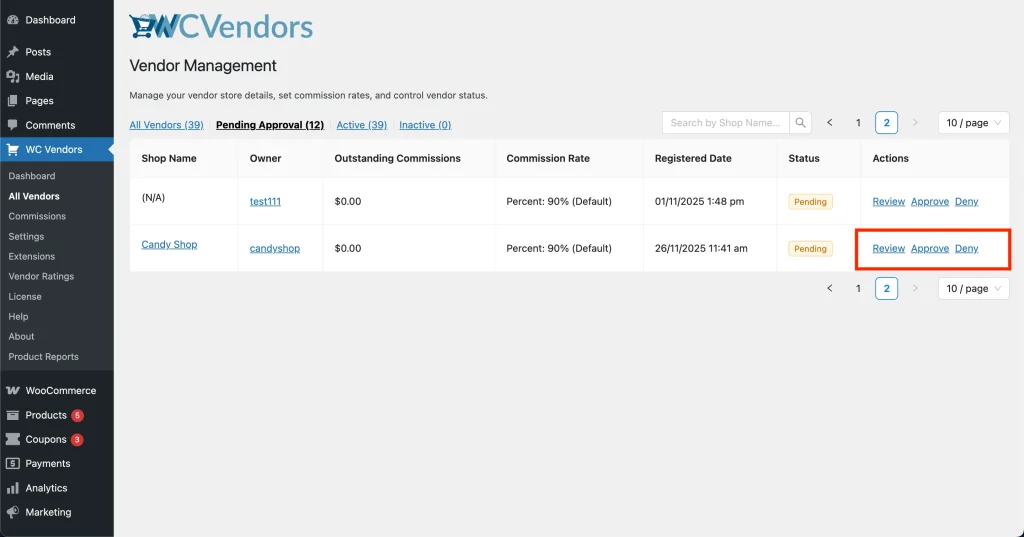
2. Locate a vendor listed as Pending
3. Click Review, Approve, or Deny
4. A review popup will appear, then click Approve or Deny
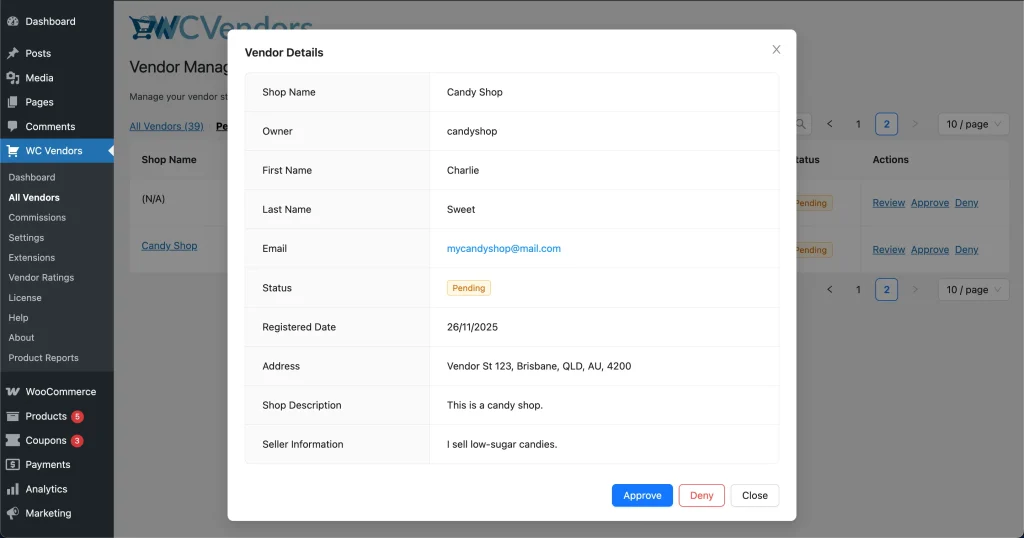
5. Select Send custom message
6. Type your custom message
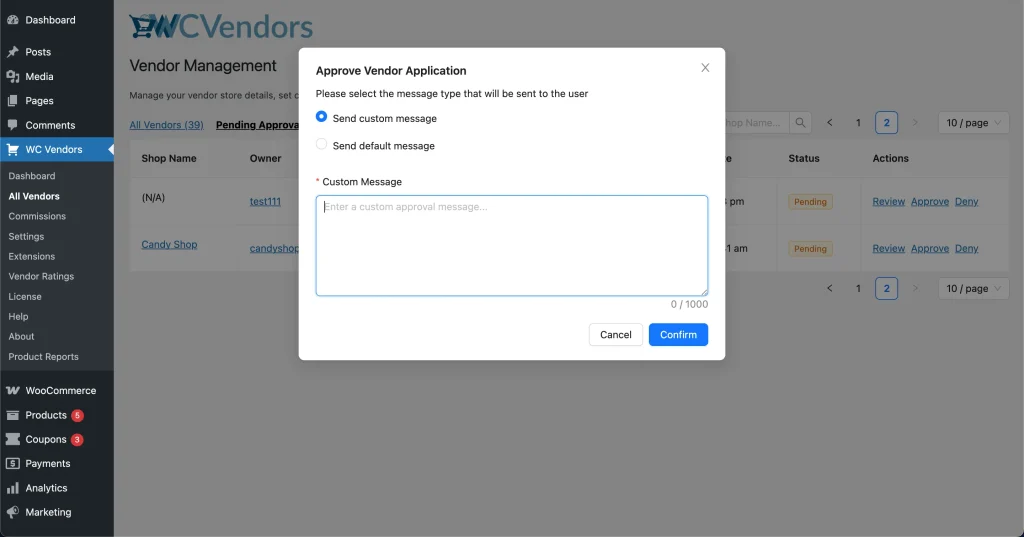
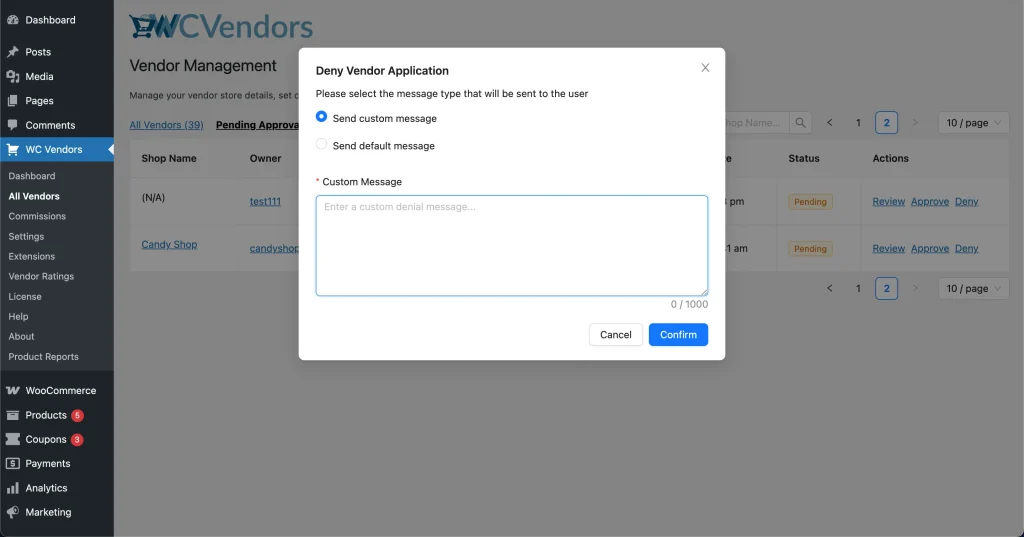
7. Click Confirm
The vendor will receive your personalized message along with the status update.
How to Change the Default Approval or Denial Messages
If you need to modify the default message templates, you can edit the vendor approval and denial email templates provided by WC Vendors.
Where to Modify Default Templates
You can find the email templates by going to WooCommerce → Settings → Emails.
WC Vendors uses WooCommerce’s email system, so all default vendor-related messages are managed within WooCommerce’s email settings.
Editable Email Templates
There are three different email templates that you can customize:
- Vendor notify application
- Vendor notify approved
- Vendor notify denied
Each template allows you to change the subject, heading, and email content. You can also override the email template files in your theme for full control.
Managing Default and Custom Messages
Custom approval and denial messages are optional and can be used as needed during the vendor review process.
Default email content continues to be managed through WooCommerce’s email settings. Any adjustments to default messaging, templates, or notification behavior should be made within the WooCommerce Email configuration area.
If you’re experiencing issues with email delivery, please refer to our Mailing Debug guide
for troubleshooting.
Improving Vendor Communication Through Custom Messages
Writing a custom message for each vendor is useful because it allows you to provide clear, personalized communication that addresses the specific circumstances of their application.
Whether approving or denying a vendor, you can explain the reasons behind your decision, provide guidance on next steps, or highlight any requirements they need to meet.
This not only helps maintain professionalism and transparency but also improves vendor experience and reduces confusion or follow-up questions.