

Running a multi-vendor marketplace involves many moving parts. Occasionally, you or your sellers might click a link (most commonly to the Vendor Dashboard, but sometimes to a vendor’s storefront or a product page) only to be met with a “Page Not Found” or Error 404 page.
This guide is for marketplace owners using WC Vendors. We’ll show you how to quickly resolve these broken links so your vendors can manage their shops and your customers can browse without interruption.
Refreshing Your Permalink Structure
The most common reason for a 404 error on the Vendor Dashboard or store pages is that the WordPress permalink system needs to be “flushed.” Permalinks are the permanent URLs to your pages, and sometimes WordPress loses track of them after plugin updates or setting changes.
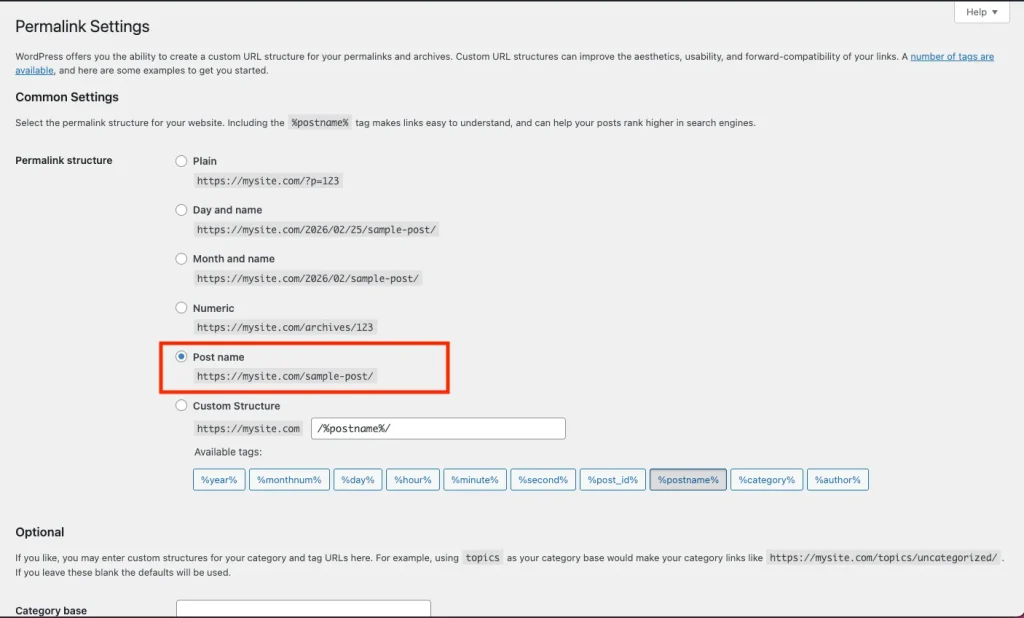
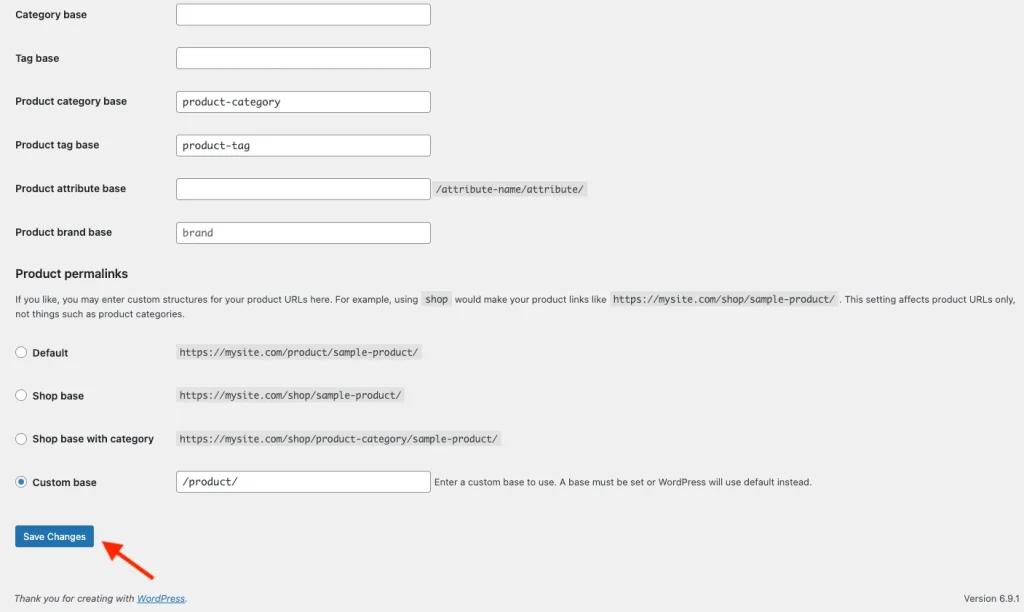
Follow these steps to refresh your links:
- Log in to your WordPress Admin Dashboard.
- Navigate to Settings → Permalinks.
- Ensure that Post name is selected as the “Permalink structure” under the “Common Settings” section.
- Even if it is already selected, scroll to the bottom and click Save Changes.
- Crucial Step: Click the Save Changes button a second time. This ensures the database fully registers the “flush.”
Resolving Page Conflicts and Vendor Store Settings
If refreshing permalinks doesn’t fix the issue, there may be a naming conflict. For example, if you have a WordPress page named “Store” and your WC Vendors settings are also trying to use “store” for the vendor URL, the site gets confused and shows a 404 error.
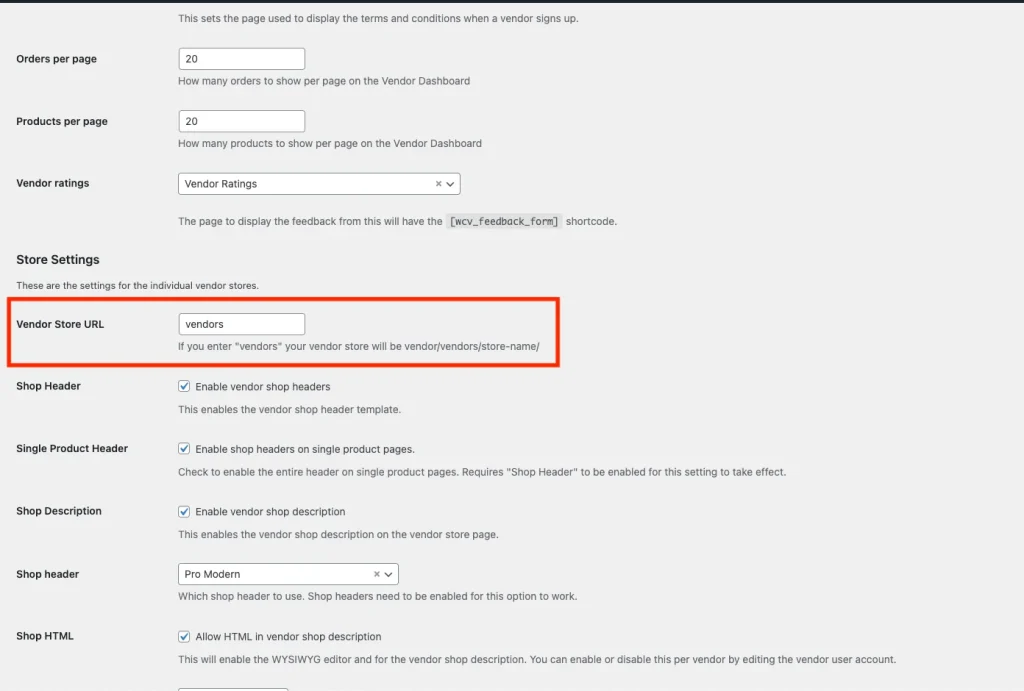
To check and fix your store base settings:
- Navigate to WC Vendors → Settings → Display.
- On the General tab, look for the Vendor Store URL.
- Check that the text in this box (e.g.,
vendors) does not match the slug of any of your existing WordPress pages. - If you change this value, you must go back to Settings → Permalinks and click save twice again.
WordPress needs a gentle nudge to recognize new vendor store paths. You can learn more about how these structures work in the official WordPress Permalink documentation.
Clearing Cache to See Your Changes
If you have completed the steps above but still see a 404 error, your browser or a caching plugin might be “remembering” the error page instead of loading the fixed one.
- Purge Plugin Cache: If you use a plugin like WP Rocket or LiteSpeed Cache, click Purge All Caches in your admin toolbar.
- Try Incognito Mode: Open your Vendor Dashboard in a private or incognito browser window. If it works there, you simply need to clear your browser’s history/cache.
- Server Caching: Some hosts use server-level caching. If the problem persists, check your hosting dashboard to clear the “Object Cache.”
Still Seeing a 404 Error?
By simply saving your permalinks twice and ensuring your marketplace page URLs are unique, you can resolve the vast majority of 404 errors on your marketplace. This keeps your Vendor Dashboard accessible and your sellers happy.
If you’ve followed these steps and are still seeing a “Page Not Found” error, reach out to our expert team via a support ticket.