

You can now empower your marketplace with AI-powered moderation for vendor products. WC Vendors integrates with StoreAgent to streamline product reviews, approvals, and vendor feedback.
This feature allows administrators to:
- Review vendor product submissions from a centralized dashboard
- View AI-generated product analysis and risk assessments
- Approve products quickly
- Request changes with structured AI feedback
- Maintain consistent marketplace quality standards
Vendors receive clear, actionable suggestions directly in their product edit page, reducing back-and-forth communication and speeding up approvals.
Why Use AI Product Moderation for Your Marketplace?
This feature delivers measurable improvements across your product approval process, such as:
- Reducing manual review time
- Consistent AI-driven product assessments
- Centralized moderation in one dashboard
- Improved vendor communication
- Enforcing marketplace quality and compliance standards
- Faster product approval workflows
How to Enable AI Product Moderation
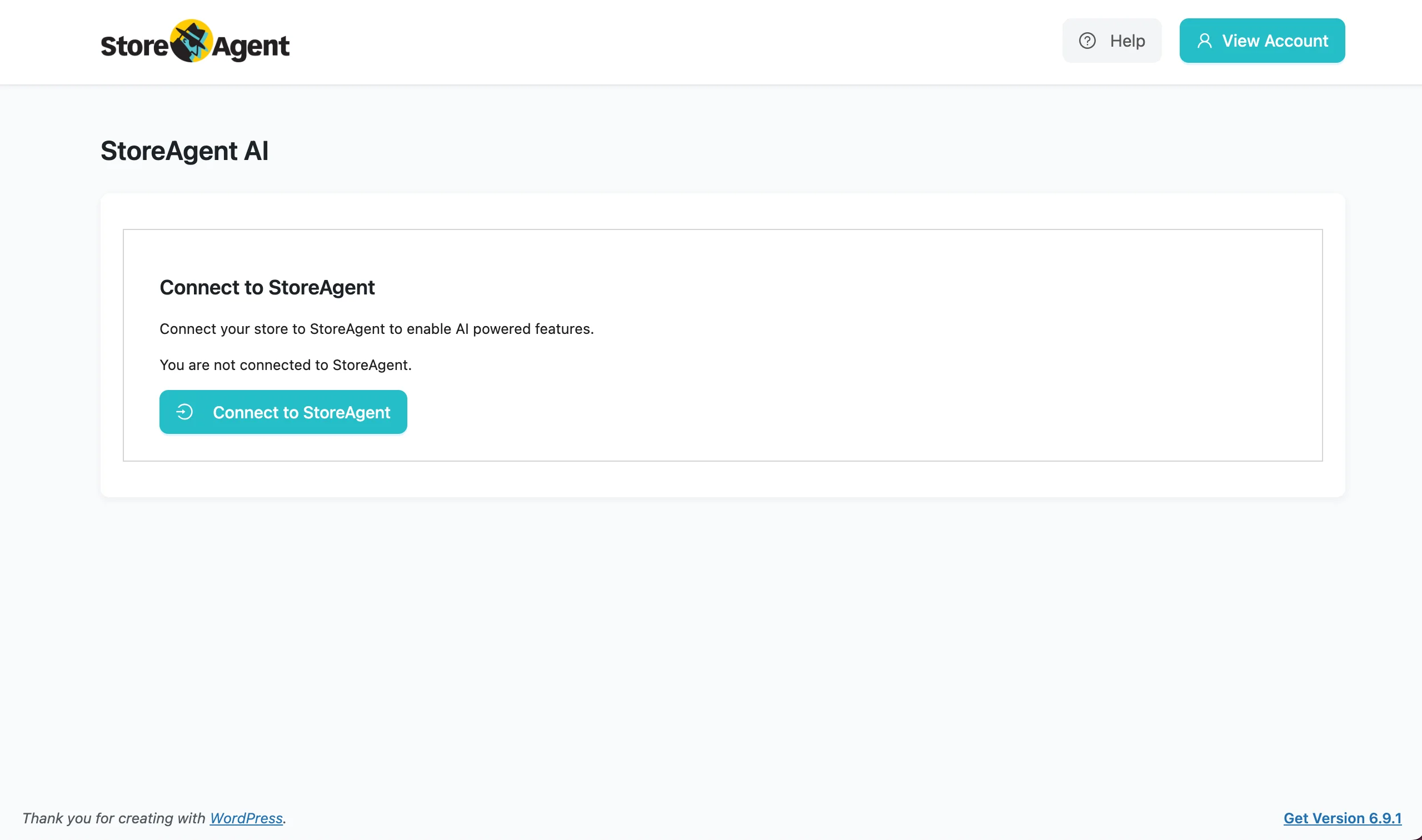
Before enabling AI moderation, ensure StoreAgent AI for WooCommerce is installed and connected.
Step 1: Install and Connect StoreAgent
- Install and activate the StoreAgent plugin.
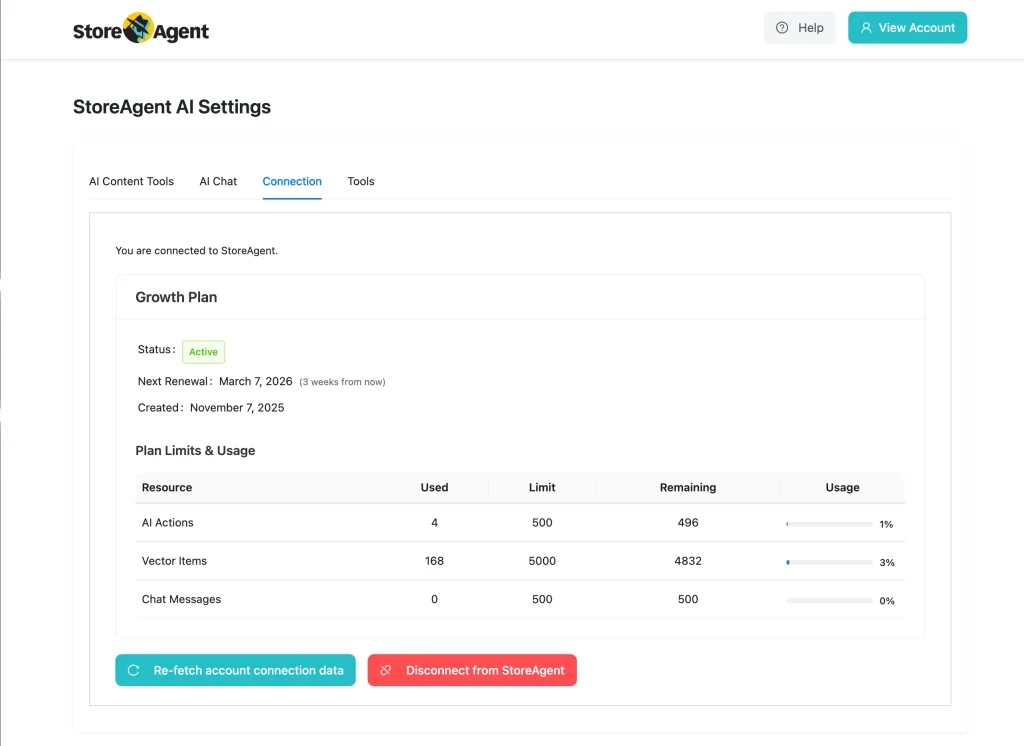
- Connect StoreAgent to your account from StoreAgent → Settings → Connection.
💡 Important Note:
AI moderation will not work unless StoreAgent is installed, activated, and properly connected.
Step 2: Enable AI Moderate in WC Vendors
- Go to WC Vendors → Settings → Capabilities → General
- Enable the AI Moderate checkbox.
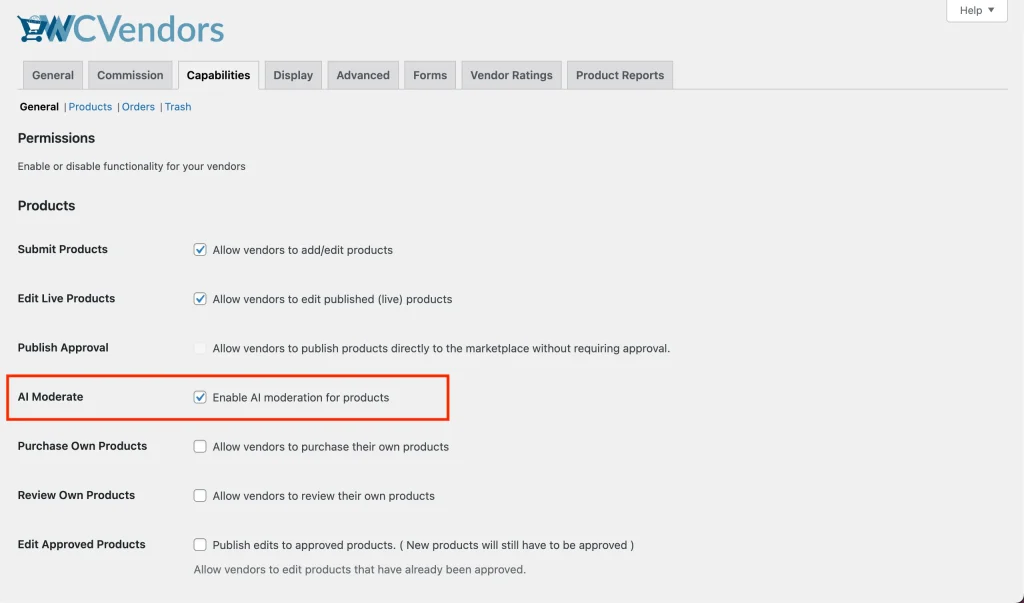
If StoreAgent is not properly configured, you will see an error message explaining what needs to be completed (install, activate, or connect).
💡 Important Note:
When AI Moderate is enabled, the Publish Approval setting is automatically disabled. This ensures all products require admin approval.
Step 3: Enable WC Vendors AI Product Moderator in StoreAgent
- Go to StoreAgent → Settings
- Enable the WC Vendors AI Product Moderator
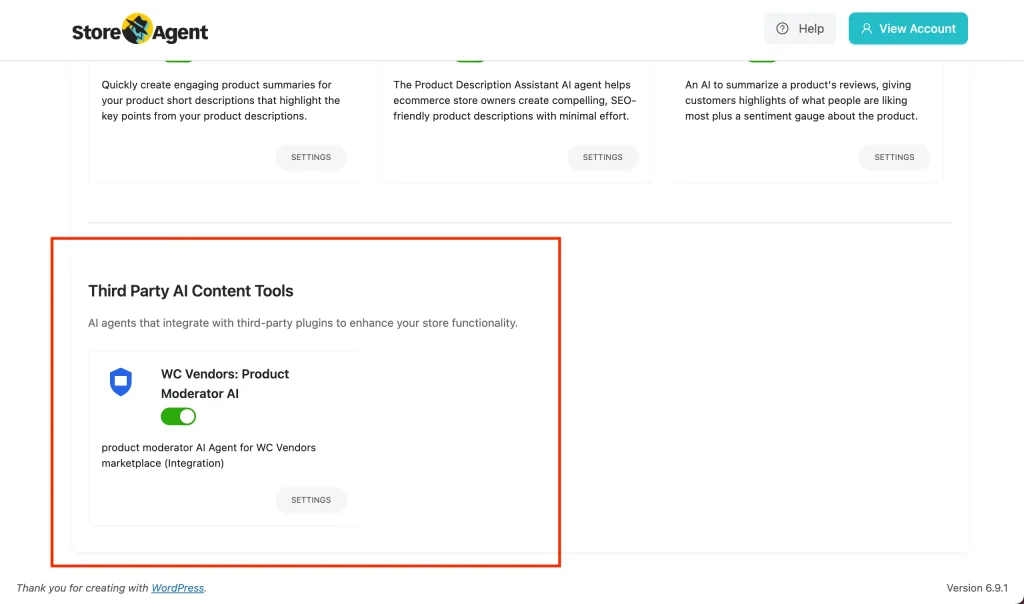
Your AI moderation system is now active.
How to Moderate the Vendor Products Using AI
Once enabled, product moderation is managed through a dedicated dashboard to manage your vendor products.
1. Accessing the Vendor Products Dashboard
Previously, administrators accessed and reviewed all vendor products directly under WooCommerce → Products.
Now, they can handle vendor submissions more efficiently, especially in larger marketplaces. The Vendor Products Dashboard provides powerful filtering and search tools to support this process.
You can access the Vendor Products Dashboard at WC Vendors → Products.
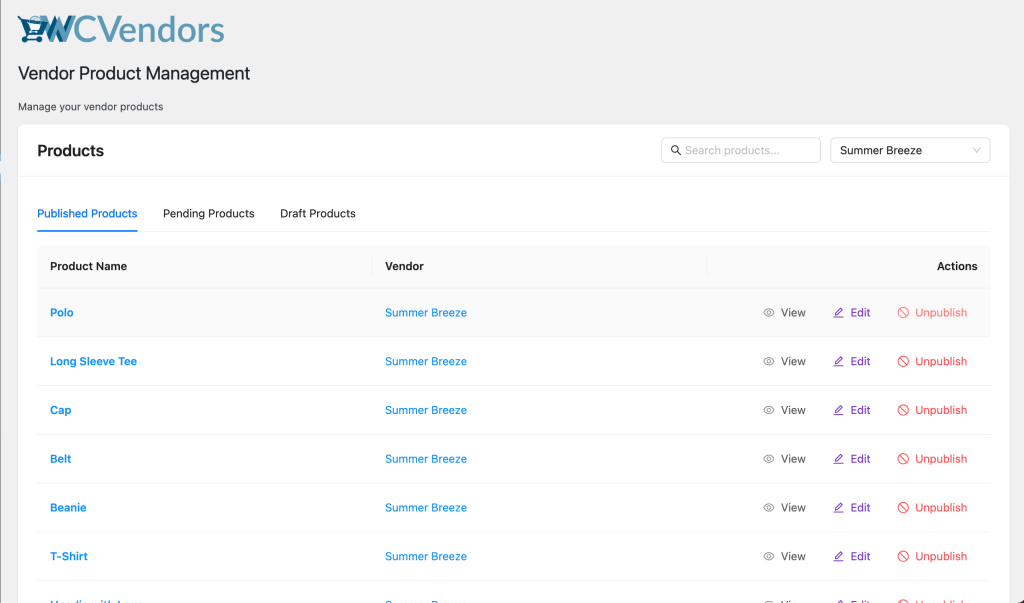
From this centralized page, you can:
- Filter products by status (Pending / Published / Draft)
- Filter products by specific vendor
- Search for products by name using the search bar
These tools help you quickly find, review, and manage products at scale, keeping your moderation workflow organized and efficient.
2. Reviewing Pending Products
Vendors can edit their product and submit it for review. Once submitted, go to WC Vendors → Products → Pending.
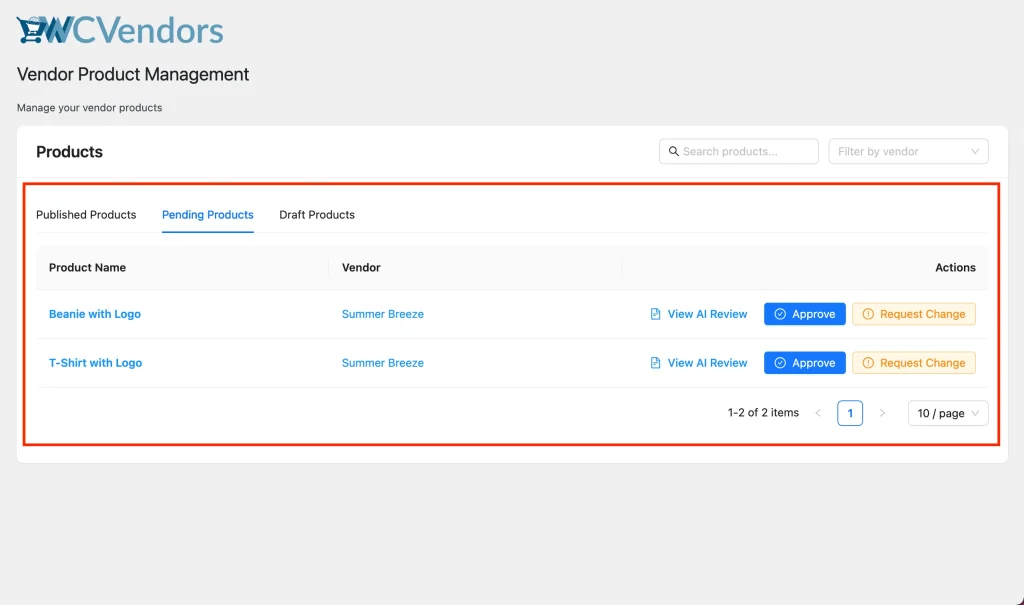
After that, you can review the product using one of two methods:
Option 1: View AI Review
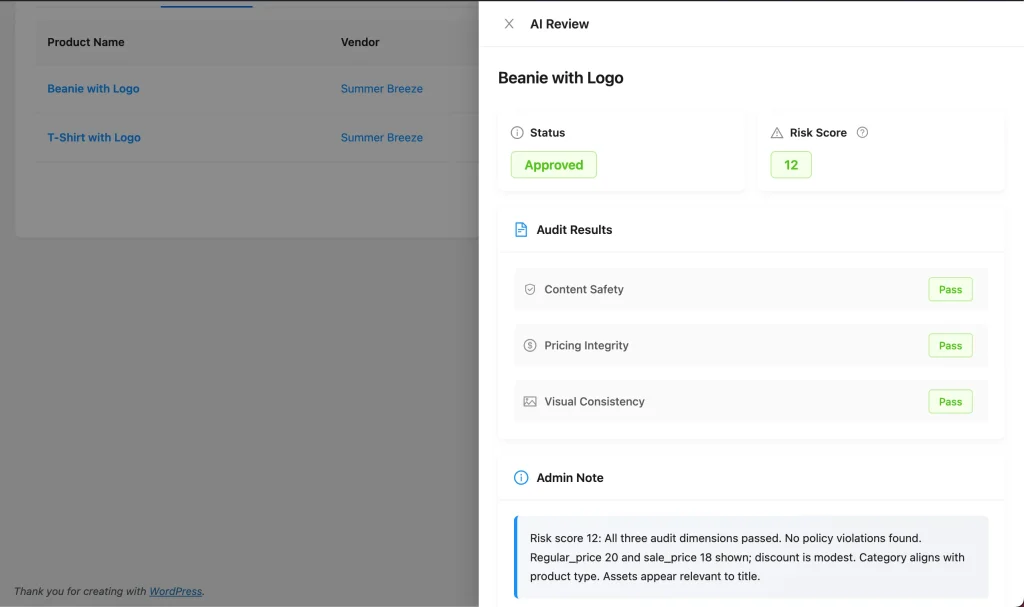
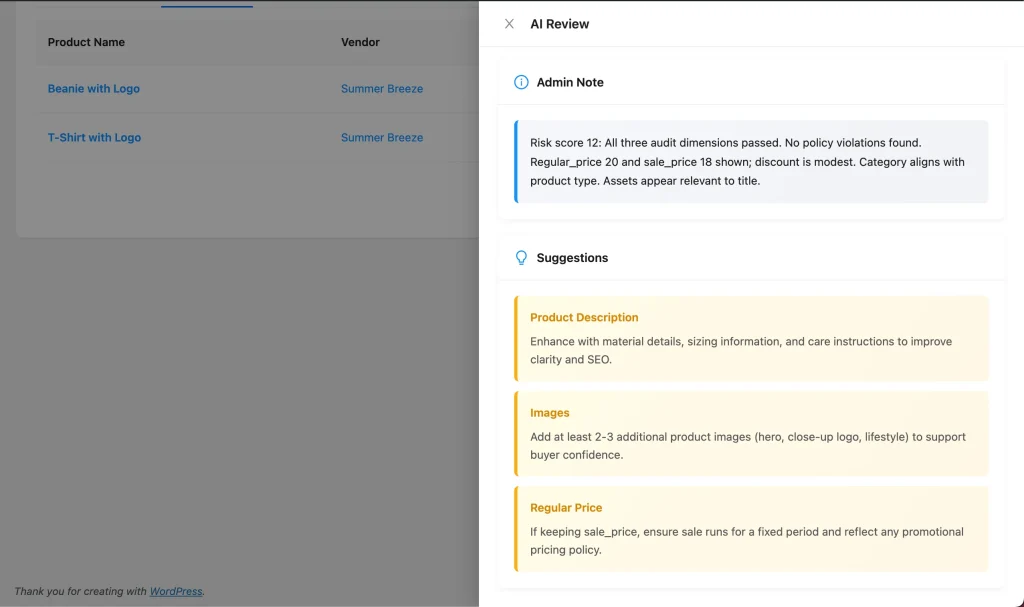
Click “View AI Review” to see:
- Status (Pass, Revision Required, Flagged, etc.)
- Risk Score
- Audit Results:
- Content Safety
- Pricing Integrity
- Visual Consistency
- Admin Note
- Suggestions (Description, Images, Categories)
Option 2: Manual Review
Click the product name to open full product details and review manually.
3. Approving a Product
Once you’ve reviewed the product and confirmed that it aligns with your marketplace’s standards:
- Click Approve
- The product status changes from Pending → Published
- A success notification appears
- The product is now live in your marketplace and ready for purchase.
4. Requesting Product Changes
When you notice that the product requires updates or adjustments to meet your marketplace’s standards:
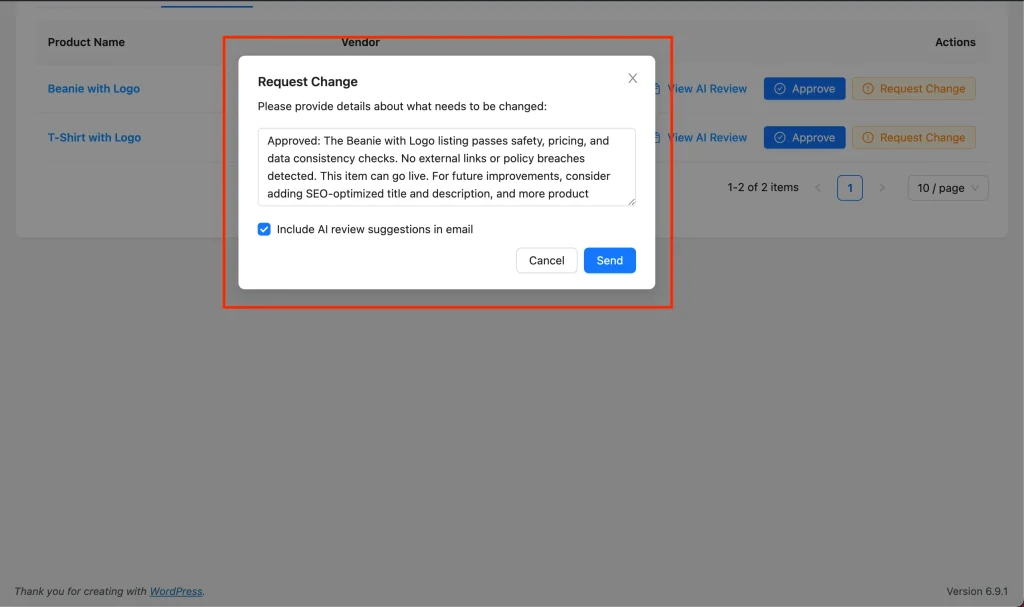
- Click Request Change
- A modal window opens
- The message field is pre-filled with AI-generated feedback (if available)
- Optionally check the “Include AI review suggestions in email” option
- Click Send
What Happens Next
- The vendor receives an email notification
- AI suggestions appear inside the vendor’s product edit form
- Product status is changed from Pending → Draft until resubmitted
5. Unpublishing Products
Sometimes, you may need to temporarily remove a product from your marketplace—whether it requires updates, corrections, or no longer meets your standards.
The Unpublish feature allows you to take the product offline so it’s no longer visible or available for purchase while you or your vendor make the necessary changes.
How to Unpublish a Product
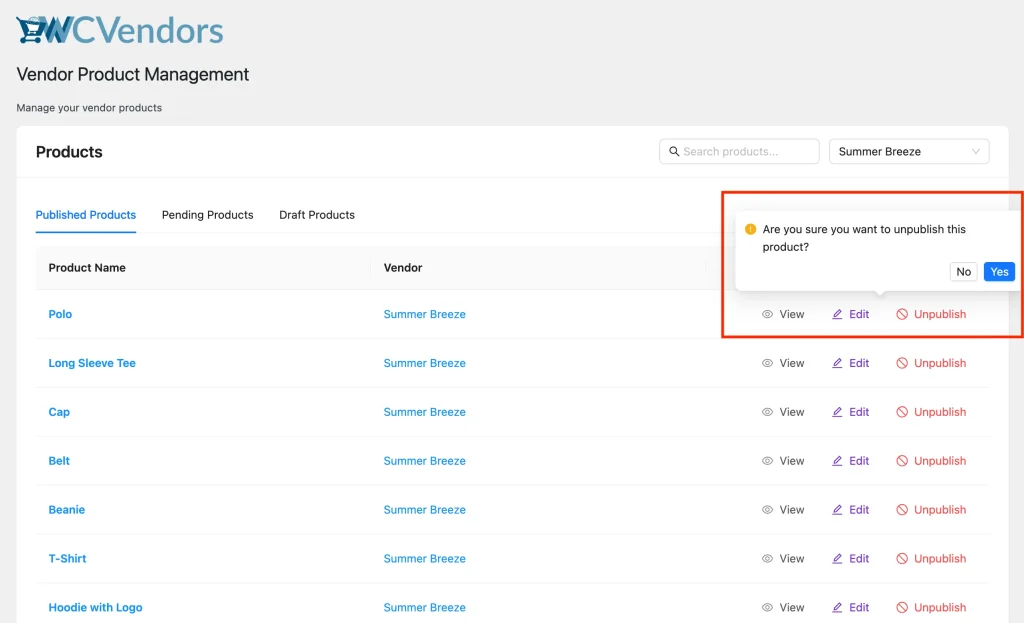
- Go to the Published tab in your Products dashboard.
- Locate the product you want to unpublish and click Unpublish.
- Confirm the action in the popup window.
- Product status changes from Published → Draft
How Vendors Respond to Product Change Requests
When you request updates to a product, vendors receive clear, structured feedback directly within their product editing interface. This ensures they understand exactly what needs to be revised and helps reduce confusion or unnecessary back-and-forth communication.
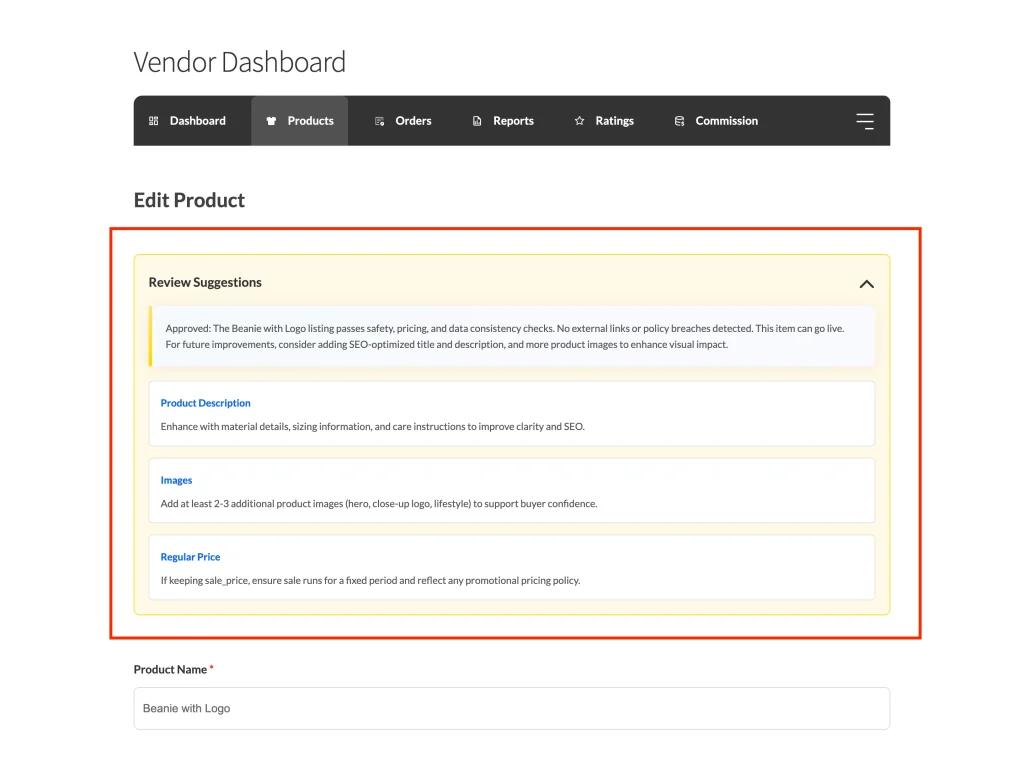
Here’s what the vendors will see on the product edit page:
- A collapsible “Review Suggestions” section in their product edit form
- AI-generated feedback explaining the requested changes
- Field-by-field recommendations (e.g., Title, Description, Price, Images)
- Clear, actionable guidance on what needs to be updated before approval
In addition, vendors receive an email notification informing them that updates are required.
Important Considerations Before Using AI Moderation
The AI moderation system assists you in reviewing products, but it does not replace administrative control. You remain fully responsible for approving, rejecting, or requesting changes to vendor submissions.
Keep the following in mind:
- The system does not automatically approve or reject products. You must review and take action manually.
- Every product still requires admin approval before it goes live.
- The system never modifies existing product data on its own. Changes only occur when you or the vendor manually update the product.
- All actions follow standard WordPress capability and permission rules, ensuring secure access control.
- The feature integrates seamlessly with your existing WC Vendors workflows, so it won’t disrupt your current marketplace setup.
Troubleshooting Common Issues
If something isn’t working as expected, review the following:
AI Moderate Option Not Available
If you cannot enable the AI Moderate setting at WC Vendors → Settings → Capabilities → General, verify that the StoreAgent is installed, activated, and connected to your account
The settings page will display a red error message indicating which requirement is missing. Complete the required step, then refresh the page and try again.
“View AI Review” Button Not Showing
If you don’t see the View AI Review button after the vendor submitted the product for review:
- Confirm that the product has AI review data available
- Make sure AI moderation is enabled in both WC Vendors and StoreAgent settings
You may need to wait a short while for the AI to process the product after submission. The button will appear once the review data becomes available.
Improve Your Product Approval Workflow with AI
This AI-powered product moderation and review system helps you move from manual, time-consuming reviews to a smarter, more structured approval process.
You can review products faster, maintain consistent quality standards, provide structured feedback to vendors, and manage everything from a centralized dashboard.
By integrating WC Vendors with StoreAgent AI, you gain better oversight while reducing the manual effort required to maintain a high-quality marketplace.