
Want a label on the vendor dashboard, such as Bank account name, to use wording that fits your marketplace? You can change it without touching any code. This guide shows you how to rename or translate WC Vendors and WC Vendors Pro text with the free Loco Translate plugin, and how to keep your changes safe when the plugins update.
Prerequisites
- WC Vendors Marketplace installed and active. WC Vendors Pro too, if the text you want to change comes from Pro.
- Administrator access to your WordPress dashboard.
Step 1: Install and activate Loco Translate
- Go to Plugins → Add Plugin.
- Search for Loco Translate.
- Click Install Now.
- Click Activate.
Loco Translate now appears in your WordPress admin menu.
Step 2: Open WC Vendors in Loco Translate
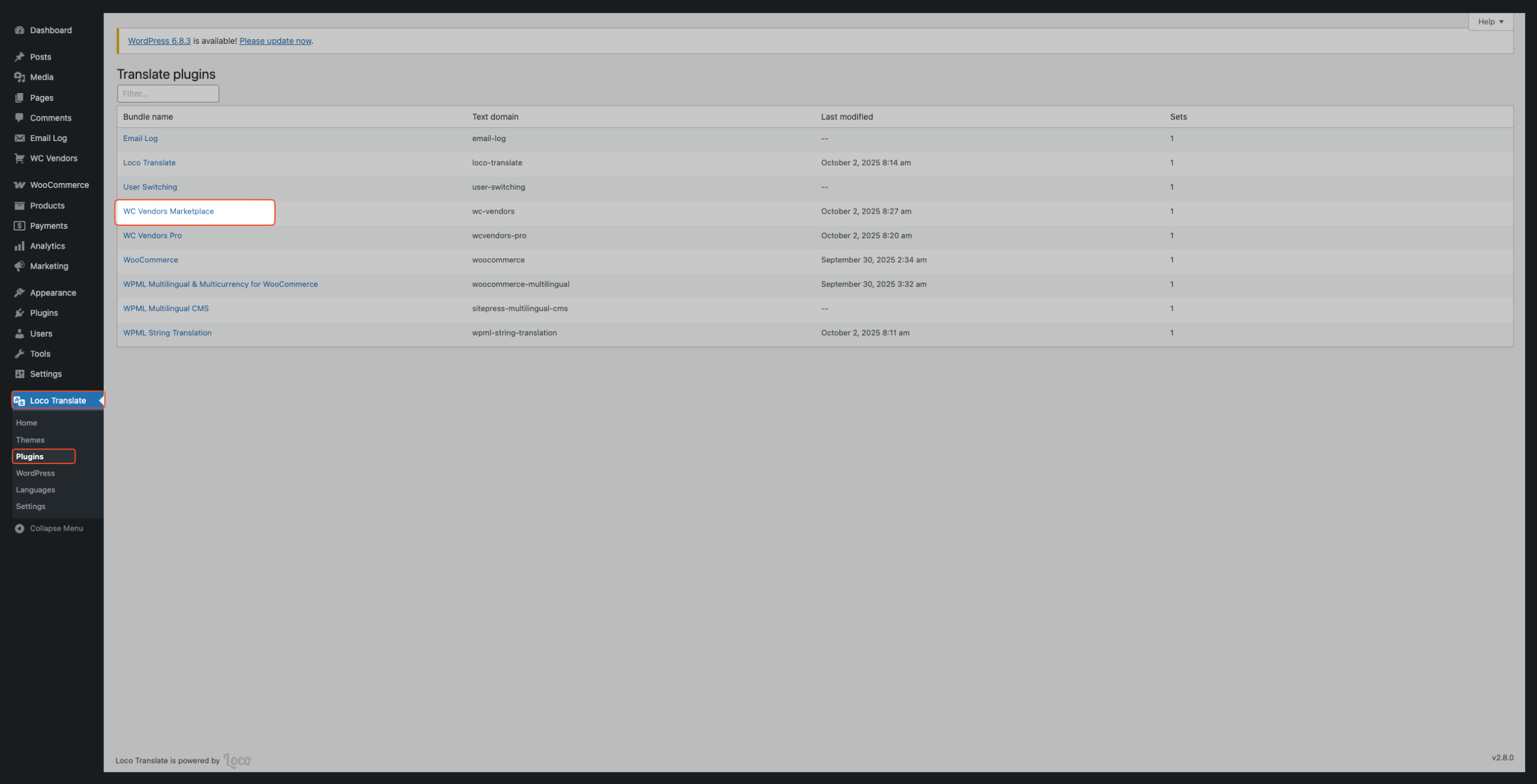
- Go to Loco Translate → Plugins.
- Select WC Vendors Marketplace from the list.
Text that comes from WC Vendors Pro lives in its own file. To change it, repeat these steps and select WC Vendors Pro instead.
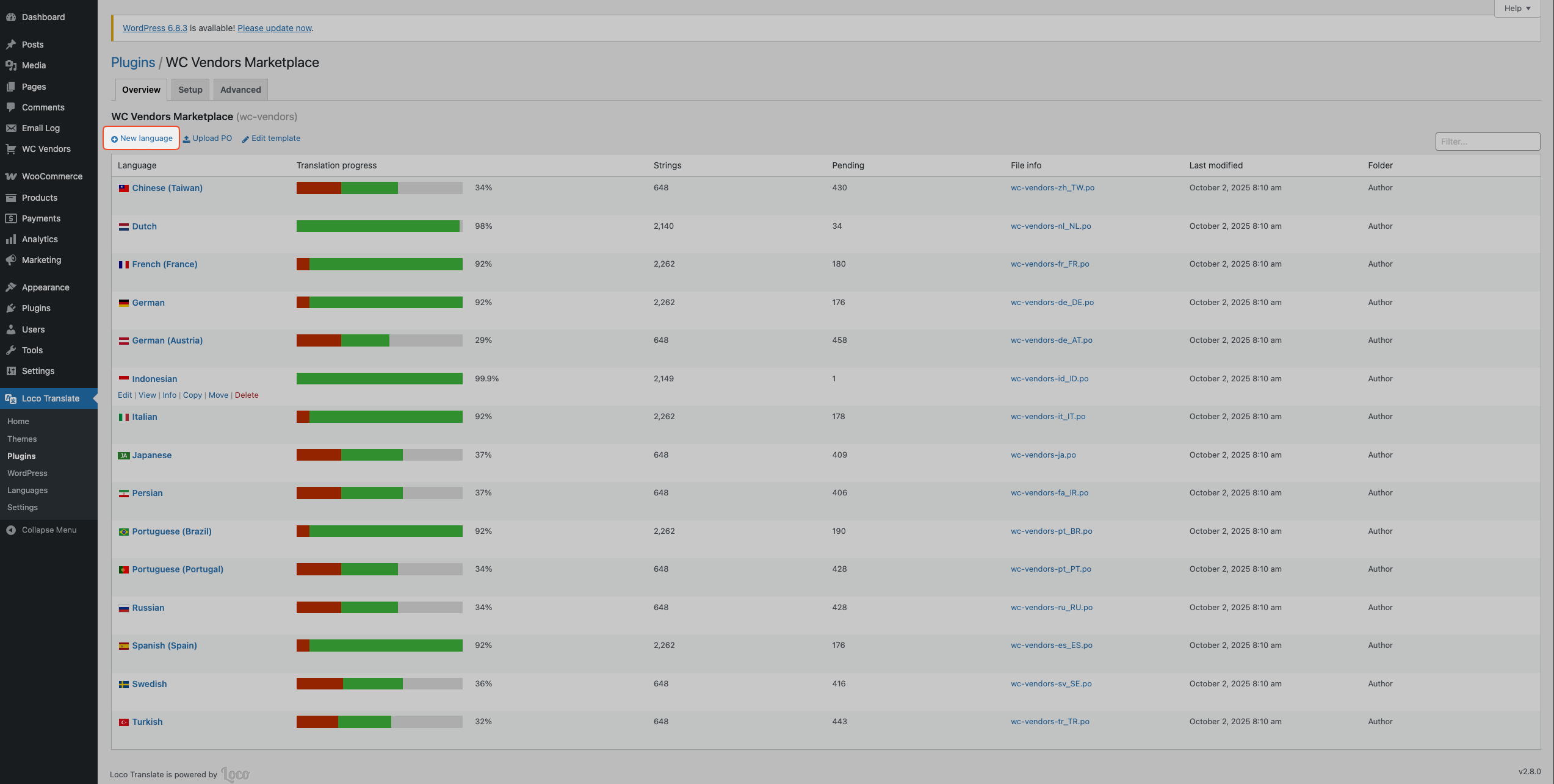
Step 3: Create a translation file in the Custom location
Skip this step if a translation file for your language already exists in the Custom location.
- Click New language.
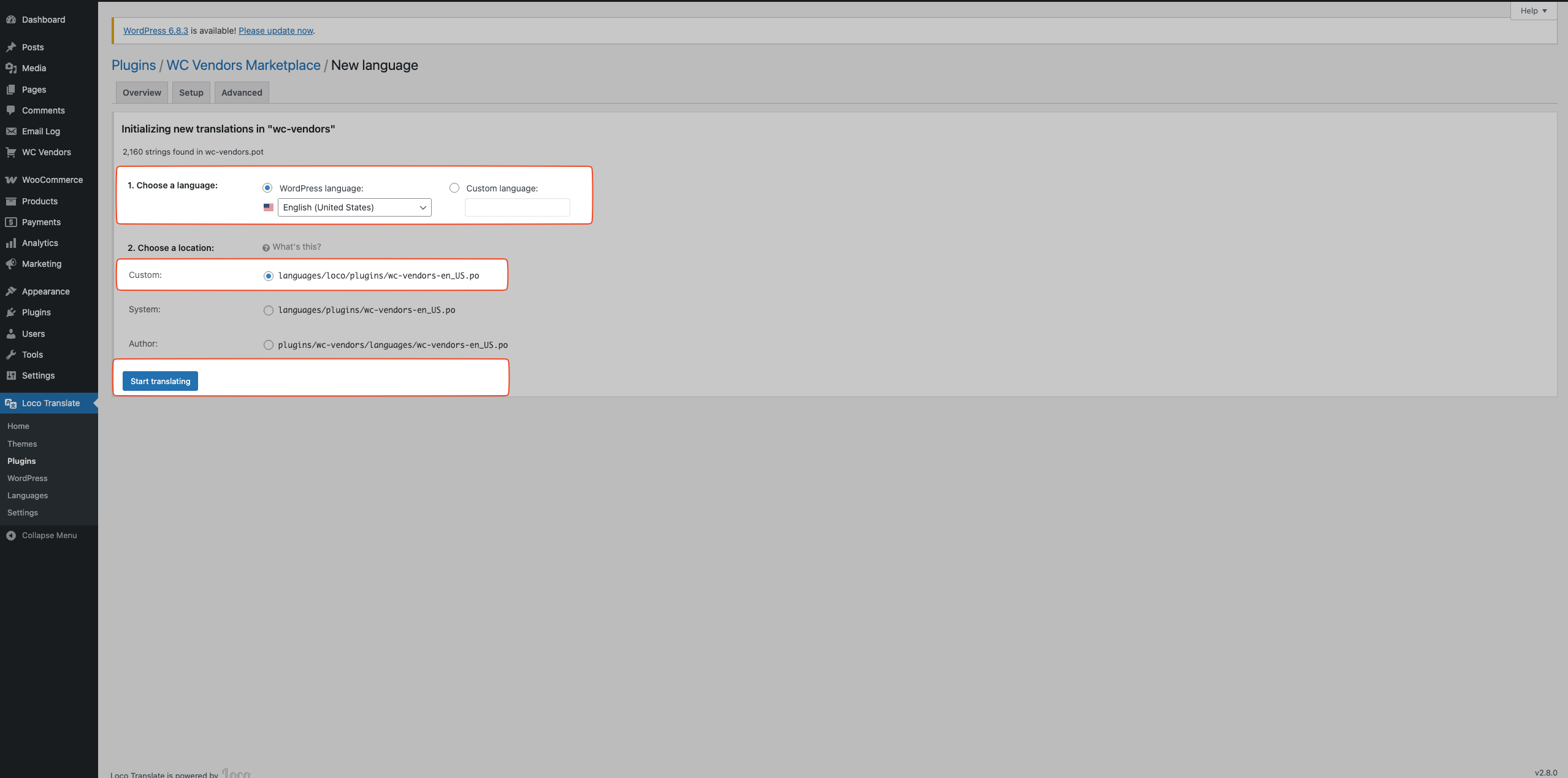
- Choose your WordPress language, for example English (United States).
- Select the Custom location.
- Click Start translating.
The Custom location keeps your changes when WC Vendors updates. Files in the Author or System locations can be replaced during plugin or translation updates, and your edits are lost.
Step 4: Find and edit the string
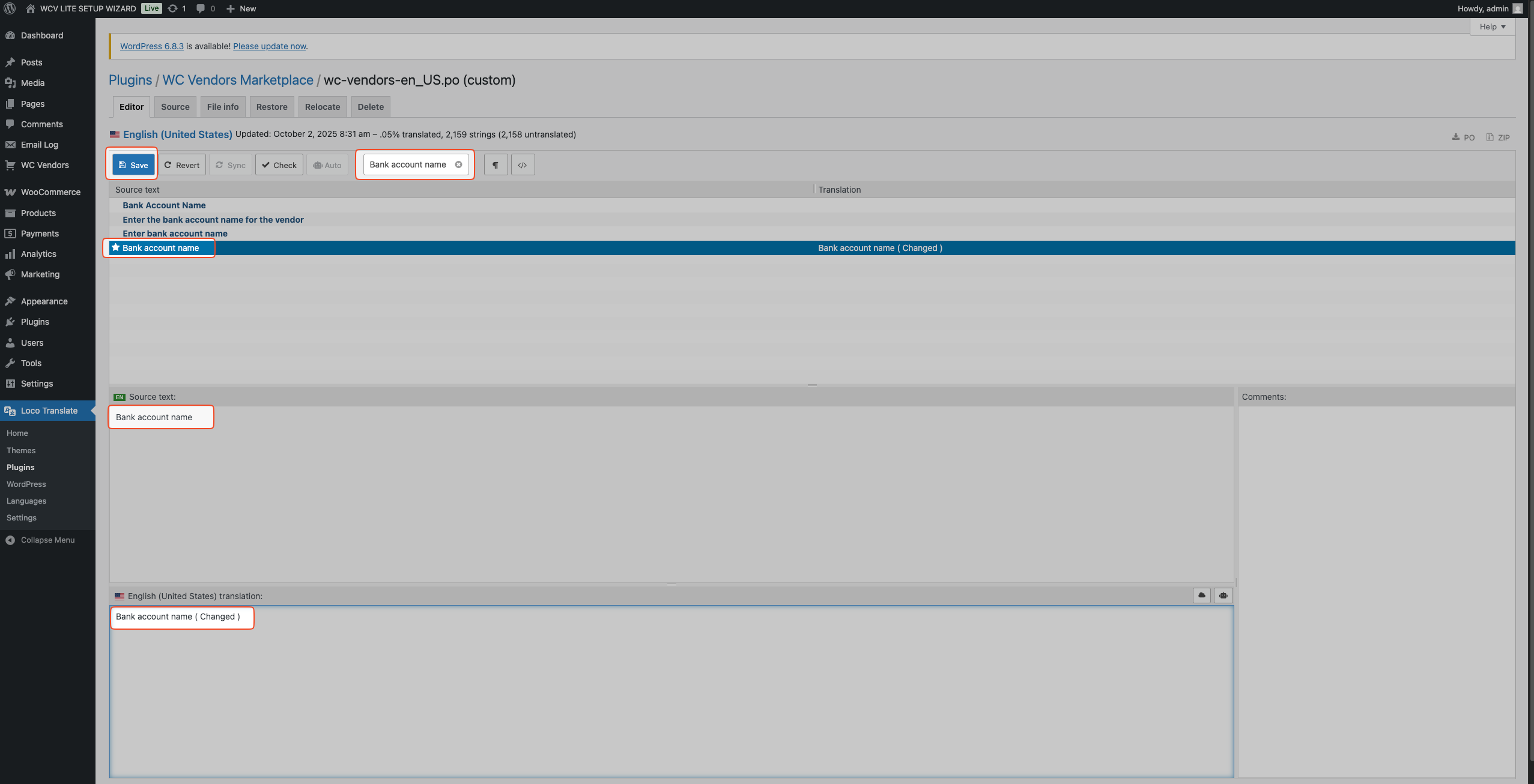
- Type the text you want to change in the Filter translations search bar, for example Bank account name.
- Click the string in the source text list. For this example, pick Bank account name, with lowercase “account name”.
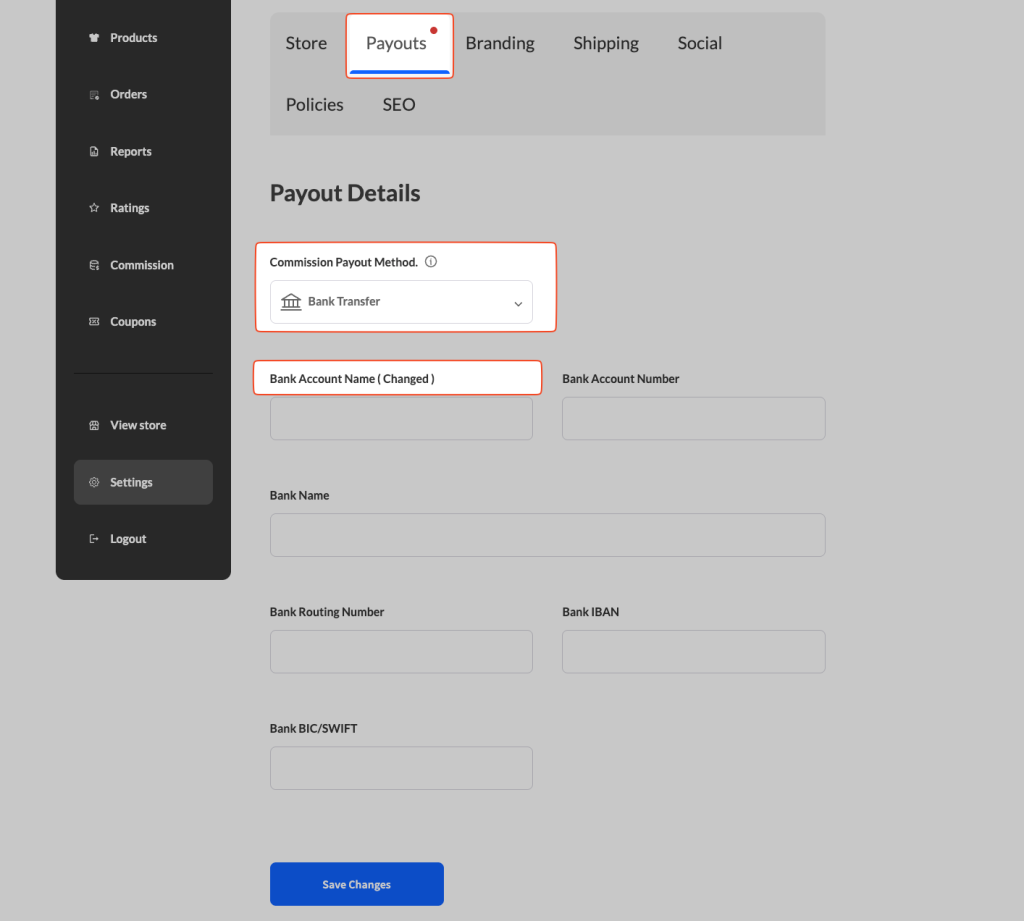
- Enter your new label in the translation box at the bottom of the editor, for example Bank Account Name (Changed).
- Click Save.
The vendor dashboard shows every word of this label with a capital letter, but that is only styling. The text to edit is Bank account name. The list also has a separate Bank Account Name string, with capitals. That one is the label in the WordPress admin, so editing it does not change the vendor dashboard.
Step 5: Check the change on the vendor dashboard
- Log in as a vendor, or ask one of your vendors to check.
- Go to Settings on the vendor dashboard.
- Open the Payouts tab.
- If the bank fields are hidden, select Bank Transfer in Commission Payout Method.
- Confirm the new label shows.
Troubleshooting
The text you want to change is not in the list
Click Sync in Loco Translate to refresh the list of strings, then search again.
If the string still does not show, you may be in the wrong plugin. Each plugin has its own text domain, which is the name WordPress uses to find that plugin’s strings:
- WC Vendors Marketplace:
wc-vendors - WC Vendors Pro:
wcvendors-pro
Go back to Loco Translate → Plugins and open the other plugin.
Your changes disappeared after a plugin update
Check where your translation file is saved. Open the plugin in Loco Translate → Plugins and look at the location shown for your language. If it is Author or System, create a new file in the Custom location (see Step 3) and make your edits again.
Frequently Asked Questions
Can I change text on a multilingual site?
Yes. Loco Translate saves one file for each language. Create a file for every language your site uses, then edit the string in each file.
Do I need to edit WC Vendors Pro text separately?
Yes. WC Vendors Pro uses its own text domain, wcvendors-pro, so its strings are in a separate file from WC Vendors Marketplace. Select WC Vendors Pro in Loco Translate → Plugins to edit them. Some text that only shows when WC Vendors Pro is active still comes from WC Vendors Marketplace, such as the Add your Socials setup step. If you can’t find a string in the WC Vendors Pro file, search the WC Vendors Marketplace file.
How do I translate the store setup steps on the vendor dashboard?
The setup steps are Customize your Store Front, Add Products, Connect Payout Method and Add your Socials. Edit them in WC Vendors Marketplace, even the Add your Socials step, which only shows when WC Vendors Pro is active. These steps can be translated in WC Vendors Marketplace 2.6.4 and later. If they don’t appear in Loco Translate, update WC Vendors Marketplace, then click Sync.
Need help?
If you have a question or run into any issues, we’re here to help.
- Premium users: Open a support ticket
- Free users: Visit our community forum