
Product attributes are often what help a shopper find the right item in a busy marketplace. The latest WC Vendors Pro update, version 2.0.8, changes that with the Vendor Attribute Library, a feature that lets every vendor save and reuse their own custom product attributes. In this guide, we will walk through what this is, how it works, and how to switch it on in your marketplace.
What Is Vendor Attribute Library
The Vendor Attribute Library is an opt-in WC Vendors Pro feature that provides every vendor with a private collection of custom product attributes they have used before. It is scoped entirely to that single vendor, which means it never touches your marketplace’s global attributes and never shows up in another vendor’s store.
This feature only captures custom attributes, the one-off details a vendor types directly onto a product. It intentionally skips taxonomy-based attributes, which are the global ones you manage as the store owner, so your shared attribute list stays exactly as you configured it.
How The Vendor Attribute Library Works
Smart suggestions while vendors type
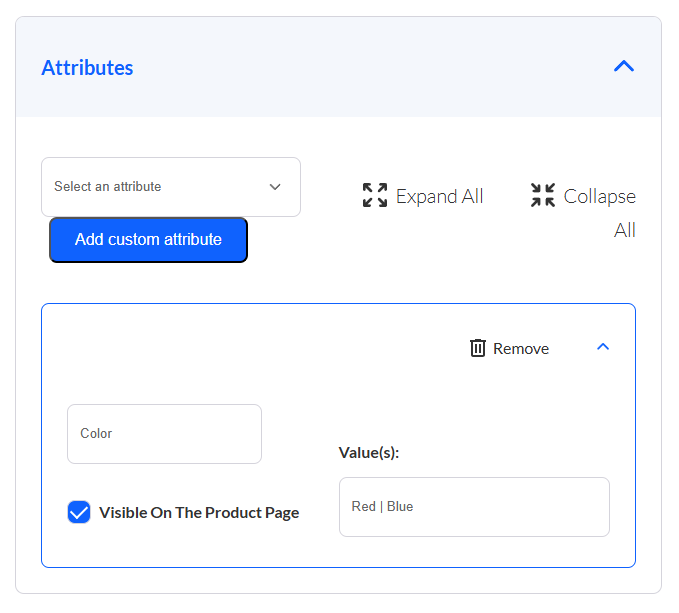
When a vendor starts typing an attribute name they have used before, say they type “Sc,” the Vendor Attribute Library suggests “Scent,” and choosing it fills in all of the saved values automatically. A new “Add custom attribute” button sits right next to the taxonomy selector on the product form, so the option is easy to find. No more retyping the same details on every product.
A dedicated management page
Each vendor gets their own Vendor Attribute Library page in the dashboard, accessible via a button on their Products list. From there, they can review the attributes they have saved, rename any entry, or delete the ones they no longer need. Renaming or deleting an entry only affects future suggestions; existing products keep all their data exactly as it was.
An automatic usage counter
This tracks how many products use each saved attribute, which keeps the list tidy and easy to scan. That usage count increases when a vendor saves a product with the attribute and decreases when a product that uses it is deleted, so the library always reflects what a vendor is actually using.
How To Enable And Use The Vendor Attribute Library
Setting up the Vendor Attribute Library takes only a moment and remains dormant until you turn it on. Follow these steps to enable it and put it to work.
1. Back up your site and update
Before making any changes, back up your site, then update WC Vendors Pro to version 2.0.8 or later. If you are new to the plugin, the WC Vendors Pro getting started guide covers the basics.
2. Turn on the setting
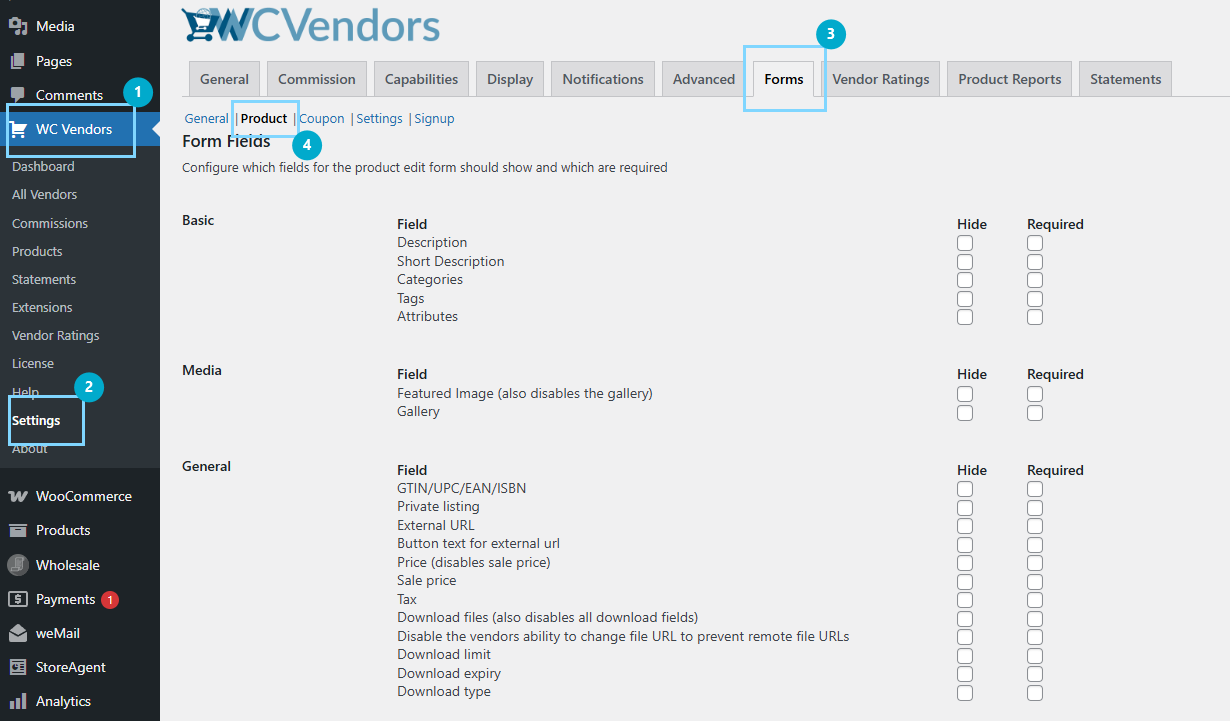
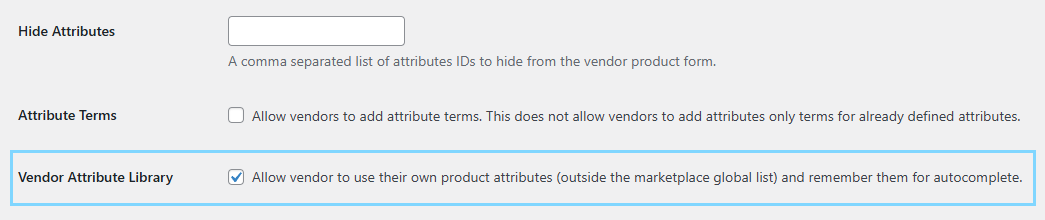
In your WordPress admin, go to WC Vendors, then Settings, then Forms, then Products, and enable “Vendor Attribute Library.” Save your changes. You can review every option on this screen in the Forms settings overview.
3. Open the vendor Products dashboard
Logged in as a vendor, head to the Products dashboard. A new “Attribute Library” button now appears in the toolbar. Click it to view the library, which starts out empty.
4. Save a product with a custom attribute
Add or edit a product, click “Add custom attribute,” type a name such as “Color,” enter values like “Red | Blue,” and save. The Vendor Attribute Library automatically captures that attribute. For more on the product form, see the marketplace product listings guide.
Best Practices For Getting The Most From The Vendor Attribute Library
To get the most from the Vendor Attribute Library, encourage your vendors to keep their attribute names clear and consistent, since tidy names make the autocomplete suggestions far more useful. A vendor who always uses “Material” rather than switching between “Material,” “Fabric,” and “Made of” will build a cleaner, more reliable library over time.
It also helps to think about which attributes belong in your global list versus the Vendor Attribute Library. Characteristics that many vendors share, such as a standard size or color range, are usually better as global attributes you control. To decide where each one fits, this complete guide to WooCommerce product attributes from our sister brand Advanced Coupons is a helpful reference. You can also fine-tune which product options vendors can use at all in the vendor product options settings, and manage day-to-day listings from the vendor product management screen.
Conclusion
If your vendors regularly build products with custom details, switching on the Vendor Attribute Library is well worth it. Back up your site, update to WC Vendors Pro version 2.0.8, flip the setting on, and let each vendor’s library fill up on its own as they save products. The result is a faster workflow for sellers and a more organized catalog for everyone who shops your marketplace.
Here is what we covered in this article:
- What the vendor attribute library is in WC Vendors Pro
- How the vendor attribute library works
- How to enable and use the vendor attribute library
- Best practices
Frequently Asked Questions
Is the Vendor Attribute Library enabled by default?
No. The Vendor Attribute Library is turned off by default. To switch it on, go to WC Vendors> Settings> Forms> Products, then enable the setting.
Does the Vendor Attribute Library affect my global marketplace attributes?
No. It only captures each vendor’s custom attributes. Taxonomy-based global attributes that you manage as the store owner are skipped entirely and stay exactly as you set them up.
What happens to existing products if a vendor renames or deletes a saved attribute?
Nothing changes on existing products. Renaming or deleting an entry in the Vendor Attribute Library only affects future autocomplete suggestions; published products keep all their data.
Can one vendor see another vendor’s saved attributes?
No. The Vendor Attribute Library is scoped to each individual vendor, and the data is always tied to the logged-in vendor, so sellers cannot view one another’s saved attributes.
Which WC Vendors Pro version do I need?
The Vendor Attribute Library was introduced in WC Vendors Pro version 2.0.8, so you will need at least that version.