
If your marketplace has vendors in different countries, cross-border payouts let them connect their local Stripe accounts and receive their commissions in their own currency. This article walks you through enabling cross-border payouts in WC Vendors Stripe Connect, what happens when vendors connect after you turn it on, and how to check vendors who were already connected.
Requirements
- WooCommerce, WC Vendors Marketplace, and WC Vendors Pro installed and active
- WC Vendors Stripe Connect installed and active
- Your Stripe platform account must be based in a supported region: the United States, Canada, Switzerland, the United Kingdom, or any country in the European Economic Area (EEA)
Step 1: Enable cross-border payouts
- Go to WooCommerce → Settings → Payments.
- Click Stripe Connect to open its settings.
- Scroll down to the Cross-Border Payouts section.
- Tick the Enable Cross-Border Payouts checkbox.
- Click Save changes.
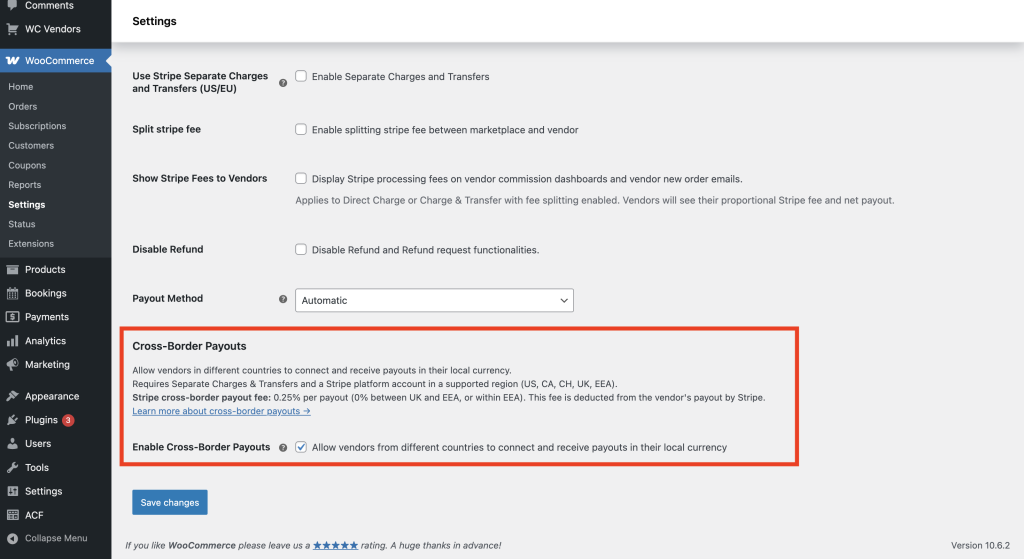
When you save, Use Stripe Separate Charges and Transfers (US/EU) is automatically turned on. This is required for cross-border payouts to work—you’ll see it reflected in the settings if it wasn’t already enabled.
Step 2: Understand the Stripe fee
Stripe charges a cross-border payout fee of 0.25% per payout. This fee is deducted by Stripe directly from the vendor’s payout—it doesn’t add any extra cost to your store or your customers.
There are two zero-fee exceptions: payouts between the UK and EEA countries, and payouts entirely within EEA countries, are free of the cross-border fee. Vendors in those regions will see this noted in the notice on their dashboard.
How vendor onboarding works
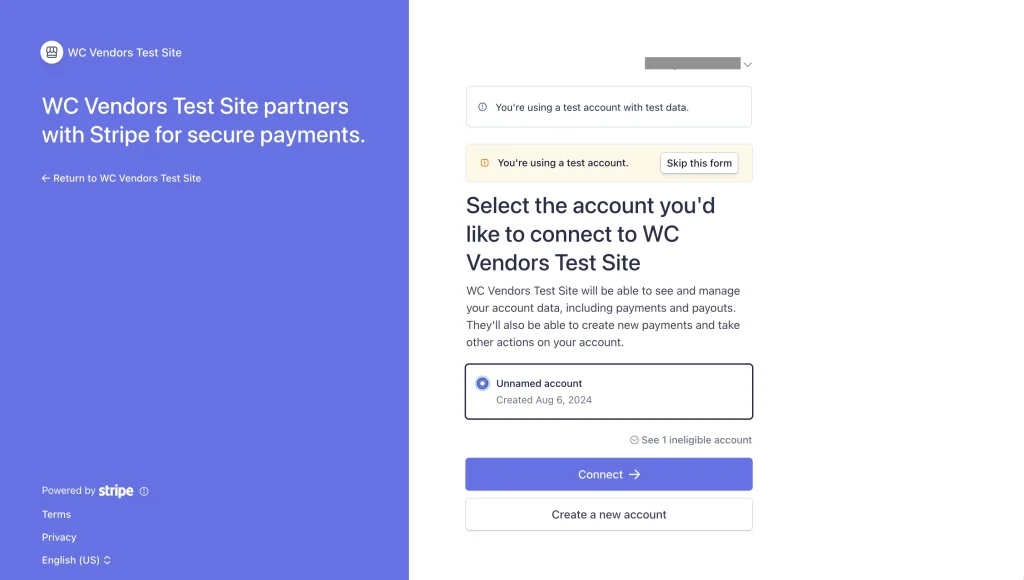
Once cross-border payouts are enabled, new vendors who connect their Stripe account through your vendor dashboard will be prompted to accept Stripe’s Full service agreement during the connection flow. This is a Stripe requirement. Vendors who don’t accept it won’t be able to receive cross-border payouts.
After a vendor connects, WC Vendors Stripe Connect records their Stripe account country automatically. If their country isn’t in Stripe’s supported cross-border regions, they can still connect—but they’ll see a warning notice on their vendor dashboard.
What vendors see on their dashboard
Connected vendors from a different country than your Stripe platform will see a notice on their vendor dashboard. What they see depends on their situation.
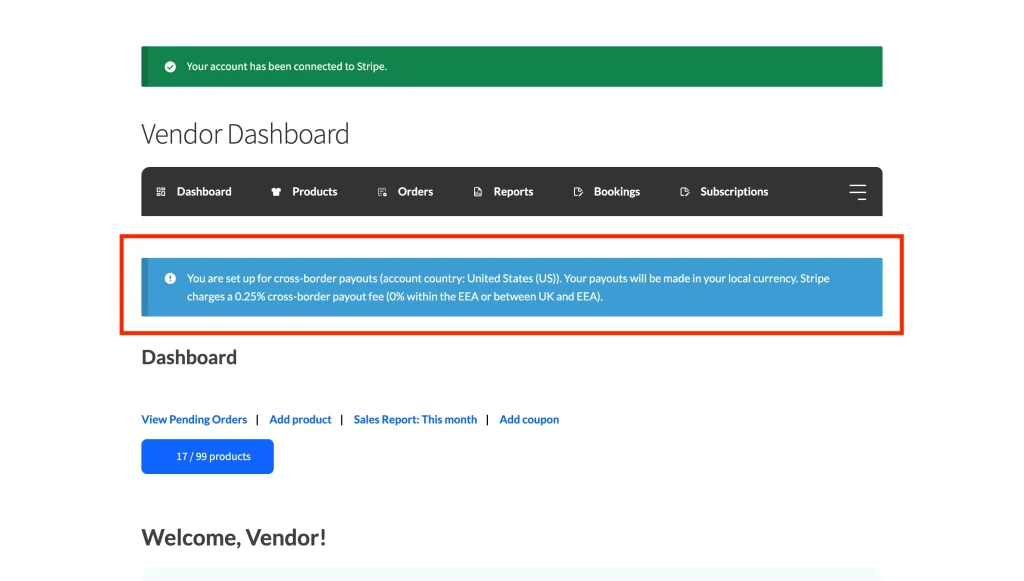
Supported region, no issues: The vendor sees an info notice confirming they’re set up for cross-border payouts, along with their payout currency and the applicable Stripe fee.
Unsupported region: The vendor sees an error notice that their Stripe account country may not support cross-border payouts. The notice links them to Stripe’s contact page for alternatives.
Recipient service agreement: If a vendor accepted Stripe’s Recipient agreement instead of the Full agreement during onboarding, they’ll see an error notice directing them to contact Stripe to upgrade their agreement.
Re-validating existing vendors
If vendors were already connected to Stripe before you enabled cross-border payouts, their account countries may not be on file yet. Use the re-validation tool to check them all at once.
- Go to WooCommerce → Status → Tools.
- Find Re-validate Cross-Border Vendor Countries and click Re-validate vendors.
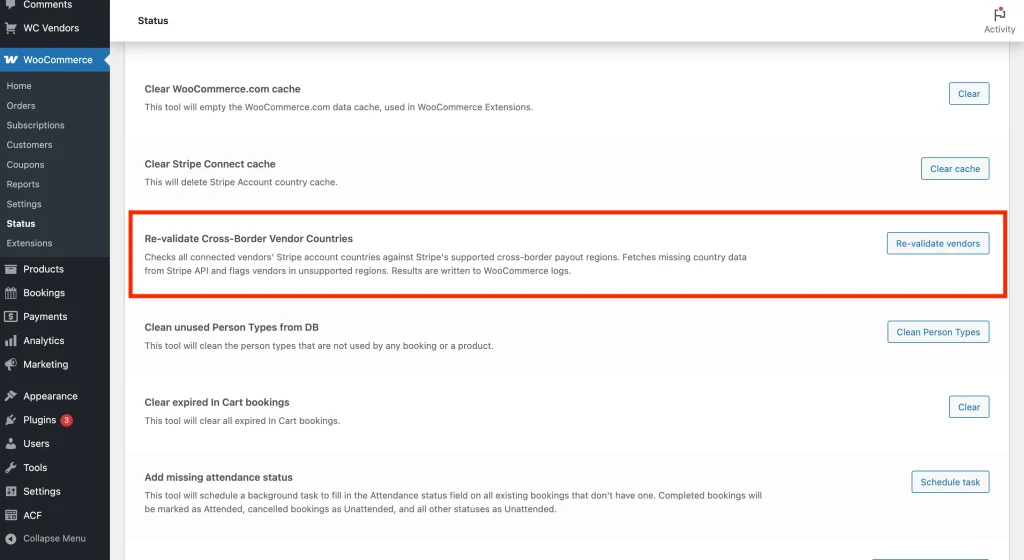
WC Vendors Stripe Connect will fetch each vendor’s account country from Stripe and apply the appropriate warning flags. Go to WooCommerce → Status → Logs to see a full breakdown—how many vendors were checked, how many are in supported regions, and how many are flagged.
Admin notices to watch for
After enabling cross-border payouts, you may see one or two notices in your WordPress admin.
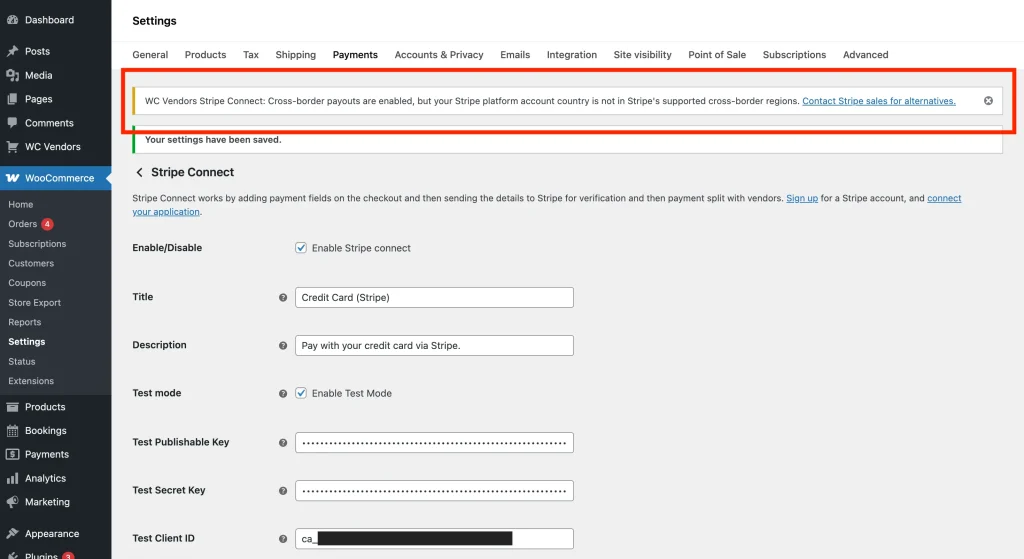
Platform region warning: If your own Stripe platform account is in an unsupported region, a dismissible warning banner appears in the admin. You can dismiss it or contact Stripe sales to discuss your options.
Service agreement notice: If any connected vendors used the Recipient service agreement instead of the Full one, you’ll see a notice counting how many vendors are affected. Those vendors won’t be able to receive cross-border payouts until they contact Stripe to upgrade their agreement.
Troubleshooting
Vendors don’t see a dashboard notice after I enabled cross-border payouts
The notice only appears for vendors whose Stripe account country differs from your platform’s country. If the vendor is in the same country as your Stripe platform account, no notice is shown. Also confirm the vendor connected using the Full service agreement. Vendors who accepted the Recipient agreement instead won’t receive cross-border payouts and will see an error notice prompting them to contact Stripe.
The re-validation tool didn’t update a vendor’s country
This usually means the vendor’s Stripe account doesn’t have a country on file, typically because their account is incomplete or they connected before Stripe began recording that data. Ask the vendor to disconnect and reconnect their Stripe account through the vendor dashboard. Once they reconnect, WC Vendors Stripe Connect records their country automatically.
I want to disable cross-border payouts
Go to WooCommerce → Settings → Payments → Stripe Connect, uncheck Enable Cross-Border Payouts, and save. Note that disabling cross-border payouts won’t automatically revert Use Stripe Separate Charges and Transfers (US/EU)—if you no longer need that setting, turn it off manually in the same screen.
Frequently asked questions
Which countries are supported for cross-border payouts?
Your Stripe platform account must be in the US, Canada, Switzerland, the UK, or an EEA country. Vendor accounts from those same regions are fully supported. Vendors from countries outside that list can still connect, but they’ll see a warning notice and may not receive payouts until they contact Stripe.
What’s the difference between the Full and Recipient service agreements?
Stripe uses two types of agreements for connected accounts. The Full agreement supports cross-border payouts; the Recipient agreement doesn’t. When cross-border payouts are enabled, WC Vendors Stripe Connect automatically prompts new vendors to accept the Full agreement during their Stripe connection flow. If a vendor previously connected with the Recipient agreement, they’ll need to contact Stripe to upgrade.
Will enabling cross-border payouts change my other Stripe settings?
Yes, enabling cross-border payouts automatically turns on Use Stripe Separate Charges and Transfers (US/EU) when you save. Disabling cross-border payouts later won’t automatically revert that setting, so adjust it manually if needed.
What if I enable this after vendors have already connected to Stripe?
Run the Re-validate Cross-Border Vendor Countries tool from WooCommerce → Status → Tools. It fetches each connected vendor’s country from Stripe and applies the appropriate warning flags and dashboard notices. Check WooCommerce logs afterwards for a full summary.
Need help?
If you have a question or run into any issues, we’re here to help.
- Premium users: Open a support ticket
- Free users: Visit our community forum