
Requirements:
WC Vendors Stripe Connect Version 2.1 or above.
You want to decide when your vendors get paid. With WC Vendors Stripe Connect, each vendor’s share reaches their Stripe balance as soon as the customer pays, and the payout setting decides when that money moves to their bank. This article shows you how to choose a payout schedule and what each option does.
Where to set the payout schedule
- Go to WooCommerce > Settings > Payments and open Stripe Connect.
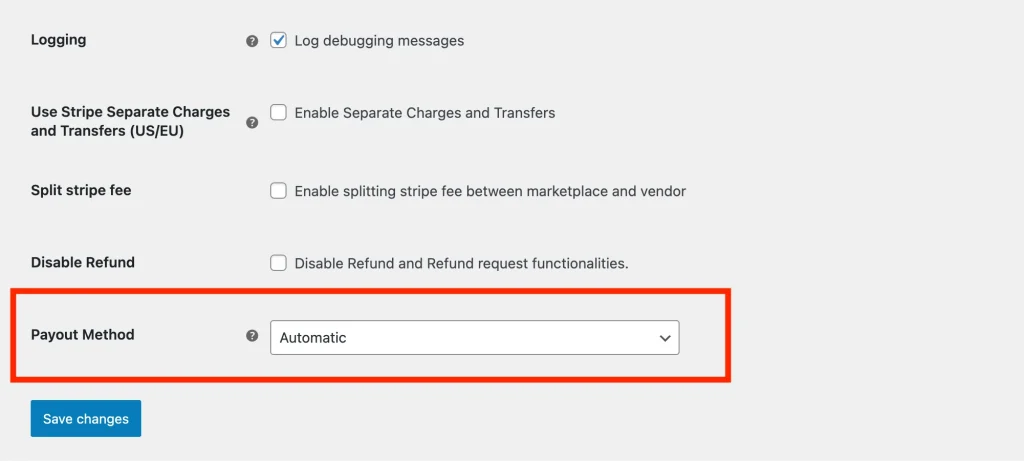
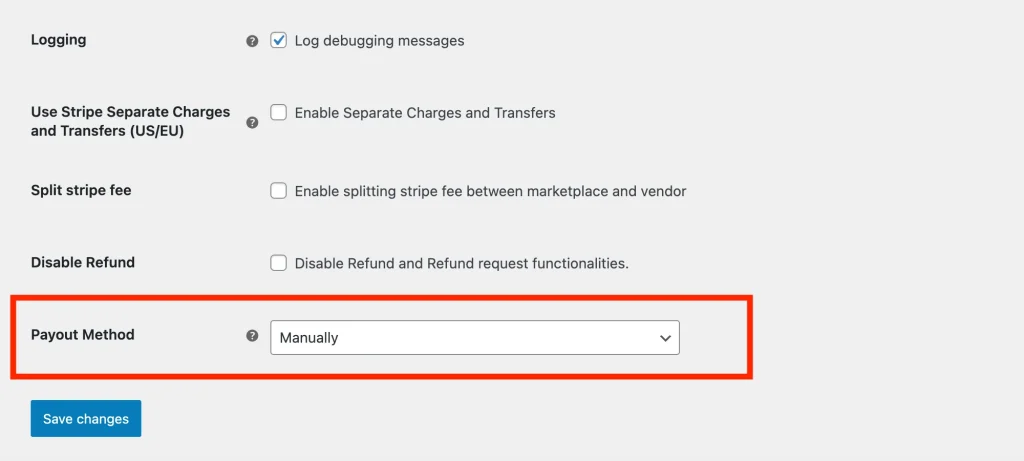
- In Payout Method, choose Automatic (the default), Automatic Schedule, or Manually.
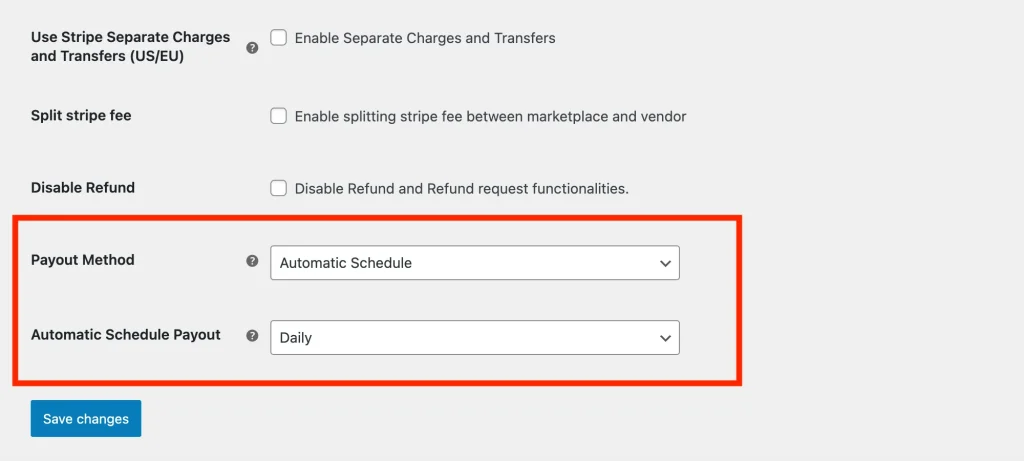
- If you chose Automatic Schedule, choose Daily, Weekly, Every 2 Weeks, or Monthly in Automatic Schedule Payout.
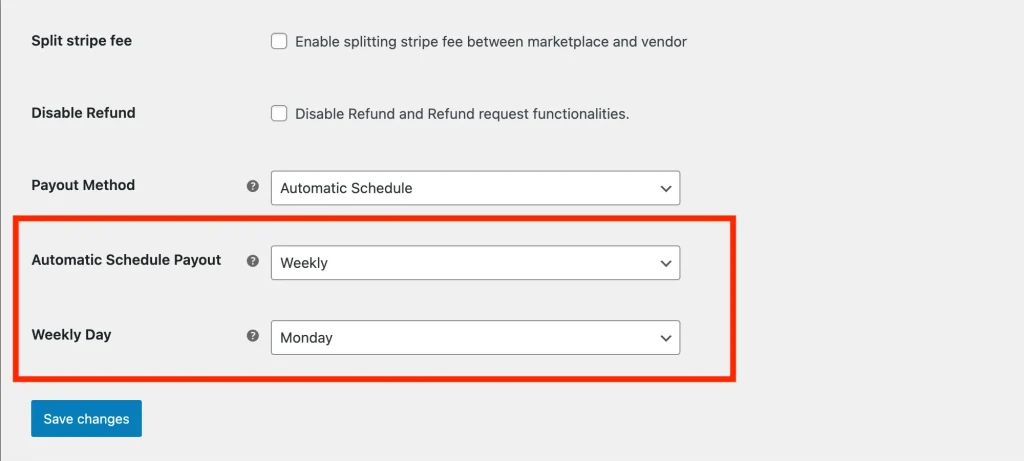
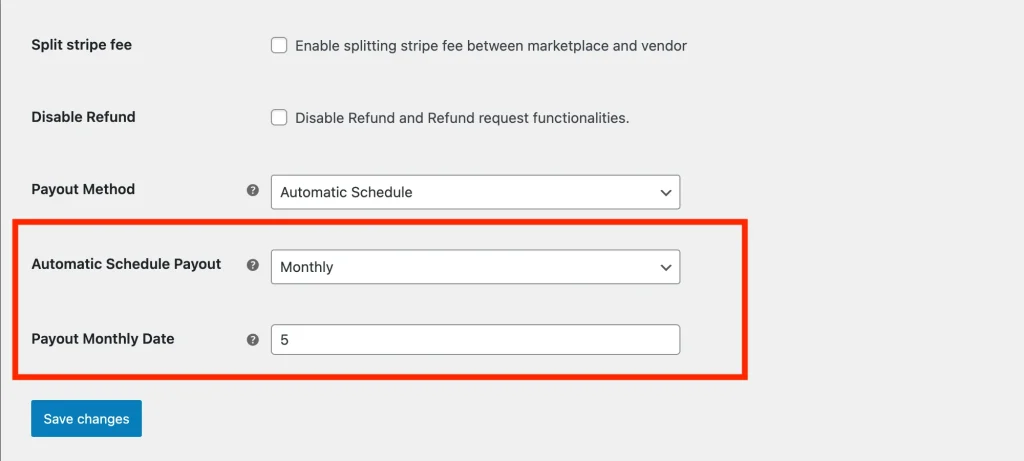
- For Weekly, choose the day in Weekly Day. For Monthly, enter the day in Payout Monthly Date.
- Click Save changes.
The new setting applies to vendors when they connect their Stripe account. See Vendor setting for vendors who are already connected.
Automatic payout
This is the default payout method.
When a customer pays for an order at checkout, the vendor’s share goes straight to their Stripe balance and your commission stays with the marketplace. The plugin doesn’t change the vendor’s Stripe payout schedule, so Stripe pays the vendor’s bank on the schedule their own Stripe account already uses.
Scheduled payout
Choose Automatic Schedule to control how often vendors are paid out to their bank. This gives you time for order fulfillment, reviews, refunds, or other business needs before the money leaves the vendor’s Stripe balance.
The vendor’s share still reaches their Stripe balance as soon as the customer pays. The order status, shipping, and the vendor or customer marking the order as received don’t change this. The schedule only controls when Stripe moves that balance into the vendor’s bank account.
Payouts only happen for orders the customer has paid.
When a vendor connects, the plugin sends your schedule to the vendor’s Stripe account, and Stripe pays out on that schedule. Every 2 Weeks works a little differently, because Stripe doesn’t offer a two-week schedule. The details are below.
There are four schedules to choose from:
- Daily
- Weekly
- Every 2 Weeks
- Monthly
Daily
Funds are automatically paid out to vendors daily, on a 2–7 day rolling basis, depending on the country and risk profile of the vendor’s Stripe account.
Daily schedules suit high-volume marketplaces, or marketplaces where fast cash flow to vendors matters.
Weekly
Funds are paid out on one day of the week, such as every Monday or Friday. Choose the day in Weekly Day. The default is Monday.
Every 2 Weeks
Stripe has no two-week payout schedule, so WC Vendors Stripe Connect runs this one itself. When a vendor connects, it sets their Stripe payouts to manual. It then checks once a day and pays out the vendor’s available balance when 14 days have passed since their last payout. For a vendor who connects for the first time, the first payout comes 14 days after they connect. Disconnecting and connecting again doesn’t restart the 14 days.
Every 2 Weeks needs WC Vendors Stripe Connect version 2.2.4 or above.
Monthly
Enter a day of the month, from 1 to 31, in Payout Monthly Date. For example, enter 5 to pay vendors on the 5th of every month.
If the selected date doesn’t exist in a month (for example, February 30th), Stripe processes the payout on the last day of that month.
With every schedule, the vendor’s share reaches their Stripe balance at checkout. The schedule only decides when that balance goes to the vendor’s bank. For Daily, Weekly, and Monthly, Stripe runs the schedule. For Every 2 Weeks, the plugin runs it.
Manual payout
Choose Manually to release each payout yourself. The plugin sets the vendor’s Stripe payout schedule to manual, and you log in to Stripe to release payments. Stripe sets a time limit for releasing manual payouts, and it depends on the vendor’s country. See Stripe’s docs on manual payouts.
This gives you the most control, but you have to step in each time a payout is needed. The vendor’s share still reaches their Stripe balance when the customer pays, so this setting controls when the money goes to their bank.
Vendor setting
Vendors must connect their Stripe account from Vendor Dashboard > Settings > Payouts.
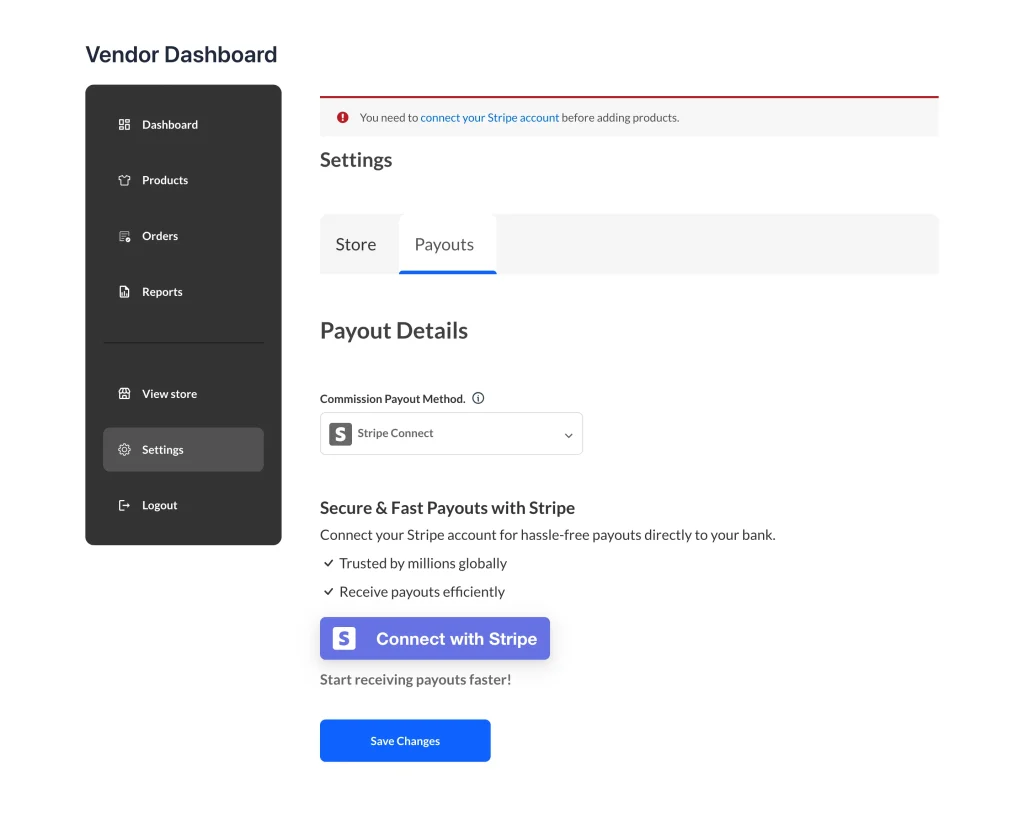
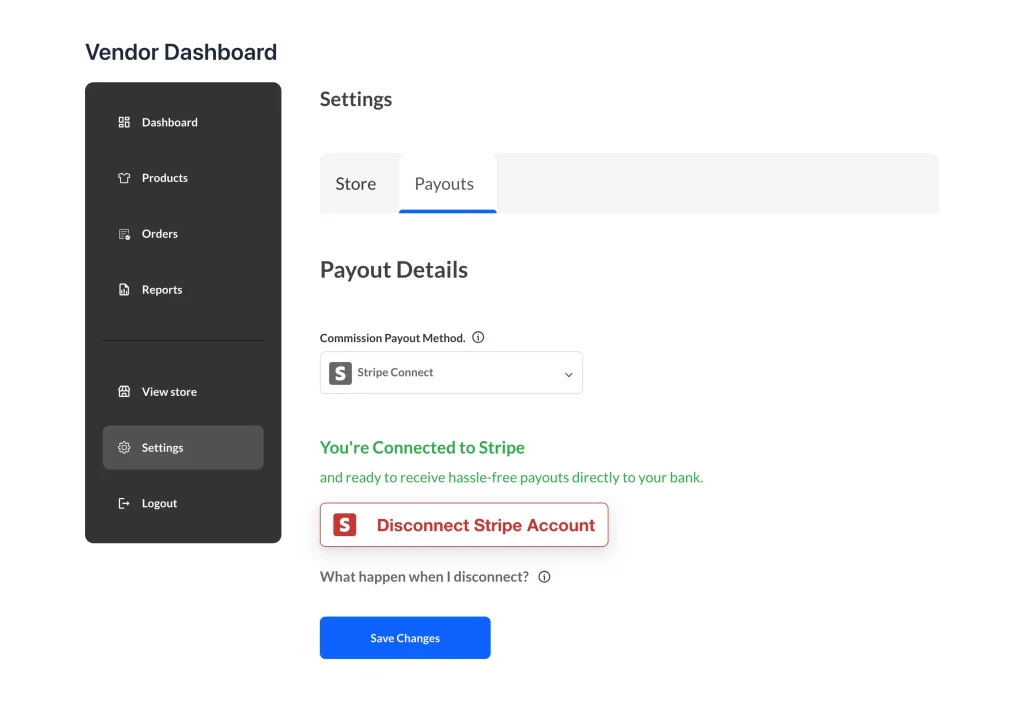
When a vendor connects their Stripe account, the plugin applies your current Automatic Schedule or Manually setting to that vendor’s Stripe account.
The schedule is applied at the moment the vendor connects. If you change the payout setting later, vendors who are already connected keep their old schedule until they disconnect and connect their Stripe account again. If your new setting is Automatic, connecting again doesn’t change the vendor’s Stripe payout schedule, because the plugin doesn’t send a schedule for Automatic. Change it in Stripe on that vendor’s account instead.
Every 2 Weeks is the exception, because the plugin runs it with a daily job that reads your saved Automatic Schedule Payout setting:
- When you switch to Every 2 Weeks, the job starts to cover every connected vendor who gets paid through Stripe, including vendors who connected under another schedule or under Manually. Their Stripe payout schedule doesn’t change until they connect again, so a vendor on Stripe’s daily payouts keeps them. If the plugin has no connection date for a vendor, it counts the 14 days from the date the vendor registered. So a vendor who registered more than 14 days ago can get a payout on the first daily check after you switch.
- When you switch Automatic Schedule Payout away from Every 2 Weeks, the job stops. Changing only Payout Method isn’t enough, so follow How to stop Every 2 Weeks payouts. Vendors who connected under Every 2 Weeks still have their Stripe payouts set to manual, so they get no payouts until they connect again or you release payouts in Stripe.
After any change to or from Every 2 Weeks, ask your connected vendors to disconnect and connect their Stripe account again.
You can review the payout schedule for each connected vendor in the Stripe Dashboard. Open the Connected accounts page, then click the vendor’s account.
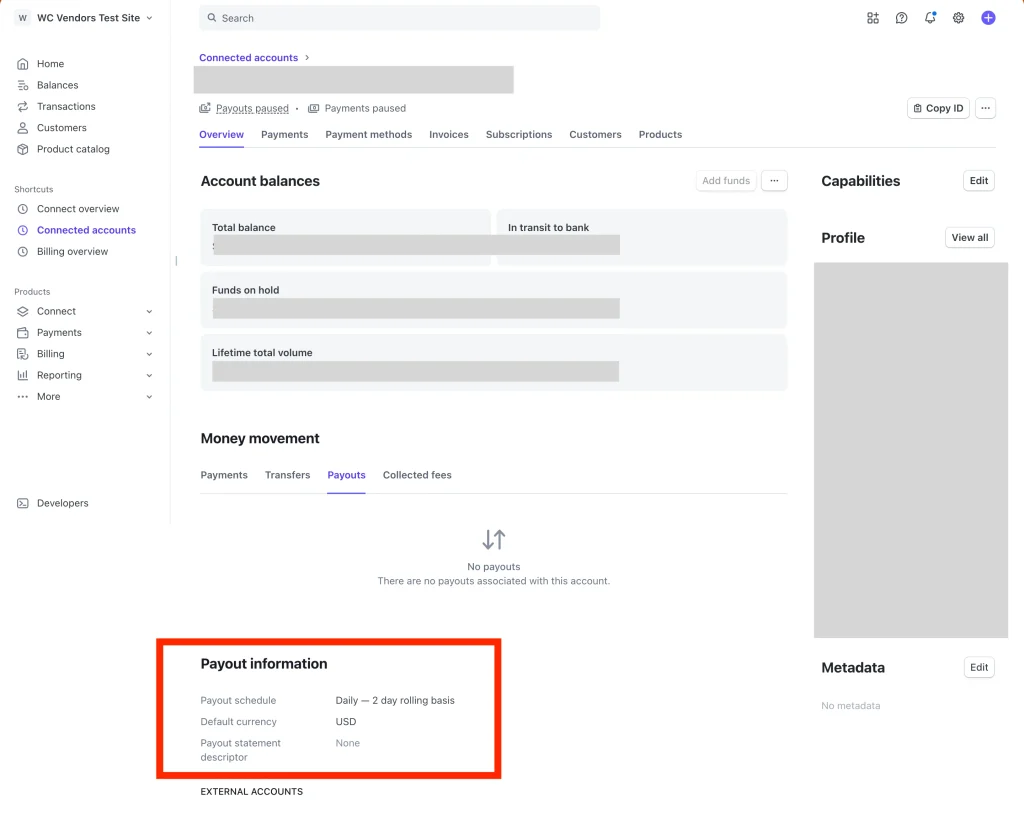
See Stripe’s docs on payout schedules for more information.
How to stop Every 2 Weeks payouts
The two-week job checks the Automatic Schedule Payout setting. That setting stays saved even when it’s hidden because you picked another Payout Method. Change it first:
- Go to WooCommerce > Settings > Payments and open Stripe Connect.
- Set Payout Method to Automatic Schedule.
- In Automatic Schedule Payout, choose Daily. Weekly and Monthly also stop the job, but each one adds a field you have to fill in.
- Click Save changes.
- If you want Automatic or Manually instead, change Payout Method now and click Save changes again.
- Ask vendors who connected under Every 2 Weeks to disconnect and connect their Stripe account again. Until they do, their Stripe payouts stay on manual and they get no payouts. If you chose Automatic, change their payout schedule in Stripe instead.
Troubleshooting
Vendors are still paid on the old schedule
Ask the vendor to disconnect and connect their Stripe account again from Vendor Dashboard > Settings > Payouts. If your new setting is Automatic, change the schedule in Stripe on that vendor’s account instead. See Vendor setting for why.
Vendors stopped getting payouts after I changed from Every 2 Weeks
Ask those vendors to disconnect and connect their Stripe account again, or release their payouts in the Stripe Dashboard. See step 6 of How to stop Every 2 Weeks payouts.
Vendors are still paid every 2 weeks after I changed Payout Method
Follow the steps in How to stop Every 2 Weeks payouts. The two-week job reads the saved Automatic Schedule Payout setting, so changing only Payout Method leaves it running.
Frequently asked questions
Can I hold vendor payouts until the order is shipped or received?
Not automatically. The vendor’s share goes to their Stripe account as soon as the customer pays, before the order ships. The order status, shipping, and the Mark Received option in WC Vendors Pro don’t change when that money is sent.
If you want to decide when vendors get paid, set Payout Method to Manually and release each payout in Stripe once you’re happy the order arrived. The money is already in the vendor’s Stripe balance at that point, so a manual payout controls when it reaches their bank.
Will changing the payout setting update vendors who are already connected?
Not for Daily, Weekly, Monthly, or Manually. The plugin applies those when a vendor connects, so already connected vendors need to connect again, and Automatic needs a change in Stripe. See Vendor setting. Every 2 Weeks works differently and affects connected vendors straight away. To switch away from it, follow How to stop Every 2 Weeks payouts.
Need help?
If you have a question or run into any issues, we’re here to help.
- Premium users: Open a support ticket
- Free users: Visit our community forum