Most store owners treat wishlists like a “nice to have” feature. They assume it is just a plugin where shoppers park items and forget about them. However, in a multi-vendor marketplace, saved items are signals. They show what buyers want, and what they might purchase once the timing feels right. That is the reason we built SaveTo Wishlist Pro.
Instead of guessing what buyers want, you get clearer signals you can act on. These signals can help ensure the right products are seen at the right time.
Next, I will show you what the Pro features actually do and how they can fit into your marketplace workflow.
Let’s get to it!
Why SaveTo Wishlist Pro?
Let me put it this way. In a marketplace, people browse a lot before they buy. The real issue is this: if they leave without a reason to return, you lose the sale. And your vendors lose it, too.
That is why SaveTo Wishlist Pro matters, especially in a marketplace. It turns “saved items” into something you can actually use.
What you already get with the free version
If you are using the Lite version, you already help shoppers do the basics:
- Multiple lists so shoppers can organize items
- Guest saving so they can save without an account
- Custom button styles so wishlist buttons match your site
- Account pages so users can view saved items in one place
That is great for shoppers. However, as a marketplace owner, you also need tools to act on buyer interest.
What changes when you use Pro
Here is what SaveTo Wishlist Pro adds for you and your vendors:
- See what buyers want: Identify which products are often saved. This helps you understand demand beyond purchases.
- Help vendors win the “maybe later” sale: Saved items are not dead ends. They are future orders waiting for the right timing.
- Get smarter follow-ups: Instead of hoping shoppers remember the item, SaveTo Wishlist Pro helps you reach them when they are ready.
- You support marketplace growth without guessing: When you know what people save, you can guide promos, plan inventory, and highlight the right products.
The Lite version helps users save items. SaveTo Wishlist Pro helps you turn those saved items into sales signals that benefit your whole marketplace.
Introducing SaveTo Wishlist Pro’s Core Features
Moving from a basic tool to the premium version opens up a whole new world of possibilities for your shop. We made sure these features work together to help you understand your customers and boost your bottom line.
1. Advanced Analytics: Turning numbers into sales
We understand that to run a successful store, you need to know what your customers are thinking. This is why we built the Advanced Analytics feature to take the guessing out of your business. It gives you clear reports so you can see exactly which items are catching people’s eyes.
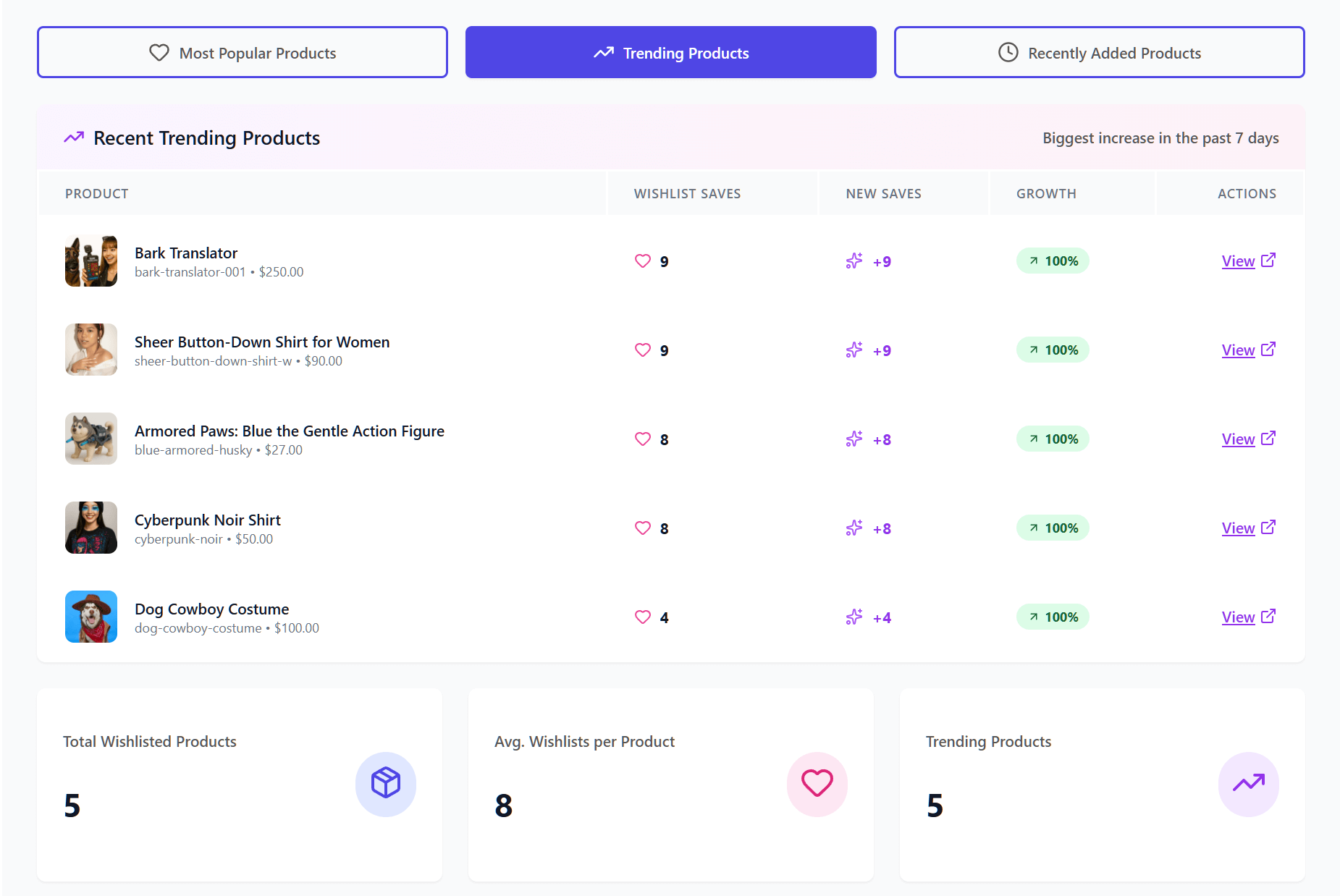
With Advanced Analytics, expect to gain:
- Product insights: See which items are the most popular right now. You can even track “Trending Products” to see what has been hot over the last 7 or 30 days.
- Category and brand insights: Find out which parts of your store are winning. This helps you see which brands people keep coming back to and which categories are growing.
- Engagement tracking: This shows you how people interact with their lists. You can see how often items are added or moved, which indicates how engaged shoppers are.
- Time-based trends: This displays shopping and saving patterns over time. Thus, you can discover seasonal patterns, allowing you to prepare for busy holidays before they even arrive.
- Customer behavior: Get a clear look at how different people use their wishlists. You can use this to group similar shoppers together and understand their habits.
Using these numbers helps you understand exactly what your customers want. Thus, you can make better choices about what to stock and what to put on sale based on real data.
2. Automations: Putting your sales and workflows on autopilot
Managing a store involves many daily tasks that can quickly become overwhelming. With the Automations feature, you can handle many of these repetitive jobs automatically so you can focus on other parts of your business.
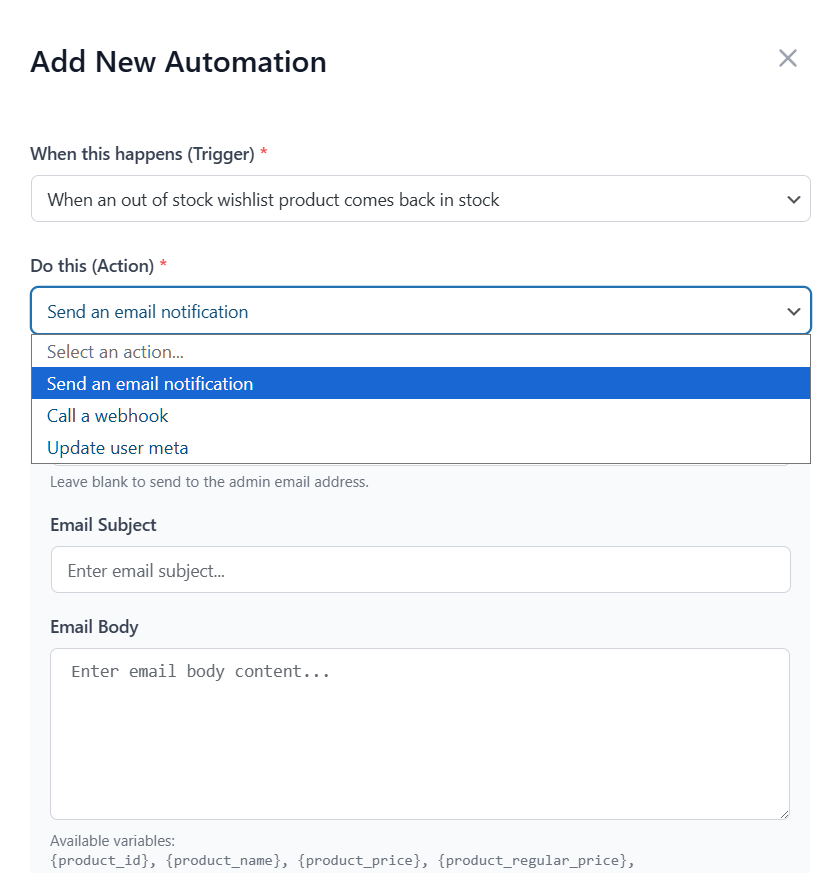
Here’s what to expect from Automations:
- Smart triggers: The system reacts the moment a customer interacts with your store. This could be when a customer creates a wishlist, adds a new item, or even when a product goes on sale or is updated.
- Automatic actions: You decide what happens next. For instance, you can tell the software to send an automatic email to the customer to remind them about an item. It can also send an email to you (the admin), so you stay informed.
- Customer tags: The tool can automatically add notes to a customer’s profile (User Meta). This helps you group shoppers together based on what they like.
- Advanced workflow management: You aren’t stuck with “one size fits all.” You can build your own rules, set special conditions, and turn different automations on or off whenever you want.
- Bridge to other apps: Using webhooks, you can send data to other apps you use, like a mailing list or a spreadsheet. This happens the second a customer makes a change.
These tools take the busy work off your plate so you can focus on the big picture. As a result, your store stays active and follows up with customers even when you’re away from your desk.
3. Webhooks: Connecting your store to other apps
Sending data between different apps can be a chore if they don’t talk to each other. For this reason, we created the Webhooks feature to act like a universal messenger for your store data. Basically, the Pro version extends your store’s capabilities by bridging the data from both the Lite and Pro features directly to your external apps
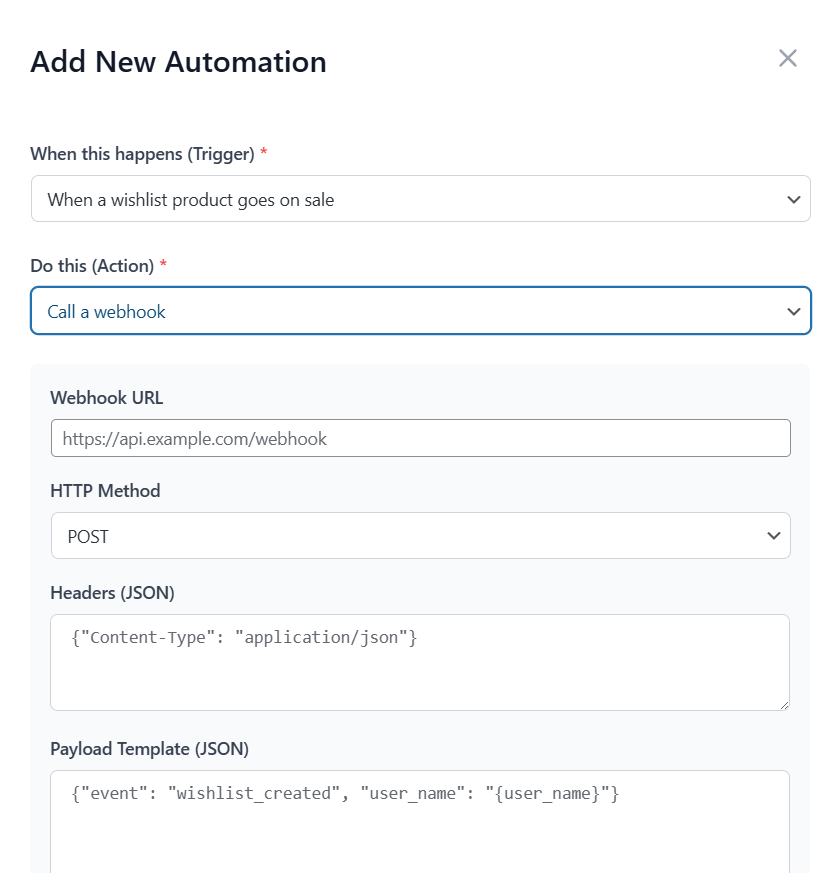
With Webhooks, you can control:
- Event triggers: You can set the system to send out information the moment a wishlist is created or when items within it are added, removed, or updated.
- Custom endpoints: You choose exactly where the data goes, so it lands in the right spot every time.
- JSON payloads: The information is sent in a clean, industry-standard format that other modern apps can read without any trouble.
- Real-time delivery: There’s no waiting around because the data moves as soon as the action happens.
This keeps all your different business platforms connected. Because Wishlist Pro uses standard JSON webhooks, you have the flexibility to stream your wishlist data to thousands of external services, such as:
- Marketing & CRM platforms: You can send data to tools like Mailchimp, Klaviyo, HubSpot, or Salesforce. While these aren’t “one-click” native integrations, our webhooks provide the bridge needed to sync customer activity into your marketing records.
- Automation hubs: For the easiest setup, you can use webhooks to connect your store to Zapier, Make, or Pabbly Connect. These “middleman” tools can then automatically route your wishlist events to over 5,000+ different apps without you needing to write a single line of code.
When you use these connections, you ensure your records stay updated across your entire business without having to manually type in any information.
4. Wishlist Sharing & Permissions: Building a shopping community
Shopping is more fun when friends and family can join in. Most wishlists are private, but the Wishlist Sharing & Permission feature lets your customers turn their lists into a social experience. Whether they are planning a wedding or a group gift, these tools help people work together.

Here is how you can manage Wishlist Sharing & Permissions:
- Advanced sharing: Customers can send their wishlists to specific people via email. They can also create a private link with a unique code. This makes it easy to share ideas without making them public.
- Permission control: Not everyone needs the same level of control over wishlists. A customer can allow a friend to view a list, or grant them edit permissions to add and remove items. The system also sends an email the moment someone is granted permission to help.
- Public wishlist directory: As the store owner, you can enable a special area on your site where people can browse public lists. This is a great way for shoppers to discover trending items. It’s completely optional—you decide if this directory is active and which settings apply to public visibility.
- Custom email styles: You can change how the sharing emails look. This ensures that every invitation sent from your store matches your brand’s personality.
- Activity tracking: The system tracks when shared wishlists are opened. This helps you understand how often people are sharing your products with their friends.
These sharing tools turn a simple wishlist into a way to find new customers. After all, when shoppers share their lists with friends or family, they’re basically doing the marketing for you. As a result, your store becomes a go-to spot for group gifts, helping more people discover your products through word-of-mouth.
Upgrading To SaveTo Wishlist Pro
If you are already using the free version, upgrading is pretty straightforward. If you have not added wishlist functionality yet, you can start there first. Once the Lite version is up and running, upgrading to SaveTo Wishlist Pro is a quick process.
Here is the quick upgrade checklist
- Get the plugin: Purchase your copy from the SaveTo Wishlist Pro page.
- Install the Pro plugin: Upload and activate the Pro version in WordPress. Keep the Lite plugin active too.
- Activate your license: Go to SaveTo Wishlist > License in your dashboard, then paste your license key.
- Stay up to date: After activation, updates are handled through your site as with any other plugin update. This keeps features working as expected.
Once everything is active, you can start using SaveTo Wishlist Pro to turn saved items into actionable signals.
Power Tips For Success
Once you have SaveTo Wishlist Pro running, you do not need to do a hundred complicated things to see results. Small habits can already make a difference.
Tip 1: Watch what shoppers almost bought
In my experience, the most useful signal is not only what people purchased. It is what they saved but did not check out. That is where SaveTo Wishlist Pro helps: it shows you which items keep getting saved repeatedly.
Here is how you can use that insight:
- Check your trending report weekly
- Look for products that get saved often but have not been purchased yet
- Talk to the vendor if the stock is low or if the price feels too high
- Run a short promo on only that product, not the whole store
This works because you are not guessing. You are responding to interest that is already there.
Tip 2: Set up a price drop alert
Timing changes everything. A shopper may want an item but still hold back because of price. With SaveTo Wishlist Pro, you can send an email when a saved product goes on sale.
This type of message feels more personal because:
- Shopper already showed interest
- Update is relevant
- Timing is usually what triggers the purchase
If you run a marketplace, this also helps vendors. It brings buyers back to the exact product they saved, not a random category page.
💡If your marketplace also serves B2B customers, showing accurate wholesale wishlist pricing on these saved items can be the ultimate deciding factor to help your vendors reclaim lost sales from hesitant bulk buyers.
Tip 3: Use wishlist events to feed your email lists
Your marketplace attracts many “almost buyers.” Wishlists are one of the cleanest ways to spot them. With SaveTo Wishlist Pro, you can connect wishlist activity to your email platform through webhooks.
Here is a simple workflow that works well:
- A new visitor creates a wishlist
- Their email gets sent to a “New leads” list
- Send a welcome email that explains how wishlists work
- Follow up later with a small category-based promo
You are not spamming people here. You are following up based on real actions.
Tip 4: Encourage sharing during gift seasons
Wishlists are not only for “buy later.” They are also used for birthdays, weddings, group gifts, and holidays. When shoppers share wishlists, your products gain exposure to people who were not even browsing your site initially.
If you want to make this work, do these:
- Add a short note near wishlist buttons that says “Save and share this list”
- Remind shoppers during gift seasons that lists can be shared
- Highlight popular saved products so new buyers can discover them faster
With SaveTo Wishlist Pro, sharing can become a steady source of new visitors, not just a nice extra feature.
Conclusion
What I like about using wishlists the right way is that it gives you a second chance. It helps you and your vendors spot real buying intent without second-guessing. You can see which products receive the most attention, plan promotions with better timing, and bring shoppers back to the exact items they cared about. That is how you reduce missed sales without pushing random offers.
Let’s look back on what we’ve discussed in this new release:
- Why SaveTo Wishlist Pro
- Introducing SaveTo Wishlist Pro’s core features
- Upgrading to SaveTo Wishlist Pro
- Power tips for success
So if your goal is to help vendors sell more while keeping your marketplace organized, treat wishlists as part of your system, not a side feature. When saved items become follow-ups and better decisions, your marketplace becomes more helpful to shoppers and more profitable for vendors. Amazing, right?
Do you have questions? Please let me know in the comments.
Frequently Asked Questions
Can I send alerts when a wishlist item goes on sale?
Yes. You can set up automations so shoppers get notified when saved items go on sale. This is useful because the message matches what the shopper already wanted.
Will SaveTo Wishlist Pro slow down my site?
In most cases, it should not. Like any plugin, performance depends on your hosting and setup. It is still smart to test after installation and keep plugins updated. If you want the best performance from SaveTo Wishlist Pro (and your whole marketplace), start with a host built for it. We recommend Levamo (formerly Rapyd Cloud) — managed WordPress hosting purpose-built for dynamic, database-heavy sites, with server-level caching and an enterprise Cloudflare CDN that keeps wishlist actions, product pages, and checkout fast under load. Plans start at $29/month, with free migration and no traffic-based overage fees.
Can shoppers create wishlists without an account?
Yes. Guest wishlists are supported, depending on your settings. This helps reduce friction for new visitors.
Can shoppers share their wishlists with others?
Yes. Wishlist sharing lets shoppers send their lists to friends or family. This can bring new visitors to your marketplace during gift seasons.