Managing a multi-vendor marketplace means balancing the needs of both vendors and customers. One long-requested capability has been the ability for vendors to set a minimum order quantity on their products, and WC Vendors Pro now delivers exactly that. This feature gives vendors the control they need to ensure orders meet their fulfillment requirements while maintaining a smooth shopping experience for customers.
What Is Minimum Order Quantity?
Minimum order quantity refers to the lowest number of units a customer must purchase for a specific product. Vendors often need this control for several reasons: wholesale pricing structures, packaging requirements, production minimums, or simply ensuring that small orders remain profitable after accounting for shipping and handling costs.
Without enforcing a minimum order quantity, vendors may receive orders that cost more to fulfill than they generate in revenue. This new feature solves that problem directly within WC Vendors Pro.
How the Feature Works
The minimum order quantity system in WC Vendors Pro is enabled via a simple toggle in the admin settings. Once enabled, vendors gain access to MOQ fields on their product dashboard, and the system handles all enforcement automatically.
Enabling the feature
Marketplace administrators control access to minimum order quantity settings through a single toggle:
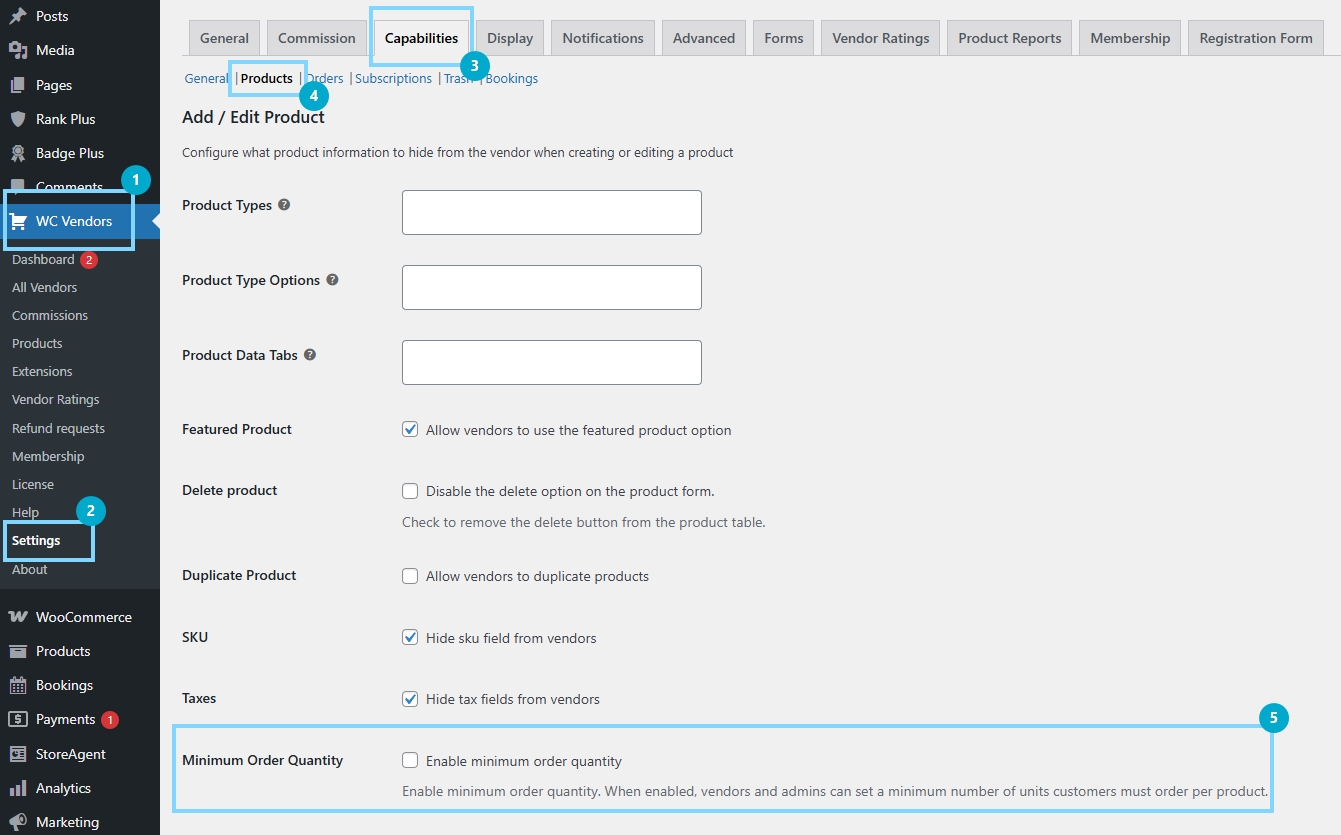
- Navigate to WC Vendors > Settings > Capabilities > Products
- Enable the Minimum Order Quantity option
- Save changes
When enabled, the feature activates for all vendors on your marketplace. When disabled, all MOQ fields and enforcement disappear completely—there’s no half-enabled state to confuse vendors or customers.
Setting minimum order quantity for products
Vendors can set minimum order quantity values directly from their product dashboard. The MOQ field appears in the Inventory tab, positioned logically below the Stock Status field.
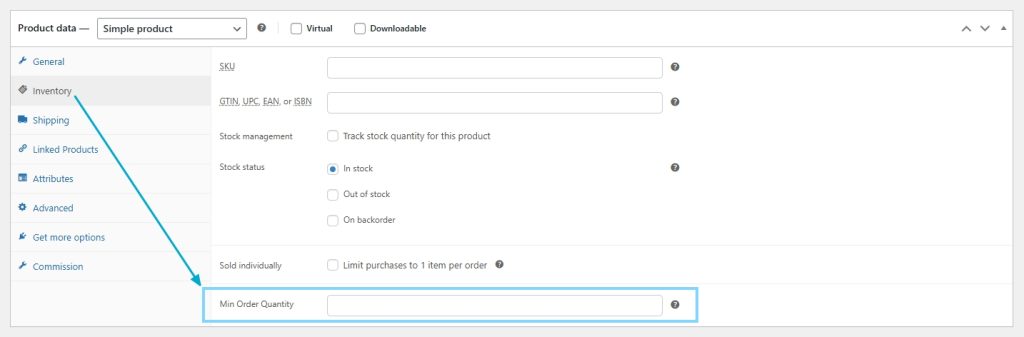
For simple products, vendors enter the required minimum quantity. The value is saved with the product and immediately affects how customers can purchase that item.
For variable products, vendors can set different minimum order quantity values for each variation. This flexibility matters because different variations often have different production or fulfillment requirements. A vendor selling custom t-shirts might require a minimum of 10 units for standard colors but only 5 units for premium colors that cost more per unit.
Customer-facing display
When a product has a minimum order quantity, customers can see this information clearly on the product page. The display appears in the product meta area with text like “Minimum order: 5 units”—straightforward and impossible to miss.
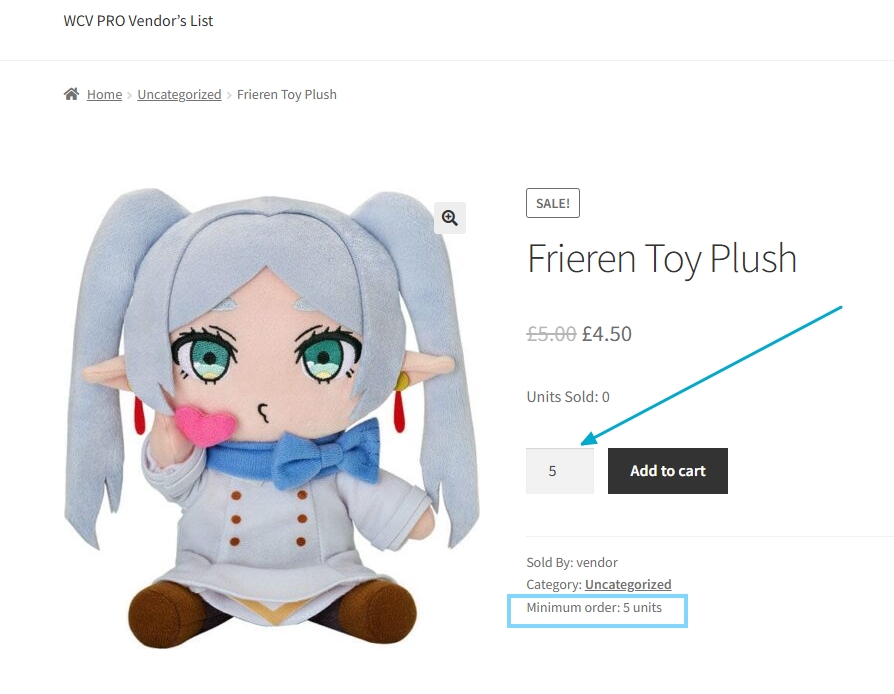
The quantity input field also respects the minimum. If a vendor sets an MOQ of 5, the quantity selector won’t allow values below 5. Customers understand immediately what’s required.
For variable products, the display updates dynamically. When a customer selects a variation, JavaScript instantly updates both the quantity input’s minimum and the displayed MOQ label—no page reload needed.
Automatic Quantity Enforcement
The minimum order quantity feature doesn’t just display information; it actively enforces the rules throughout the shopping process.
Add to cart behavior
If a customer attempts to add fewer units than the minimum order quantity, the system automatically adjusts the quantity upward. Rather than blocking the action with an error, WC Vendors Pro bumps the quantity to meet the minimum and displays a helpful notice explaining what happened.
This approach keeps the shopping experience smooth. Customers aren’t frustrated by error messages—they’re simply informed that the quantity was adjusted to meet the vendor’s requirements.
Cart updates
The same enforcement applies when customers update quantities in their cart. If someone tries to reduce a quantity below the minimum order quantity threshold, the system bumps it back up and shows a notice. Customers can’t circumvent the minimum by adding items first and editing later.
Checkout validation
As a final safeguard, checkout validation ensures no order completes with quantities below the set minimums. If an item somehow reaches checkout with insufficient quantity, the order is blocked with a clear error message. This redundancy ensures vendors never receive orders that violate their minimum order quantity requirements.
Best Practices For Vendors
When implementing minimum order quantity on products, vendors should consider these guidelines:
Be reasonable
Set minimums that make business sense but don’t alienate customers. An MOQ of 1,000 units will drive away most buyers unless you’re explicitly targeting bulk purchasers.
Communicate value
Use product descriptions to explain why a minimum exists. Customers accept minimums more readily when they understand the reasoning behind them, such as better pricing, production requirements, or fresher products.
Consider variations
For variable products, evaluate whether all variations truly need the same minimum. Different MOQs for each variation can expand your product’s reach to a wider customer base.
Test the experience
After setting the minimum order quantities, walk through the purchase process as a customer. Ensure the messaging is clear and the experience feels smooth rather than frustrating.
Other Features You Should Know
Alongside minimum order quantity, this release introduces an improved license management system for WC Vendors Pro administrators.
The new system implements a grace period approach when license issues occur. Rather than immediately locking features, administrators receive escalating notices over a seven-day window:
- Days 0–1: A soft reminder notice appears, easily dismissible for 24 hours
- Days 2–6: The notice upgrades to a more prominent warning
- Day 7+: An interstitial lock activates on WC Vendors Pro admin pages
This grace period applies to missing, expired, and disabled licenses. Administrators have time to resolve issues without disruption to their marketplace operations.
Importantly, the vendor dashboard remains fully functional regardless of license status. Only WP Admin pages for WC Vendors Pro are affected—your vendors can continue managing their products and orders without interruption while you address any license concerns.
Once a valid license is entered or renewed, all notices clear immediately, and the interstitial lock disappears. The system also includes a “refresh status” button so administrators can verify their license without waiting for the daily automatic check.
Summary
Minimum order quantity support in WC Vendors Pro addresses a genuine need for marketplace vendors who require minimum order quantities for profitability or fulfillment. The feature offers:
- Simple enable/disable toggle for administrators
- Per-product and per-variation MOQ settings for vendors
- Clear customer-facing display on product pages
- Automatic quantity enforcement
Vendors gain the control they need, customers receive clear communication about requirements, and administrators maintain oversight through a clean, integrated settings system. If your marketplace vendors have been asking for support for minimum order quantities, this feature delivers exactly what they need.