
When a customer places an order with multiple vendors, each vendor can send them a separate PDF invoice covering only their products. WC Vendors Pro lets vendors do this directly from their dashboard. This guide walks you through enabling the feature and sending invoices from the vendor dashboard.
What you’ll need
- WC Vendors Pro installed and active
- WordPress admin access to enable the capability
Step 1: Enable PDF invoices
This feature is off by default. An admin needs to turn it on before vendors can use it.
- In your WordPress admin, go to WC Vendors → Settings.
- Click the Capabilities tab.
- On the Capabilities tab’s default General view, scroll down to the Pro Features section.
- Check PDF Invoices.
- Click Save changes.
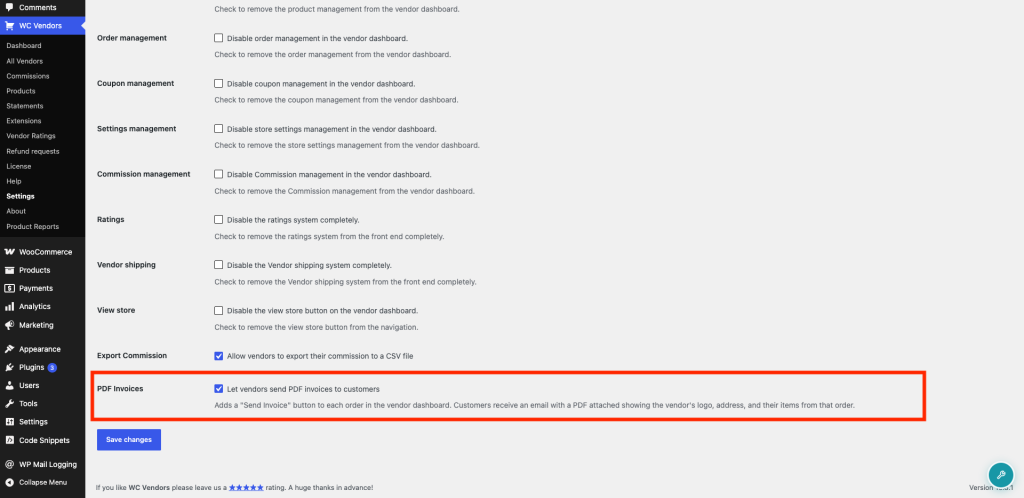
Once enabled, vendors will see a Send Invoice action on each order in their dashboard.
Step 2: Send an invoice from the vendor dashboard
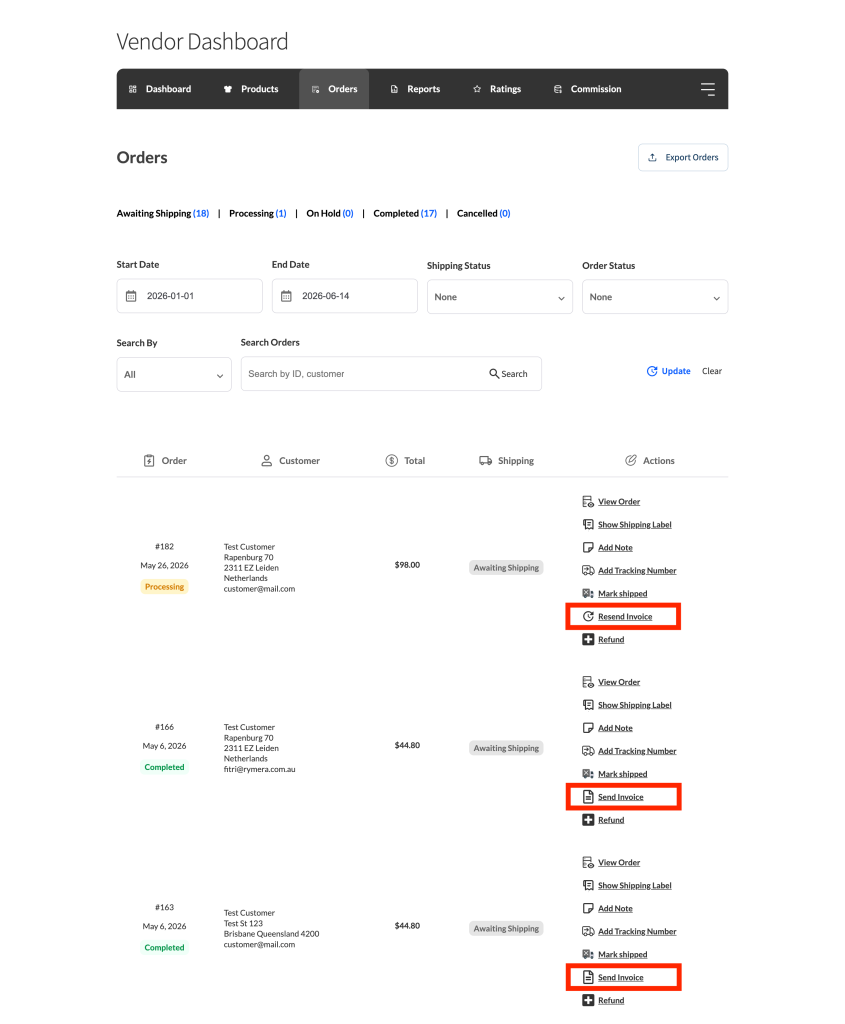
- From the vendor dashboard, click Orders in the left navigation.
- Find the order you want to invoice and click Send Invoice in the row actions.
- The button changes to Resend Invoice once the email sends successfully.
What the customer receives
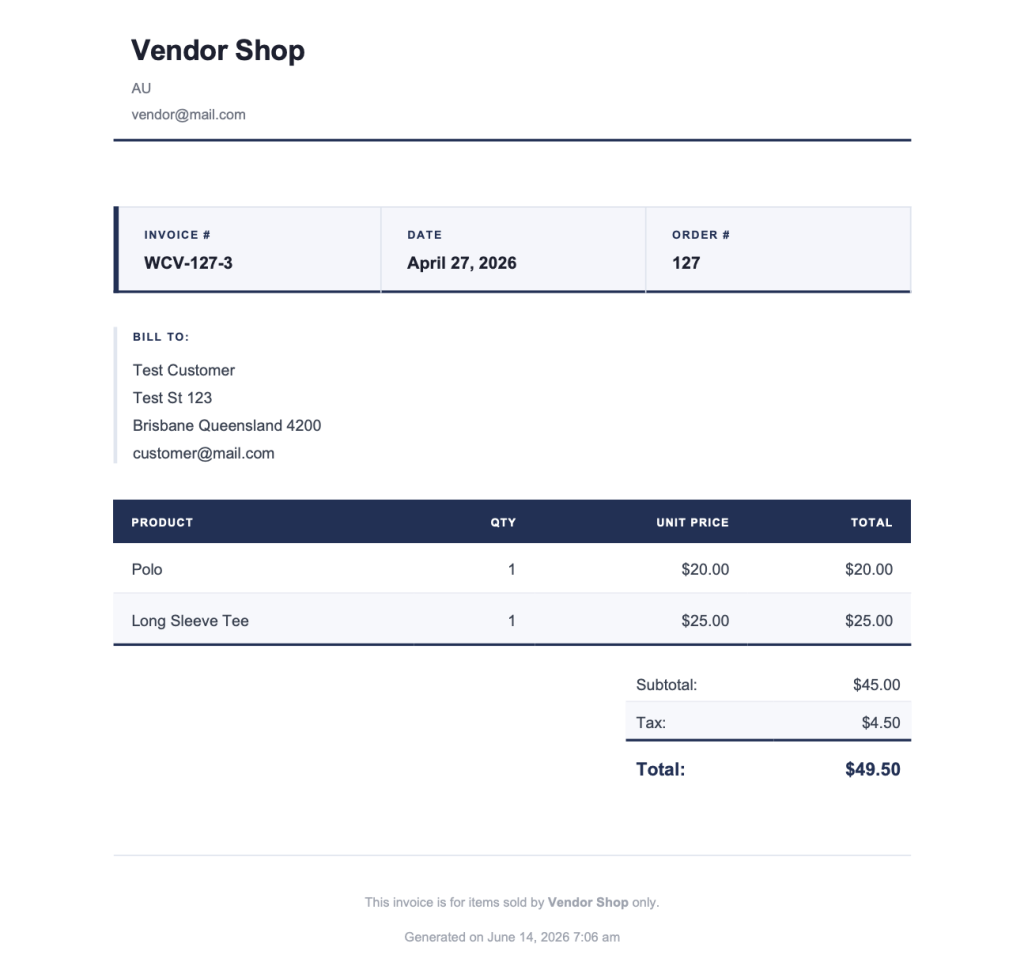
The customer gets an email from the vendor’s store with a PDF invoice attached. The subject line reads: Your invoice from [Shop Name] for order #[Order Number].
The PDF covers only that vendor’s products from the order. It shows the vendor’s logo, name, and contact details at the top — pulled from the vendor’s store profile — followed by the customer’s billing address and a full line-item breakdown. Subtotal, shipping, and tax are listed separately, then a grand total. Shipping and tax only appear if the marketplace admin has configured WC Vendors to pass those amounts to vendors.
Each invoice has a unique number in the format WCV-[order ID]-[vendor ID].
Frequently asked questions
The Send Invoice button isn’t showing up in the vendor dashboard. What’s wrong?
Confirm that PDF Invoices is checked under WC Vendors → Settings → Capabilities → General and that you’ve saved changes. If it’s already enabled, check that the vendor’s account is fully approved — pending vendors won’t see the button.
Can vendors customise the invoice with their logo and address?
Yes. The vendor’s logo and contact details on the PDF are pulled from their store profile. Vendors can update their store icon, address, and phone from their store settings in the vendor dashboard. The email shown on the invoice follows the vendor’s WordPress account email.
Can a vendor send the invoice more than once?
Yes. After the first send, the button changes to Resend Invoice. Vendors can resend at any time if the customer didn’t receive it or requests another copy.
Need help?
- Premium users: Open a support ticket
- Free users: Visit our community forum