
If you want your vendors to capture product-specific data—such as materials, technical specs, or custom attributes—without giving them admin access, the integration between Advanced Custom Fields (ACF) and WC Vendors Pro makes this possible.
This guide walks you through creating the right field groups and explains how your vendors will see and manage them directly within the Vendor Dashboard. By the end of this guide, you’ll know how to display and manage your ACF field groups within the vendor product editor.
Prerequisites
- WC Vendors Pro must be installed and active.
- Advanced Custom Fields (Free or Pro) must be installed and active. If you haven’t set up field groups yet, see the official ACF Getting Started guide.
Setting up field groups for vendor products
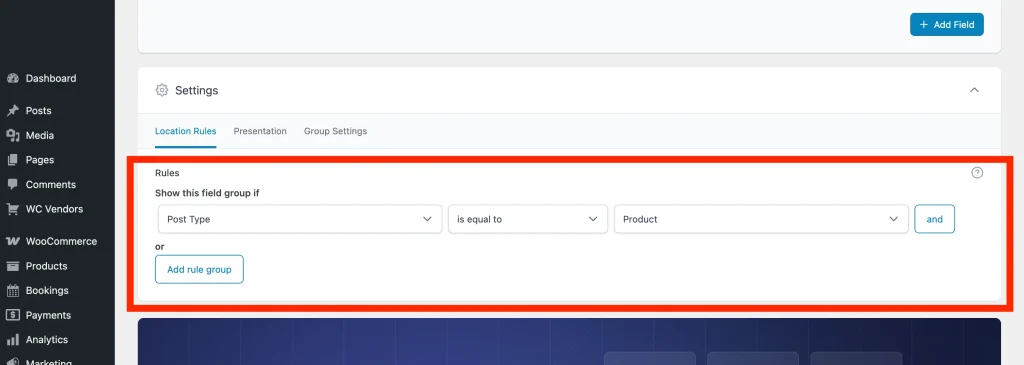
The integration works automatically by detecting field groups that are assigned to the “Product” post type.
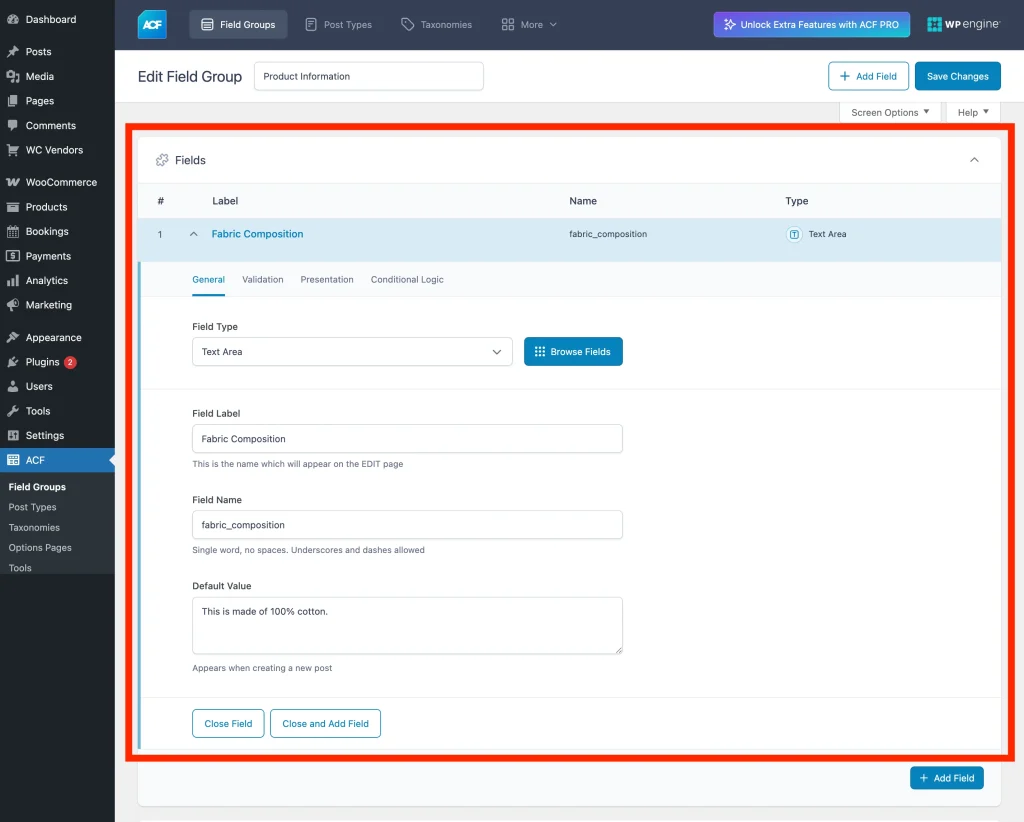
- Navigate to ACF → Field Groups in your WordPress admin.
- Click Add New or edit an existing group.
- Add your desired fields (Text, Select, Image, Date Picker, etc.).
- In the Location rules box, set the rule to: Post Type is equal to Product.
- Click Save Changes.
💡 Tip:
You can use the “Order No.” setting in the Presentation tab to control which tab appears first if you have multiple groups assigned to products.
Because the integration is native, no manual configuration is required to display these fields. Once the location rule is set to “Product,” the fields are automatically injected into the Vendor Dashboard.
How the integration works
Zero configuration
Once the location rule is set to Product, WC Vendors Pro detects the group and injects it into the front-end form without any extra mapping.
Automatic tabs
Each ACF field group generates its own unique navigation tab within the vendor’s product editor (e.g., “Technical Specs” or “Additional Details”).
Standard validation
Any “Required” rules you set within ACF are respected on the front-end vendor form automatically, ensuring data quality.
Testing the vendor experience
Once your field group is in place, log in as a vendor and check how the fields render on the vendor product form — adding fields like Care Instructions for clothing or Dimensions for furniture only works if your vendors can actually see and fill them.
Follow the instructions below to see exactly how these fields appear in the Vendor Dashboard:
- Log in as a vendor and go to the Vendor Dashboard.
- Navigate to the Product tab and click Add Product or Edit.
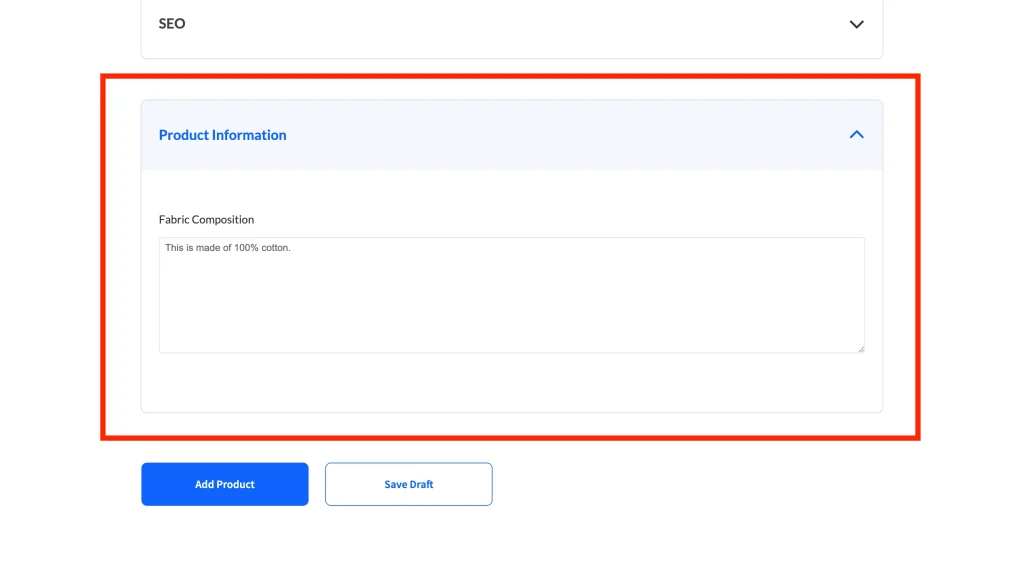
- Each ACF field group appears as a new tab in the product editor — for example, a Technical Specs tab or an Additional Details tab, depending on what you named the group. Click into the tab to see and fill the fields.
- Click Save Product.
The values save against the product post, so they’re available everywhere WooCommerce reads product meta — on the storefront, in the admin, and in the REST API.
💡 Note:
For more information on managing vendor forms, please refer to our guide on customizing the Vendor Product Edit Template.
💡 Tip:
We recommend creating a Test Vendor account to explore how the ACF tabs interact with your existing product fields. This lets you see exactly how they appear to your vendors and ensures the layout is perfect for your specific marketplace needs.
Reviewing and overriding data as an admin
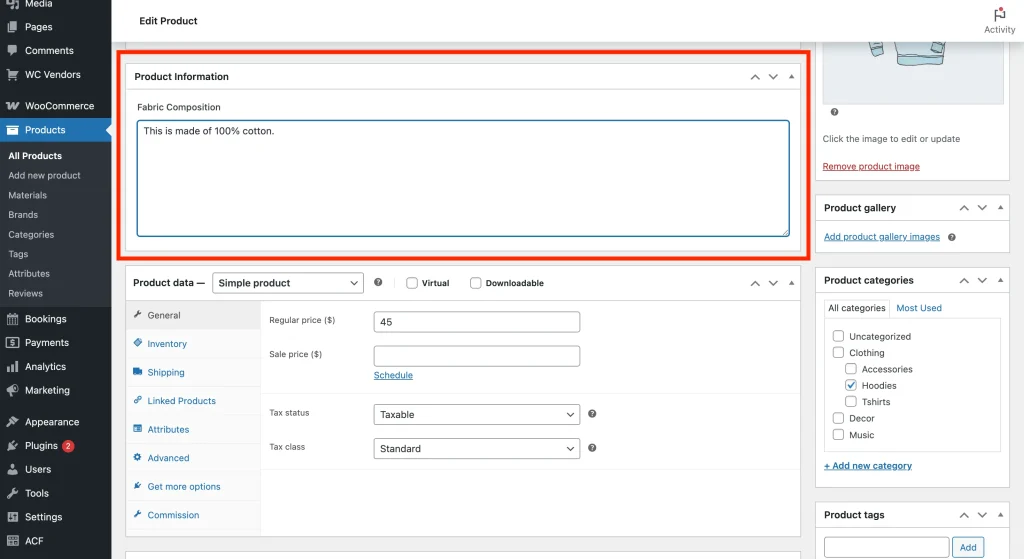
As the site administrator, you maintain full control over this data from the backend. You can review, edit, or pre-fill ACF data for any vendor product.
- Navigate to Products → All Products in your WordPress admin.
- Click Edit on any product submitted by a vendor.
- Scroll down to the custom field sections (usually located above the main Product data meta box).
- Any changes you make here are instantly visible to the vendor in their dashboard.
Troubleshooting
Why aren’t my custom fields showing up in the dashboard?
Double-check your ACF Location rules. The group must be assigned to the Product post type. Also, ensure the field group status is set to Active.
Frequently asked questions
Do I need ACF Pro for this to work?
No, this integration supports both the Free and Pro versions of Advanced Custom Fields.
Can vendors upload images through ACF fields?
Yes. If you add an “Image” or “File” field type, the integration uses ACF’s native front-end logic to let vendors upload files to your media library.
Will this slow down my dashboard?
The integration only loads its scripts when ACF is active and at least one field group is assigned to the Product post type, so it adds no overhead on dashboards that don’t use it.
Need help?
- Premium users: Open a support ticket
- Free users: Visit our community forum