
When vendors edit a product, they can choose from your store’s existing attribute values — but by default they can’t add new ones. If your vendors need to list a colour, size, or material that isn’t in your store yet, you can let them add it themselves without contacting you. The Attribute Terms setting in WC Vendors Pro turns this on with a single checkbox.
Before you start
- WC Vendors Pro installed and active
- At least one product attribute already set up in your store (for example “Color” or “Size”)
What attribute terms are
WooCommerce product attributes are store-wide properties you define — things like “Color”, “Size”, or “Material”. The individual values under each attribute — “Red”, “Blue”, “Small”, “Extra Large” — are called attribute terms.
By default, vendors can only select from the terms that already exist. Once you enable Attribute Terms, vendors can add new values to those attributes directly from the product editing form in their dashboard. This only applies to the taxonomy attributes you’ve defined in your store — it doesn’t let vendors create entirely new attribute types.
How to enable attribute terms for vendors
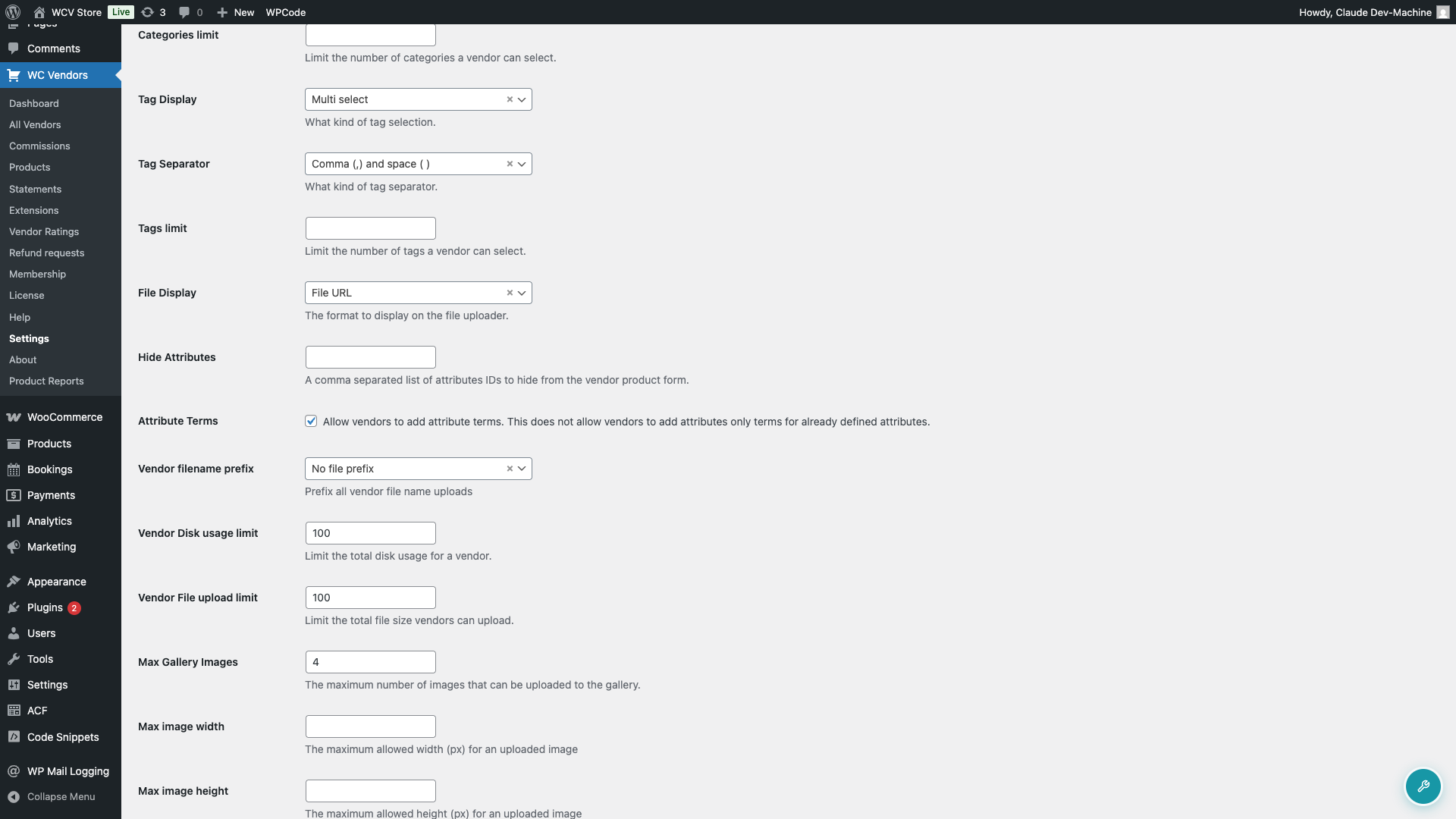
- In your WordPress admin, go to WC Vendors > Settings.
- Click the Forms tab.
- In the section navigation below the tabs, click Product.
- Find the Attribute Terms checkbox and tick it.
- Click Save changes.
What vendors see
Once the setting is on, vendors will see an Add new button in the attributes section of their product editing form. Clicking it opens a small input where they can type a new term and save it. That term is then available for that attribute across your store.
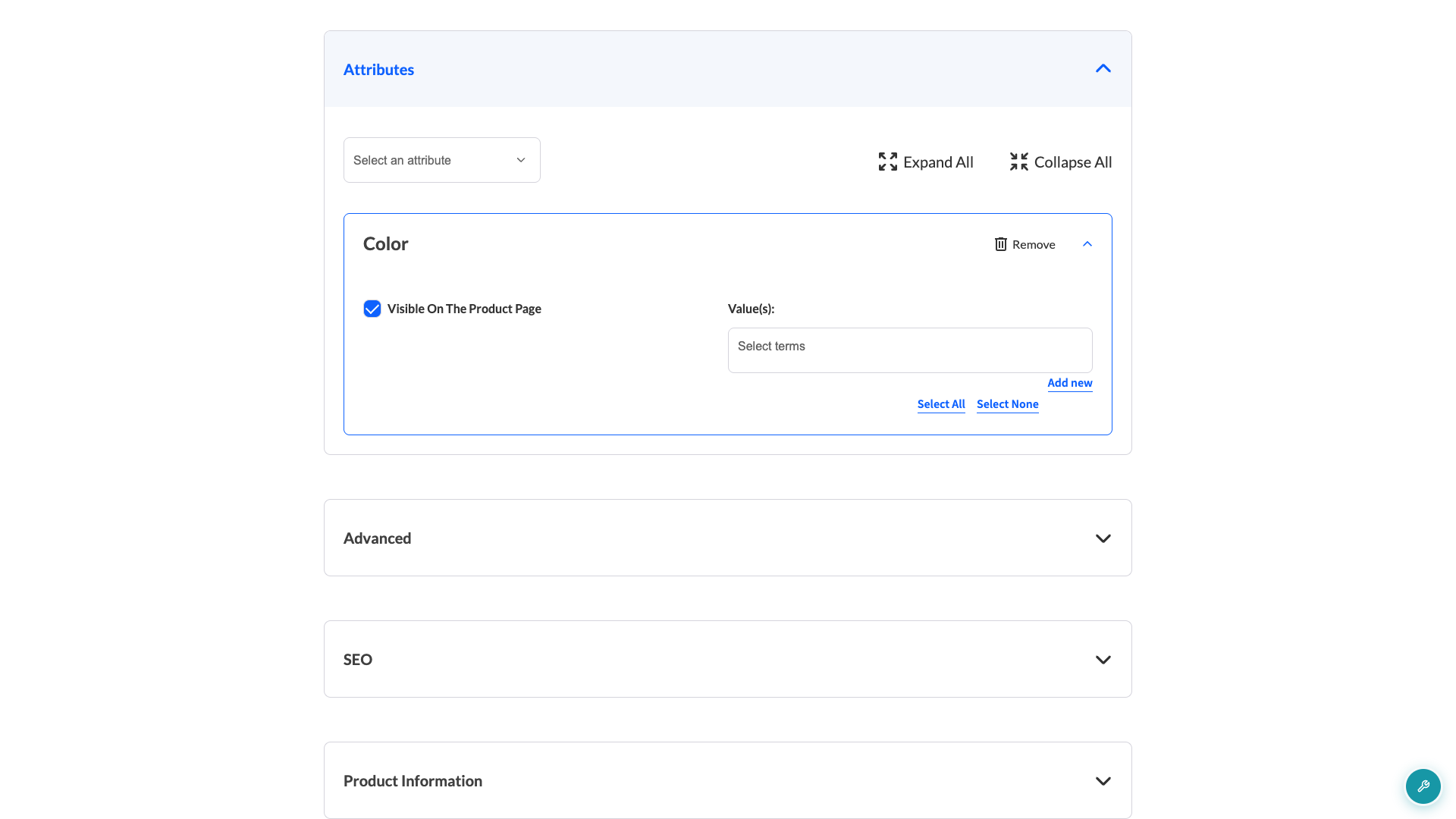
The button only appears for WooCommerce-managed attributes — the “select” type attributes you’ve set up in your store. It won’t show up for custom text attributes.
Frequently asked questions
Can vendors create entirely new attribute types?
No. The Attribute Terms setting only lets vendors add new values to attributes that already exist in your store. They can’t create a brand-new attribute type like “Occasion” or “Fit” — that’s still something only a store admin can do.
What if I want to hide the attributes section from vendors instead?
Go to WC Vendors > Settings > Capabilities > Product, then select “Attributes” in the Product Data Tabs field. This hides the entire attributes tab from the vendor’s product form.
Need help?
If you have a question or run into any issues, we’re here to help.
- Premium users: Open a support ticket
- Free users: Visit our community forum