
If WC Vendors Pro isn’t showing update notifications, it’s usually because the license isn’t active on the site. Paid WC Vendors plugins pull updates directly from the WC Vendors premium server at wcvendors.com, not WordPress.org, so an active license is what unlocks them. Below, you’ll activate your license and work through what to check if updates still don’t appear.
How updates are delivered
The free WC Vendors plugin updates through WordPress.org just like any other free plugin. WC Vendors Pro and the paid add-ons are different. They connect directly to wcvendors.com to check for new versions. WordPress shows the update notification in your dashboard once a new version is detected, and you install it the same way you would any other plugin update.
Updates are only delivered when your license is active on the site. If the license is inactive or expired, the connection to the update server is blocked and no update notification will appear, even if a newer version is available.
What you need to receive updates
- Access to your account dashboard at wcvendors.com
- An active WC Vendors Pro license
- The license key entered and activated on your live site
- The email address used when purchasing the license
- WooCommerce with WordPress 5.5 or later installed
Your license should only be activated on your live production site. However, you can also activate it on up to three staging or development environments per license key. If it’s already active on a live site elsewhere, deactivate it from your account dashboard first.
How to activate your license
- In your WordPress admin, go to WC Vendors → License.
- Click the WC Vendors Pro tab.
- Enter your License Key in the first field.
- Enter the Activation Email, the email address used when you purchased the license.
- Click Activate.
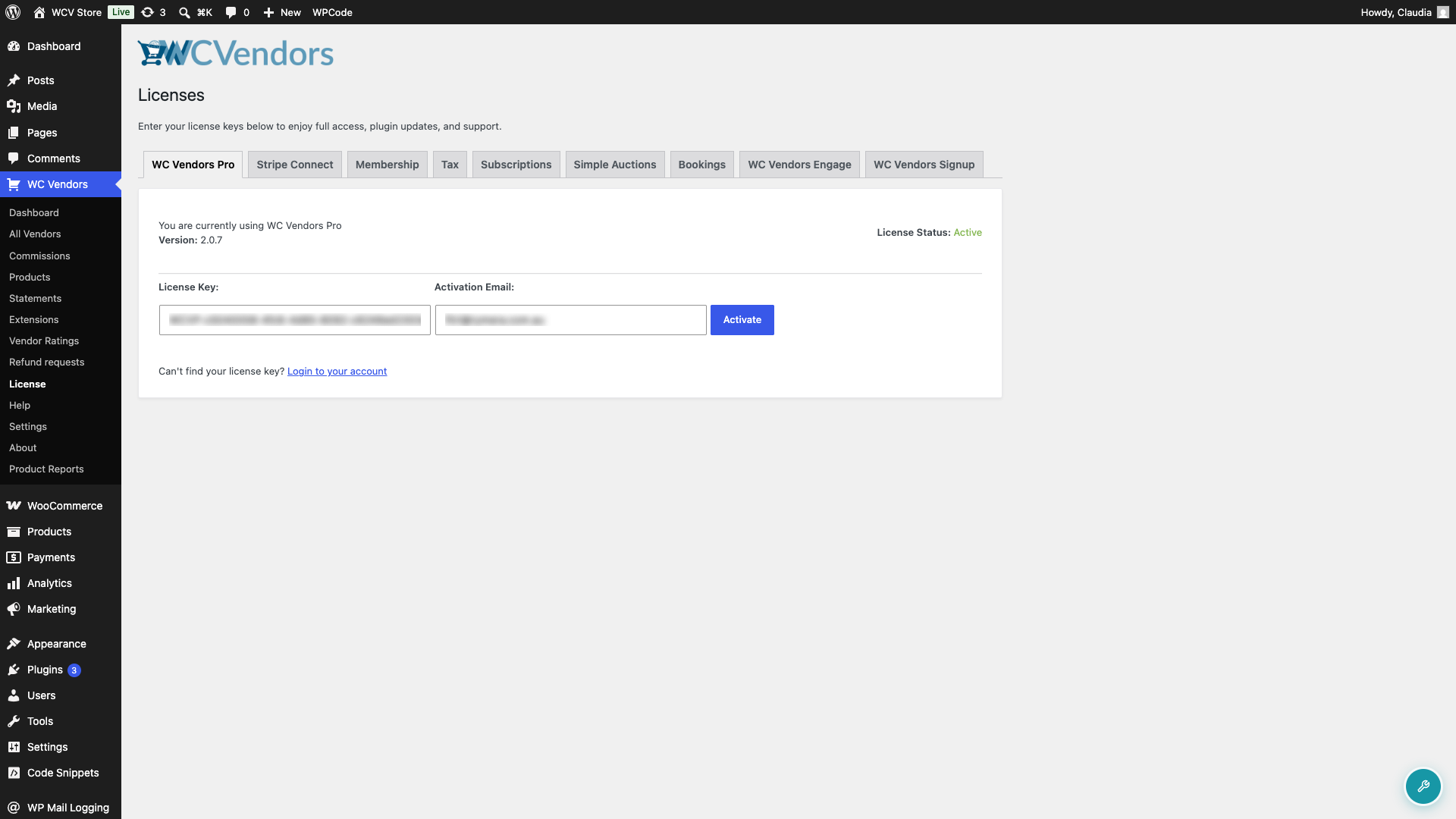
If activation is successful, the License Status shown on the page changes to Active. WC Vendors Pro will now check for new versions automatically and show an update notification in your dashboard when one is available.
Other paid WC Vendors add-ons
If you have other paid WC Vendors plugins such as Stripe Connect, Tax, Memberships, and others, each has its own tab on the WC Vendors → License page. Activate each one separately using the license key from your account dashboard.
How to enable automatic WC Vendors plugin updates
- Go to Plugins → Installed Plugins.
- In the plugin list, look for the Automatic Updates column on the right.
- For any WC Vendors plugin you want to update automatically, click Enable auto-updates.
- WordPress will then automatically install future updates for that plugin when they become available.
A few things to keep in mind:
- Automatic updates are convenient but can occasionally cause compatibility issues.
- It’s a good idea to have regular backups before enabling them, especially on production sites.
- Critical plugins (security, caching, e-commerce, membership plugins, etc.) may warrant extra testing before updates are applied automatically.
Troubleshooting: no update notifications appearing
If a new version of WC Vendors Pro is available but no update notification appears in your dashboard, work through these checks in order.
Check your license status
Go to WC Vendors → License → WC Vendors Pro tab. The License Status must show Active. If it shows Inactive, Invalid, or Expired, re-enter your credentials and click Activate. Find your license key in your account dashboard under My Downloads.
Check for an expired license
If your license has expired, update checks are blocked. A banner will appear in your WordPress admin saying your license has expired. Renew your license from your account dashboard on our website to restore access to updates. Once renewed, re-enter your credentials on the WC Vendors → License page and click Activate.
Clear WordPress’s update cache
If you recently activated your license but no update is showing yet, clear your site’s transient cache using a cache-clearing tool or plugin and reload the page again.
Check that your server can reach wcvendors.com
Your server must be able to make outbound connections to wcvendors.com. Some hosts block outbound HTTP requests by default. If your license activates but updates still don’t appear, ask your host to confirm that outbound requests to wcvendors.com are allowed.
Troubleshooting: no Automatic Updates column appearing
If you don’t see the Automatic Updates column:
- Make sure you’re running WordPress 5.5 or later, which introduced this feature.
- Some managed hosting providers may customize or restrict update settings.
- Check Screen Options (top-right of the page) to ensure the column isn’t hidden.
Frequently asked questions
Can I activate my license on more than one site?
Each license covers one live site and up to three staging and development sites. If you need to move the license to a different live site, deactivate it from your account dashboard first, then activate it on the new site.
The free WC Vendors plugin shows updates normally, so why doesn’t WC Vendors Pro?
The free plugin is listed on WordPress.org, so updates flow through the standard WordPress update channel. WC Vendors Pro is a paid plugin not listed on WordPress.org, so it uses its own update server at wcvendors.com. The license key connects your site to that server.
My license is active but I still don’t see an update notification.
Go to Dashboard → Updates and click Check Again to trigger an immediate check. If nothing appears, you’re already on the latest version.
What happens if my license expires?
Your marketplace keeps running normally. Your vendors and orders are not affected. You lose access to automatic updates and support until you renew. Renew at your account dashboard and re-enter your license key to restore both.
Need help?
- Premium users: Open a support ticket
- Free users: Visit our community forum