Running a multi-vendor marketplace means juggling dozens, sometimes hundreds, of vendors who all manage their own products. Until now, one small but persistent friction point lived in how deleted products were handled. When a vendor removed a product, it slipped into a trash area that only you, the admin, could see. The new vendor trash bin capability in WC Vendors changes that completely.
With the vendor trash bin, your sellers get their own self-service recycle bin right inside their dashboard. They can see what they deleted, restore something they removed by mistake, permanently delete items they are sure about, and empty the whole trash in a single click. You stop being the middleman for every accidental deletion, and your vendors get a faster, more independent way to manage their own products.
This guide walks through what the vendor trash bin is, why it matters, and exactly how to enable the vendor trash bin capability in your WC Vendors settings. The feature arrives in WC Vendors 2.7.0 and works on both the free and Pro versions, so let us dig in.
What Is The Vendor Trash Bin In WC Vendors?
The vendor trash bin is a self-service recycle bin that lives inside the vendor dashboard. Before this feature existed, a deleted product quietly moved into a trash area that only the marketplace admin could see and clean up. If a vendor deleted something by accident or wanted it gone for good, they had to contact you, and you had to dig it out of the WordPress admin yourself.
That setup created a bottleneck for you and a dead end for them. The vendor trash bin removes that friction by giving each vendor a dedicated “Trash” tab in their product list. From there, they handle their own cleanup without ever needing your help.
It mirrors the familiar recycle bin behavior that WordPress already uses for posts and pages, where a trashed item shows a Restore link and a Delete Permanently link, and items eventually clear out on their own. You can read more about how WordPress handles the Trash status in the official documentation. If you have ever restored a deleted post from the WordPress trash, your vendors will find the vendor trash bin instantly familiar.
How To Enable The Vendor Trash Bin Capability
Here is the part you came for. The vendor trash bin is off by default, which means nothing changes on your marketplace until you choose to switch it on. Enabling the vendor trash bin capability takes two quick steps.
1. Tick the Trash Bin capability
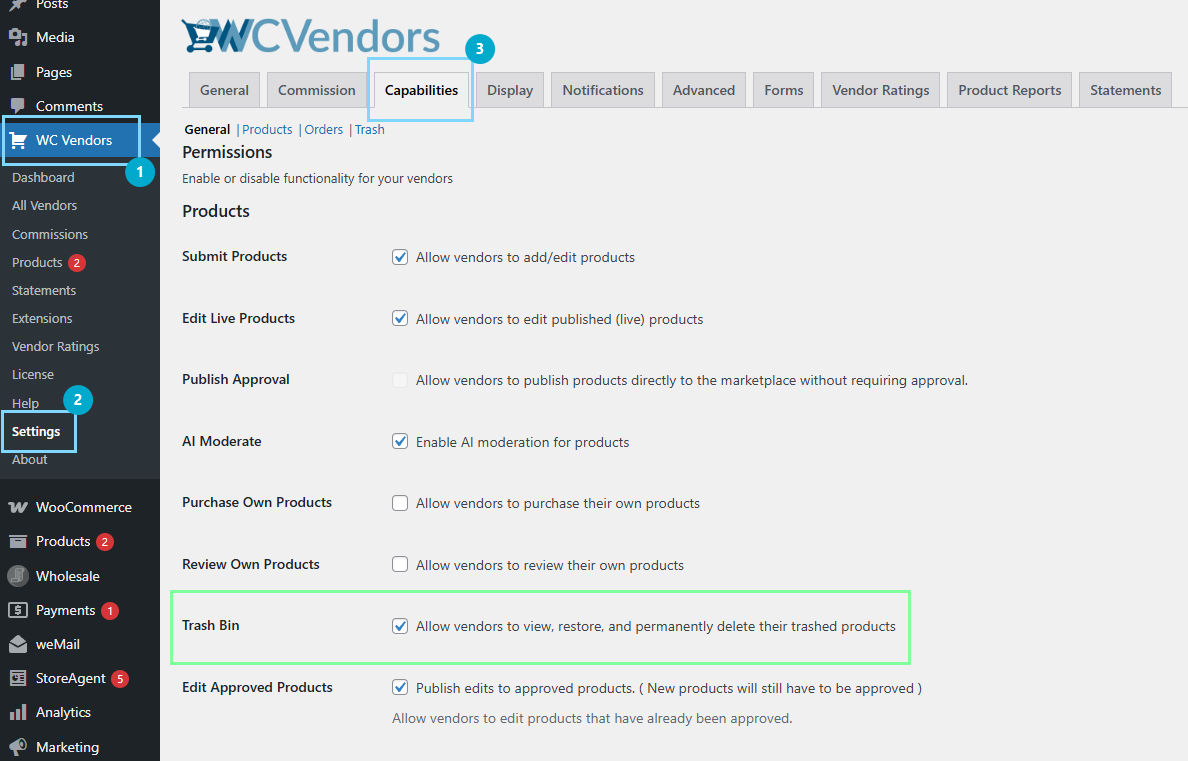
In your WordPress admin, head to WooCommerce → WC Vendors → Settings → Capabilities → General. Find the “Trash Bin” option in Products and tick it to enable. This is the same Capabilities settings area where you control other product permissions such as duplicating and deleting products.
2. Flush your permalinks
Go to Settings → Permalinks and click “Save Changes.” You do not need to change anything on that page. Just clicking Save refreshes the behind-the-scenes links so the new Restore and Delete buttons work correctly.
That is it. Once both steps are done, the vendor trash bin capability is live for your vendors. It is worth letting your sellers know they can now restore and permanently delete their own products directly from their dashboard.
One related setting is worth knowing about. If you have used the “Disable delete” capability to block vendors from deleting products altogether, the permanent-delete option inside the vendor trash bin respects that same rule. You can review how these permissions work in the WC Vendors Capabilities overview, and the relevant capability reads work on both the free build and Pro, so your settings are honored either way.
What Happens After You Enable The Vendor Trash Bin
Once the vendor trash bin is active, a few things change in the vendor dashboard. Understanding them helps you support your vendors confidently.
When a vendor deletes a product, it now moves to Trash instead of vanishing. A new “Trash” filter link appears in their product list with a live count of how many items are in there. The “All” count no longer includes trashed items, so the numbers make sense at a glance.
For marketplaces with very active vendors, there is a nice scalability touch. If a vendor has a huge number of trashed products, the “Empty Trash” action clears them in safe batches of 200 at a time by default. This prevents the site from timing out or running out of memory, and a vendor with a very large trash may simply need to click “Empty Trash” a couple of times to clear everything.
You will also notice a small cosmetic polish across the dashboard. The status filter links (the “All / Published / Draft / Trash” quick-links above the product and order lists) now highlight the one you are currently viewing. It is purely visual, but it makes navigating those lists a little clearer.
Best Practices For Using The Vendor Trash Bin
To get the most out of the vendor trash bin, keep a few simple habits in mind.
- Back up before updating: As with any plugin update, back up your site before moving to WC Vendors 2.7.0. It is always good practice.
- Communicate the change: Once the vendor trash bin is enabled, send a quick note to your vendors so they know the Trash tab exists and what Restore and Delete Permanently do.
- Decide on your delete policy first: If you want to keep vendors from permanently removing products, set the “Disable delete” capability before enabling the bin so the two work together as you intend.
- Keep catalogs tidy: A clean, well-managed catalog benefits any store, so it helps to pair the bin with broader WooCommerce product management habits across your marketplace.
- Remember permanent deletes are final: Restoring works only while a product is still in the trash. Once a vendor permanently deletes an item or empties the trash, it cannot be recovered, just like emptying the trash in WordPress core.
Conclusion
The vendor trash bin is a small feature with an outsized impact on day-to-day marketplace management. By giving vendors their own recycle bin, you remove a recurring support burden and hand your sellers the independence they want. Mistaken deletions become a quick self-fix rather than a support ticket, and your vendors keep their catalogs tidy without ever leaving their dashboard.
Best of all, enabling the vendor trash bin capability takes only two steps and works on both the free and Pro versions of WC Vendors. Whether you run a small boutique marketplace or a sprawling platform with hundreds of sellers, the vendor trash bin scales with you, batching large cleanups and preserving original product statuses on restore.
If you are running WC Vendors 2.7.0, switching on the vendor trash bin is one of the easiest wins available to you right now. Flip it on, let your vendors know, and enjoy a smoother, more self-sufficient marketplace.
Here is what we covered in this article:
- How to enable the vendor trash bin capability
- What happens after you enable the vendor trash bin
- Best practices for using the vendor trash bin
Frequently Asked Questions
Is the vendor trash bin enabled by default in WC Vendors?
No. The vendor trash bin is off by default, so nothing changes on your marketplace until you enable it. You turn it on under WooCommerce, WC Vendors, Settings, Capabilities, Products by ticking the “Trash Bin” option.
Does the vendor trash bin work on the free version of WC Vendors?
Yes. The vendor trash bin capability works on both the free and Pro versions of WC Vendors, so every marketplace owner can give vendors their own recycle bin.
Will a restored product come back as published or as a draft?
A restored product returns to its original status. If it was published before being trashed, it comes back as published rather than being stuck as a draft, matching standard WordPress restore behavior.
What happens when a vendor empties a large trash?
The “Empty Trash” action clears products in batches of 200 at a time by default to prevent timeouts. A vendor with a very large trash may need to click “Empty Trash” a couple of times to remove everything.
Do I need to do anything besides ticking the Trash Bin setting?
Yes, one quick step. After enabling the vendor trash bin, go to Settings, Permalinks and click Save to refresh the links so the Restore and Delete buttons work. You do not need to change anything else on that page.