Picture a migration quote that covers products, customers, and orders line by line. Now picture what it leaves out: 40 vendors, the commission rate each one negotiated, and months of payout history. That gap is the real story of a CS-Cart migration to WooCommerce.
Plan the move around the catalog alone, and the first half goes smoothly. Then the first order arrives with products from two sellers, and nothing on the new site knows who is owed what. Vendors notice quickly, and rebuilding their trust is far harder than rebuilding a product list.
This guide walks through what a CS-Cart migration to WooCommerce actually transfers from a CS-Cart Multi-Vendor store, what to audit and export before you start, and the marketplace layer you rebuild by hand. It also covers how to choose between a tool, a service, and a manual move, how to translate CS-Cart vendor plans into WC Vendors commissions, and the order to work in so your search rankings survive.
What A CS-Cart Migration To WooCommerce Actually Moves
Catalog and transaction records transfer well. Anything that describes how your marketplace behaves, or who owns what inside it, doesn’t transfer on its own.
The records that move cleanly are the ones every migration tool is built around: products, variations, categories, images, customer accounts, and order history. Established services such as Cart2Cart, LitExtension and Next-Cart all list products, categories, customers and orders among the data they carry from CS-Cart to WooCommerce, so mapping that part is a solved problem.
Customer passwords are often a pleasant surprise. Because the two platforms store passwords differently, moving them usually requires a helper plugin, but Cart2Cart supports CS-Cart to WooCommerce password migration through its Password Migration plugin, and LitExtension and Next-Cart offer password migration as well. If your chosen route cannot carry them, plan a password reset prompt for launch day.
Some things will not transfer, no matter which route you choose. Your theme and interface work stay behind, because CS-Cart and WordPress render pages with entirely different template systems. Add-on behavior stays behind too, so every CS-Cart add-on you rely on needs a WordPress equivalent. Next-Cart, for example, excludes third-party module data from its supported entities.
URL structure is the other big one, and it gets its own section below because getting it wrong costs traffic rather than time.
Here is how the split usually falls out. Treat it as typical scope rather than a promise, and check it against the entity list of whichever tool you use.
| Data | Does a migration tool handle it? | Who rebuilds it |
|---|---|---|
| Products, variations, categories | Usually | Tool |
| Product images | Usually | Tool |
| Customers and order history | Usually | Tool |
| Customer passwords | Often, with a helper plugin | Tool, or a reset prompt |
| Product and category SEO URLs | Some tools offer it | Tool or redirect plugin |
| Vendor accounts | Rarely | You |
| Product ownership per vendor | Rarely | You |
| Vendor plans and commission rates | No | You |
| Payout history and balances | No | You, or export for records |
| Theme, layout and add-ons | No | You or a developer |
This is a platform-to-platform move, which is a different job from swapping one marketplace plugin for another inside WordPress. For a head-to-head on the two products themselves, see WC Vendors vs CS-Cart Multi-Vendor. The wider question of owning your stack versus renting a platform sits in our breakdown of WooCommerce vs SaaS marketplace platforms.
Audit Your CS-Cart Marketplace Before You Move Anything
The most valuable work in any CS-Cart migration to WooCommerce happens before a single product moves. Your CS-Cart admin panel already holds everything you need to rebuild the marketplace layer, as long as you export it while the old store is still running.
Export your vendor list
CS-Cart Multi-Vendor can export vendors from Administration, Export data, Vendors, and you can add fields such as the vendor plan to the export before you run it. Keep that file as your master list. Every vendor on it needs an account, a commission setting and a payout method on the new site.
Record every vendor plan and commission
In current versions of CS-Cart Multi-Vendor, commissions live inside vendor plans. Each plan under Vendors, Vendor plans can carry a price, which is a one-time or recurring fee for using the plan, and a transaction fee, which is the commission a vendor pays the marketplace on sales. If you use the Vendor Plans: Commissions by Category add-on, some rates also depend on a product’s main category.
Write all of it down: every plan, which vendors sit on it, the price and transaction fee, and any category exceptions. Older marketplaces deserve an extra look. When CS-Cart replaced its Vendor Commission add-on with Vendor Plans in version 4.4.1, fixed-sum commissions stayed in the database but stopped being applied, so a long-running store may hold legacy figures that no longer match what vendors are actually charged.
Export accounting history and settle balances
CS-Cart tracks vendor money on the Accounting page under Vendors, Accounting, which records orders, refunds, payouts and withdrawals. Watch the terminology when you export it. Since Multi-Vendor 4.5.1, a payout is money the marketplace collects from a vendor, while a withdrawal is money paid out to a vendor, which is close to the opposite of how most people use the word.
Export that history for your accounting records before you decommission anything, because it will not live in WooCommerce. Then decide what to do with open balances. Settling every outstanding vendor balance before cutover is the simplest option, since the new site then starts from zero and nobody has to reconcile a figure across two systems.
The Multi-Vendor Layer Every CS-Cart Migration To WooCommerce Leaves Behind
Four things turn a store into a marketplace, and a standard CS-Cart migration to WooCommerce leaves all four behind: vendor accounts, product ownership, commission settings, and payout records.
Your CS-Cart Multi-Vendor site is a store plus a set of commercial relationships. Relationships are exactly what a field-to-field transfer cannot carry.
1. Vendor accounts and store details
Vendors are accounts with a role, a store name, contact details, and usually a payout method attached. A tool that moves customers has no reason to know which accounts were sellers, so vendor records either stay behind or arrive as ordinary customers.
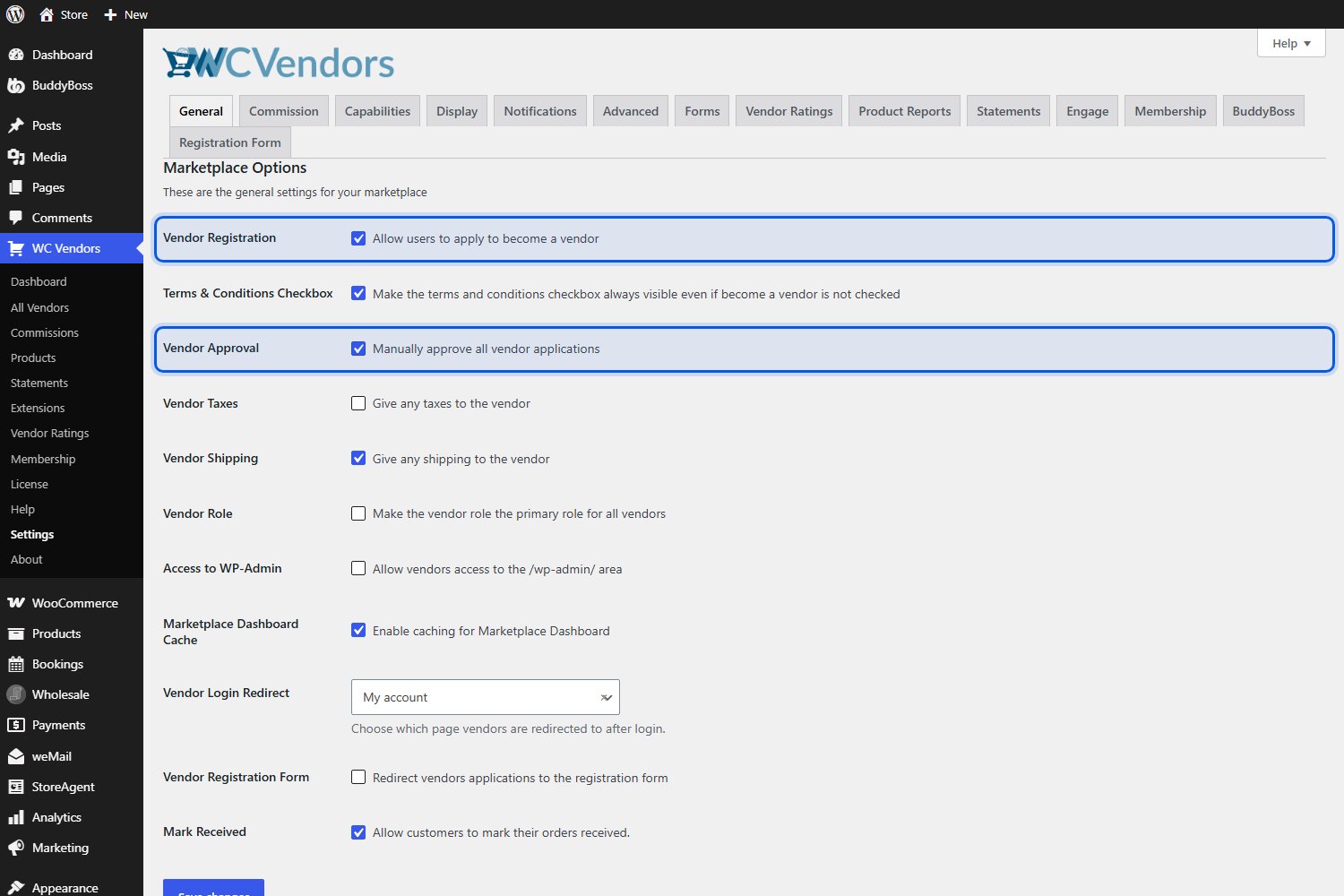
You have two clean ways to recreate them. The first is re-registration: WC Vendors lets visitors apply to become vendors and can hold each application for manual approval, controlled by the Vendor Registration and Vendor Approval checkboxes under WC Vendors, Settings, General. For the registration option to appear, WooCommerce must also allow customers to create an account on the My Account page, a setting under WooCommerce > Settings > Accounts & Privacy. Our walkthrough on manually approving vendors covers each step.
The second route suits vendors whose accounts already appear in your customer data. WC Vendors adds a Vendor user role, and an administrator can switch an existing user to that role from the WordPress Users screen. Either way, have each vendor confirm their store name and payout details once they are in.
You can filter the WordPress Users screen to show only users with the vendor role. That filtered list is the quickest way to confirm every seller from your CS-Cart export has landed.
2. Which vendor owns which product
In WC Vendors, a product’s author is its owner. The product edit screen shows a vendor dropdown where you choose the owner, and you can also bulk edit a batch of products and assign them all to one vendor.
Ownership is a single field on every product, which makes it easy to lose in bulk. WordPress assigns new content to whichever account creates it, so a catalog imported without ownership data belongs to the administrator who ran the import. The storefront looks normal, yet no commission is attributed to any vendor.
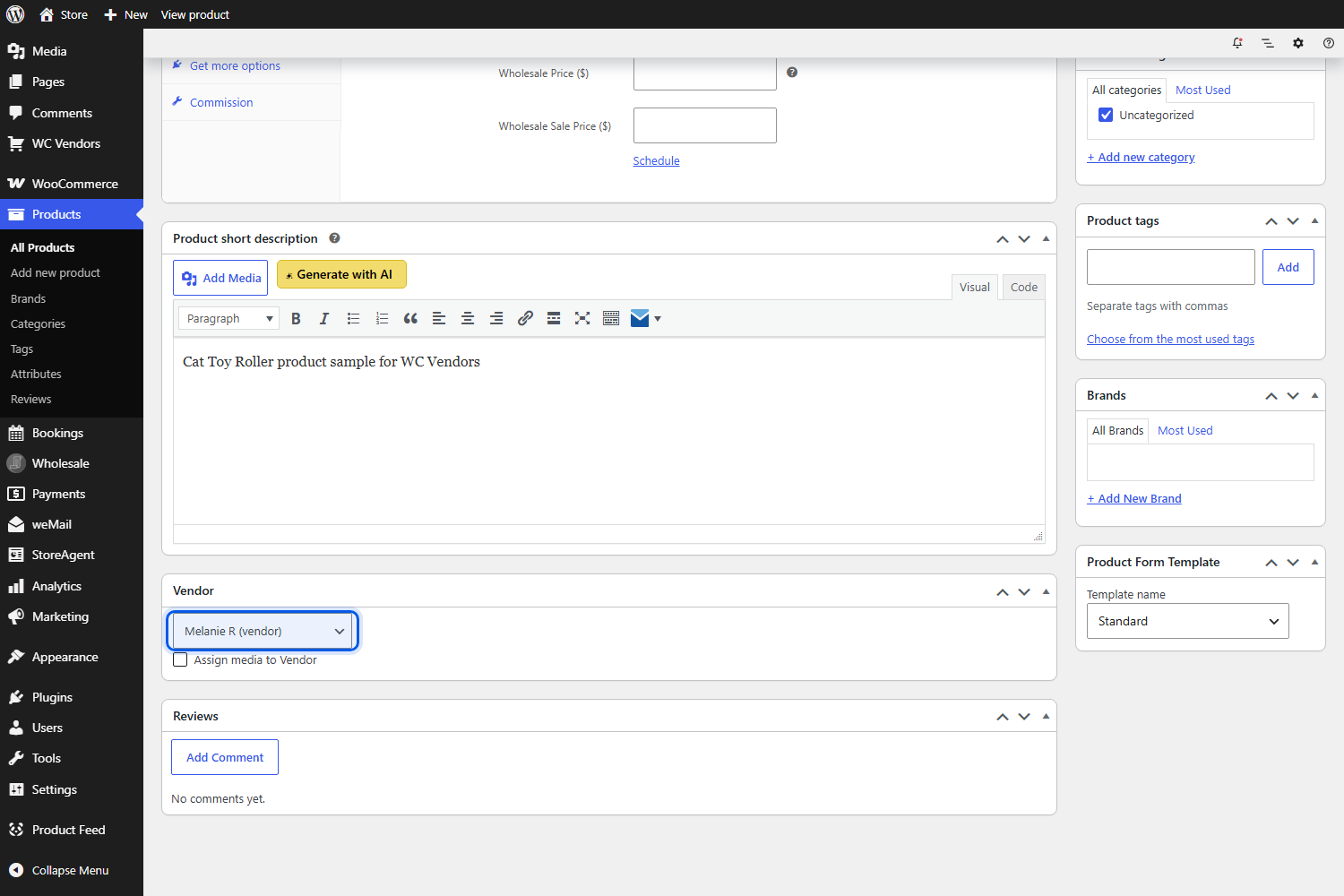
WC Vendors solves this at import time by adding a Vendor ID column to the WooCommerce product CSV importer and exporter. The vendor ID is simply the vendor’s WordPress user ID, shown on their user edit screen. Put the right ID against each row, and the importer detects the column and assigns every product to its vendor.
One detail catches people out. WordPress generates brand-new user IDs, so the vendor identifiers in your CS-Cart export will not match. Build a lookup table from each CS-Cart vendor to their new WordPress user ID after your vendors exist, then fill the Vendor ID column from it.
A useful habit: After every test import, open several products and check the vendor dropdown before anything else. If ownership did not map, fixing it afterward with bulk edit works, but sorting four hundred products by hand is slow when a single CSV column would have done it at import time.
3. Commission rates and per-vendor arrangements
Commission settings are configuration rather than data, so nothing migrates them. You will read your plans and rates out of CS-Cart during the audit and enter them again on the new site, which the next section covers in detail.
4. Payout history and open balances
Historical payouts belong in your accounting rather than in the new platform. Keep the Accounting export from your audit, settle open balances before cutover, and have each vendor connect their payout account on the new site before the first real order.
Translating CS-Cart Vendor Plans Into WC Vendors Commissions
This is where most of the thinking in a CS-Cart migration to WooCommerce goes, because the two platforms describe commission from opposite ends.
Flip the number
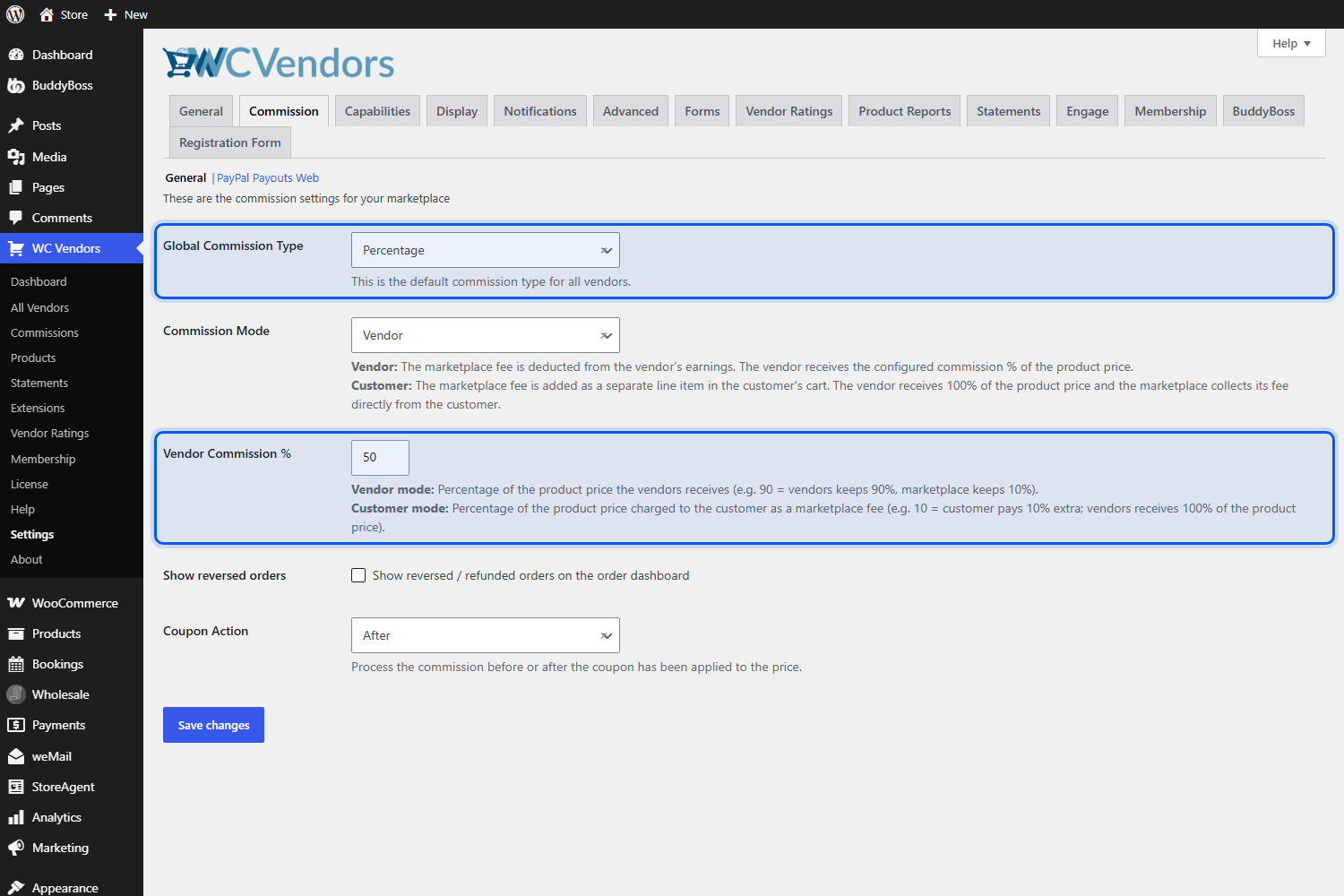
In CS-Cart, a transaction fee is the marketplace’s cut. WC Vendors works the other way round: according to the WC Vendors commission documentation, the value you enter is the vendor’s share, so entering 70 means the vendor receives 70% of the sale. Following that logic, a vendor on a CS-Cart plan with a 10% transaction fee needs a WC Vendors commission of 90.
Commission fields in WC Vendors accept whole numbers only, with no decimals, currency signs or percent symbols. If a CS-Cart plan charges a fractional rate such as 7.5%, agree with the vendor how to round it before launch rather than discovering the limit during setup.
Choose the right commission level
WC Vendors Pro lets you set commission at four levels, and the product level is the first one checked when commissions are calculated, so specific overrides win over broad defaults.
- Global: set under WC Vendors, Settings, Commission. Use it for the plan most of your vendors are on.
- Vendor: open WC Vendors, All Vendors, choose the vendor and go to the Commissions & Payouts tab. Use it for individually negotiated rates.
- Category: set on the product category screen, which mirrors CS-Cart’s Commissions by Category add-on. It only works when single category selection is enabled under WC Vendors, Settings, Forms, Products, and it is ignored for products in more than one category.
- Product: set on the Commission tab of the product edit screen. Use it for one-off exceptions.
Pick a commission type
The free WC Vendors plugin supports percentage commissions only. WC Vendors Pro adds three more standard types, percentage plus fee, fixed, and fixed plus fee, along with three tiered types: Sales by Vendor, Sales by Product and Product Price.
Tiered types are where volume-based arrangements land. Sales by Vendor sets rates based on a vendor’s total sales, Sales by Product rewards individual best sellers, and Product Price varies the rate with the price of a single item. All three tiers work at the global and vendor levels; only Product Price tiers work at the product level, and none work at the category level.
Plan fees and memberships
If your CS-Cart plans charged vendors a recurring price on top of the transaction fee, that part of the plan maps to vendor memberships rather than commission. WC Vendors Membership, included in the Growth plan, lets you create and sell tiered vendor memberships, control features by level, and use a plan-based commission type. Our guide to charging vendors commissions covers how to weigh these options.
One more setting deserves attention if vendors run their own coupons. The Coupon Action setting on the commission tab decides whether vendor commission is calculated before or after a coupon is applied, which changes who absorbs the discount. Match it to how discounts were shared on CS-Cart.
Choosing A Tool, A Service Or A Manual CS-Cart Migration To WooCommerce
Use a tool for the catalog, use a service when downtime is expensive, and rebuild the vendor layer by hand in all three cases. That last part does not change.
When a migration tool is the right call
Automated tools suit a large catalog with a conventional structure. They move products, categories, customers and orders more consistently than a person working through the same data, and several can also carry customer passwords and product and category SEO URLs, which saves redirect work later.
Read the entity list before you pay. Each tool publishes what it moves, and vendor plans, product ownership and payout records are not among the standard entities these services advertise for CS-Cart to WooCommerce. Ask in writing whether vendor accounts and product ownership are included, and whether you can get a vendor-to-product export to feed the Vendor ID column.
When a service is worth paying for
Paying a service makes sense when your marketplace earns enough that a bad weekend costs more than the invoice. You are buying practice at the awkward parts: redirect maps, payment gateway reconnection, vendor onboarding and a proper testing pass. WC Vendors also lists agencies that build marketplaces if you would rather hand the whole rebuild to a specialist.
When doing it manually wins
Manual migration wins when the catalog is small or the data is unusual. Exporting to CSV, cleaning the file in a spreadsheet and importing it through the WooCommerce product importer lets you fix years of accumulated mess, and it puts the Vendor ID column in place while you are already editing.
Keep WooCommerce’s own rules in mind. The WooCommerce product CSV importer documentation asks for UTF-8 files, notes that images must already be uploaded or available online, and confirms you cannot assign a specific post ID to a new product. Expect new product IDs, and plan your redirects around URLs rather than IDs.
Marketplace moves inside WordPress work differently, and we have written up both common routes: the WCFM path in our WooCommerce migration guide, and the migrate from Dokan to WC Vendors walkthrough.
Is moving worth it at all?
The reasons to move are structural, because demand is not the question. According to Digital Commerce 360, total gross merchandise value across the top 100 global online marketplaces reached $3.485 trillion in 2023, up from $3.220 trillion in 2022, based on data as of April 2024.
What changes is the cost and ownership model. CS-Cart’s published product list prices a Multi-Vendor Standard subscription at $725 per year, with lifetime licenses running up to $19,990, and the software is used under CS-Cart’s commercial license terms. WordPress and WooCommerce are open source, so you control the code as well as the hosting, and the payment, shipping and tax tools of the WordPress ecosystem are available without waiting on a single company’s roadmap.
Setting Up The Marketplace Layer On WooCommerce With WC Vendors
WooCommerce gives you the store, and WC Vendors gives you the marketplace on top of it: vendor accounts, vendor-owned products, commission calculation, and payouts.
This stack is a safe destination partly because it is ordinary. According to W3Techs, WooCommerce powers 47.7% of all e-commerce systems in its surveys and 8.0% of all websites, as measured on 28 September 2026. Hosting and developers are easy to find for something that common.
WC Vendors Pro is the paid tier that adds the vendor-facing side, including a full front-end dashboard where sellers manage their own products, orders and coupons without touching the WordPress admin. It costs $99.50 for the first year on one site, so budget against the renewal rather than the first invoice. The license also covers a staging site, which is exactly where this rebuild should happen.
Work in this order
- Install WooCommerce on a staging copy of the new site and configure your payment gateway and tax settings first, since WC Vendors can pass taxes to vendors depending on your settings.
- Install WC Vendors and WC Vendors Pro, then enable vendor registration and vendor approval.
- Set your commission structure before importing anything, using the plan translation above, so the first real order calculates correctly.
- Invite and approve your vendors, and have each one confirm their store name and payout details.
- Build your CS-Cart to WordPress vendor ID lookup, then import your catalog with the Vendor ID column mapped.
- Place test orders across two different vendors and check the commission records.
Configure commissions and payouts
Commission is configured under WC Vendors, Settings, Commission. Once WC Vendors Pro is active, that screen adds a Global Commission Type selector and the Coupon Action setting alongside the default rate.
WC Vendors Pro includes the WC Vendors Stripe Connect gateway. Vendors connect their standard Stripe accounts with a one-click button on the Shop Settings page of their dashboard; customer card payments run through Stripe, and commissions are paid to vendors automatically, so nobody is making bank transfers by hand every month. Refund support in the gateway requires WC Vendors Pro.
Import the catalog with ownership attached
The WooCommerce importer lives under Products, All Products, Import. Its first screen asks for the file and whether to update existing products. With that box ticked, rows that match an existing product by ID or SKU update it, and with it unticked, matching rows are skipped. Leave it unticked for a first pass of new products, then tick it for a second pass over a corrected file.
The next screen maps your CSV columns to WooCommerce fields. This is where you confirm the Vendor ID column is mapped, so products arrive owned by the correct vendor.
Let vendors bring their own catalogs
Vendors can also import their own products. Switch on vendor product import under WC Vendors, Settings, Capabilities, General, where import and export can be enabled independently. Each vendor then gets an import tool on the Products screen of their own dashboard, with the same upload and column mapping steps and the option to reuse a previous mapping, as the vendor product import guide explains. If you have dozens of sellers, that turns one enormous data job into many small ones.
URLs, Redirects And Protecting Your Search Rankings
Map every old URL to a new one and serve a permanent redirect from it. Skipping this step is the most avoidable way to lose organic traffic during a CS-Cart migration to WooCommerce.
CS-Cart and WooCommerce build URLs differently, so almost nothing matches by accident. Start with a full list of old URLs, which Google suggests pulling from your sitemaps, server logs, analytics and content management system, including images and other embedded files. Then produce a mapping file with one row per old URL and its destination. Vendor store pages need the same treatment as products and categories, and they are the ones people forget.
Google’s documentation on moving a site with URL changes recommends server-side permanent redirects such as 301s and notes that they do not cause a loss in PageRank. It also advises keeping redirects in place for as long as possible, generally at least a year, so Google can transfer signals to the new URLs and reassign links from other sites that point at the old ones.
A few more points from the same guidance apply directly to a marketplace move:
- Redirect each old URL to its closest equivalent. Sending many old URLs to one irrelevant page, such as the new home page, can confuse users and may be treated as a soft 404.
- Avoid redirect chains, and point every old URL straight at its final destination.
- Keep the same domain if you can, since Google recommends changing one thing at a time rather than stacking a domain change on top of a platform change.
- Expect temporary ranking fluctuation. For a medium-sized site, Google says it can take a few weeks or more for the new URLs to start appearing in place of the old ones.
Redirects are straightforward to manage with the Redirection Manager in AIOSEO Pro. Go to All in One SEO, then Redirects, add the source path, set the target, and leave the type as 301 permanent. For hundreds of rows, use the Import / Export tab, which accepts a CSV built from your mapping file, as described in AIOSEO’s redirect import documentation. The same tool also logs 404 errors, which helps you catch old URLs you missed.
Submit your new sitemap in Search Console once the site is live, then watch indexing and impressions over the following weeks instead of judging the move after a few days.
Testing Before You Cut Over
Run a full order through your new marketplace, from two different vendors, before you point the domain at it. Everything else you test matters less by comparison.
Build the site on staging and work through this list:
- Place an order containing products from two vendors, then confirm the commission recorded for each one matches the rate you translated from CS-Cart.
- Log in as a vendor and check that they see only their own products and orders.
- Run a refund and confirm what happens to the commission attached to it.
- Test the vendor payout path end to end with a real, small amount.
- Apply a vendor coupon and check the commission against your Coupon Action setting.
- Spot check at least 20 redirects from your mapping file, including vendor store pages.
- Confirm tax and shipping calculate the way they did on the old platform.
- Log in as a migrated customer to confirm passwords carried over, or that the reset flow works if they did not.
Our WCFM marketplace migration case study walks through a real move and is worth reading for the sequencing, even though it covers a plugin change rather than a platform change.
One more easy-to-skip thing: tell your vendors the cutover date twice, and tell them exactly what they need to do, from confirming their store details to connecting Stripe. The data layer is only half the job, and the people layer decides whether the move feels smooth.
Getting Your CS-Cart Migration To WooCommerce Right
The useful reframe on a CS-Cart migration to WooCommerce is that you are running two projects at once. One is a data transfer, well understood and available through established tools. The other is rebuilding a set of commercial relationships, which no tool can do for you and which decides whether your vendors stay.
Sequence the second project first. Export your vendor list, record every plan and transaction fee, and settle open balances before a single product moves. Once those plans are translated into WC Vendors commissions on staging and the vendor ID lookup is built, the catalog import becomes the easy half.
Treat URLs with the same care. A complete mapping file and a year of permanent redirects protect the search visibility your vendors depend on, and a two-vendor test order proves the money flows correctly before any customer sees the new site. WC Vendors Pro brings the vendor dashboards, standard and tiered commission types and Stripe Connect payouts that turn a WooCommerce store into the marketplace you are moving, and you can compare tiers on the WC Vendors pricing page.
Here’s what we covered in this article:
- What a CS-Cart migration to WooCommerce actually moves
- Audit your CS-Cart marketplace before you move anything
- The multi-vendor layer every CS-Cart migration to WooCommerce leaves behind
- Translating CS-Cart vendor plans into WC Vendors commissions
- Choosing a tool, a service or a manual CS-Cart migration to WooCommerce
- Setting up the marketplace layer on WooCommerce with WC Vendors
- URLs, redirects and protecting your search rankings
- Testing before you cut over
Frequently Asked Questions
Can you run a CS-Cart migration to WooCommerce automatically?
Partly. Automated tools handle products, categories, customers and order history well, and several can move customer passwords and SEO URLs too. The marketplace layer is not included: vendor accounts, product ownership, vendor plans and payout history all need rebuilding on the new site. Plan the catalog as an automated job and the vendor layer as manual work.
Do vendor accounts transfer in a CS-Cart migration?
Rarely, so it is safer to assume they will not. Vendors are accounts with a role, store details and payout information attached, which standard customer migrations do not recognize. You can have sellers re-register through WC Vendors with manual approval, or switch migrated accounts to the Vendor role from the WordPress Users screen.
How do CS-Cart vendor plans map to WC Vendors commissions?
A CS-Cart transaction fee is the marketplace’s share, while a WC Vendors commission is the vendor’s share, so a 10% fee becomes a commission of 90. Set the most common plan as the global default, use vendor-level overrides for individual deals, and consider WC Vendors Membership for plans that charged vendors a recurring fee.
What happens to commission history and payout records?
They stay behind unless you export them. Export the Accounting history from CS-Cart for your records before switching anything off, keeping in mind that CS-Cart calls money paid to vendors withdrawals and money collected from vendors payouts. Settle outstanding balances before cutover so the new site starts clean.
Will a CS-Cart migration to WooCommerce hurt search rankings?
Some temporary fluctuation is normal, but lasting damage usually comes from missing or wrong redirects. Map every indexed old URL to its new address and serve a 301 from it, vendor store pages included. Google advises keeping those redirects for at least a year and says medium-sized sites can take a few weeks or more to settle.
Do vendors need to re-upload all their products?
Not necessarily. You can import the whole catalog yourself with the Vendor ID column mapped so every product lands with the right owner, or enable vendor product import in WC Vendors Pro so each seller uploads their own CSV. The second option spreads the effort and lets vendors check their own data.