
Every vendor membership renewal creates a new order in your WooCommerce database. On a busy marketplace these stack up fast. WC Vendors Membership lets you prune old renewal orders automatically after each successful payment. That keeps your order list manageable without any manual work. This article walks you through enabling pruning, choosing a mode that fits your store, running a one-time bulk cleanup on renewal orders from your existing active memberships, and turning on an optional email that tells vendors when a renewal completes.
Requirements
- WC Vendors, WC Vendors Pro, WC Vendors Membership version 1.2.3 or later, WooCommerce, and WooCommerce Subscriptions must all be installed and active on your site.
- You need administrator access to your WordPress dashboard.
How to enable renewal order pruning
- Go to WC Vendors → Settings → Membership.
- Scroll down to the Renewal order pruning section.
- Check Prune old renewal orders.
- Click Save changes.
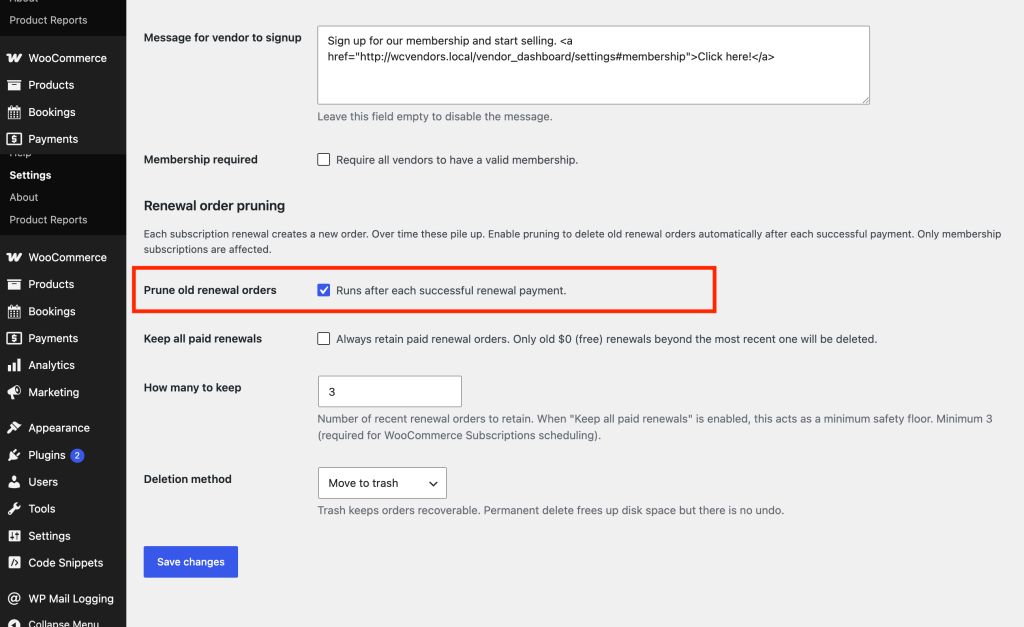
Once this is on, the plugin prunes old renewal orders automatically after each successful membership payment. No cron job or manual step is needed. It runs in the background every time a vendor’s membership renews.
Choosing what to prune
Two settings control exactly which renewal orders get removed. You can use either or both, depending on how you want to manage your order history.
Keep all paid renewals
When Keep all paid renewals is checked, the plugin keeps every paid renewal order, including $0 orders paid with a 100% coupon, and only removes $0 (free) renewal orders beyond the most recent one. Use this if you need a full payment history for accounting or reporting; no paid record will ever be deleted. The saved How many to keep value still acts as a minimum total to retain, so some older free renewals can survive pruning.
When Keep all paid renewals is unchecked, the plugin keeps the number of recent renewal orders you set in How many to keep and removes the rest.
How many to keep
The minimum value is 3. WooCommerce Subscriptions uses the renewal order count internally for payment scheduling. Dropping below 3 can interfere with that. The default is 3; raise it if you want a longer history on hand. This field is hidden when Keep all paid renewals is enabled, but the saved value still applies as the minimum safety floor described above.
Deletion method
Set Deletion method to Move to trash if you want a safety net. Trashed orders can be restored. Choose Permanently delete to free up disk space, but note there is no undo.
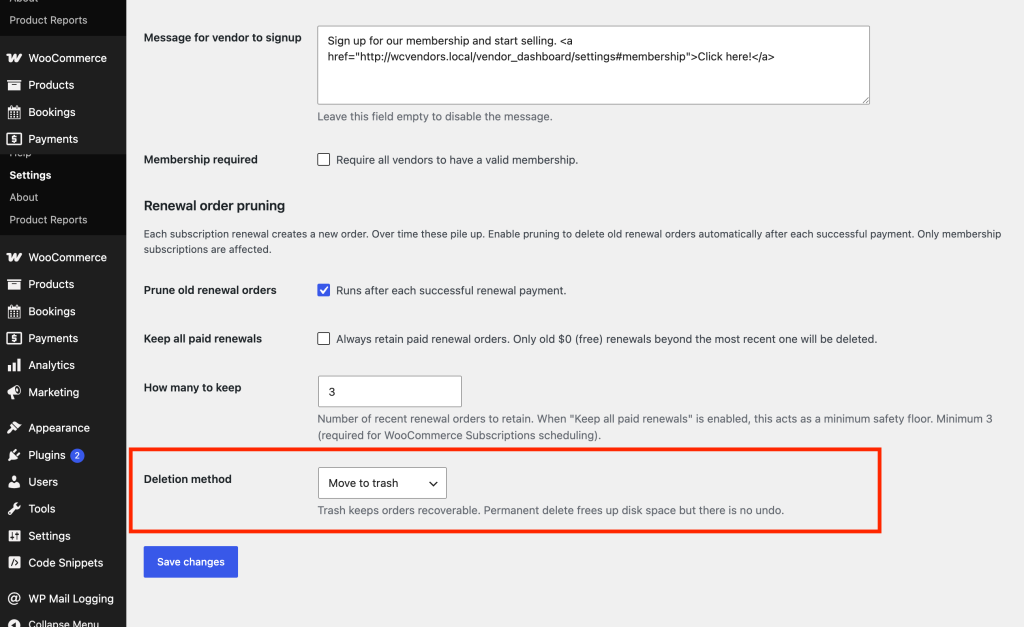
After configuring these options, click Save changes.
Running a bulk cleanup on existing orders
Enabling pruning only affects renewals going forward. If your store already has months or years of old renewal orders, use the one-time bulk cleanup tool to apply the same pruning rules to your existing data. The cleanup processes active vendor membership subscriptions only. Renewal orders under cancelled or expired memberships are left untouched.
- Go to WooCommerce → Status → Tools.
- Find Prune membership renewal orders in the list.
- Click Run cleanup.
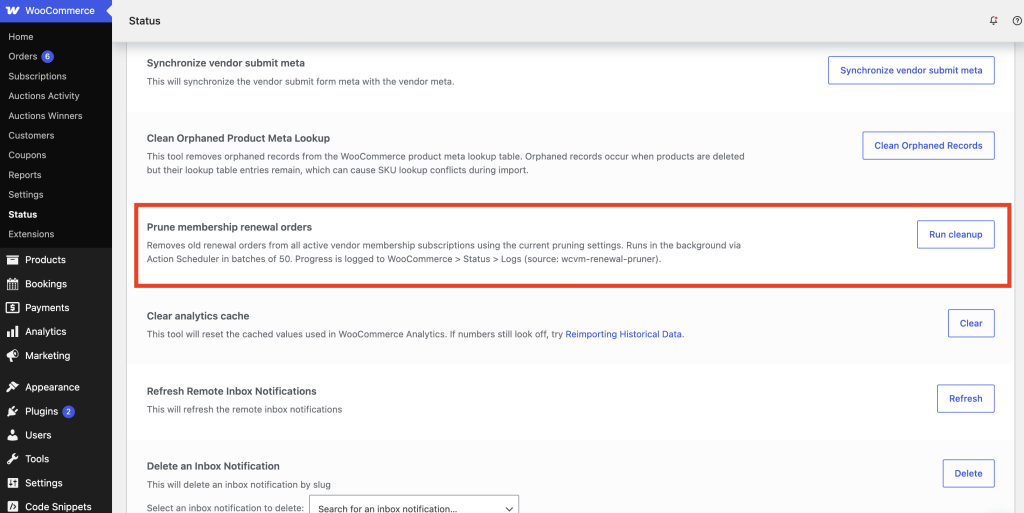
The cleanup runs in the background using Action Scheduler, processing subscriptions in batches of 50. Your site stays responsive while it runs. A confirmation message appears when the job is queued.
Monitoring progress in logs
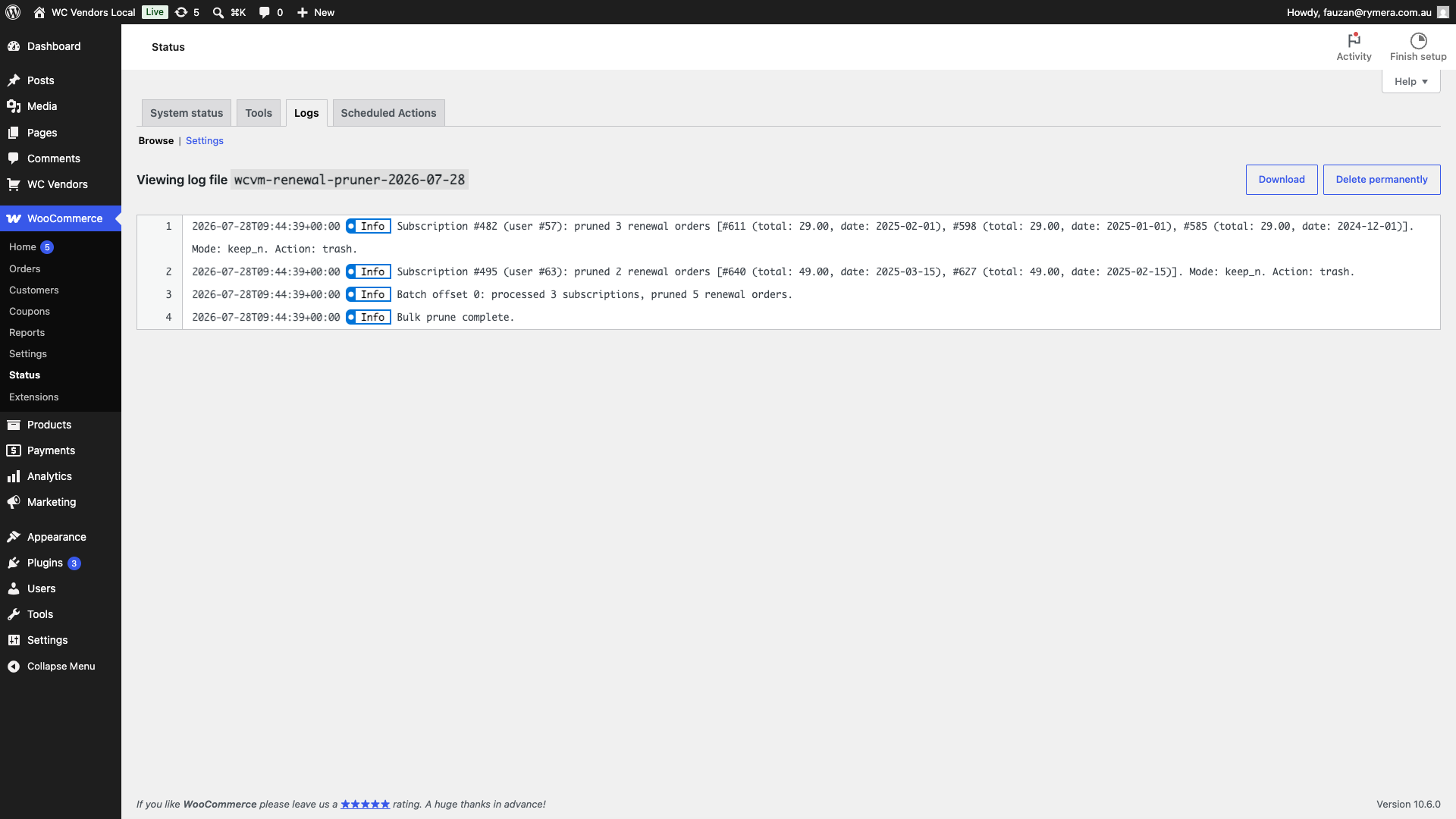
Both automatic pruning and bulk cleanup write entries to the WooCommerce log. Each entry shows the subscription ID, how many orders were pruned, and the ID, total, and date of each removed order.
To check progress or see what was removed:
- Go to WooCommerce → Status → Logs.
- Select wcvm-renewal-pruner from the source list.
Sending vendors a renewal completion email
This is a separate, optional setting on the same screen. It’s not part of pruning. When enabled, WC Vendors Membership emails the vendor when one of their paid membership renewal orders is marked Completed. Free ($0) renewals and the initial membership signup order never trigger it. The email includes the plan name, the renewal amount, and the next renewal date.
- Go to WC Vendors → Settings → Membership.
- Check Send renewal completion email to vendors. It’s off by default.
- Click Save changes.
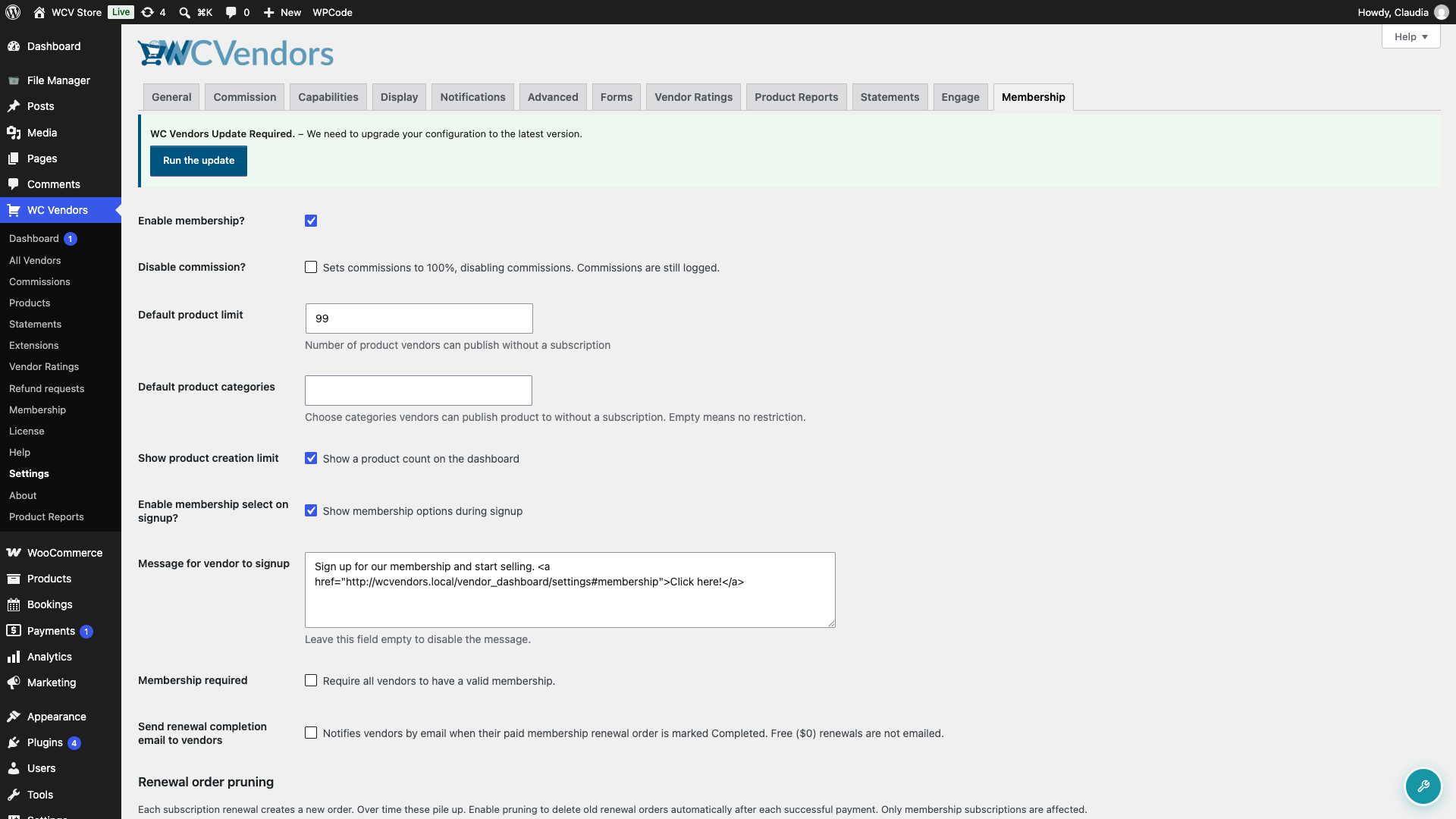
This email also appears under WooCommerce → Settings → Emails as Vendor membership renewal completed, where you can customize its subject, heading, and template. There’s no separate enable/disable switch there. The Membership checkbox above is the only on/off control. This setting requires WC Vendors Membership version 1.2.4 or later.
Troubleshooting
Renewal orders are not being pruned after a payment
Confirm that Prune old renewal orders is checked and saved under WC Vendors → Settings → Membership → Renewal order pruning section. Also check that the subscription that renewed is a vendor membership subscription. The feature does not touch non-membership WooCommerce Subscriptions.
The How many to keep field is not visible
This field hides automatically when Keep all paid renewals is checked. Uncheck Keep all paid renewals to make it reappear.
No log entries appear after the bulk cleanup
Confirm the job was queued by checking that a “Cleanup queued” confirmation appeared after clicking Run cleanup. Then go to WooCommerce → Status → Scheduled Actions and look for the wcvm_prune_renewal_batch action. If Action Scheduler has a backlog, the job may be waiting in the queue.
Vendors aren’t receiving the renewal completion email
Confirm Send renewal completion email to vendors is checked and saved under WC Vendors → Settings → Membership. Also check that the renewal order was paid. Free ($0) renewals and the initial signup order never send this email. Ask the vendor to check their spam folder too.
Frequently asked questions
Will this affect non-membership subscriptions?
No. The pruner only processes vendor membership subscriptions. Regular WooCommerce Subscriptions for other product types are skipped entirely.
Can I recover orders that were pruned?
If you set Deletion method to Move to trash, yes, trashed orders can be restored. If you chose Permanently delete, there is no undo.
Can I set How many to keep below 3?
No. The minimum is enforced at 3 regardless of the value entered. WooCommerce Subscriptions uses the renewal order count for payment scheduling. Dropping below 3 can cause issues with active subscriptions.
Will free ($0) renewals trigger the completion email?
No. Only paid renewals trigger it. Free renewals and the initial membership signup order never send this email.
Need help?
- Premium users: Open a support ticket
- Free users: Visit our community forum