
Requirements
Want to control how many products vendors can list, cap how much storage they use, or charge for extra selling privileges? WC Vendors Membership lets you manage vendor access through customizable subscription plans. To use it effectively, you’ll also need the WooCommerce Subscriptions plugin, as it powers the membership functionality.
To summarize, you need the following:
- WC Vendors Membership: Available from WC Vendors
- WooCommerce Subscription: Available from WooCommerce
Using these together lets you create subscription-based vendor memberships with specific limitations and benefits tailored to your marketplace structure.
Key membership features & limitations
Each vendor membership plan can include pre-defined rules and restrictions such as:
Product Limits: Restrict the total number of products a vendor can create.
Commission Settings: Select the commission type and rates to offer more competitive rates for higher-tier memberships.
Disk Usage Limits: Define the maximum amount of server space (in MB) that vendors can use for their product images, files, and other data.
File Upload Limits: Limit how many individual files a vendor can upload (separate from disk space).
Category Restrictions: Control which product categories vendors can use.
Creating vendor membership plans
Setting up a membership plan is straightforward:
- Go to Products > Add New
- Under Product Data, choose Vendor Membership
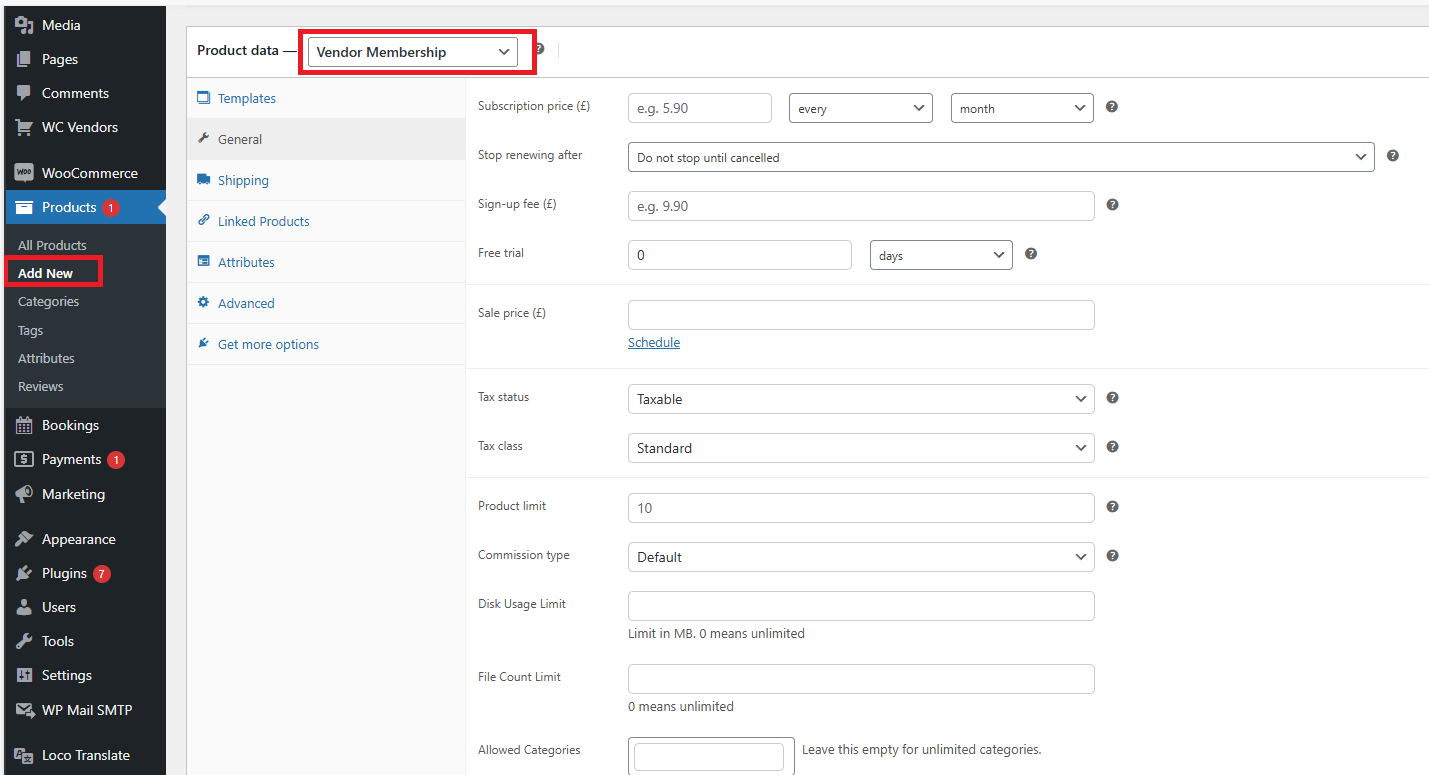
From there, you can configure:
- Membership cost
- Billing cycle and renewal terms
- Signup fees
- Free trial availability
You’ll also define specific vendor limitations such as:
Product limit: Maximum number of products a vendor can list.
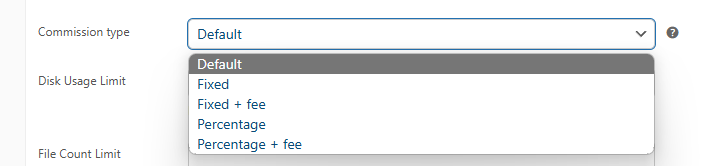
Commission type: Here, you can define the type of commission a vendor will earn. Additionally, you have the option to override the default commission rates for each type. This lets you offer more attractive commission structures with higher-tier memberships, encouraging vendors to upgrade for better earning potential.
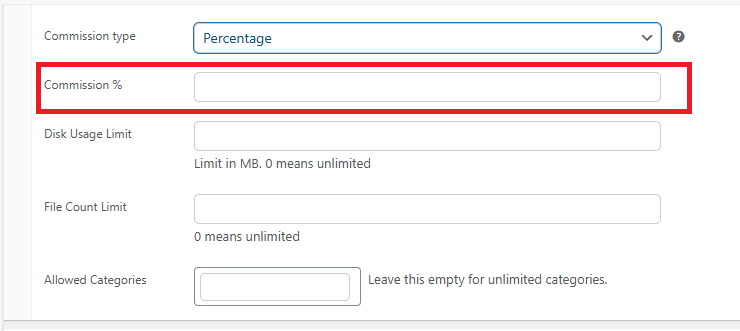
Disk Usage Limit: Set the total storage space vendors can use (in MB). If your server has storage limitations, it’s recommended to choose a value that balances vendor needs with your server’s capacity.
File Count Limit: Set the maximum number of files vendors can upload to their shop.
Allowed Categories: This setting defines which product categories a vendor is allowed to use for their listings.
Inventory: Since version 1.2.4, a Vendor Membership product also has an Inventory tab under Product Data, with the same fields as any subscription product: SKU, Stock management, Quantity, Allow backorders, Low stock threshold, Stock status, and Sold individually. Stock here counts places on the plan, not units sold. Set Quantity to 20, for example, and only 20 vendors can hold that plan at once.
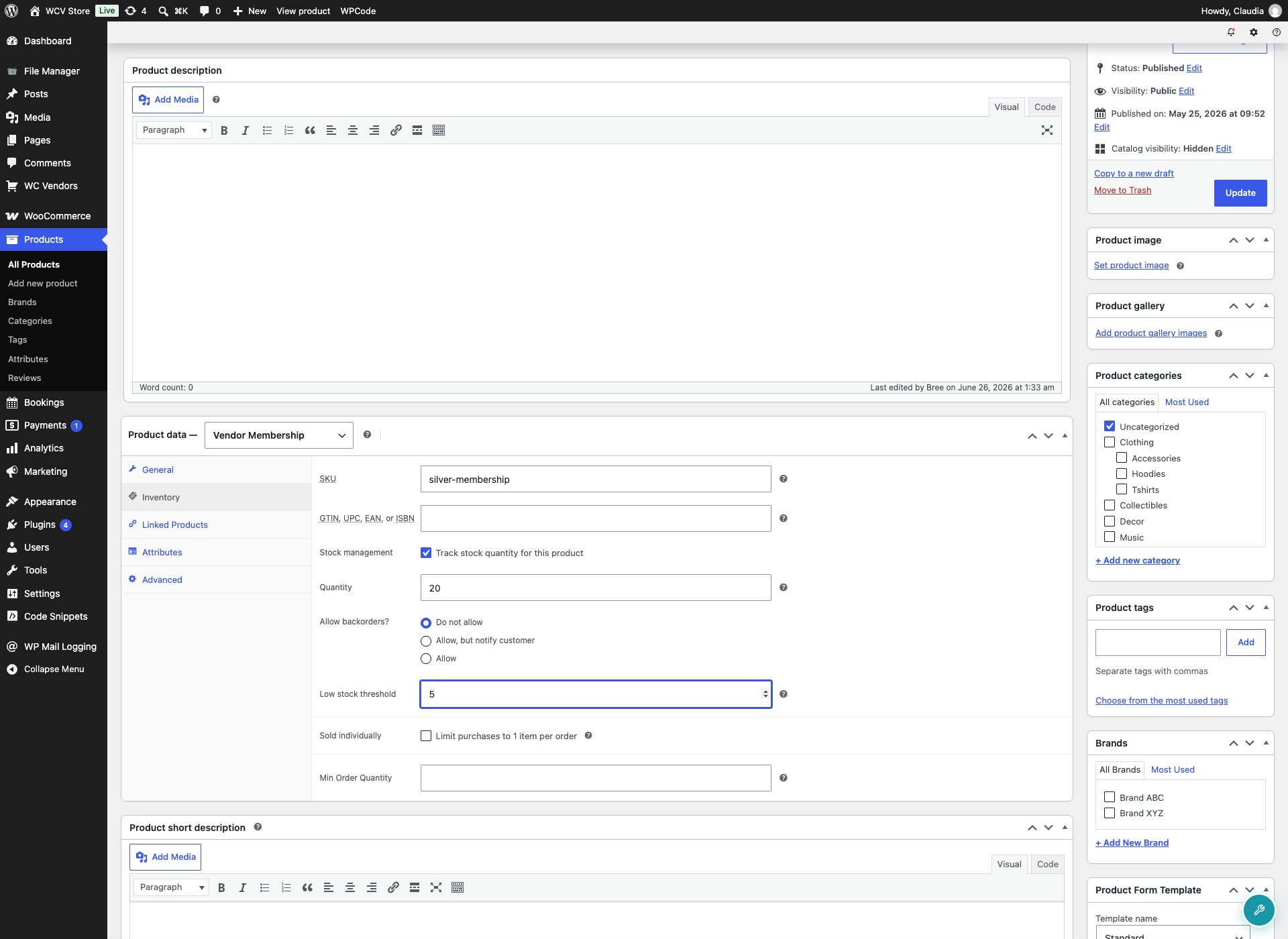
When a plan sells out, it still appears on the vendor dashboard and the signup form, but disabled with an “Out of stock” label. Vendors see it, they just can’t select it. A vendor’s own current plan is never shown as sold out, but switching to a different plan that’s sold out is blocked, the same as it would be for a new vendor. Depending on the subscription’s payment method, the current plan shows a “Renew now” button for early renewal, or a disabled “Current plan” label if early renewal isn’t supported (the subscription still renews normally either way). Renewal orders don’t reduce stock, since a renewing vendor already holds their place.
Vendor membership selection
Vendors can select their membership plans through their dashboard at Vendor Dashboard > Settings > Membership.
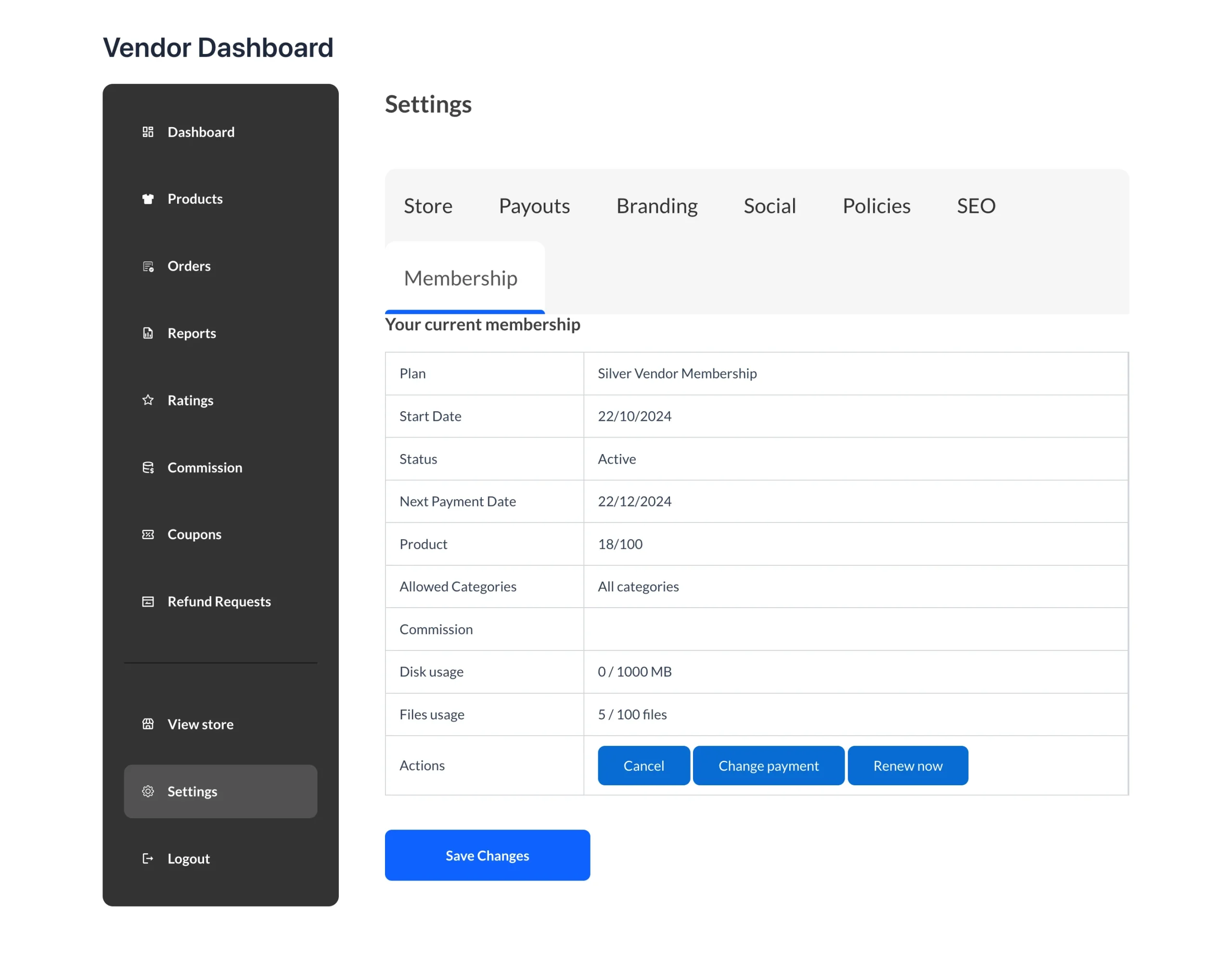
You might be wondering about the difference between the Disk and File count, here is some extra information. Imagine we have the following restrictions:
- Disk limit (MB): 10MB
- Files count limit: 5
This would allow a vendor to upload:
- Up to 5 files totaling up to 10MB, or
- 1 file that is 10MB in size
If the vendor attempts to upload 1 file over 10MB or more than 5 files (even if under 10MB total), the upload will fail. Likewise, if they attempt to upload more than 5 files (even if the total size is under 10MB), it will also be rejected.
Membership settings overview
You can configure vendor membership settings by navigating to WC Vendors > Settings > Membership.
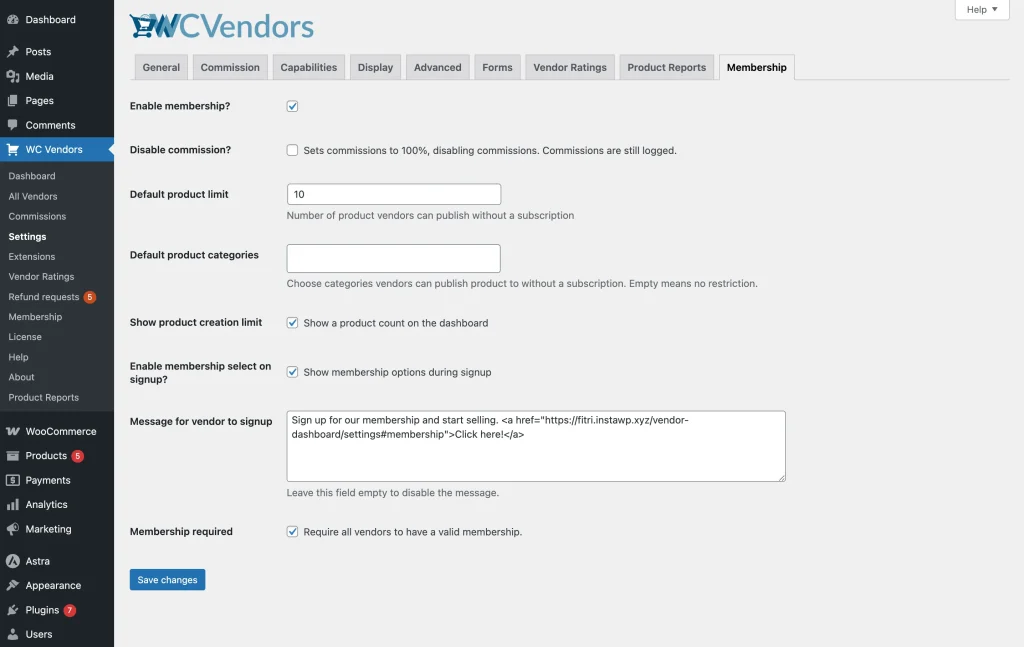
Here, you can configure the default product limit and apply other restrictions. See the list below for further explanation:
Disable commission?: This option sets the vendor’s commission to 100% for any active membership, meaning the marketplace will not earn any revenue from those sales.
Default product limit: This option defines the number of products a vendor can create without an active WC Vendors Membership subscription.
Default product categories: This setting determines which product categories a vendor can use when creating products without an active WC Vendors Membership subscription. Leave it empty for no restriction.
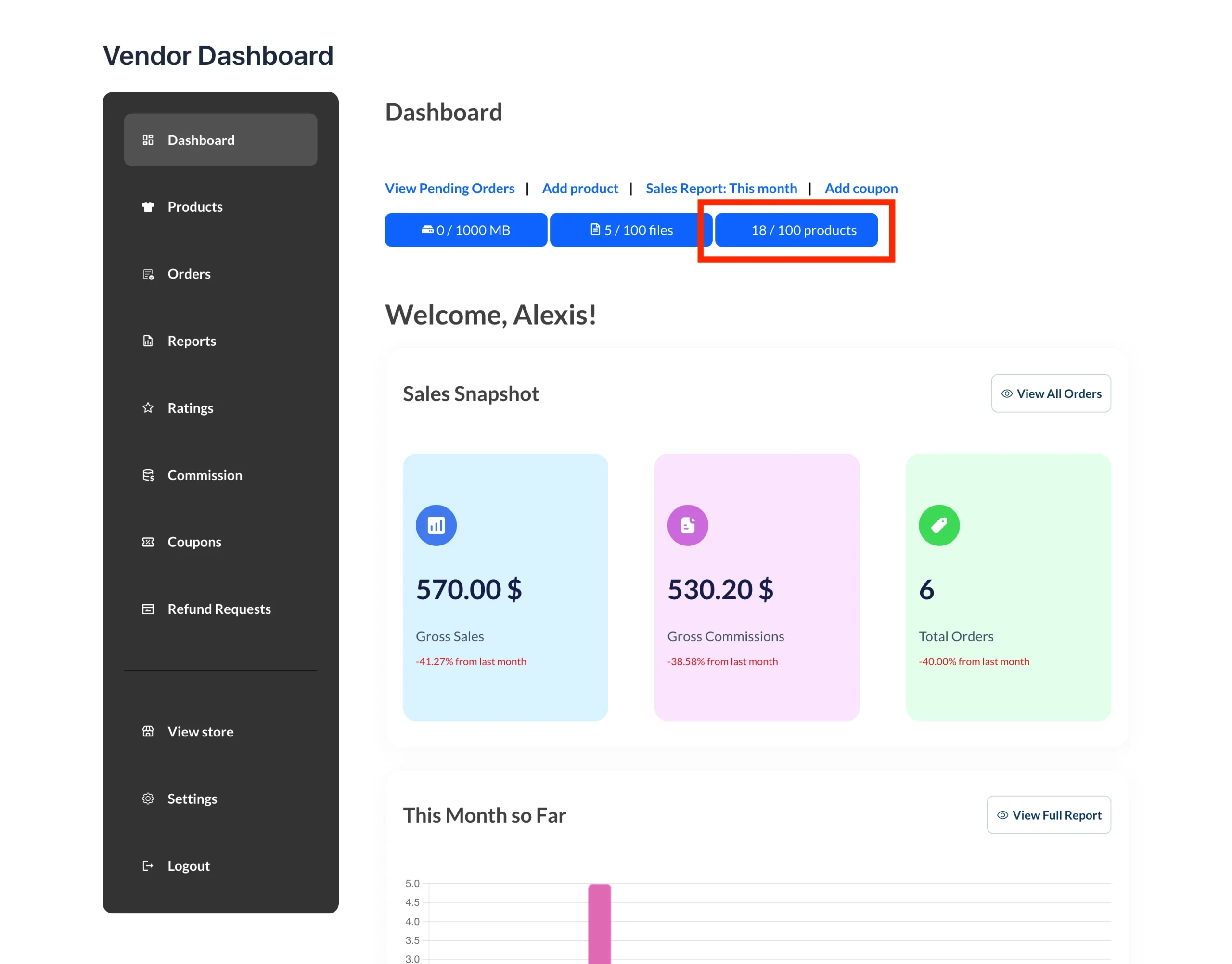
Show product creation limit: Enable this to display the vendor’s product limit on the Vendor Dashboard.
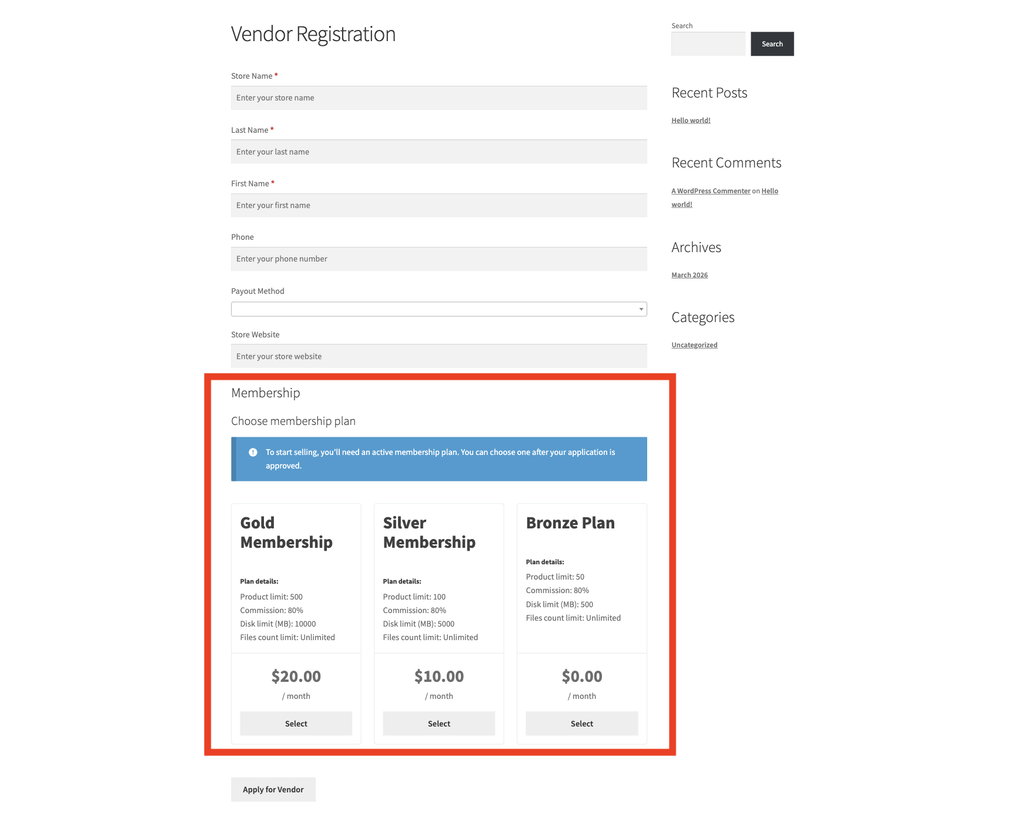
Enable membership select on signup?: Show membership plan options on the vendor registration form as soon as someone signs up, but only once at least one Vendor Membership product exists.
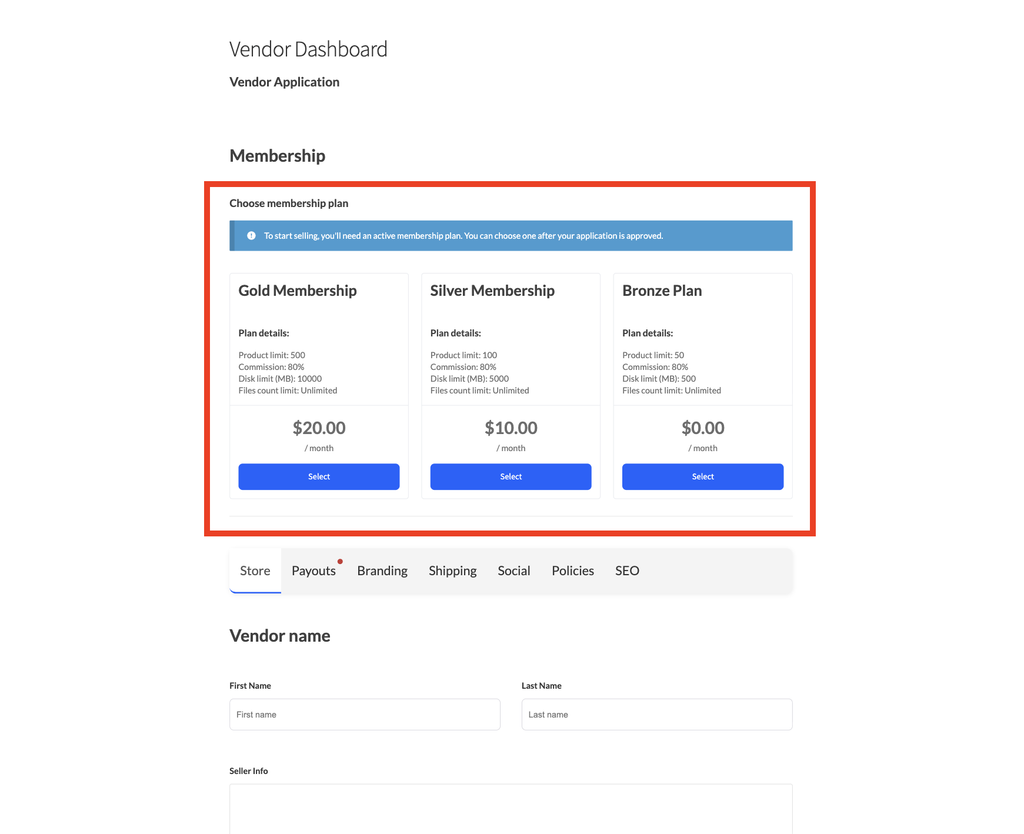
This works on the WC Vendors Pro built-in vendor registration form as shown above. If you also run the separate WC Vendors Signup add-on, the membership selection also shows on the dedicated registration page as seen below.
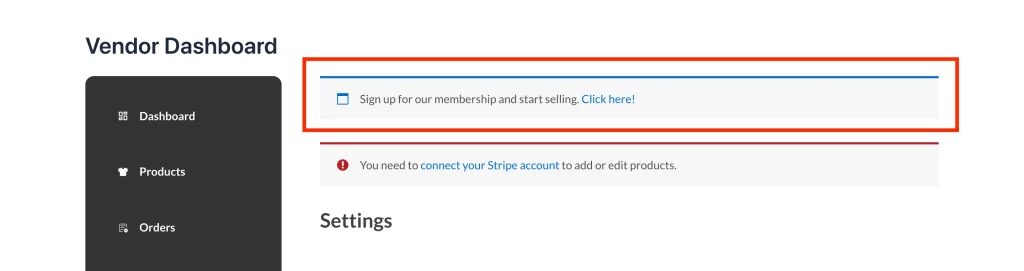
Message for Vendor to signup: This displays a notification encouraging existing vendors to sign up for a membership. You can customize the message to suit your preferences. (The exact label follows whatever term you use for “vendor” on your site.)
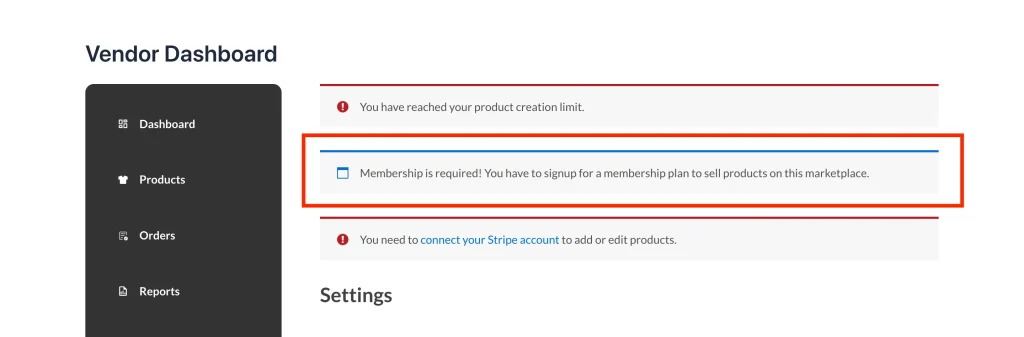
Membership required: This setting requires vendors to have an active membership before they can sell products on your marketplace. It will also display a notification on the vendor dashboard.
Vendor membership management by admin
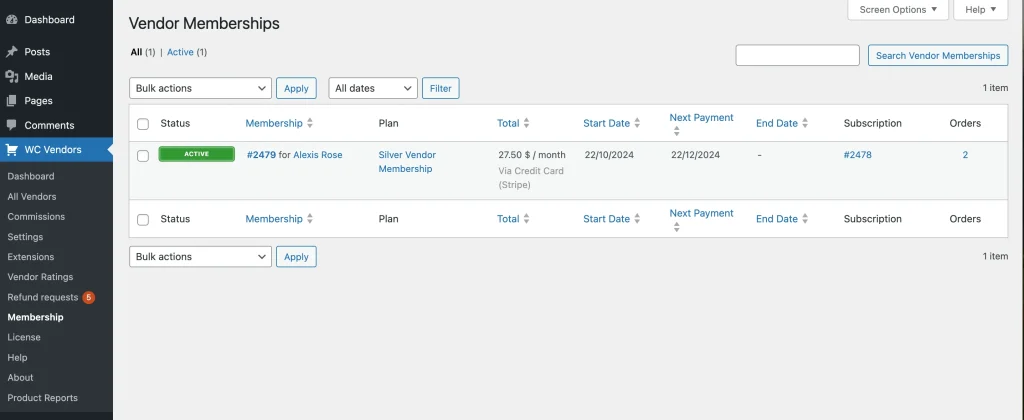
Admins can easily manage and monitor vendor memberships via the WordPress admin panel. Navigate to WP Admin > WC Vendors > Membership (the screen itself is titled “Vendor Memberships”).
Here, you’ll find a comprehensive overview of all vendor memberships with details including:
- Status: Shows whether the membership is currently active, expired, or pending.
- Membership: Identifies the vendor who holds the membership.
- Plan: Displays the specific membership plan assigned to the vendor.
- Total: Indicates the amount the vendor has paid for the membership.
- Start Date: Marks the date the membership began.
- Next Payment: Highlights the upcoming payment date to keep track of renewals.
- End Date: Reveals when the membership will expire.
- Subscription: Provides the reference number linked to the subscription.
- Orders: Counts the total orders connected to the membership.
This interface allows admins to keep track of vendor subscriptions, payments, and renewal dates, ensuring smooth marketplace management.
WC Vendors Membership gives you the control and flexibility to manage your marketplace efficiently. By offering tiered subscription plans with tailored permissions, you can encourage vendor upgrades while protecting your platform’s resources.
Troubleshooting
Plan cards aren’t showing on the registration form. Make sure “Enable membership select on signup?” is turned on in WC Vendors > Settings > Membership, and that at least one Vendor Membership product exists. If either condition isn’t met, the plan section is left out of the form entirely rather than shown empty.
The Inventory tab doesn’t appear on my Vendor Membership product. Inventory settings for memberships were added in WC Vendors Membership 1.2.4. Update the plugin to 1.2.4 or later to see the tab.
Plan selection doesn’t appear on the WC Vendors Signup add-on’s form. This integration requires WC Vendors Signup version 1.0.2 or later. On an older version, the plan section won’t appear, with no error shown.
Frequently asked questions
Does the stock quantity on a membership plan limit units sold or veor slots?
It limits vendor slots, not units sold. Setting a Quantity of 20 on a plan means only 20 vendors can hold that plan at once.
What happens if a vendor’s current plan sells out?
Nothing changes for their own plan, it’s never shown as sold out. But if they try to switch to a different plan that’s also sold out, that switch is blocked, the same as it would be for a new vendor selecting it.
Does plan selection on signup work with any registration form?
It works with the built-in vendor registration form. If you also run the separate WC Vendors Signup add-on, plan selection appears on its registration form too, as long as “Enable membership select on signup?” is turned on and at least one Vendor Membership product exists.
Need help?
- Premium users: Contact support
- Free users: Ask on the WordPress.org support forum