
When an auction is about to close, some bidders wait until the auction is almost over before placing a bid, leaving no time for others to respond. Anti-sniping prevents this by automatically extending the auction when a bid lands in the final moments, giving other bidders a fair chance to compete. As of WC Vendors Pro Simple Auctions v1.2.5, vendors can configure this directly from the vendor dashboard without needing admin access.
Requirements
- WC Vendors and WC Vendors Pro are installed and active.
- WooCommerce and WooCommerce Simple Auctions are installed and active.
- WC Vendors Pro Simple Auctions v1.2.5 or later is installed and active.
- You have vendor access to create or edit auction products from the vendor dashboard.
How to enable extend auction on bid
- Go to your vendor dashboard and click Products.
- Click Add Product to create a new product, or click an existing auction product to edit it.
- Set the product type to Auction using the product type dropdown.
- Click the Auction tab.
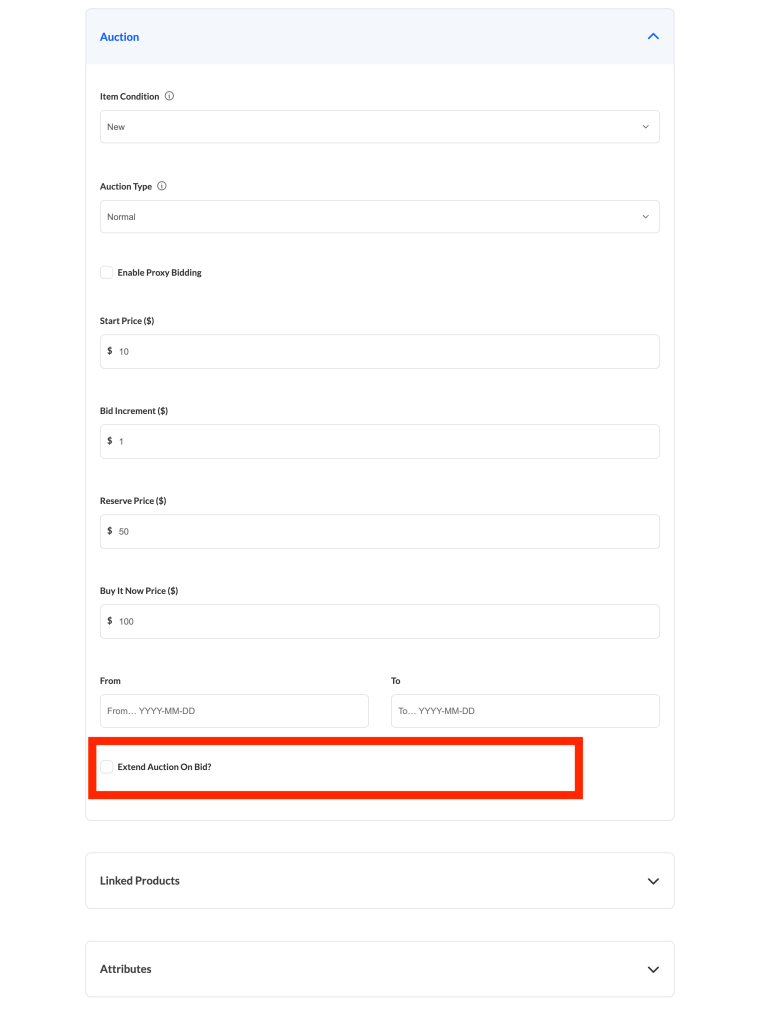
- Check the Extend Auction On Bid? checkbox. Two additional fields appear below it.
- In Extend Auctions In Last * Seconds., enter the number of seconds before the auction ends during which a bid will trigger an extension. Enter 0 to extend the auction on any bid, regardless of when it’s placed.
- In Extend Auctions For * Seconds., enter how many seconds to add to the auction end time when a bid triggers an extension.
- Click Save Changes to save your settings. If you’re creating a new product, the button reads Add Product instead.
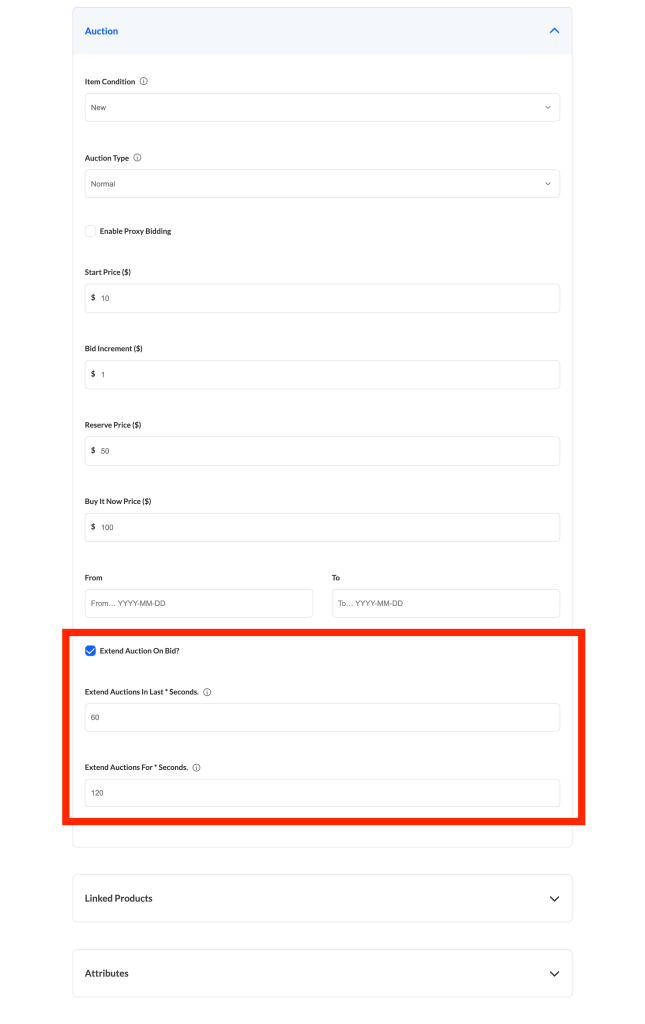
When you reopen the product, the checkbox state and field values are exactly as you saved them.
What each field does
| Field | What it does | Default |
|---|---|---|
| Extend Auction On Bid? | Enables anti-sniping for this auction. When checked, bids placed in the configured time window extend the auction end time. | Unchecked |
| Extend Auctions In Last * Seconds. | The time window before the auction closes during which a bid triggers an extension. Set to 0 to trigger on any bid regardless of timing. | Empty (saved as 0 if left blank) |
| Extend Auctions For * Seconds. | The number of seconds added to the auction end time when an extension is triggered. | Empty (saved as 0 if left blank) |
Developer filters
If you’d like to customize the anti-sniping fields across all auction products, for example by pre-filling default values, WC Vendors Pro Simple Auctions provides the following three filters:
- wcv_simple_auctions_extend_enable: filters the field arguments for the Extend Auction On Bid? checkbox.
- wcv_simple_auctions_extend_in_time: filters the field arguments for Extend Auctions In Last * Seconds.
- wcv_simple_auctions_extend_for_time: filters the field arguments for Extend Auctions For * Seconds.
Add these to your child theme’s functions.php or a custom plugin. Do not edit the plugin files directly since changes made there will be overwritten on the next update.
Troubleshooting
The Extend Auction On Bid? checkbox doesn’t appear on the Auction tab
This field was added in v1.2.5. Ask your marketplace admin to confirm WC Vendors Pro Simple Auctions is updated to at least v1.2.5.
The Auction tab doesn’t appear at all
The Auction tab only shows when WooCommerce Simple Auctions is installed and active. Check your Plugins screen to confirm it’s active.
The duration fields don’t appear after checking the checkbox
The two duration fields are shown and hidden by JavaScript. If they don’t appear after checking the box, there may be a conflict with your theme or another plugin. Try temporarily switching to a default WordPress theme to isolate the issue, then re-check the box.
Values aren’t saving
Make sure you’re saving the product using the vendor dashboard button, which reads Save Changes when editing an existing product, Add Product when creating a new one, or Save Pending if your marketplace requires approval before publishing. The anti-sniping settings are saved through the vendor dashboard save action only.
Frequently asked questions
Can I set different extend times for different auction products?
Yes. The settings are saved per product, so each auction can have its own time window and extension duration.
What does setting “Extend Auctions In Last * Seconds.” to 0 do?
A value of 0 means any bid triggers an extension, no matter when it’s placed. If you want anti-sniping to kick in only during the final moments, enter a value greater than 0 (for example, 60 for the last 60 seconds).
Does unchecking the checkbox clear my duration field values?
No. Disabling the checkbox turns off anti-sniping for that product, but the values you entered in the duration fields are still saved. Re-enabling the checkbox restores them.
Need help?
If you have a question or run into any issues, we’re here to help.
- Premium users: Open a support ticket
- Free users: Visit our community forum