
If you manage a bookings marketplace with WC Vendors Pro with the WC Vendors WooCommerce Bookings add-on, you can require vendors and customers to select a reason whenever they cancel. Whether it’s a customer changing their plans or a vendor facing an unexpected conflict, this feature gives you a clear paper trail without any manual follow-up.
By the end of this guide, you’ll know how to require cancellation reasons for both vendors and customers, manage your list of available reasons, and view these details in order logs and emails.
Prerequisites
To use this feature, ensure you have the following installed and active:
- WC Vendors Pro
- WC Vendors WooCommerce Bookings add-on
- WooCommerce and WooCommerce Bookings
How to enable cancellation reasons
Before you can manage specific reasons, you must turn on the requirement in your global settings.
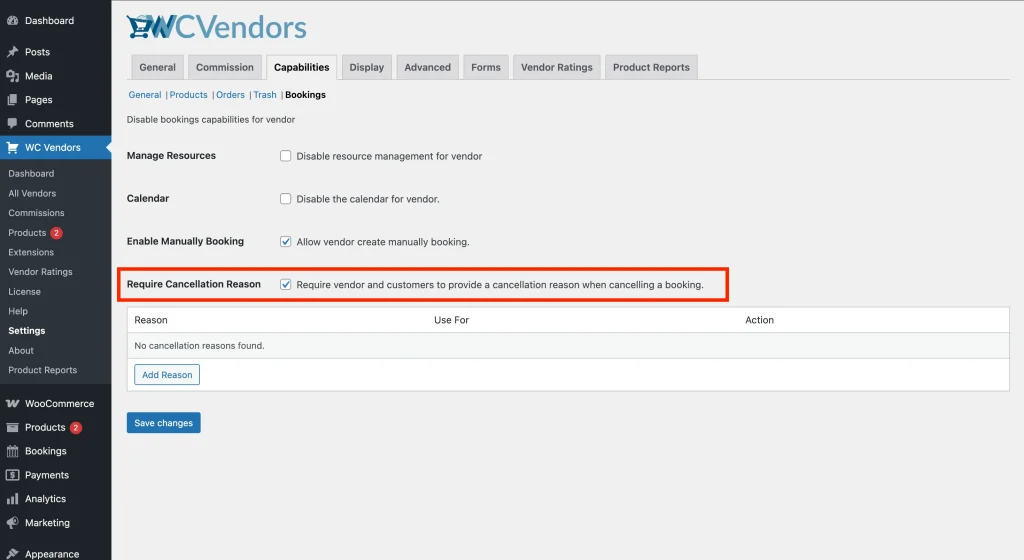
- Navigate to WC Vendors → Settings in your WordPress admin dashboard.
- Click the Capabilities tab.
- Locate the Bookings sub-section.
- Find the option labeled Require Cancellation Reason and check the box.
- Click Save Changes.
Managing your cancellation reasons
Once the feature is enabled, you can define the specific options vendors and customers see in the cancellation popup.
How to add a new reason
- Go to WC Vendors → Settings → Capabilities → Bookings.
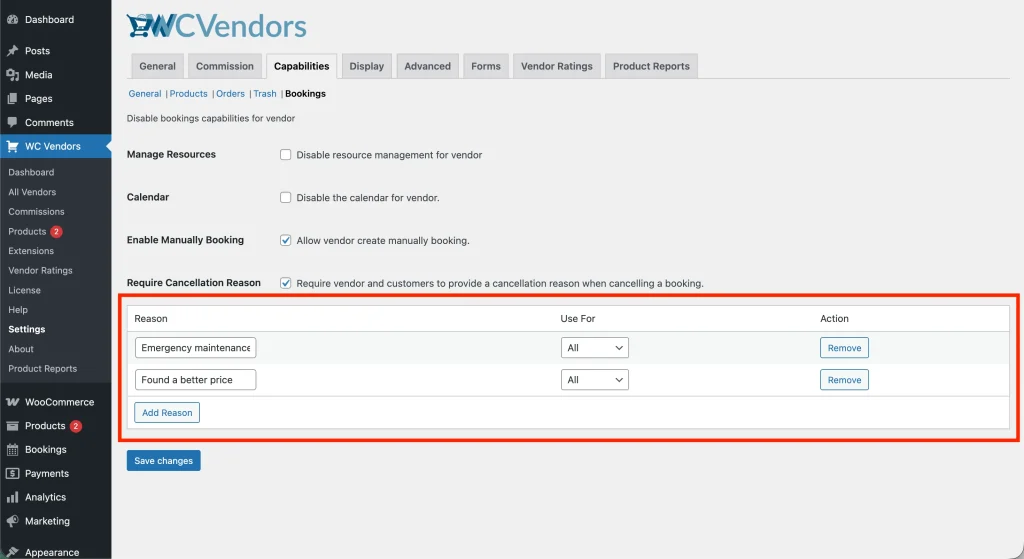
- Scroll down to the Cancellation Reasons table.
- Click the Add Reason button.
- Enter the Reason (e.g., “Found a better price” or “Emergency maintenance”).
- Choose who can use this reason under the Use For column:
- Vendor: Only visible to vendors in their dashboard.
- Customer: Only visible to customers in their “My Account” area.
- All: Visible to everyone.
- Click Save Changes.
Setting defaults and ‘Other’ options
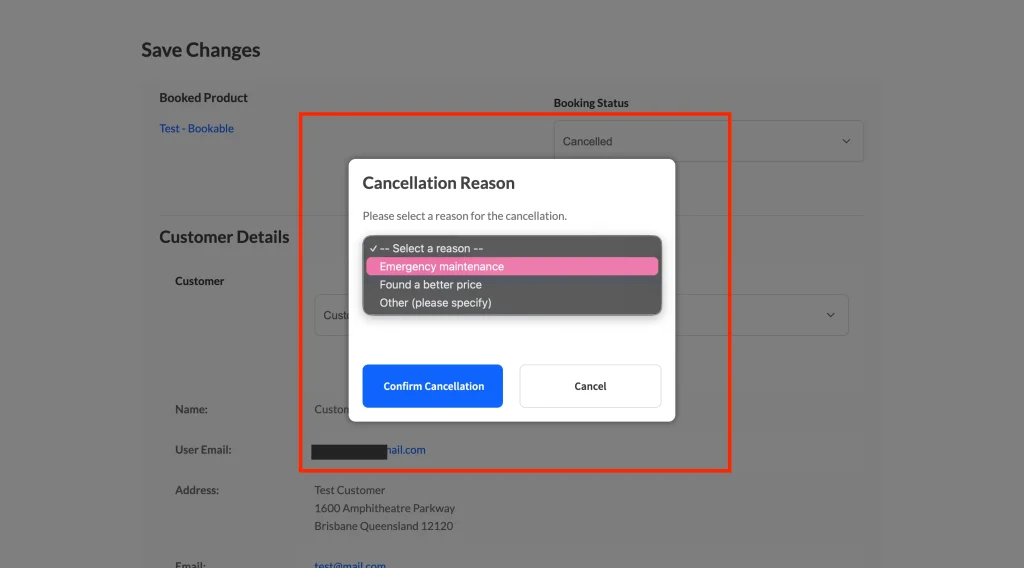
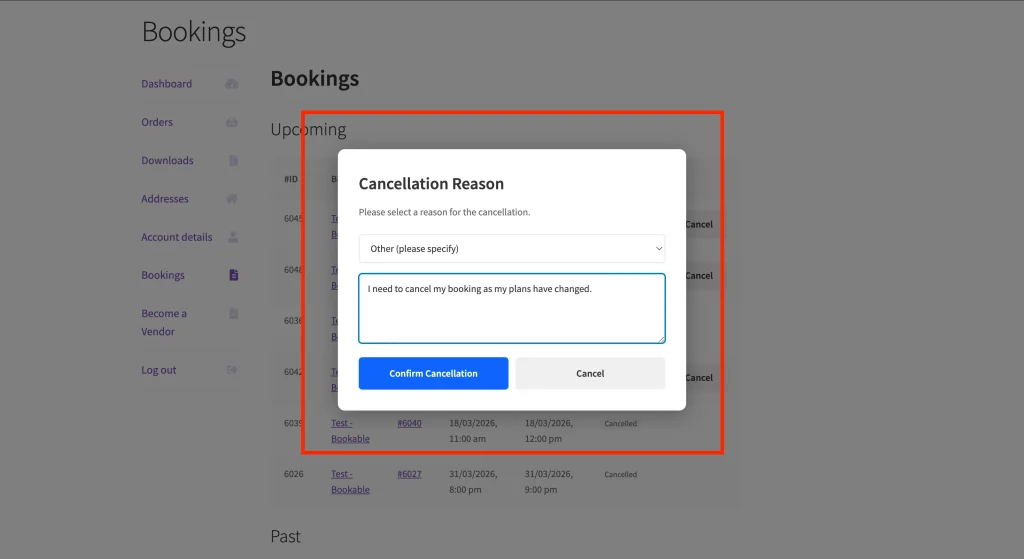
By default, the system includes an Other (please specify) option. If a user selects this, a text field appears, allowing them to type in a custom explanation. This ensures that every possible scenario is covered so vendors and customers can select quickly.
The user experience: what vendors and customers see
What vendors see when cancelling a booking
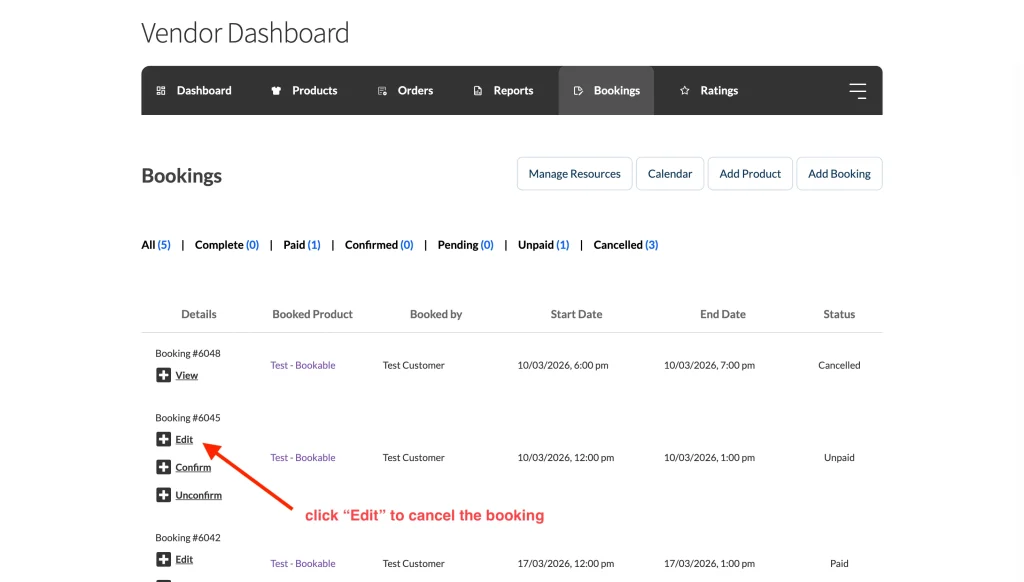
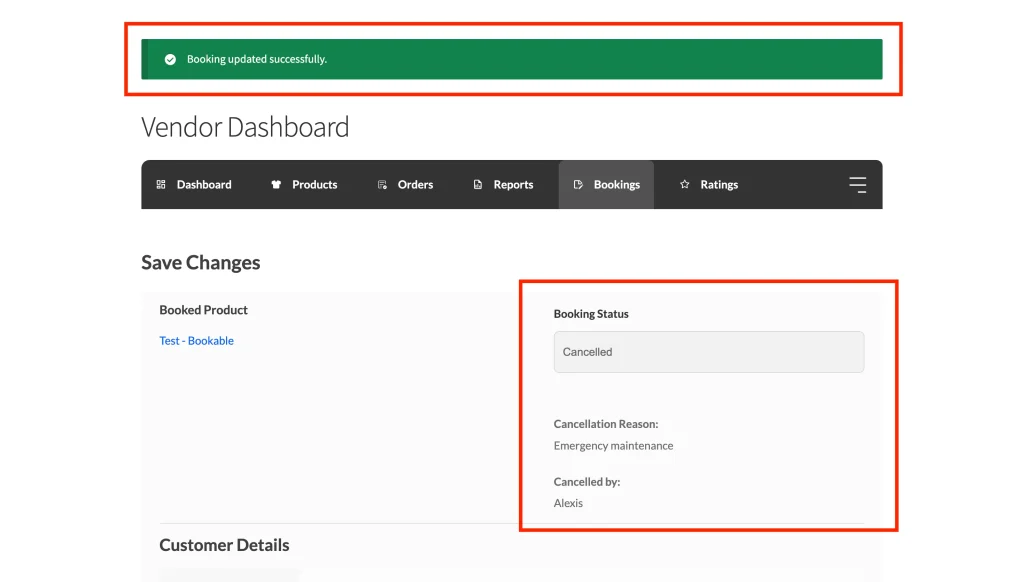
When your vendor navigates to their Vendor Dashboard → Bookings and changes a booking status to “Cancelled,” a modal (popup) appears. Your vendor must select one of the pre-defined reasons you created or provide a custom one before the system allows the cancellation to process.
What customers see when cancelling a booking
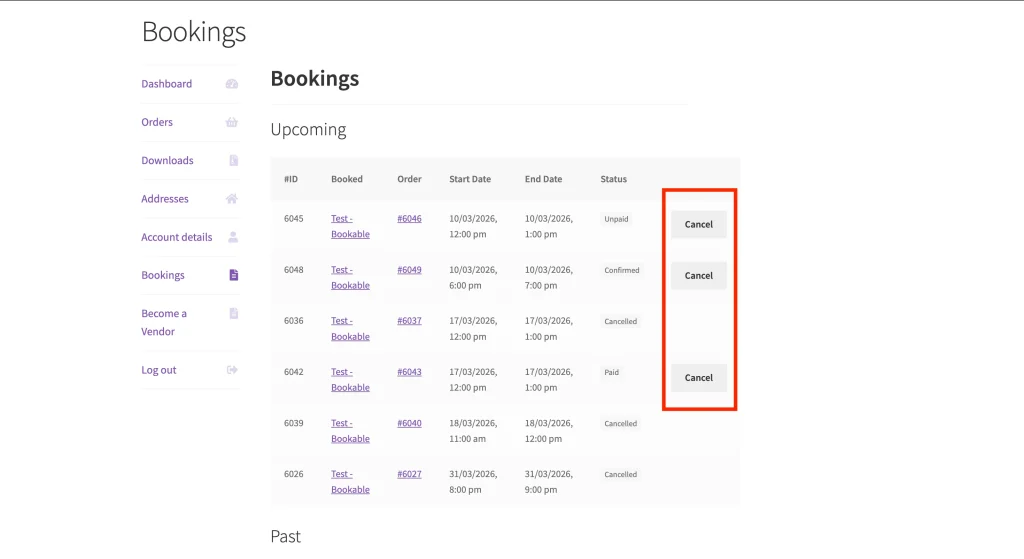
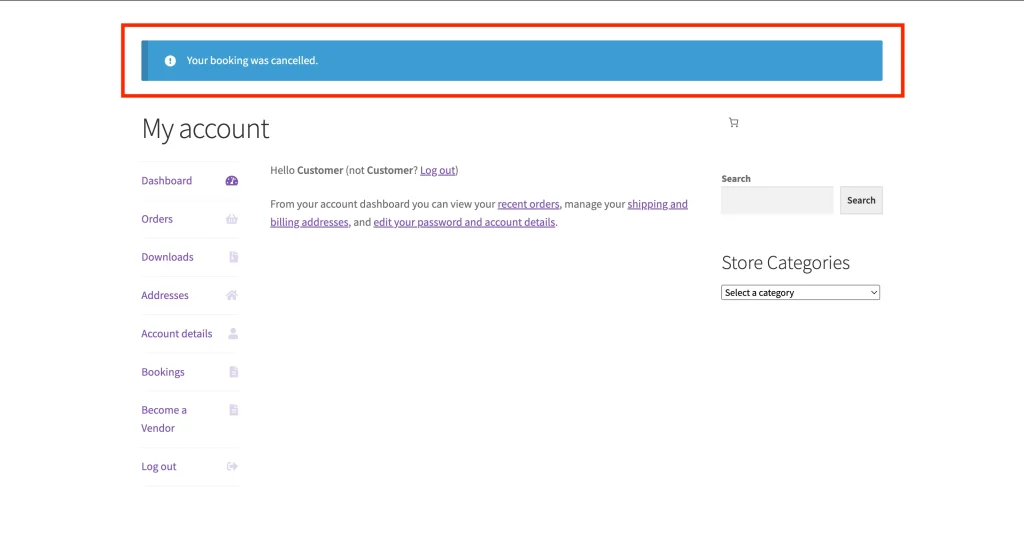
Customers visiting My Account → Bookings see a “Cancel” button. Upon clicking it, they’ll see the customer-specific reasons you configured. Once they confirm the reason, the booking status updates, and the data is saved securely.
How to view cancellation details
You don’t have to go hunting for these reasons; they are integrated into your existing workflows.
Email notifications
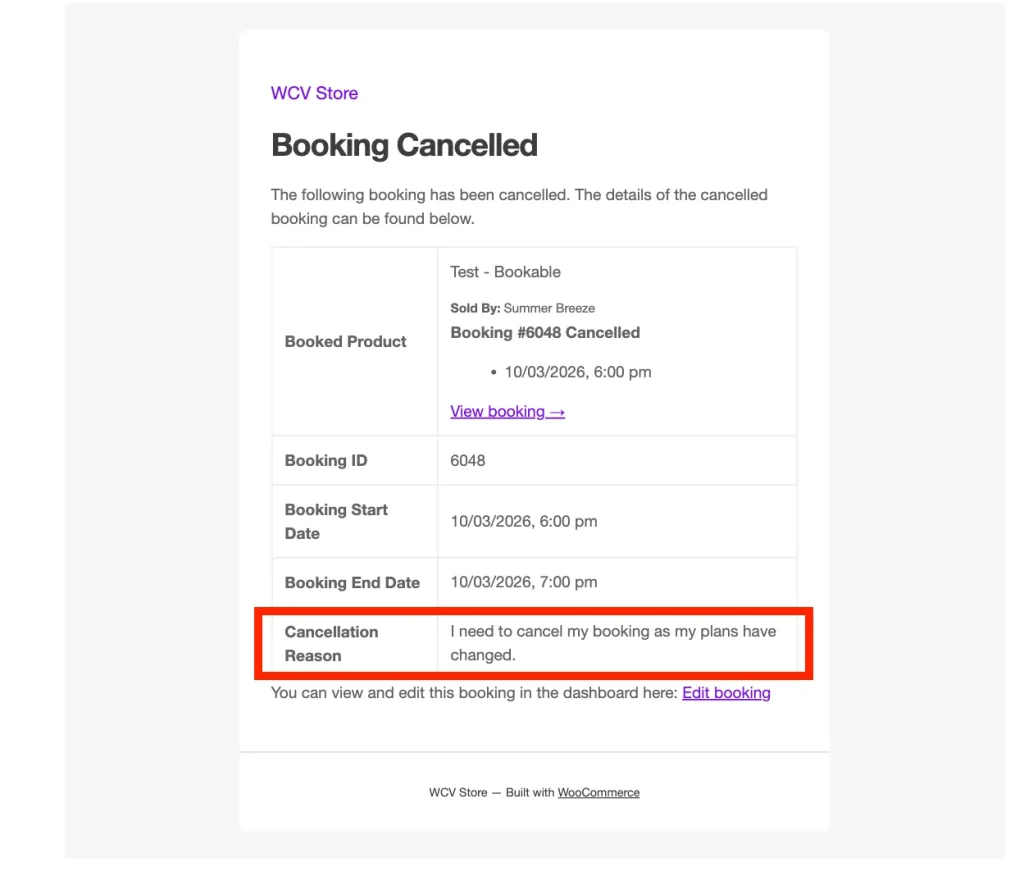
The “Booking Cancelled” email sent to admins, vendors, and customers now includes the specific cancellation reason provided.
Booking details
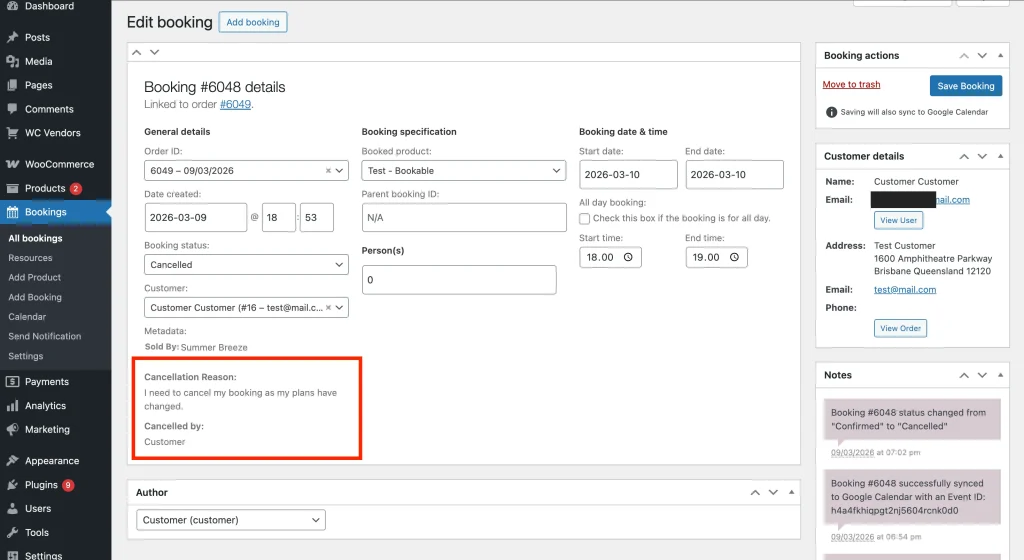
You can view the reason and the name of the person who initiated the cancellation directly within the booking edit screen in the WordPress admin area, stored securely as booking metadata.
💡 Note:
This data is invaluable when handling payment disputes, as it provides a clear paper trail of the interaction. For more information, see the official WooCommerce Payment Disputes documentation.
Troubleshooting: why can’t I see the cancel button?
The cancel button is hidden for a specific booking
If your vendors or customers are unable to see the Cancel button, it’s likely because the booking has passed its allowed cancellation window. WooCommerce Bookings lets you restrict how close to the start date a booking can be revoked.
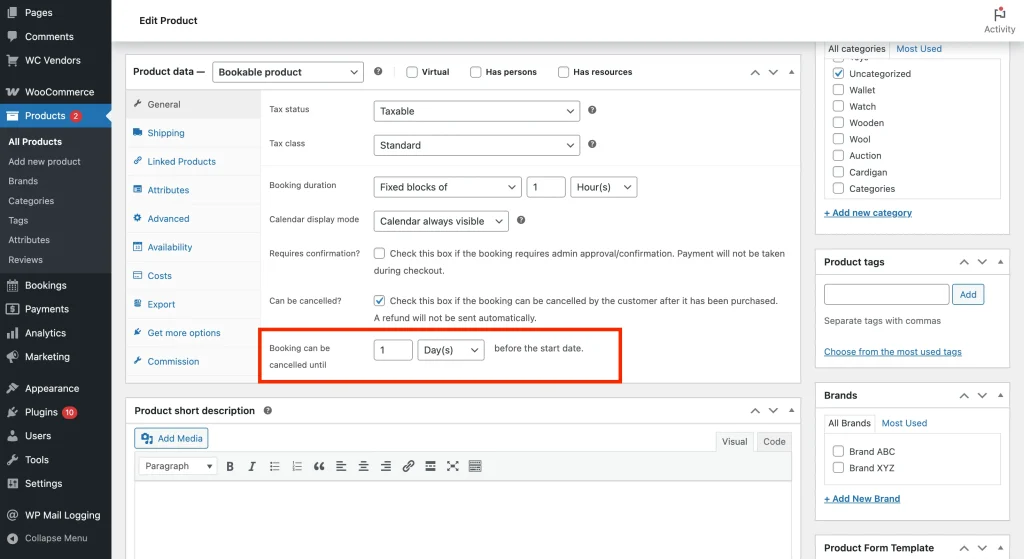
To check this, navigate to the specific bookable product and look for the Booking can be cancelled until… option under the General tab. If the current time is beyond this limit, the system automatically hides the cancellation button to protect your vendors from last-minute changes.
Frequently asked questions
Can I edit or delete a reason after it’s already been used?
Yes. You can manage the list of reasons at any time. Editing or deleting a reason will not change the data already saved to historical bookings, ensuring your records remain accurate.
Can vendors suggest their own reasons, or do only admins manage the list?
Only marketplace administrators can manage the global list of reasons. However, vendors can use the “Other (please specify)” option to provide a custom reason if you have not provided a specific one that fits their situation.
Best practices for managing booking cancellations
Keep reasons concise
Use short, clear phrases for your pre-defined reasons to make it easy for users to select them quickly.
Review trends regularly
Periodically check your canceled bookings to see if certain reasons are appearing more frequently, which might indicate a need for a policy change.
Use ‘All’ wisely
Only set a reason to “All” if it truly applies to both parties (like “Mutual Agreement”).
Related articles
Explore our guide on How to Filter Bookings by Status to quickly locate and manage reservations based on their current stage in the booking process.
Need help?
If you have a question or run into any issues, we’re here to help.
- Premium users: Open a support ticket
- Free users: Visit our community forum