
If you manage a high volume of appointments or rentals, keeping track of every request can be a challenge. WC Vendors Pro now includes a powerful Booking Status Filter directly in your vendor dashboard, letting you spot pending and unpaid bookings at a glance so nothing slips through the cracks.
By the end of this guide, you’ll know how to navigate these filters to identify tasks that need your immediate attention and keep your schedule organized.
Prerequisites
To use this feature, ensure you have the following installed and active:
- WC Vendors Pro
- WC Vendors WooCommerce Bookings add-on
- WooCommerce and WooCommerce Bookings
How to use status filters in the vendor dashboard
The filtering system is automatic and requires no additional configuration from the marketplace administrator. Follow these steps to start filtering:
Accessing the filters
- Log in to the site as a Vendor.
- Navigate to the Vendor Dashboard.
- Click Bookings.
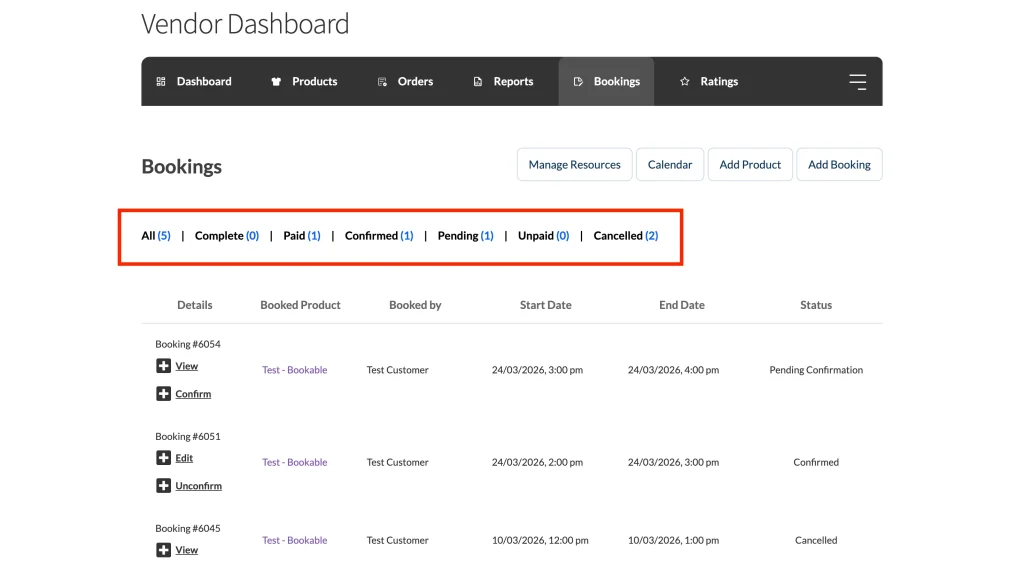
Navigating the filter bar
At the top of the bookings table, you’ll see a row of quick-action buttons. These buttons represent every possible booking state:
- All: Shows every booking regardless of status.
- Complete: Displays finished bookings.
- Paid: Filters for bookings where payment has been successfully processed.
- Confirmed: Shows bookings that have been accepted and verified.
- Pending: Highlights new bookings waiting for vendor approval—the most important status to monitor.
- Unpaid: Shows bookings whose order hasn’t been paid yet—typically newly created bookings using manual payment methods (like bank transfer), or bookings on hold while awaiting vendor confirmation.
- Cancelled: Displays all revoked bookings.
💡 Remember:
Booking Statuses (like Pending Confirmation or Confirmed) are separate from Order Statuses (like Processing or Completed). Understanding how these two systems interact is key to a smooth workflow.
Viewing booking counts
Each filter button includes a numerical count (e.g., Pending (3)). This number tells you exactly how many bookings fall into that category without needing to click the button first.
Troubleshooting
The filter buttons are missing
This usually happens if the integration is outdated. Ensure you are using the latest version of the WC Vendors WooCommerce Bookings integration. If the buttons still do not appear, try clearing your browser cache or checking for theme conflicts.
Frequently asked questions
Do the counts update in real time?
The counts update every time the page is refreshed or a filter is clicked. When a customer makes a new booking, the “Pending” count will increase the next time you view your dashboard.
Does clicking a filter reload the page?
Yes. Clicking a filter updates the URL (e.g., ?booking_status=confirmed) and refreshes the table to show only the relevant results. Note: the Pending filter uses ?booking_status=pending-confirmation—the parameter key doesn’t match the label exactly.
Can I filter bookings on mobile?
Yes! The filter bar is responsive and will appear at the top of your bookings list on mobile devices, though you may need to swipe horizontally to see all status options.
Need help?
If you have a question or run into any issues, we’re here to help.
- Premium users: Open a support ticket
- Free users: Visit our community forum