
Moved your marketplace to a new Stripe platform account? Vendor payouts stop working until every vendor reconnects their Stripe account under the new platform, and a common mix-up on the WC Vendors Stripe Connect settings screen is usually why reconnecting fails the first time. Here’s how to update your settings, set the redirect URI correctly in Stripe, and get every vendor reconnected.
Before you begin
Every vendor has to reconnect their own Stripe account after this move. As the marketplace admin, you can’t do this on their behalf: each vendor connects their own Standard Stripe account, not one you control. Let vendors know ahead of time that their payouts will stay paused until they log in and reconnect.
If you’re setting up WC Vendors Stripe Connect on this site for the first time, rather than moving an existing setup to a new platform account, use Getting started with WC Vendors Stripe Connect instead.
Before you start, make sure you have:
- Your live Publishable Key, Secret Key, and Client ID from the new Stripe platform account (and the test versions of each, if you use test mode)
- A way to create a new webhook endpoint in the new Stripe platform account
- Admin access to WooCommerce > Settings > Payments > Stripe Connect
Update your keys and webhook in WC Vendors settings
- Go to WooCommerce > Settings > Payments > Stripe Connect.
- Paste your new platform account’s Publishable Key, Secret Key, and Client ID into the matching fields. If you use test mode, update Test Publishable Key, Test Secret Key, and Test Client ID instead.
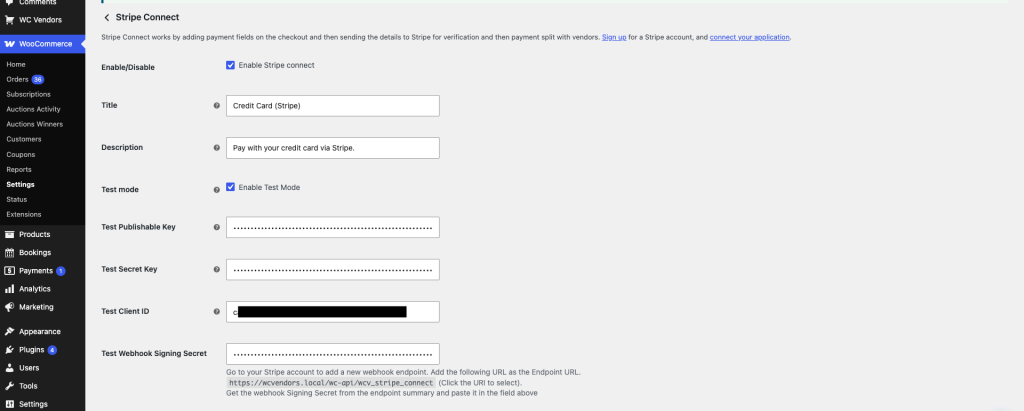
- In your new Stripe platform account, add a new webhook endpoint using the URL shown next to Webhook Signing Secret on this screen.
- Copy the signing secret Stripe gives you for that endpoint and paste it into the Webhook Signing Secret field.
- Click Save changes.
Set the Connect redirect page correctly in Stripe
This is the step that trips people up. The settings screen shows two different URLs: one for your webhook, and one for the page vendors land on after connecting. It’s easy to grab the wrong one when you’re setting up a new platform account.
- On the same Stripe Connect settings screen, find the Connect redirect page dropdown and select the page you want vendors to land on after connecting.

- Copy the permalink shown underneath the dropdown. Don’t reuse the webhook Endpoint URL from the previous step.
- In your new Stripe platform account’s Connect settings, paste that permalink into the redirect URI field.
- Save your changes in Stripe.
The Connect redirect page field gives you a permalink, not a URL you type by hand. Whatever value shows up underneath the dropdown is exactly what belongs in Stripe’s redirect URI setting. The webhook Endpoint URL from the previous step is a separate setting for a separate purpose, and pasting it into the redirect URI field is what causes vendors to see an “unknown source” error when they try to connect.
Have each vendor disconnect and reconnect
Once your settings and the redirect URI are correct, every vendor needs to reconnect from their own dashboard.
- Ask each vendor to log in and go to Settings > Payouts in their vendor dashboard.
- Set Commission Payout Method. to Stripe Connect and click Save Changes, if it isn’t already set that way.
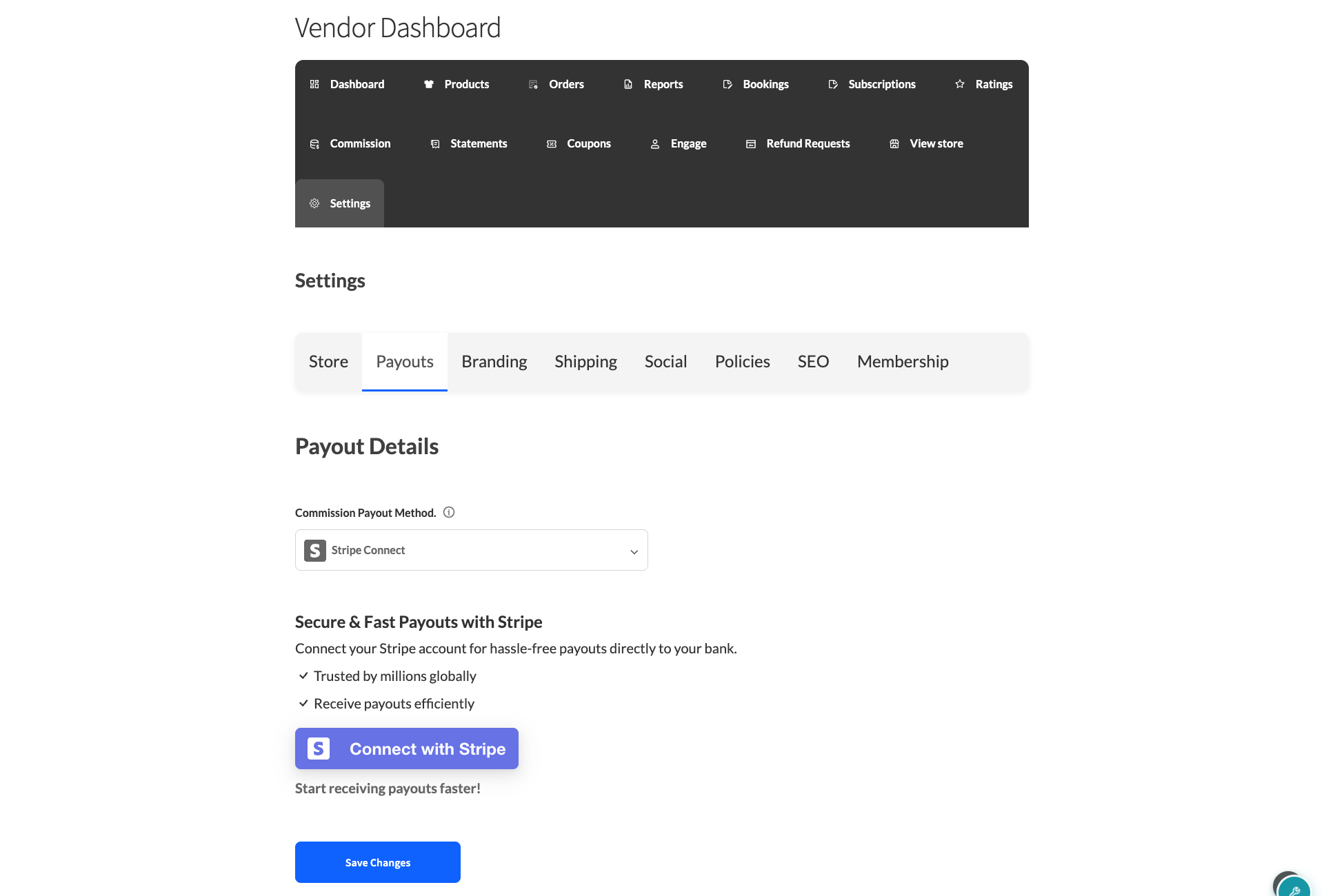
- If the vendor still shows You’re Connected to Stripe, have them click Disconnect Stripe Account first.
- Have them click Connect with Stripe and complete the authorization on Stripe’s site.
Disconnecting first is necessary even though the vendor’s account was already connected under your old platform account. WC Vendors decides whether to show the connect button based on whether it already has stored Stripe credentials for that vendor, not whether those credentials still work under the current platform account. Reconnecting overwrites the old, stored credentials with the new ones, so there’s nothing left to clean up afterward.
Troubleshooting
Vendors see “Cannot process request because it comes from an unknown source.”
This happens when the redirect URI registered in Stripe points at the webhook endpoint URL instead of the Connect redirect page’s permalink. Fix it by following the steps above: paste the exact permalink shown under Connect redirect page into Stripe, not the webhook Endpoint URL.
Disconnecting a vendor’s account fails with an error from Stripe.
If disconnecting fails, WC Vendors shows the error from Stripe along with a Force disconnect? link. Clicking it clears the vendor’s stored Stripe connection locally without waiting for Stripe to confirm the account is disconnected, so the vendor can reconnect right away.
A vendor still shows as connected, but their payouts fail.
This usually means their old credentials are still stored locally even though they no longer work under the new platform account. Have the vendor disconnect (using Force disconnect? if a normal disconnect fails) and reconnect under the new platform account.
If a vendor has never been able to connect at all, rather than losing a working connection after this move, see Vendors Cannot Connect instead.
Frequently asked questions
Do vendors lose their payout history when they reconnect?
No. Reconnecting only replaces the stored Stripe connection details, such as the account ID and access tokens. It doesn’t touch commission or order records, so a vendor’s payout history stays intact.
Can I reconnect vendor accounts without any action from vendors?
No. Each vendor authorizes their own Standard Stripe account through Stripe’s own connection flow, so only that vendor can reconnect it. There’s no way for a marketplace admin to do this on a vendor’s behalf.
What happens to orders placed before the move?
Orders and charges that already completed under the old platform account aren’t affected. Orders placed after the move, before a vendor reconnects, are the ones at risk, since checkout still relies on that vendor’s stored Stripe connection.
Need help?
- Premium users: Open a support ticket
- Free users: Visit our community forum