
Vendors on your marketplace can download their orders as a CSV file straight from the vendor dashboard. WC Vendors gives you two export formats to choose from: one row per product line, or one consolidated row per order. This guide covers how to enable the export and how each format works.
What you’ll need
- WC Vendors (free) installed and active
- WordPress admin access to enable the export capability
Step 1: Enable order export for vendors
Order CSV export is on by default, but it’s worth confirming the setting is active on your site.
- In your WordPress admin, go to WC Vendors → Settings.
- Click the Capabilities tab.
- Click the Orders sub-navigation.
- Make sure Export Orders is checked.
- Click Save changes.
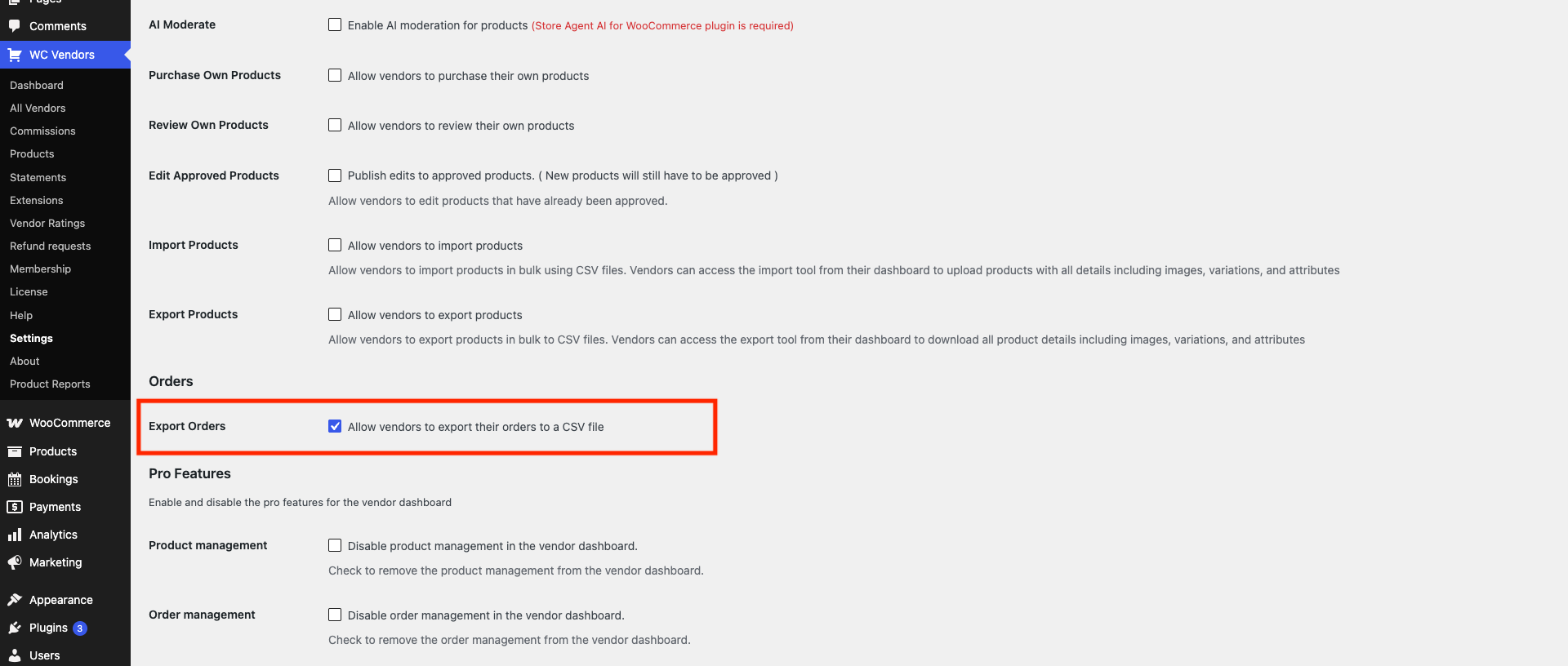
Once enabled, vendors will see an Export Orders button on their Orders dashboard page.
Step 2: Export orders from the vendor dashboard
- From the vendor dashboard, click Orders in the left navigation.
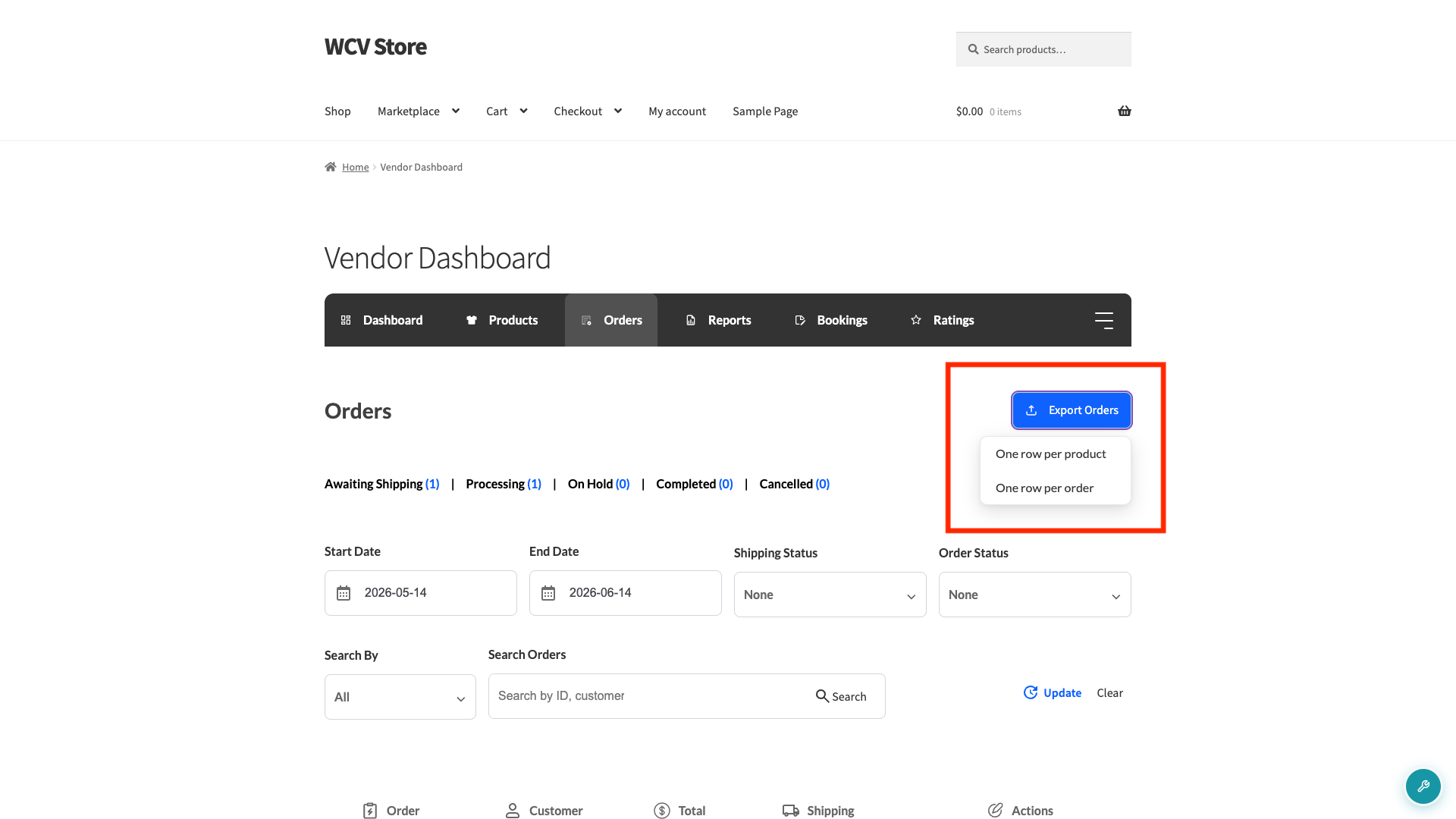
- Click Export Orders. A small dropdown opens with two options.
- Choose your format:
- One row per product: each line item in an order gets its own row in the CSV
- One row per order: all products from an order are combined into a single row
- The CSV file downloads immediately to your browser.
Understanding the exported order formats
The downloaded filename tells you which format was used: orders-per-line-item-YYYY-MM-DD.csv or orders-per-order-YYYY-MM-DD.csv.
One row per product
Each line item in an order becomes its own row in the CSV. If a customer bought two different products in one order, that order takes up two rows, one for each product. The Product Title and Quantity columns show the individual product name and quantity for each row.
Use this format when you need to process items individually. For example, when you’re picking and packing each product separately, or building a report that breaks down sales by SKU.
One row per order
Every order takes up exactly one row, no matter how many products it contains. The Product Title column lists all the products in that order separated by line breaks (e.g. 2 x T-Shirt
1 x Hat). The Quantity column shows the total number of items across all products in that order.
Use this format when you need a quick overview of all orders. For example, when you’re reconciling revenue, or sharing a summary with a fulfilment partner who works order by order rather than item by item.
What order data is included in the CSV
Both formats include the same columns. Several columns only appear if the marketplace admin has granted vendors access to that customer data under WC Vendors → Settings → Capabilities → Orders.
| Column | Description | Always shown? |
|---|---|---|
| Order | Order number | Yes |
| Product Title | Product name (one row per product format) or all product names combined (one row per order format) | Yes |
| Quantity | Item quantity, or total quantity across all items in one-row-per-order format | Yes |
| Order Total | Vendor’s portion of the order total | Yes |
| Order Status | Current WooCommerce order status | Yes |
| Shipped | “Yes” or “No” for physical products; “N/A” for digital or virtual products | Yes |
| Date | Order date in YYYY-MM-DD format | Yes |
| Full name | Customer name (shipping name preferred, falls back to billing name) | Only if admin enables Customer Name |
| Address, Address 2, City, State, Zip | Shipping address (falls back to billing address) | Only if admin enables Shipping |
| Email address | Customer billing email | Only if admin enables Customer Email |
| Phone | Customer billing phone | Only if admin enables Customer Phone |
Frequently asked questions
The Export Orders button isn’t showing up in the vendor dashboard. What’s wrong?
Check that Export Orders is ticked under WC Vendors → Settings → Capabilities → General. If it’s already enabled, confirm the vendor’s account is approved. Pending vendors don’t see dashboard export controls.
Can vendors filter which orders are included in the export?
Yes. The export uses whatever date range the vendor has set on their Orders page. Vendors can adjust the date filter before clicking Export Orders to control which orders are included.
Why does the Shipped column show “N/A” for some rows?
The Shipped column shows “N/A” for digital or virtual products that don’t require physical shipping. For physical products it shows “Yes” or “No” based on whether the vendor has marked the order as shipped.
Need help?
If you have a question or run into any issues, we’re here to help.
- Premium users: Open a support ticket
- Free users: Visit our community forum