
Want to reward your most loyal shoppers with exclusive deals? WC Vendors Engage‘s Follower Offers feature lets you create discount coupons that only your followers can redeem. The discount applies only to your products in the cart, so it won’t affect other vendors’ items. Followers apply it with a single click at checkout, with no coupon codes to hand out.
What you’ll need
- WooCommerce and WC Vendors (free or Pro) installed and configured
- WC Vendors Pro with vendor shipping enabled (only needed if you want to offer the optional free shipping add-on)
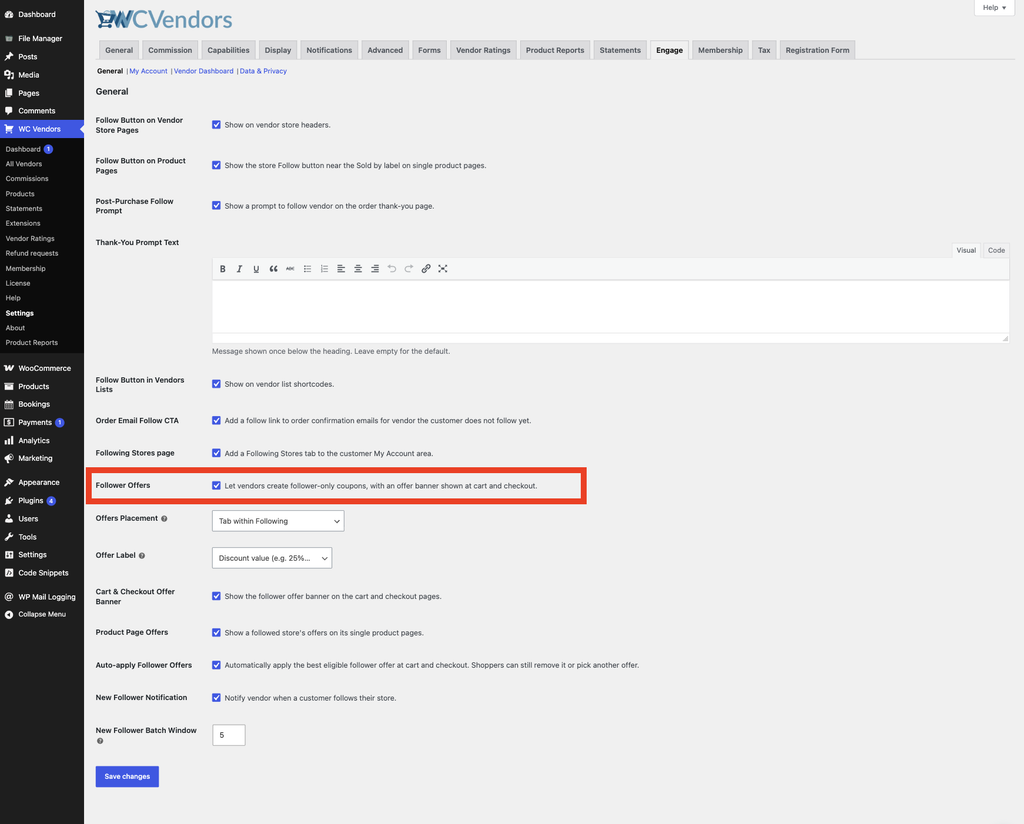
- WC Vendors Engage installed with the “Follower Offers” feature enabled
Where to find follower offers
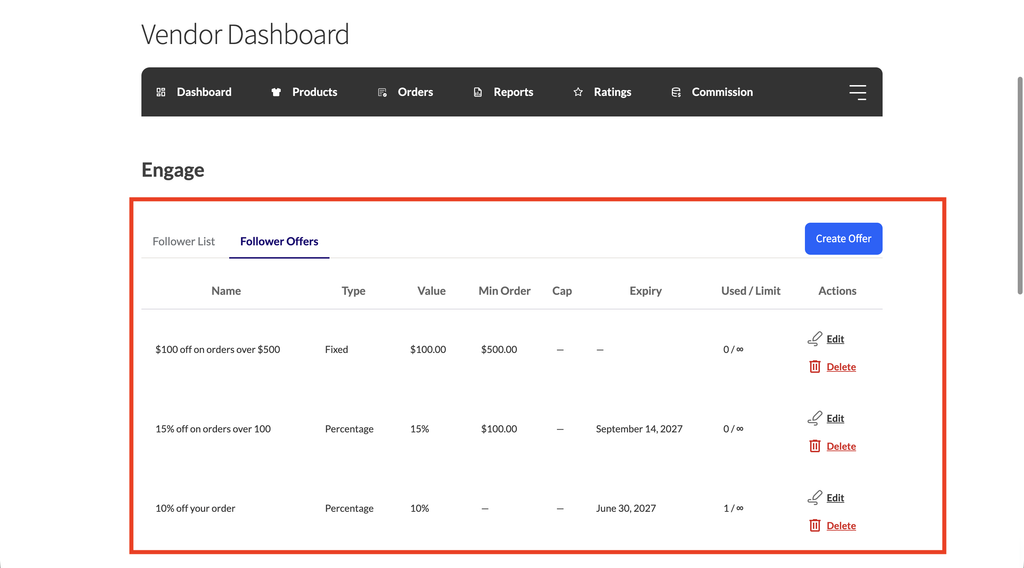
Follower Offers live inside the Engage tab in your vendor dashboard.
From your vendor dashboard, click the Engage tab, then click the Follower Offers sub-tab.
How to create a follower offer
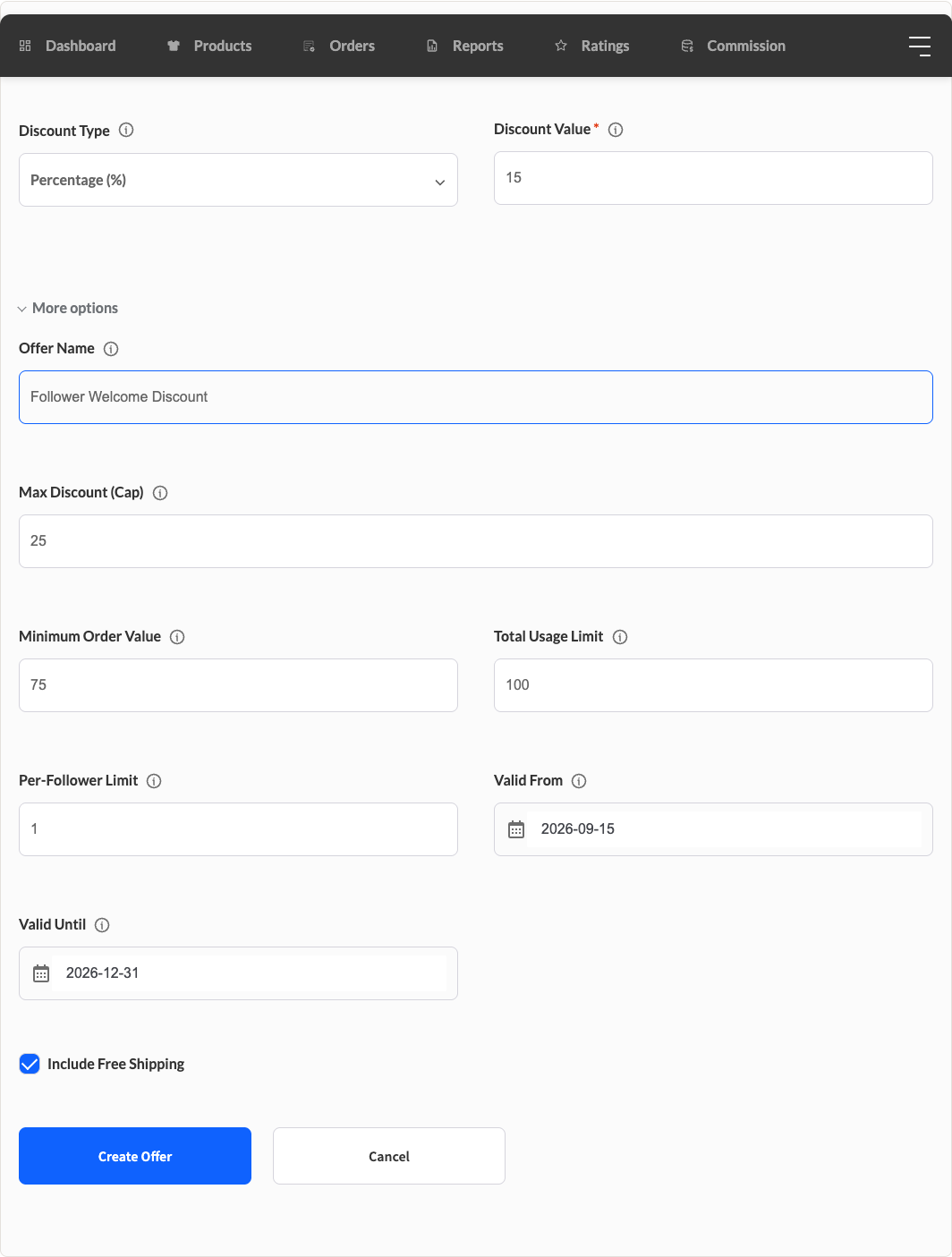
- In the Follower Offers section, click Create Offer. A form opens below the navigation.
- Fill in the offer details. See the field descriptions in the table below.
- Click Create Offer to save.
Your new offer appears in the offers table and becomes active immediately, or on the Valid from date if you set one.
Offer fields
| Field | Description | Default |
|---|---|---|
| Offer name | An internal label for this offer, shown in your offers table. By default, followers don’t see this name, but if your marketplace admin sets the Offer Label display to “Offer name set by the vendor,” followers will see it instead of the discount value. | blank |
| Discount type | Percentage (%) deducts a percent of your products’ cart total; Fixed ($) deducts a set currency amount, applied to your products only. | Percentage (%) |
| Discount value | The amount to discount, e.g. 10 for 10% off or a $10 deduction. | blank |
| Max discount (cap) | Percentage offers only. Sets a ceiling on the discount in currency. A 20% offer capped at $15 won’t exceed $15 off. Leave blank for no cap. | blank |
| Minimum order value | Followers must spend at least this amount on your products for the offer to activate. Leave blank for no minimum. | blank |
| Total usage limit | Maximum number of times the offer can be redeemed across all followers. Leave blank or enter 0 for unlimited. | blank |
| Per-follower limit | How many times each individual follower can use the offer. Set to 1 for a one-time welcome discount. | 1 |
| Valid from | Optional start date. The offer is inactive before this date, which is useful for scheduling a future promotion. Leave blank to activate immediately. | blank |
| Valid until | Optional expiry date. The offer expires at the end of this day. Leave blank for no expiry. | blank |
| Include free shipping | Optional checkbox. When checked, followers who qualify for this offer also get free shipping on your products at checkout. Only shown when WC Vendors Pro’s vendor shipping is enabled. | Unchecked |
How followers see your offer
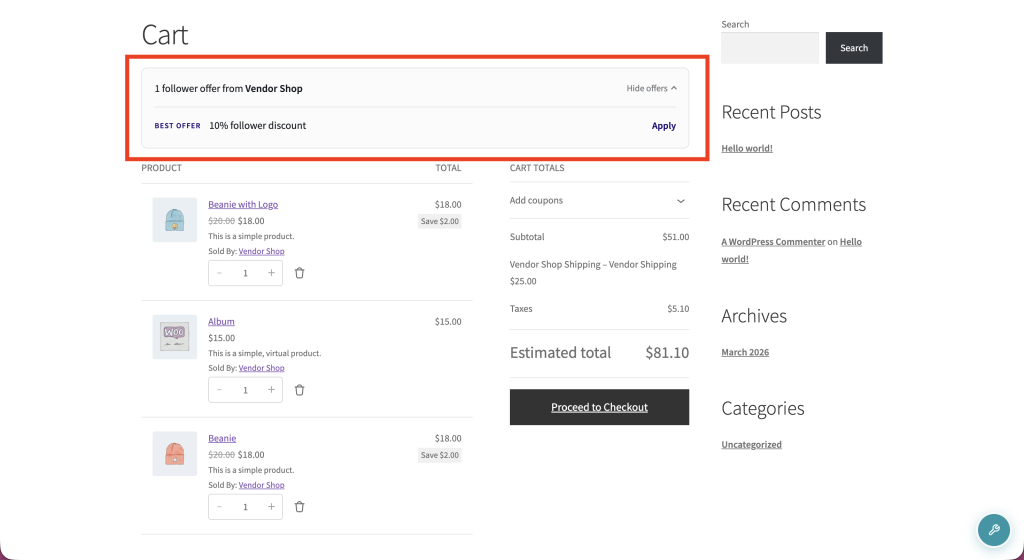
When a follower visits the cart or checkout, they see a banner listing your active offers. If their cart total meets the minimum order value you’ve set, an Apply button appears next to that offer. Clicking Apply adds the discount to their order instantly, with no code to type in.
If the cart total falls below your minimum, the banner shows exactly how much more the follower needs to spend to unlock the offer. For a step-by-step look at what your followers see, read How Follower Offers Apply at Checkout.
Depending on your marketplace’s settings, followers may also see your active offers on your single product pages.
If your offer includes free shipping, the discount label followers see gets a “+ free shipping” note added, for example “10% off + free shipping.” This appears both in the cart and checkout banner and in the customer’s My Account offers list.
How to edit or delete an offer
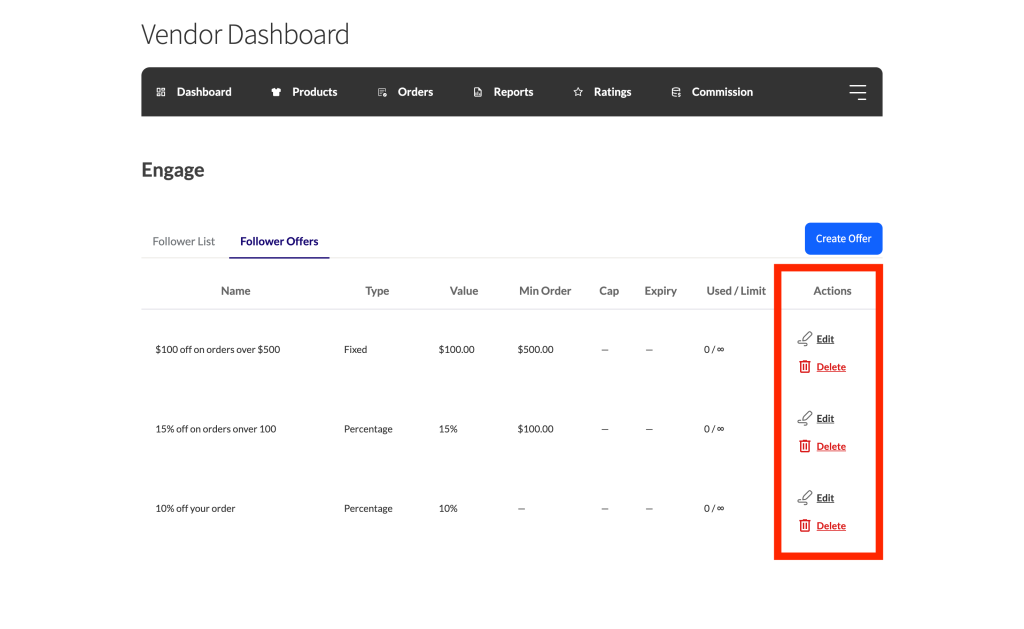
To edit an offer, find it in your offers table and click Edit in the row actions. The form re-opens with the current details pre-filled. Update any fields and click Update Offer to save your changes.
To delete an offer, click Delete in the row actions and confirm when prompted. The offer is removed immediately.
Troubleshooting
The Follower Offers sub-tab isn’t showing in my dashboard
The feature may be disabled by your marketplace admin. Ask them to check WC Vendors → Settings → Engage → General → Follower Offers.
A follower’s discount isn’t applying at checkout
Check the offer’s Minimum order value. The follower’s cart total for your products must meet or exceed it before the Apply button appears. Also check the Total usage limit and Per-follower limit: once either limit is reached, the offer no longer applies.
I don’t see the free shipping option on the offer form
This option only appears when WC Vendors Pro is active with vendor shipping enabled. Ask your marketplace admin to check WC Vendors → Settings → Capabilities (default General view), scroll to the Pro Features section, and confirm the Vendor shipping checkbox is unchecked (checking it disables vendor shipping entirely).
Frequently asked questions
Do my followers need to enter a coupon code?
No. Followers see an Apply button in the offer banner on the cart and checkout pages. Clicking it applies the discount automatically. There’s no code to copy or type in.
Can someone outside my followers use the offer if they get the coupon code?
No. WC Vendors Engage checks whether the customer follows your store before allowing the offer to apply. Anyone who isn’t following you sees an error if they try to use the code.
If a customer follows more than one vendor, do all the follower offers apply in the same cart?
Yes, but each offer only discounts that vendor’s products. A customer following two vendors can use both offers in one cart. Each discount applies only to the relevant vendor’s items.
Need help?
- Premium users: Open a support ticket
- Free users: Visit our community forum