Running online auctions is like hosting a lively fair where every bid adds to the excitement. When you first try to build an auction website, it can feel overwhelming, but with the right plan you can create a platform buyers keep coming back to.
Your first decision is where the site lives. You can rent space on a hosted auction website builder, or you can run auctions on your own WooCommerce site. This guide takes the second route, because you own the result.
Over the years, our team has gathered practical insights from working with online auction marketplaces, and small details make a big difference. Whether you’re a solo seller auctioning rare collectibles or planning a multi-vendor marketplace, this guide walks you through every step. We start with the basics of an auction site, then show how to expand it into a multivendor marketplace using WC Vendors Pro and WooCommerce Simple Auctions.
What Is An Auction Website?
An auction website is a platform where sellers list items for buyers to bid on. It can be:
- Single-vendor: One seller auctions their own items (for example, an antique store).
- Multi-vendor: Multiple sellers host auctions on one site (for example, an eBay-style marketplace).
It works like a traditional auction house but offers a wider reach and real-time interaction. When you build an auction website, prioritize mobile responsiveness and transparent bidding rules.
Small tweaks to the platform change how buyers and sellers interact. In an auction, the final price isn’t set in advance. It emerges from the bidding, which creates a lively and competitive atmosphere.
Types of auctions

There are several common auction formats to consider when building your platform. Here’s a quick overview:
- Traditional (English) auctions: Also known as English auctions, these let bids increase until the highest offer wins.
- Dutch auctions: Dutch auctions start with a high price that drops over time until a buyer agrees to pay.
- Reverse auctions: In reverse auctions, sellers compete to offer the lowest price for a service or product.
There is also the sealed-bid format, where bids stay hidden until closing. That’s what fundraisers use when running a silent auction online. The right choice depends on your items and audience.
Pro Tip: Most auction websites start with English auctions (highest bid wins) before experimenting with Dutch or reverse formats.
Key Features Every Auction Website Needs

1. Bidding systems
Bidding systems are the engine of an auction website, letting buyers place offers in real time. A straightforward system with clear rules and an easy interface creates a fair environment for every participant.
Live auctions put the most pressure on it, because bids can change quickly near the close. Publish your rules where bidders can see them: the minimum bid step, whether a bid can be withdrawn, and what happens to a bid that lands in the final seconds.
2. Vendor listing fees
Vendor listing fees are what some marketplaces charge sellers to post an item. They cover running costs and discourage throwaway listings.
On a WC Vendors marketplace, the built-in way to earn is commission. WC Vendors Pro handles commission on vendor sales, and auction sales are paid out the same way as any other product. Listing fees aren’t a built-in setting, so if you want to charge one, plan how you’ll collect it separately.
Bonus Tip: Before you set any fee, compare how the common auction fees work for buyers and sellers. Then keep only the ones your marketplace needs, so vendors still list their best items.
3. Payment splits
Payment splits share each sale between the seller and the platform. Clear rules on how payments are divided make transactions simpler and build trust in an online auction marketplace.
With WC Vendors, the split is the commission. The vendor earns their commission on the winning sale, and you keep the rest. That works the same way whether a vendor sells at a fixed price or through an auction.
4. Dispute resolution strategies
Dispute resolution keeps trading healthy on an online auction website. A clear process for handling conflicts reduces downtime and keeps operations running smoothly for buyers and sellers.
Most auction disputes fall into three groups: a winner who doesn’t pay, an item that doesn’t match its listing, and suspicious bidding. Write a policy for each before launch, and decide who handles it, you or the vendor. A set process matters most for time-sensitive events like liquidation auctions.
5. Mobile-responsive design
Many of your bidders will be on phones. According to Statcounter, mobile devices accounted for 58.99% of worldwide web traffic in September 2026, with desktop at 39.26%.
That makes mobile the default when you build an auction website. Check that bid buttons, timers and outbid messages work on a small screen, and that pages load fast enough for someone bidding in the final minutes.
With these key elements in place, your online auction marketplace has a solid foundation. Next, decide where the site will live.
Hosted Auction Builder Or Your Own WooCommerce Site?
A hosted auction website builder rents you a ready-made platform. Your own WooCommerce site takes more setup, but you own the site, its design and its customer data, and no builder takes a platform fee on every auction.
Hosted builders suit a one-off charity event or a seller who wants to go live this week. WooCommerce suits a business that plans to run auctions for years or wants other sellers listing on the same site.
| Hosted auction builder | Your own WooCommerce site | |
|---|---|---|
| Ownership | The platform’s | Yours |
| Ongoing cost | Subscription and/or per-auction fees | Hosting + plugin licenses |
| Multiple sellers | Varies by platform | WC Vendors Pro + Simple Auctions add-on |
| Design control | Template limits | Full |
So what does it cost to build an auction website? On WooCommerce, the cost has three parts: hosting, the plugins you need, and any theme or design work. A hosted builder swaps those for a subscription, often with a fee per auction or per sale on top. Payment processing fees apply either way.
Whichever route you choose, check licensing early. Whether you need a license to run online auctions varies by US state, so check with your state’s auctioneer licensing board before launch.
Build An Auction Website On WooCommerce
To build an auction website on WooCommerce, start by choosing a reliable auction plugin. WooCommerce runs your products, cart and checkout, and the auction plugin adds bidding on top. Together they do the job of an auction website builder, on a site you control.
Single-vendor vs. multi-vendor: which is right for you?
| Single-vendor | Multi-vendor | |
|---|---|---|
| Best for | Small businesses, niche sellers | Scaling, diverse inventory from many sellers |
| Plugins needed | WooCommerce + WooCommerce Simple Auctions | WooCommerce + WooCommerce Simple Auctions + WC Vendors + WC Vendors Pro + WC Vendors Simple Auctions add-on |
Here’s a quick roadmap to get started:
1. Install WooCommerce + auction plugin
First, install WooCommerce and an auction plugin. This guide uses WooCommerce Simple Auctions by WPGenie as the auction engine. It’s a third-party plugin, sold separately, and it’s the engine our multi-vendor add-on is built to work with.
2. Set up basic auction rules
Configure the basics: bidding rules, auction duration and reserve prices. A simple setup makes it easy for buyers to understand how to take part. Decide your closing rule at this stage too, including the extend-on-bid settings that stop last-second auction sniping from depressing your final prices.
Extend-on-bid is the idea behind the “3-minute rule” you may have heard about. When a bid lands near the end, the closing time moves out, so rivals get a chance to respond. On a WC Vendors marketplace, vendors can extend an auction when a late bid arrives by choosing the window and the extension time in seconds.
A reserve price means your item won’t sell unless bidding reaches a minimum acceptable amount. It protects sellers from underselling valuable goods and sets clear expectations for bidders, which matters most for high-ticket or limited-edition items.
3. Activate real-time bidding
The auction plugin handles real-time bidding. WooCommerce Simple Auctions records each bid against the auction product and controls how auctions display, using its own settings tab under WooCommerce > Settings > Auctions. After setup, place a few bids from a second account to see how bid updates look on your theme.
4. Customize your look
Tweak the design to match your brand and make the auction process clear and friendly. A well-designed layout makes your site inviting to visitors on any screen.
5. Run a test auction
Run a test auction before you open the site to the public. Bid from two accounts, let the auction close, and complete checkout as the winner. This step catches hiccups early, while nobody’s money is on the line.

Examples of items to auction
- Fine art pieces that attract art lovers and collectors
- Rare coins for exciting coin auction events
- Unique collectibles and vintage items that add variety to your marketplace
- Limited edition designer sneakers that capture modern fashion trends
- NFT collectibles that bridge art and technology in today’s digital age
With your basic auction site up and running, it’s time to grow. In the next section, we’ll explain how to set up a multi-vendor auction marketplace so that multiple sellers can run their own auctions.
Scaling To A Multi-Vendor Auction Website
Already have a single-vendor auction site? You can expand it into a marketplace where other sellers list their own auctions and you earn commission on each sale.
The piece that makes this work is the WC Vendors Simple Auctions add-on. It gives each vendor an Auction product type, with its own Auction tab, inside their frontend vendor dashboard. It’s an extension rather than a standalone plugin, so it needs WC Vendors Pro and the separately sold WooCommerce Simple Auctions plugin by WPGenie. Without either one, the add-on loads nothing and shows an admin notice instead.
The add-on is included in the WC Vendors Business plan only. When you’re ready to let sellers run auctions on your site, add vendor auctions with WC Vendors Simple Auctions.
Note: In this example, we’ll walk you through setting up a charming antique jewelry auction marketplace using WC Vendors Pro and WooCommerce Simple Auctions.
Admin view
As the marketplace owner, your first task is to set up the plugins so your vendors can host auctions. Follow these steps:
1. Install WooCommerce and required plugins


- Log into your WordPress dashboard and go to Plugins > Add New.
- Search for and install WooCommerce.
- Next, install WC Vendors (free) and WC Vendors Pro to add multi-vendor features. Premium plugins are installed with the Upload Plugin button on the same screen.
- Then install WooCommerce Simple Auctions by WPGenie, followed by the WC Vendors Simple Auctions add-on.
- After installing each plugin, click Activate.
2. Configure plugin settings
- In WooCommerce > Settings, open the new Auctions tab to set your store-wide auction options (covered in the next step).
- If you want sealed-bid auctions, turn on sealed auctions in WooCommerce Simple Auctions settings first. Otherwise, vendors won’t see the Sealed Bid? checkbox.
- To stop vendors creating auction products, hide the Auction product type under WC Vendors > Settings > Capabilities > Products > Product Types. This setting applies to every vendor on the marketplace, not to individual sellers.
3. Simple Auction options

These are WooCommerce Simple Auctions settings from WPGenie, and they apply to the whole store rather than to individual vendors. The options shown above include:
Auction display and sorting
- Default auction sorting: Using custom ordering + name keeps your items in a steady, predictable order.
- Past and future auctions: Enabling Show finished auctions and Show auctions that did not start yet lets visitors review all auction activity.
- Separation from regular products: The “do not mix” options keep auctions on their own auctions base page instead of your shop, search and category pages.
WooCommerce Simple Auctions has more store-wide options beyond these, such as bidding and payment behavior. Check WPGenie’s plugin documentation for what your version includes.
Once the admin setup is complete, your platform is ready for vendors to start creating auction listings.
Vendor view
Vendors don’t need wp-admin access. They create auctions from the frontend WC Vendors dashboard, the same place they add any other product. In this example, we’ll create a vintage jewelry auction product.
1. Access the vendor dashboard

- Log in to your WC Vendors account, open the vendor dashboard and go to Products > Add New.
2. Enter product details

- Fill in the product title (for example, “Vintage Sapphire Necklace”), description, images and featured image.
- Select the appropriate category and add relevant tags.
3. Select Auction product type and configure auction specifics
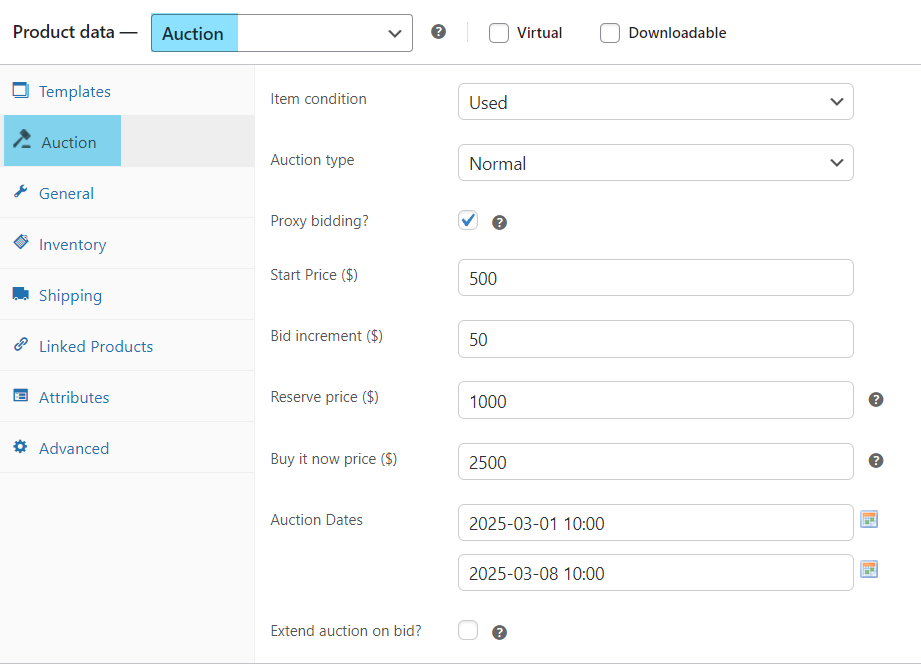
Choose Auction as the product type. This reveals the Auction tab, where the vendor fills in these fields in order:
| Field on the vendor’s Auction tab | What it does |
|---|---|
| Item Condition | New or Used |
| Auction Type | Normal (highest bid wins) or Reverse (lowest bid wins) |
| Enable proxy bidding | Lets bidders set a maximum and bid automatically |
| Sealed Bid? | Hidden bids, highest bid wins (only if the admin enabled sealed auctions; not with proxy) |
| Start Price / Bid Increment / Reserve / Buy It Now | Pricing rules for the auction |
| From / To | Start and end date and time |
| Extend auction on bid | Anti-sniping: extends the auction when a bid lands in the last N seconds |
Two rules catch people out. Sealed and proxy can’t be combined, so an auction with proxy bidding ticked saves as not sealed. And every auction sells a single item, because the stock is fixed at 1.
In the example listing above, the necklace is set to Used and Normal with proxy bidding on, a $500 start price, $50 bid increments, a $1,000 reserve and a $2,500 Buy It Now price. These are example values, so set your own to suit the item.
4. Relisting an auction

If an auction ends without being paid for (no winning bid, reserve not met, or the winner never pays), a Relist button appears in the vendor’s product editor. The vendor sets new start and end dates, and relisting clears the old bids. Automatic relisting is a WooCommerce Simple Auctions admin setting, not something vendors control.
- In your vendor dashboard, find the auction you want to relist.
- Under the Auction tab, click Relist to show the relist date fields.
- Enter the new start and end date for your auction.
- Save the product to relist the auction with the new dates.
5. Publish your auction
- Review all details, then save the product to make your auction live.
- Once it’s live, open your store’s auction page to see the product as bidders will.
6. Explore advanced options (optional)
- Automatic relisting: The marketplace admin can turn this on in WooCommerce Simple Auctions and set when failed or unpaid auctions relist, as shown in the screenshot above.
- Auction activity screens: WooCommerce Simple Auctions adds Auctions Activity and Auctions Winners screens under the WooCommerce menu, so you can review bids and winners from the admin side.
Note: For other features, such as the plugin’s notifications and reports, refer to WPGenie’s WooCommerce Simple Auctions documentation.
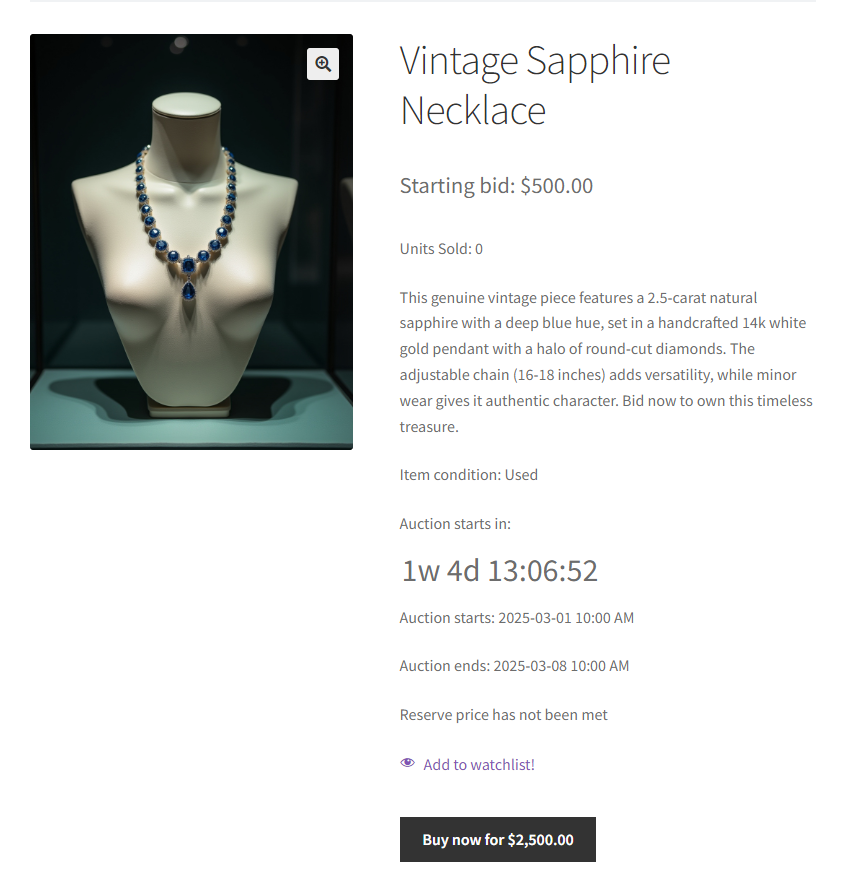
And that’s it! You’ve just built your first auction product, the Vintage Sapphire Necklace.
A Mistake To Avoid: Planning sealed-bid auctions without turning sealed auctions on in WooCommerce Simple Auctions settings. Until the admin option is on, vendors won’t see the Sealed Bid checkbox.
Bonus Tip: Knowing which items to auction is key to driving bids. Read this list to choose proven, high-performing items: 11 Best Auction Item Ideas For Online Marketplaces.
Build An Auction Website You Own
Building an online auction marketplace on WordPress is simpler than it used to be. The bigger decision is ownership. A hosted builder is quicker on day one, while a site you build yourself keeps the design, the customer data and the fee structure in your hands for as long as you run it.
To recap, here’s what to do next:
- Choose single-vendor or multi-vendor based on who will be selling.
- Plan bidding rules, fees, payment splits and disputes before you launch.
- Weigh a hosted builder against your own site on cost and ownership.
- Build and test your WooCommerce auction site with a trial auction.
- Add vendor auctions once other sellers want in.
When you’re ready to build an auction website where other sellers run their own auctions, add vendor auctions with WC Vendors Simple Auctions. It runs on WC Vendors Pro with WooCommerce Simple Auctions and comes with the WC Vendors Business plan. Share your questions in the comments below.
Frequently Asked Questions
Do I need coding skills to build an auction website with WooCommerce?
No. WooCommerce and plugins like WooCommerce Simple Auctions let you create a working auction site without writing code. You install and configure everything from your WordPress dashboard, and your theme controls how the auction pages look.
Can I add auctions to an existing WooCommerce store?
Yes. Install WooCommerce Simple Auctions on your current store, and your existing products stay as they are. Auctions become a new product type alongside them. If you later want other sellers to run auctions, add WC Vendors Pro and the WC Vendors Simple Auctions add-on.
What’s the best plugin to build an auction website with WooCommerce?
For most stores, WooCommerce Simple Auctions by WPGenie is a solid choice. Proxy bidding and extend-on-bid anti-sniping are both available, and countdown timers come from WooCommerce Simple Auctions itself. For multi-vendor auctions, pair it with WC Vendors Pro and the WC Vendors Simple Auctions add-on, which handle vendors, commission and payouts.
Are there legal requirements for running an auction website?
Yes. GDPR applies if you sell to people in the EU or UK, and US marketplaces follow state privacy laws such as California’s CCPA. Check the rules for where your buyers are, and see our GDPR guide for ecommerce for the basics. You should also disclose fees and terms clearly and follow consumer rights laws, such as those covering returns.
How much does it cost to build an auction website?
It depends on the parts you choose. On WooCommerce, you pay for hosting, the auction plugin, any premium marketplace plugins, and theme or design work. A hosted auction builder replaces those with a subscription and often a per-auction or per-sale fee. Payment processing fees apply on both.