Think about how most people actually reach your marketplace. They search for a product on Google, land straight on that product’s page, add it to the cart, pay, and leave. They never browse your vendor directory, and they never click through to the seller’s storefront, so they never see a Follow button once.
That gap matters more than it looks, because following is what makes the rest of WC Vendors Engage work. Follower-only offers need followers. The Following Stores feed needs followers. A vendor with nobody following them has nobody to reward.
WC Vendors Engage 1.0.1 fixes that with the Post-Purchase Follow Prompt, a follow invitation placed at the one moment every single buyer is guaranteed to see. This guide covers what the Post-Purchase Follow Prompt does, why the order confirmation page is the strongest place to ask, how to set it up and reword it, and how the two other new features in this release keep the loop turning.
What The Post-Purchase Follow Prompt Does
The Post-Purchase Follow Prompt is a follow invitation that appears on your order confirmation page, which is the “thank you for your order” screen a customer sees the moment payment goes through. It lists every store the customer just bought from and puts a Follow button beside each one.
Version 1.0.0 of Engage built the machinery behind the follow stores system: the Follow button on vendor store headers, the Following Stores feed in My Account, and follower-only offers applied automatically at checkout. Version 1.0.1 connects that machinery to the places your customers and vendors already are.
If you are setting Engage up for the first time, start with the getting started guide, then come back to this one.
Why The Moment After Checkout Is The Best Time To Ask
Four things line up on the order confirmation page. The customer has just placed their order, and they are still on your site rather than back in their inbox or their search results.
Then there is the pitch itself. “Follow this store for discounts on your next order” is completely believable to someone who has just experienced that seller for themselves; in a way, it never is to a first-time browser who has no idea whether the store is any good.
The economics back the timing up. Harvard Business Review has noted that acquiring a new customer runs anywhere from five to 25 times more expensive than keeping an existing one. A follow captured on the confirmation page costs you nothing and gives the vendor a direct line to someone who has already bought.
Relevance is the other half of the return. McKinsey research found that 71% of consumers now expect personalized interactions, and that faster-growing companies drive 40% more of their revenue from personalization than their slower-growing peers. Following is how a shopper tells you which stores they actually care about, which is exactly the signal a marketplace needs before it can personalize anything.
How The Post-Purchase Follow Prompt Works On Your Order Confirmation Page
When a customer completes an order, a new section appears below the usual order details. It carries a short heading, a line of explanatory copy, and one row per seller in the order:
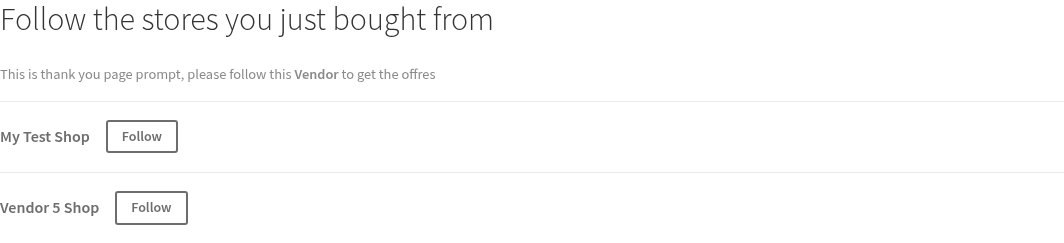
If the order contained products from three different sellers, the customer gets three rows. Clicking Follow switches the button to Following instantly, with no page reload and no interruption to the confirmation page.
Nothing above the Post-Purchase Follow Prompt changes. The section is added below your existing order details, so order numbers, totals, downloads, and any customer note keep their position and styling.
When The Post-Purchase Follow Prompt Stays Hidden
The Post-Purchase Follow Prompt is careful about when it shows up, so nobody gets asked to do something pointless. Nothing renders in these situations:
- The customer is not logged in. Following requires an account, so a guest checkout has nothing to click.
- They already follow the seller. Those rows are filtered out, and nobody is asked to follow the same store twice.
- They already follow every seller in the order. The whole section disappears rather than showing an empty heading.
- A seller’s account is pending or deactivated. Stores that are not live are left out.
- The customer is the seller. A vendor buying their own product is not invited to follow themselves.
Because of those rules, the prompt is quiet on orders where it would add noise and is visible on orders where a follow is genuinely available to win.
How To Turn On The Post-Purchase Follow Prompt In WC Vendors
The setting lives with the rest of your Engage admin settings, at WC Vendors > Settings > Engage > General. Look for the toggle labeled Post-Purchase Follow Prompt.
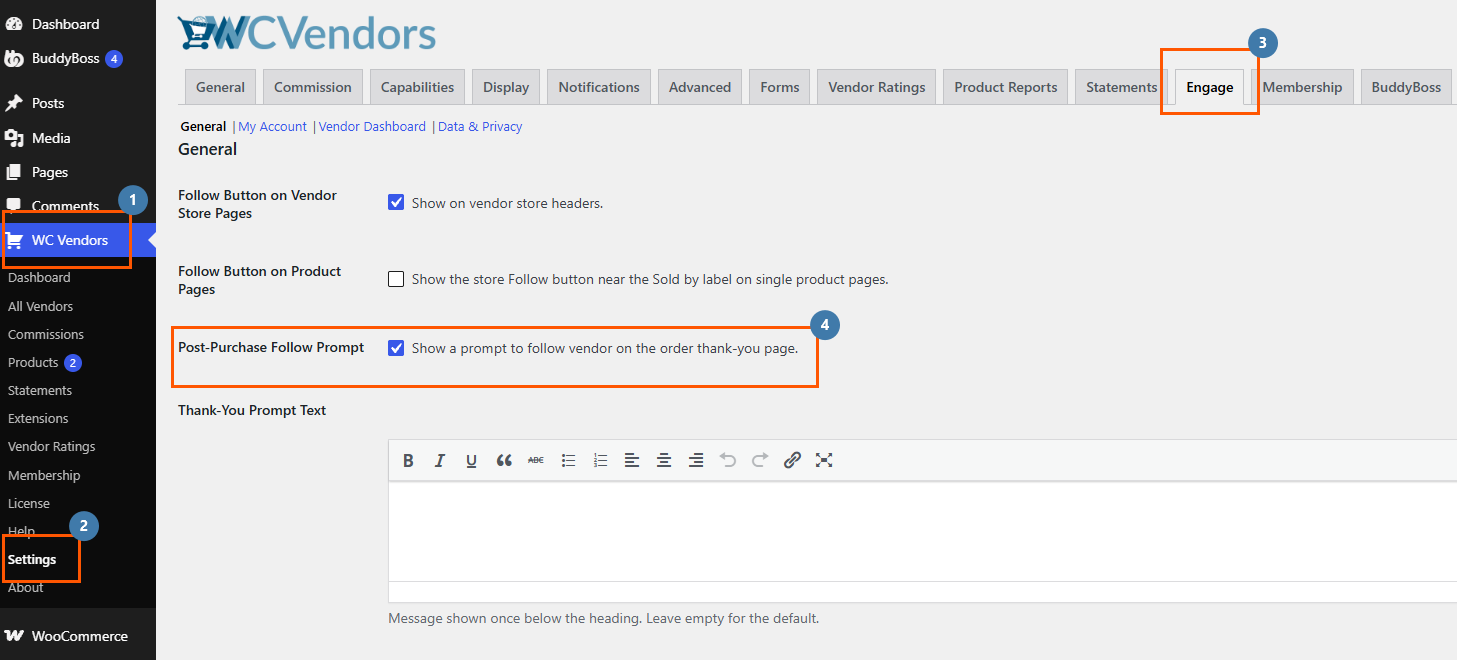
To see it in action, place a test order as a customer who does not yet follow the seller, then scroll below the order details on the confirmation page. Testing as a customer who already follows every store in the order will show you nothing, which is the feature working correctly rather than a fault.
How To Rewrite The Post-Purchase Follow Prompt Message
The default line under the heading reads “Follow to get exclusive discounts on your next order.” That works, but your marketplace may have a sharper reason for shoppers to follow a store.
Further down the same settings screen, there is a Thank-You Prompt Text field with a full text editor. Use it to name a specific benefit, match your brand voice, or point to your loyalty scheme. Leave the field empty to use the default message, so you won’t end up with a blank prompt.
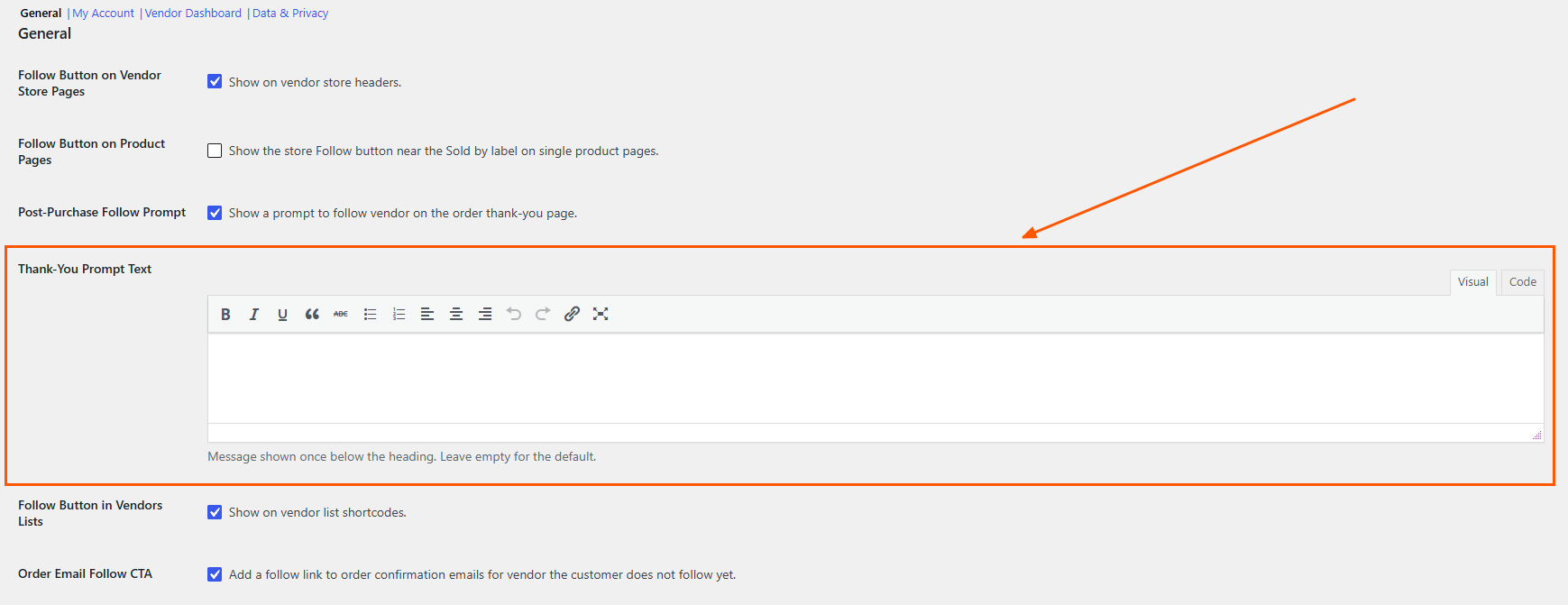
Worth rewording if your follower offers are seasonal, restricted to certain categories, or run alongside free shipping rewards. A promise that matches what your vendors actually offer will always convert better than a generic one.
The Product Page Follow Button Feeds The Same Loop
Engage 1.0.1 also adds a Follow button to single product pages, which catches shoppers earlier than the Post-Purchase Follow Prompt does. Product pages are where interest peaks, since anyone reading a product description has already decided they like what this seller makes.
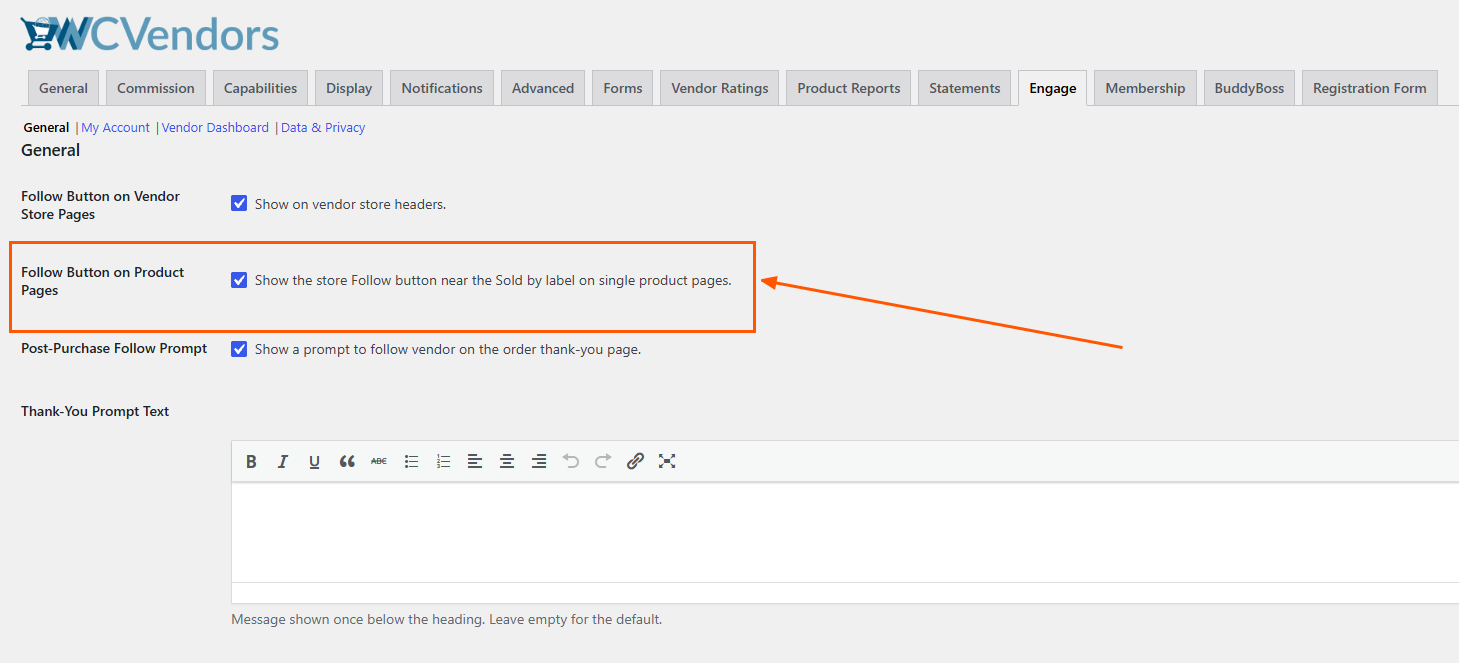
Tick the Follow Button on Product Pages at WC Vendors > Settings > Engage > General.
Switch it on, and a Follow button appears on the “Sold by” line of every product that belongs to a vendor, right beside the store name where it reads naturally. If you have turned the “Sold by” label off, the button moves to the top of the product details block instead, so you are never left without it.
For shoppers, it behaves exactly like the Follow button on a store page. Clicking Follow changes it to Following straight away with no page reload; clicking again unfollows, and a store the shopper already follows shows Following the moment the page loads.
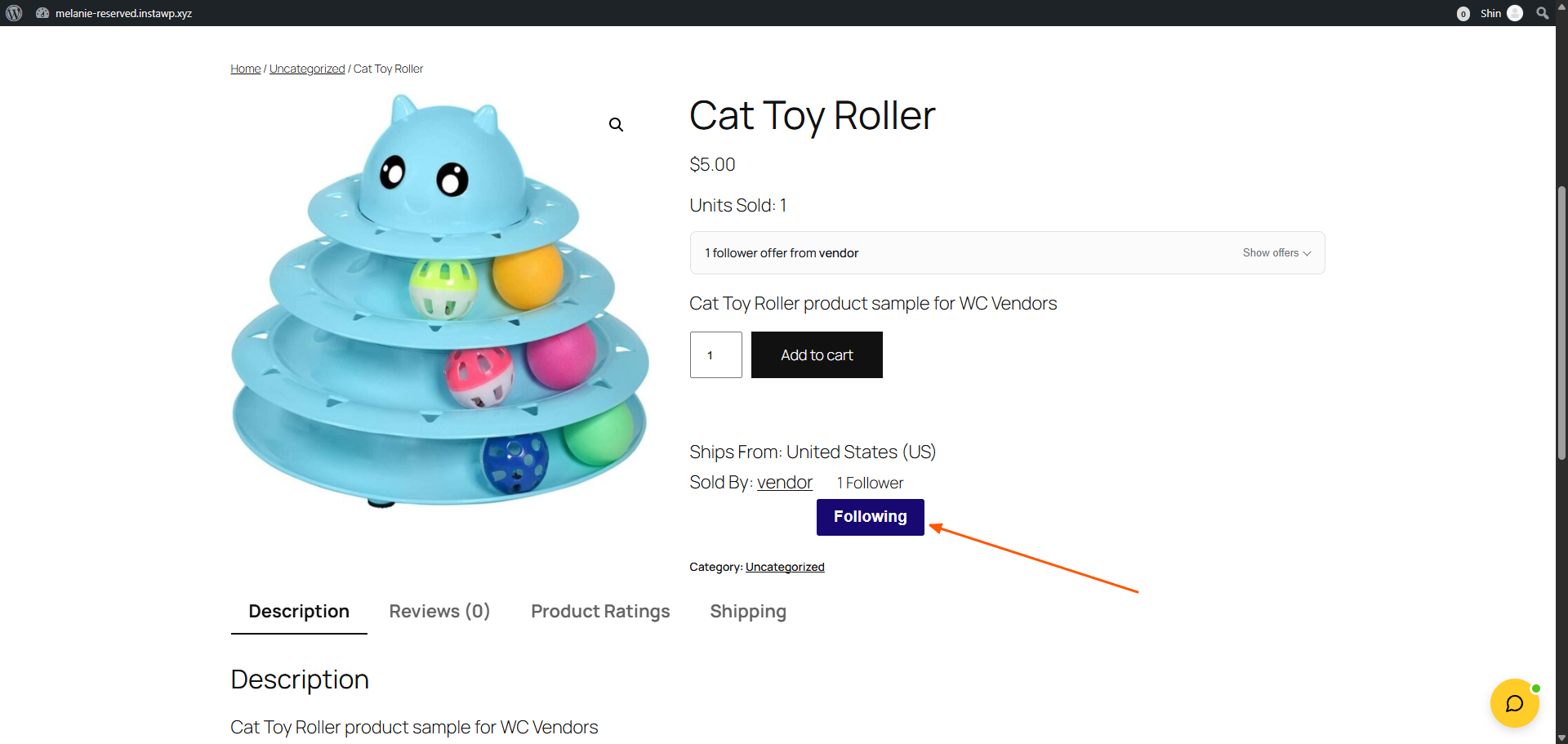
Three deliberate details are worth knowing about:
- No follower count. On store pages, the Follow button sits next to a follower count; on product pages, it doesn’t, so it stays clean and doesn’t compete with your product information.
- Vendor products only. Products you sell yourself as the marketplace owner get no Follow button, because there is no seller to follow.
- Your existing buttons are untouched. Store header buttons and vendor directory buttons keep working exactly as before. This is an additional placement, not a replacement.
New-Follower Emails Turn A Follow Into An Offer
Capturing follows is only half a loop. Until now, a vendor only discovered new followers by logging into their dashboard and checking, and most never did, so one of the best signals a seller can get arrived silently and nothing came of it.
Engage 1.0.1 adds a new-follower notification email. The vendor hears about the follow while it is fresh, and the email carries a direct link to the screen where they can act on it:
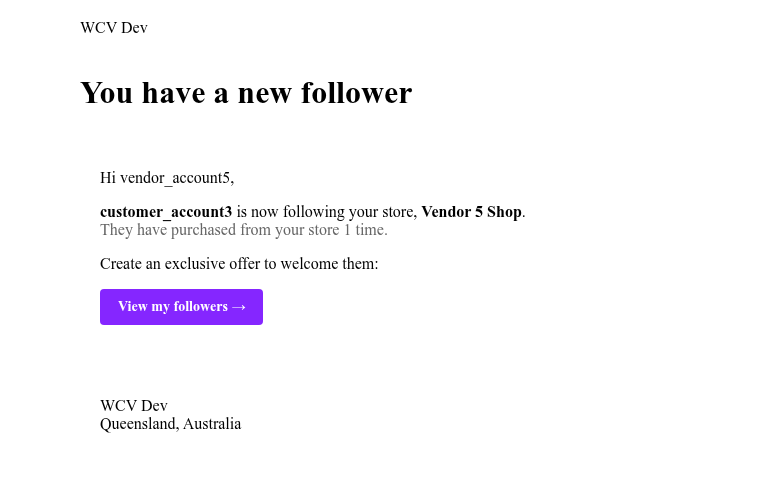
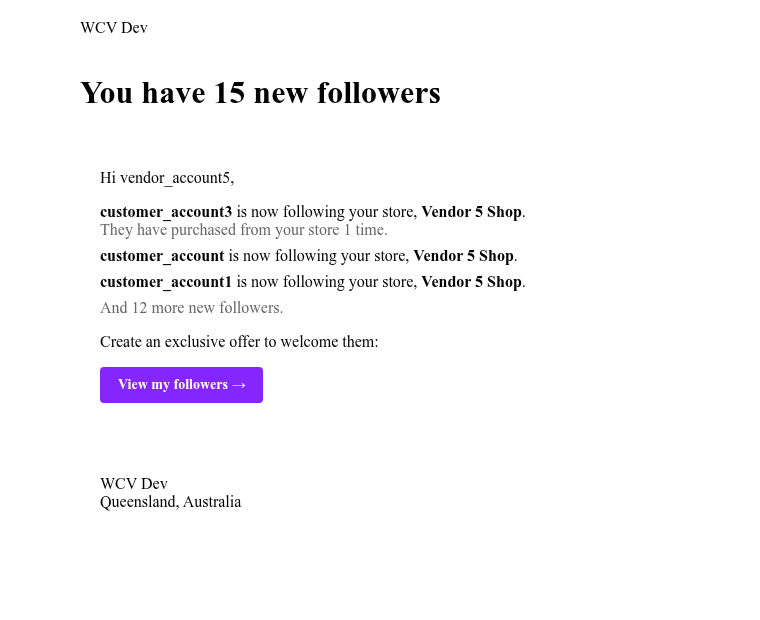
Two details in that email do a lot of work. The purchase context line only appears when the follower has genuinely bought from that seller before, which is the difference between “someone followed you” and “one of your repeat customers just followed you.” If the follower has never bought from them, the line simply is not there.
The button matters just as much. View my followers takes the vendor straight to the Engage tab in their dashboard, where their follower list and the Create Offer button are waiting. The point of the email is to get a follower offer created.
Will vendors get flooded with email?
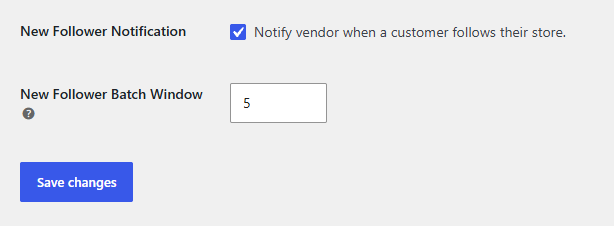
No, and two separate protections handle two different situations. Busy periods get one email instead of twenty: the first follow email is sent immediately and opens a short window; every follow that arrives during that window is collected, and the batch goes out afterwards as a single “You have 5 new followers” email. The window is five minutes by default; you can change it, and setting it to zero gives every follow its own email.
Repeat clicking is handled separately. Once a vendor has been told about a particular follower, that pairing goes quiet for 24 hours, so a shopper unfollowing and re-following the same store cannot trigger a second email no matter how many times they click.
Vendors can switch it off for themselves
Not every seller wants the email, so nobody is forced to take it. Their dashboard store settings carry a checkbox reading “Notify me when I get a new follower,” ticked by default. Unticking it stops notifications for that vendor only, and everyone else keeps theirs.
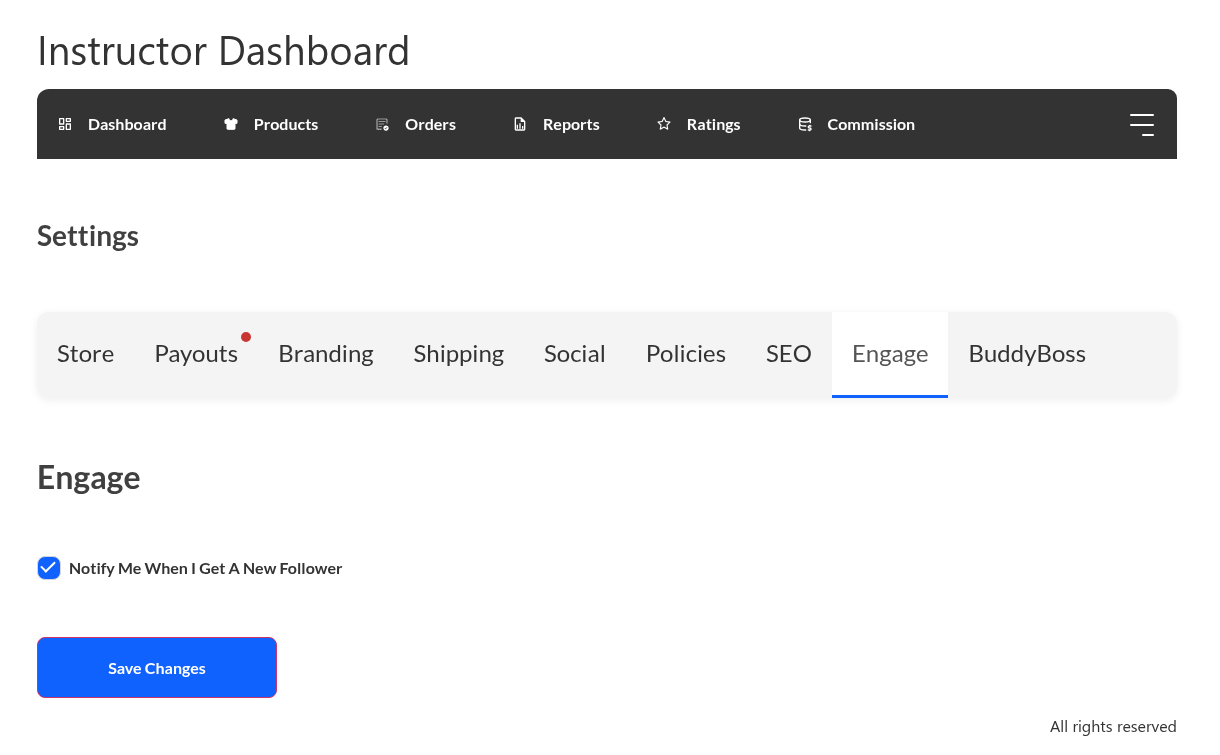
On WC Vendors Pro, the checkbox sits in an Engage tab under General > Notifications, and on free WC Vendors it appears under Seller Info. Turn the feature off marketplace-wide, and the vendor checkbox disappears too at the front end dashboard.
You can edit the email, and BuddyBoss is covered
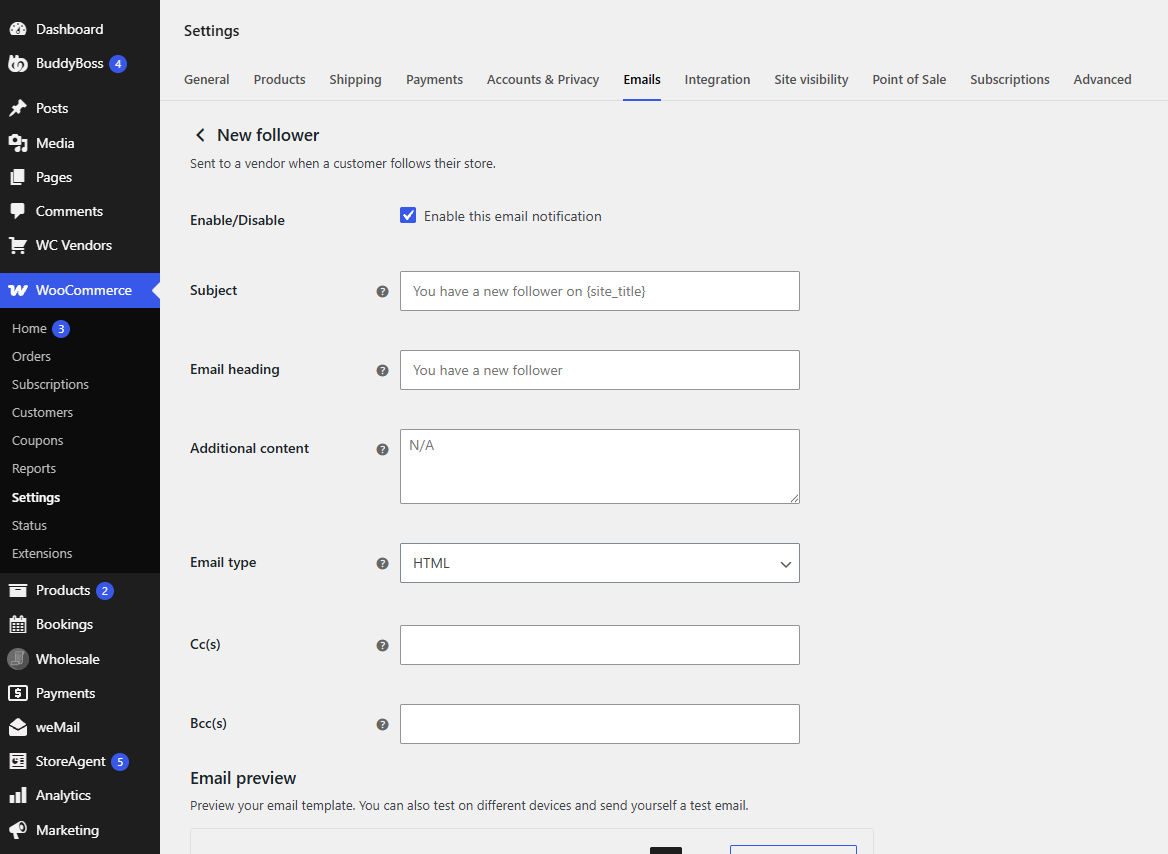
The notification is a standard WooCommerce email, so it appears under WooCommerce > Settings > Emails > New follower alongside your order confirmations and shipping notifications. Edit the subject line, the heading, and the additional content the same way you would for any other WooCommerce email. It inherits your existing email branding and colors automatically and goes out through whatever email service your site already uses.
If you run BuddyBoss, vendors get a BuddyBoss notification alongside the email, linking to the same place. That sits comfortably next to the notifications WC Vendors Pro already sends for approvals, orders, and reviews, so the two do not duplicate each other. You can read more about the BuddyBoss integration if that is part of your setup; if you don’t use BuddyBoss, nothing changes.
Everything Else New In WC Vendors Engage 1.0.1
Alongside the Post-Purchase Follow Prompt, the product page Follow button, and the new-follower email, this release brings three smaller additions and three fixes.
New in 1.0.1:
- Free shipping for follower offers. Vendors can now offer free shipping as a follower reward, not just a discount.
- Named offers at cart and checkout. Vendors can name their offer where shoppers see it, instead of relying on the automatic description.
- “New” badges in the Following Stores feed. Recently published products carry a New badge on the product cards inside a customer’s Following Stores tab, so it is obvious what they have not seen yet.
Fixed in 1.0.1:
- Theme template overrides are respected again. If your theme customized the vendor store header, Engage was overriding it. It no longer does.
- No more errors when reactivating WooCommerce. Deactivating and reactivating WooCommerce while Engage was active could break the site with an error message.
- Store images show on Following Stores cards. A vendor’s uploaded store image never appeared on their card on the customer’s Following Stores page, and now it does.
Your New Engage Settings At A Glance
| Setting | Where | Default |
|---|---|---|
| Follow Button on Product Pages | WC Vendors > Settings > Engage > General | Off |
| Post-Purchase Follow Prompt | WC Vendors > Settings > Engage > General | On |
| Thank-You Prompt Text | WC Vendors > Settings > Engage > General | Default message |
| New Follower Notification | WC Vendors > Settings > Engage > General | On |
| New Follower Batch Window | WC Vendors > Settings > Engage > General | 5 minutes |
| Notify me when I get a new follower | Each vendor’s dashboard settings | On |
| New follower email content | WooCommerce > Settings > Emails | Default copy |
Back up your site before updating, as you would for any plugin update. After updating, turn on the product page Follow button if you want it, check the Post-Purchase Follow Prompt reads well on your confirmation page, send yourself a test new-follower email, and let your vendors know the email is their cue to create an offer. Everything else applies automatically, with no settings to re-save and no data to migrate.
Final Thoughts On The Post-Purchase Follow Prompt
The Post-Purchase Follow Prompt is the piece most marketplaces are missing, because it is the only follow invitation that reaches the shoppers who arrive from search, buy once, and leave without ever seeing a storefront. Those buyers are the hardest to reach again, and the cheapest to convert, and the confirmation page is your one guaranteed moment with them.
Details on the Growth and Business plans are on the pricing page if Engage is not part of your license yet.
Here’s what we covered in this article:
- What the post-purchase follow prompt does
- Why the moment after checkout is the best time to ask
- How the post-purchase follow prompt works on your order confirmation page
- When the post-purchase follow prompt stays hidden
- How to turn on the post-purchase follow prompt in WC Vendors
- How to rewrite the post-purchase follow prompt message
- The product page follow button feeds the same loop
- New-follower emails turn a follow into an offer
- Everything else new in WC Vendors Engage 1.0.1
- Your new Engage settings at a glance
Frequently Asked Questions About The Post-Purchase Follow Prompt
Does the Post-Purchase Follow Prompt slow down or interfere with the order confirmation page?
No. It appears below your existing order details and doesn’t change anything already on the page. If there is nothing to show, such as a guest checkout or a customer who already follows every store in their order, the section is not rendered at all.
Can I change the wording of the Post-Purchase Follow Prompt?
Yes. The message underneath the heading is fully editable in WC Vendors > Settings > Engage > General, in the Thank-You Prompt Text field. Leave it empty and the default message is used.
Do I need to switch the Post-Purchase Follow Prompt on?
No, it is on by default in Engage 1.0.1. The only new feature in this release that is off by default is the Follow button on product pages, which you enable at WC Vendors > Settings > Engage > General.
What happens on a product page if the shopper already follows that seller?
The button shows Following as soon as the page loads, and clicking it unfollows the store. There is no moment where it displays the wrong label.
Will the product page Follow button clash with my theme?
It is styled as a light outline button inside the product details area, so it doesn’t affect your Add to Cart button or any other part of the page. It uses the same styling as the other Engage follow buttons if you want to restyle it.
Will vendors be annoyed by the new-follower emails?
They should not be. Rapid follows are combined into one email, repeat on-off following is ignored for 24 hours, and any vendor who does not want the notifications can untick one box in their own dashboard. You can also turn them off marketplace-wide.
Do the new-follower emails use my normal email setup?
Yes. They go out through the same WooCommerce email system as your order emails, so whatever email service you have configured handles them, and they pick up your existing email branding.
Does the Post-Purchase Follow Prompt work on the free version of WC Vendors?
Yes. All three new features work with both free WC Vendors and WC Vendors Pro. The only difference is where the vendor’s notification checkbox appears in their dashboard.
Which plan includes WC Vendors Engage?
WC Vendors Engage is included in the Growth and Business plans. You can compare what each plan covers on the WC Vendors pricing page.