Running a multi-vendor marketplace and an online community on the same WordPress site has always felt like running two websites that refuse to talk to each other. WC Vendors Pro 2.0.9 changes that with a first-party BuddyBoss integration that finally makes your vendors real members of your community.
A vendor now gets a store on their profile, a spot in your member directory, posts in the activity feed, alerts in their notification bell, and a private inbox that genuinely works.
Best of all, the integration spans eight separate touchpoints, every one optional, every one switched on by default, and every one with its own vendor-level opt-outs. If you only want the store tab and nothing else, that is a fully supported setup, not a workaround.
Why This Integration Matters
A vendor signs up, gets approved, and starts selling, yet none of that shows up anywhere in your community. Their BuddyBoss profile looks identical to a customer’s, and members browsing the directory cannot tell who sells and who buys.
The cost of that gap is real. A thriving marketplace community depends on members recognizing one another, and a disconnected setup quietly works against that goal. It is also a proven route to building a stronger community around your store.
The BuddyBoss integration closes that gap across profiles, profile types, the member directory, groups, the activity stream, messaging, notifications, and forums, plus a visual layer that makes your vendor pages match the BuddyBoss theme instead of looking bolted on.
What You Need Before You Begin
Before anything happens, the BuddyBoss integration checks your site. Here is the baseline to have in place:
- BuddyBoss Platform 2.5.0 or newer (required; without it, nothing on your site changes)
- WC Vendors Pro 2.0.9 (this release)
- WordPress 6.3 or newer
- WooCommerce 8.0 or newer
- PHP 7.4 or newer
- MySQL 5.7, or MariaDB 10.4, or newer
- BuddyBoss Theme 2.3.0 or newer (only if you want the visual re-skin)
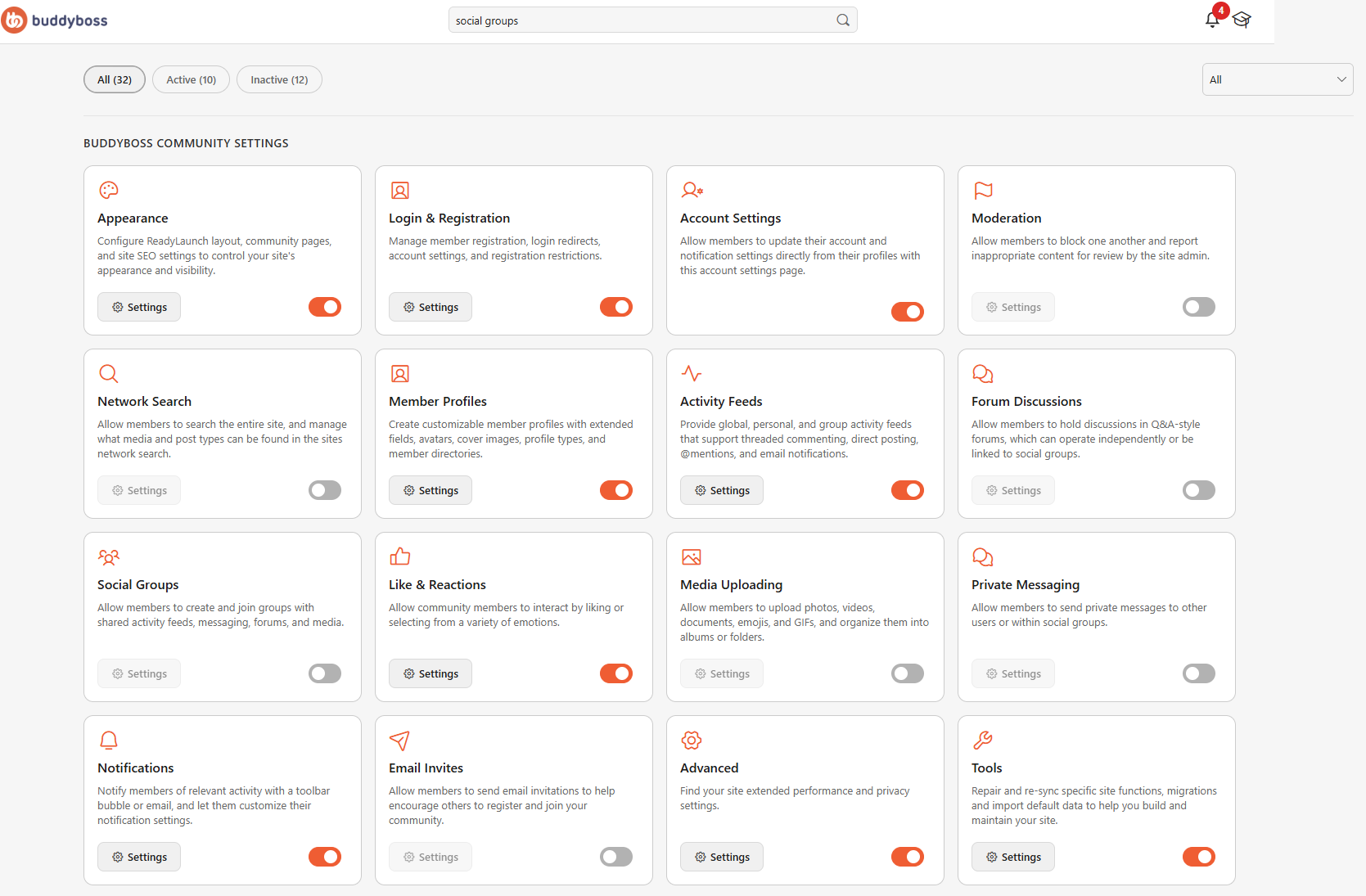
One detail catches people out. BuddyBoss ships several features switched off until you enable them, and four of them matter here: Profile Types, Social Groups, Private Messaging, and Forum Discussions. If a BuddyBoss feature is off, the matching part of the integration has nothing to attach to, so turn on the ones you plan to use before you update.
Since WC Vendors is built directly on WooCommerce, those version minimums genuinely matter. Most modern hosts clear the database requirements comfortably, and your host, or the Tools then Site Health screen, can confirm your PHP version in a moment.
How To Set It Up Step By Step
Setting up the BuddyBoss integration takes about ten minutes, most of which is just waiting for existing vendors to be tagged in the background. Follow these steps in order:
- Back up your site. This release adds new data rather than changing existing data, but a backup is standard practice before any update.
- Switch on the BuddyBoss features you plan to use. Enable Profile Types under BuddyBoss > Settings > Profiles, because that powers the Vendors directory filter. Enable Social Groups, Private Messaging, and Forum Discussions for the features that depend on them. Only turn on what you actually want.
- Update WC Vendors Pro to 2.0.9. The integration detects BuddyBoss automatically, so there is no separate master switch to hunt for.
- Open your new settings tab. Go to WP Admin > WC Vendors > Settings > BuddyBoss. This tab only appears when BuddyBoss Platform is active, and inside you will find eight switches grouped into Member experience, Social, and Communication. All eight are on, so read down the list and turn off anything you don’t want.
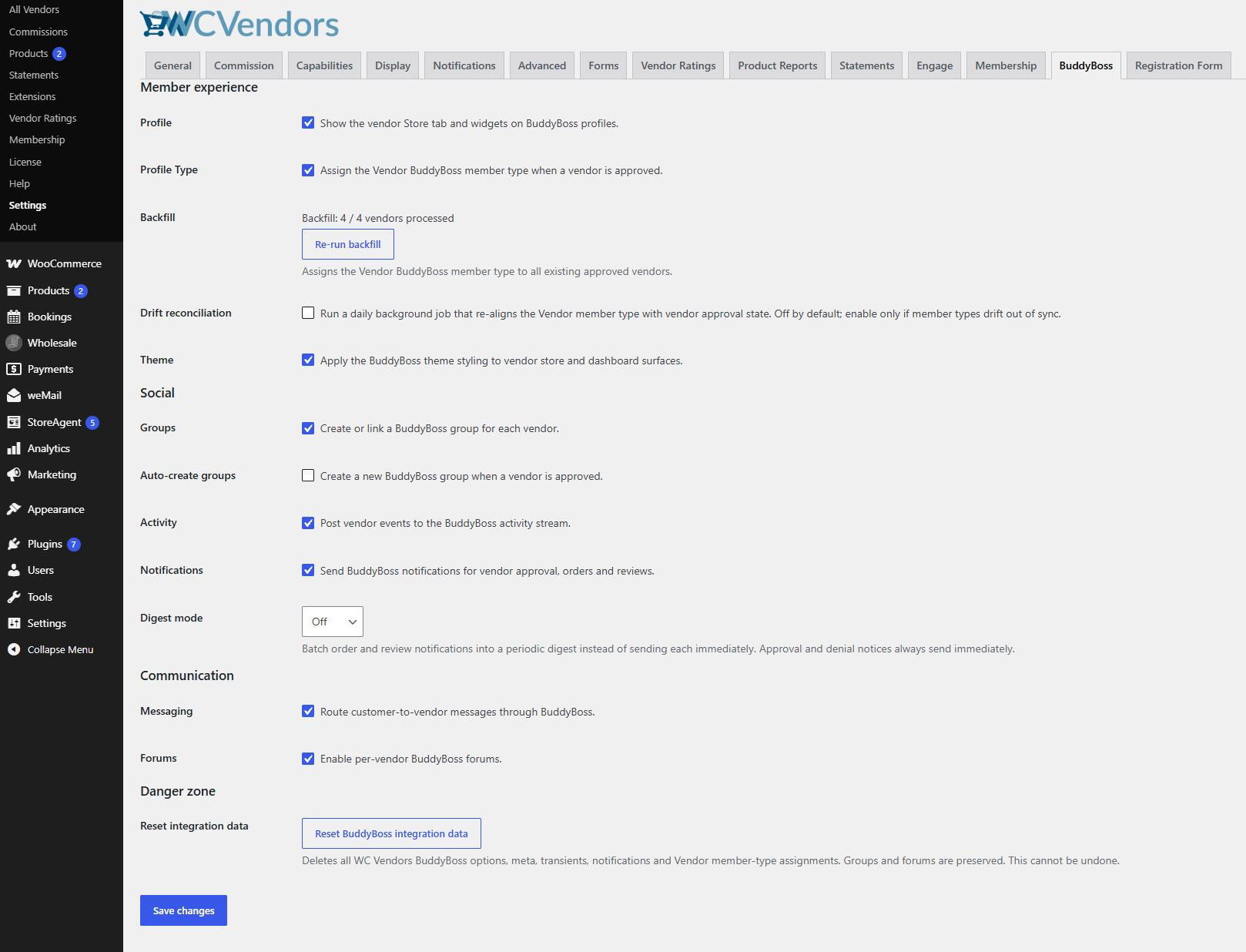
- Let your existing vendors catch up. Vendors approved after the update get tagged the moment you approve them, while already-approved vendors need a one-off catch-up pass that starts on its own. It works through your vendor list in batches of 100 in the background, and a progress readout plus a Re-run backfill button live on the same settings tab.
- Set the three options that do not default to on. Auto-create groups, the notification digest, and drift reconciliation are deliberately quiet until you choose. Leave drift reconciliation off unless you have a specific reason to turn it on.
- Check that it worked. Visit an approved vendor’s profile and look for the new Store tab, visit your member directory and look for the Vendors filter, then visit a non-vendor’s profile and confirm there is no Store tab.
- Tell your vendors. They now have their own preferences panel at Vendor Dashboard, Settings, in a BuddyBoss section, and the forum opt-in in particular does nothing until they ask for it.
The Eight Touchpoints Of The BuddyBoss Integration
Every touchpoint of the BuddyBoss integration lives on that one settings tab, sorted into three groups. Each is a single switch, and each arrives on. Here is what all eight actually do.
The store tab on vendor profiles
Every approved vendor gets a new Store tab on their BuddyBoss member profile. Click it to see their shop without leaving the community area: a header with the store name, star rating, and a Visit Store link; inline stats showing how long they have been a member; a grid of their latest products; and their most recent reviews.
The section shows latest products rather than featured ones for an honest reason, since WC Vendors Pro has no way for a vendor to mark a product as featured. Thin stores are handled gracefully too. An empty shop shows a friendly empty-state message, the reviews block disappears entirely rather than showing a bare heading, and a vendor with no banner falls back to a clean gradient. All four sections are cached for 15 minutes and refresh themselves the instant something changes.
Vendors in the member directory
A Vendors option appears in the filter on your BuddyBoss member directory, so anyone browsing members can narrow the list to just the people who sell. Approving a vendor tags them, and revoking a vendor removes the tag, which keeps your approval process the single source of truth. Pending or denied vendors never appear anywhere.
This filter needs BuddyBoss Profile Types switched on, because BuddyBoss builds the directory filter from its own profile types. The integration creates the Vendors type automatically, and if a vendor type already exists on your site, it quietly uses wcv_vendor instead of hijacking anyone else’s setup. The directory work was tested against a 10,000-member site carrying 1,500 vendors.
The activity stream
Vendor milestones appear in your community feed the same way member posts do. Two events are covered: a vendor publishes a new product, and a vendor receives a new approved review. Each fires exactly once, so editing a product later does not re-post it, while drafts and spam reviews produce nothing at all.
Smart flood protection is built in. If a vendor generates more than five events in fifteen minutes, say by importing 500 products from a spreadsheet, the feed switches to a single combined summary such as “Sunset Ceramics added 4 new products and received 2 new reviews.” One vendor’s import day costs your feed one entry per fifteen minutes, not five hundred.
Notifications
Vendors get proper BuddyBoss notifications through the bell icon, not just email. Four events are covered: application approved, application denied, a new order, and a new review. Approval and denial alerts link straight to the vendor dashboard, while your existing vendor emails carry on exactly as before.
To keep the bell useful, you can bundle repeat alerts with a digest set to Off, Hourly, or Daily. Approvals and denials never get bundled, since those are once-in-a-lifetime messages that always arrive immediately. Individual vendors can override your site-wide choice or leave it on Inherit.
Messaging
WC Vendors has never had a real messaging system, only a contact form that sends an email. With the Messaging switch on, a logged-in member who fills in that form opens a genuine BuddyBoss private message thread with the vendor instead, and both sides keep the history in their inbox. Two Send message buttons, one on the store page and one on each directory card, make conversations easy to start.
A message is always delivered. Whenever the sender is logged out, the switch is off, the vendor is not approved, or BuddyBoss hits any problem at all, the inquiry falls back to the normal contact email. Guests always get the email path, and nobody’s message is ever silently dropped.
Groups
The integration connects a BuddyBoss group to the store it belongs to. Switch on Auto-create groups and every newly approved vendor gets a public group named after their store, though that option is off by default because it is a big change to your groups list. Vendors can instead link a group they already run from their dashboard settings. Once linked, the group’s home page gains a small store card with the banner, the store name, and a link through to the shop, turning a chat room into a storefront’s front door.
Forums
This touchpoint is deliberately backward from the others. Even with the Forums switch on site-wide, no forum is created for anybody until an individual vendor ticks the forum opt-in box in their own settings. When they do, their forum is created and a link appears on their Store tab. If a vendor later opts out, the link disappears, and the forum is hidden, yet every post and reply is preserved for whenever they change their mind.
The BuddyBoss look
The final touchpoint restyles your WC Vendors pages to match the BuddyBoss theme, so members moving between community and marketplace never feel the join. It covers the vendor store page, the vendor dashboard, and the marketplace directory, and it borrows BuddyBoss’s own colors, spacing, and type rather than inventing a new look. It supports light mode, dark mode, and right-to-left languages. This styling only applies when the BuddyBoss theme is active, so running BuddyBoss Platform on a different theme changes nothing and breaks nothing.
What Your Vendors Control Themselves
Your switches decide what is available, and your vendors decide what they personally take part in. From the Vendor Dashboard, Settings, in a BuddyBoss section, each vendor can:
- Opt out of the activity feed, so their new products and reviews stop posting to the community stream (they take part by default).
- Opt out of having a group auto-created for them (they take part by default).
- Opt into their store forum, which stays off until they tick the box.
- Set their own notification digest to Off, Hourly, Daily, or Inherit.
- Link a group they already run to their store, or choose None to unlink.
The panel is smart about what it shows. Turn Groups off site-wide, and the groups control vanishes from every vendor dashboard, and turning off all eight touchpoints removes the BuddyBoss section from their settings entirely. There is no point offering a control that does nothing.
Who Can See What On A Vendor Profile
Every piece of vendor information passes through a single permission check before it appears anywhere in BuddyBoss. That is deliberate, because scattered permission logic is exactly how a marketplace accidentally exposes a vendor who has not been approved yet. The rule is simple: most restrictive wins, so if either your marketplace rules or BuddyBoss’s own privacy settings say no, the answer is no.
A store name, header, star rating, and latest products stay visible to everyone, including logged-out visitors. Recent reviews, store stats, member-since dates, and new-review activity are reserved for logged-in members. Three behaviors are worth calling out: pending and denied vendors are invisible to every viewer, administrators get no special pass and respect the same privacy tiers as anyone else, and any confused or nonsensical request fails closed rather than open.
Conclusion
BuddyBoss integration turns your vendors into visible, reachable members of your community, with a store on their profile, a place in your directory, a voice in the activity feed, and a real inbox for customer questions.
What makes it comfortable to adopt is the restraint built into every part of it. Nothing is all-or-nothing; every touchpoint has an off switch, your vendors get their own controls, and the whole thing sits behind a safety layer so a BuddyBoss hiccup never reaches your storefront. You can start with just the Store tab and grow into the rest whenever you are ready. As you build a stronger community and keep an eye on where online marketplace trends are heading, weaving your sellers into that community becomes a genuine advantage, and choosing the right vendor platform to support it matters just as much.
Update the plugin, enable the BuddyBoss features you want, and the BuddyBoss integration configures itself from there.
Here is what we covered in this article:
- Why this integration matters
- What you need before you begin
- How to set it up step by step
- The eight touchpoints of the BuddyBoss integration
- What your vendors control themselves
- Who can see what on a vendor profile
Frequently Asked Questions
What versions do I need to connect WC Vendors and BuddyBoss?
You need BuddyBoss Platform 2.5.0 or newer, WC Vendors Pro 2.0.9, WordPress 6.3, WooCommerce 8.0, and PHP 7.4 or newer. The BuddyBoss theme is only required if you want the visual re-skin, so running BuddyBoss Platform on a different theme is fully supported.
Do I have to turn on all eight touchpoints?
No. All eight arrive switched on, but each is fully independent, so you can turn off any you do not want without affecting the others. You can even run just the Store tab and nothing else.
Will an error in BuddyBoss break my store?
No. Every call into BuddyBoss is wrapped in a safety layer that swallows failures, logs them under a wcv-bb label, and lets your marketplace carry on. Vendor approvals, product saves, and customer messages all still go through.
What happens to my data if I switch the feature off?
Flipping a switch off keeps all data. Deactivating BuddyBoss preserves everything and resumes later. Only the Reset integration data button removes the tags and settings it created, and even then your groups, forums, and their posts are kept.
Can individual vendors control their own participation?
Yes. From their dashboard settings, vendors can opt out of the activity feed, decline an auto-created group, opt into a store forum, set their own notification digest, or link a group they already run.