
Want to know who’s following your store and whether they’ve bought anything? The Engage tab on your vendor dashboard shows you a full list of your followers, with each person’s name, the date they started following, and whether they’ve placed an order. You can filter the list, search by name, and export it to a spreadsheet file. WC Vendors Engage adds this tab automatically.
What you’ll need
- WooCommerce and WC Vendors (free or Pro) installed and configured
- WC Vendors Engage installed and active
Opening the follower list
Go to your vendor dashboard and click Engage in the sidebar navigation.
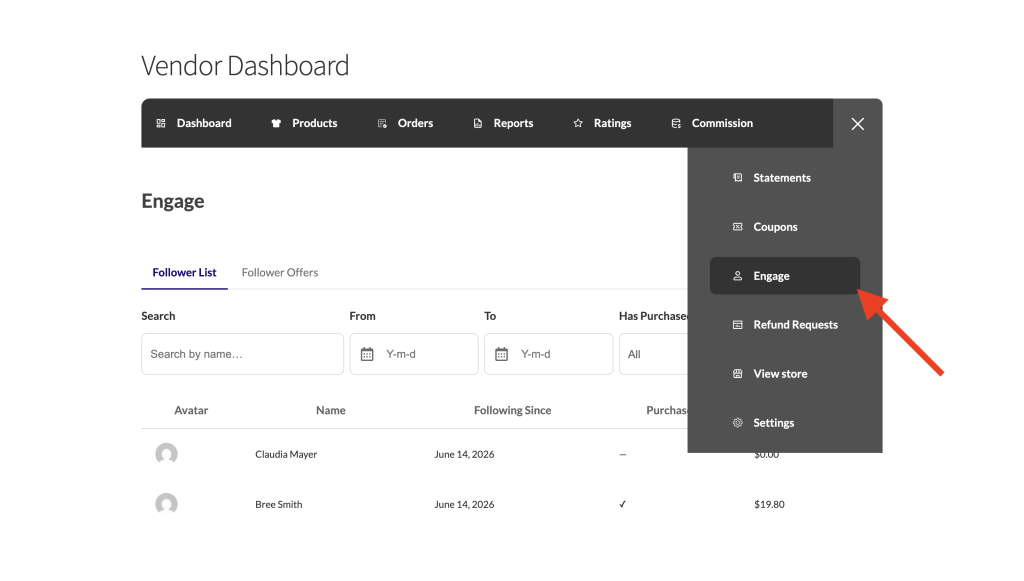
The Follower List sub-section opens by default and shows a table of everyone who follows your store.
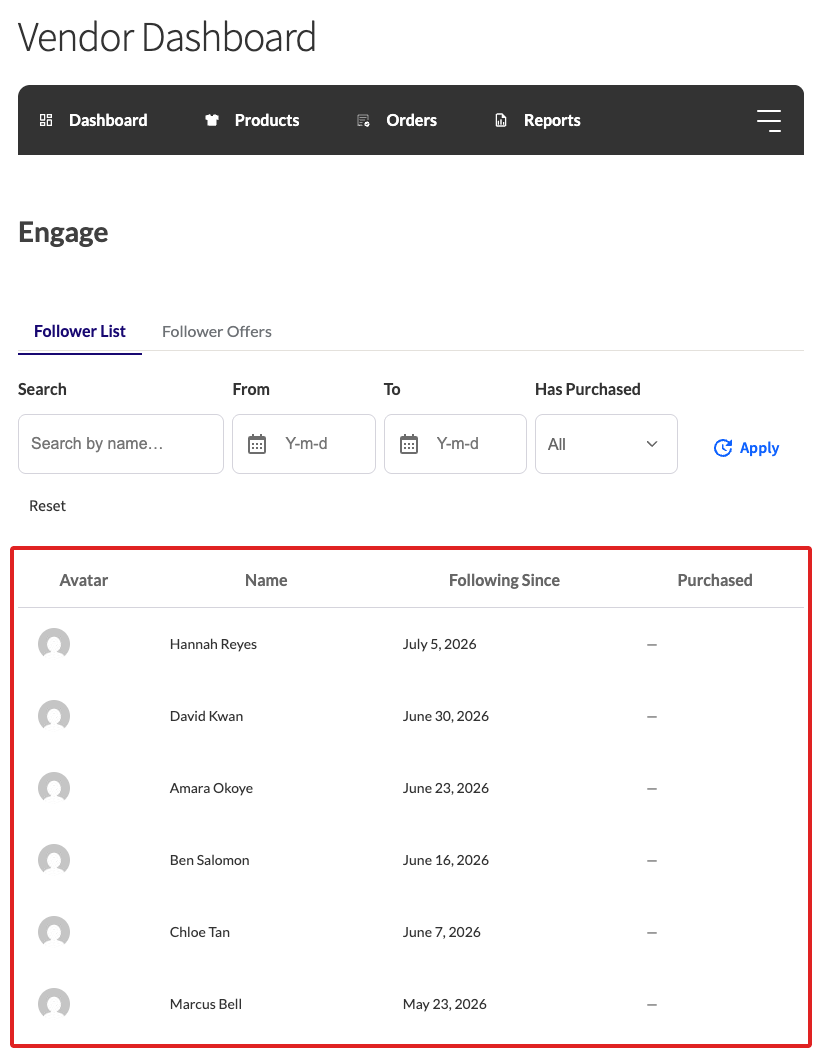
What the follower table shows
Each row in the table represents one follower. The table has four columns:
| Column | What it shows |
|---|---|
| Avatar | The follower’s profile image |
| Name | The follower’s display name |
| Following Since | The date they started following your store |
| Purchased | A tick (✓) if they’ve placed at least one order with you; a dash (—) if they haven’t |
A fifth column, Total Spent, is hidden by default. It appears only when your store admin enables Show Total Spent to Vendors under WC Vendors → Settings → Engage → Data & Privacy. When enabled, it shows the cumulative amount each follower has spent on your products across all their orders.
Searching and filtering the list
Use the filters above the table to narrow the list to specific followers.
Search by name
Type part of a follower’s name into the Search field and click Apply to filter the table.
Filter by date
Use the From and To date pickers to show only followers who started following your store within a specific date range. You can set one or both dates. Setting just From shows everyone who followed after that date, and setting just To shows everyone who followed before it.
Filter by purchase history
The Has Purchased dropdown lets you focus on a specific group:
- All: shows every follower regardless of whether they’ve ordered from you
- Purchased: shows only followers who have placed at least one order
- Not yet purchased: shows followers who haven’t ordered yet, useful for identifying potential first-time buyers
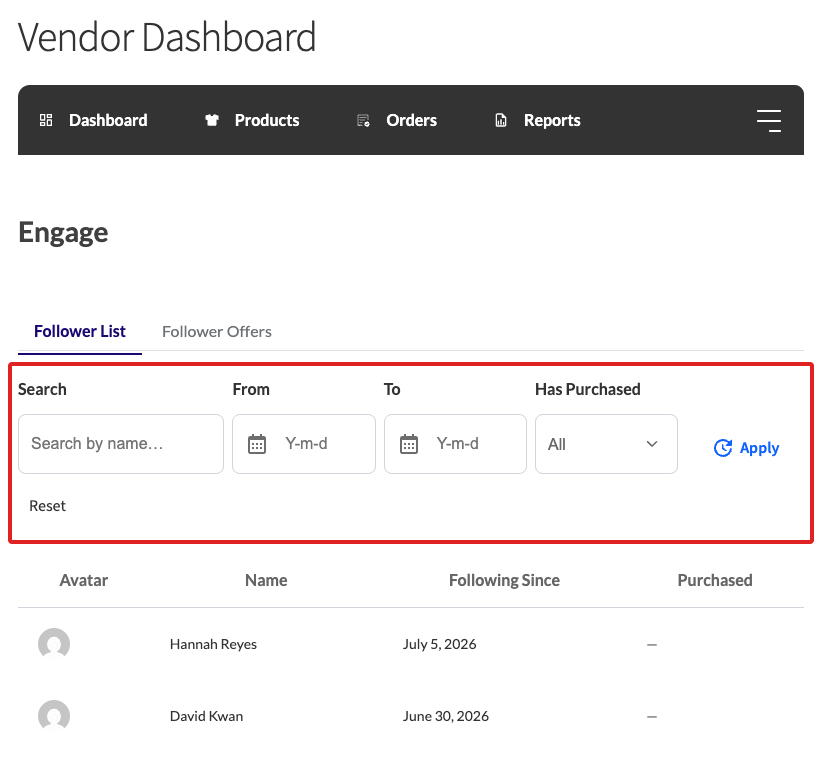
Click Apply to run the filters. Click Reset to clear all filters and return to the full list.
Browsing multiple pages
If you have more followers than fit on one page, pagination controls appear below the table. Use the Previous and Next links to move between pages.
Your store admin sets how many followers appear per page. The default is 20. If you need it adjusted, ask your admin to update the Followers Per Page setting at WC Vendors → Settings → Engage → Vendor Dashboard.
Exporting your follower list
Click Export CSV in the sub-navigation to download your follower list as a spreadsheet file.
The Export CSV button is hidden by default. It only appears when your store admin enables Allow Follower CSV Export under WC Vendors → Settings → Engage → Data & Privacy, and your store has at least one follower.
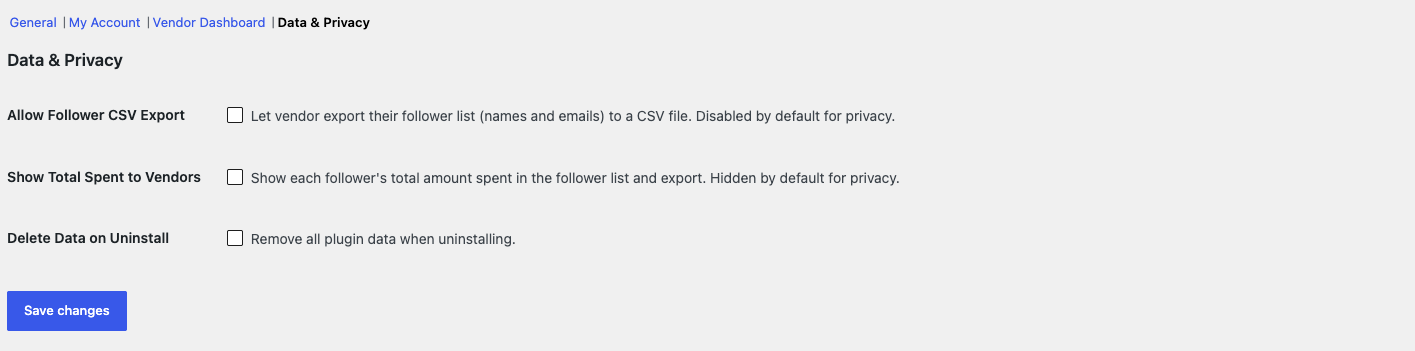
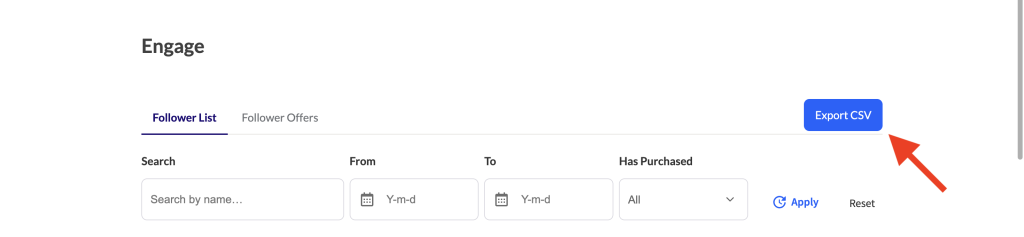
The CSV includes four columns: Display Name, Email, Following Since, and Has Purchased (Yes or No). If your store admin has enabled Show Total Spent to Vendors, the CSV also includes a Total Spent column. Its header carries your store’s currency code, for example “Total Spent (USD)”.
The export always includes all your followers, regardless of any filters you’ve applied on screen.
Troubleshooting
I don’t see the Export CSV button
The button only appears when your store admin has enabled Allow Follower CSV Export under WC Vendors → Settings → Engage → Data & Privacy, and your store has at least one follower. The setting is turned off by default for privacy, so ask your admin to enable it if you need the export.
I don’t see the Total Spent column
The column is hidden by default for privacy. It only shows when your store admin enables Show Total Spent to Vendors under WC Vendors → Settings → Engage → Data & Privacy. Ask your admin to turn it on if you need each follower’s spending total.
Frequently asked questions
Does the Follower List show all my followers or just recent ones?
It shows all your current followers. Use the From and To date filters if you want to focus on followers who joined during a specific period.
What does the Purchased column mean?
It shows whether a follower has placed at least one order in your store. If your store admin has enabled it, the Total Spent column shows the cumulative amount they’ve spent with you across all those orders.
Do my active filters affect the CSV export?
No. Export CSV always downloads your full follower list, even when filters are active on screen.
Need help?
If you have a question or run into any issues, we’re here to help.
- Premium users: Open a support ticket
- Free users: Visit our community forum