

These settings let you modify various labels shown on the front end of the marketplace without needing to write any code.
- Vendor Singular Term
- Vendors Plural Term
- Sold by
- Sold by Separator
- Sold by Label
- Become a Vendor
- Become a Vendor label
- Vendor Store Info
- Vendor Store Info Label
- Verified Vendor Label (WC Vendors Pro)
- Vendor Ratings Label (WC Vendors Pro)
- Show Store Total Sales (WC Vendors Pro)
- Show Product Total Sales (WC Vendors Pro)
- Store Total Sales Label (WC Vendors Pro)
- Product Total Sales Label (WC Vendors Pro)
- Dashboard Page Headings
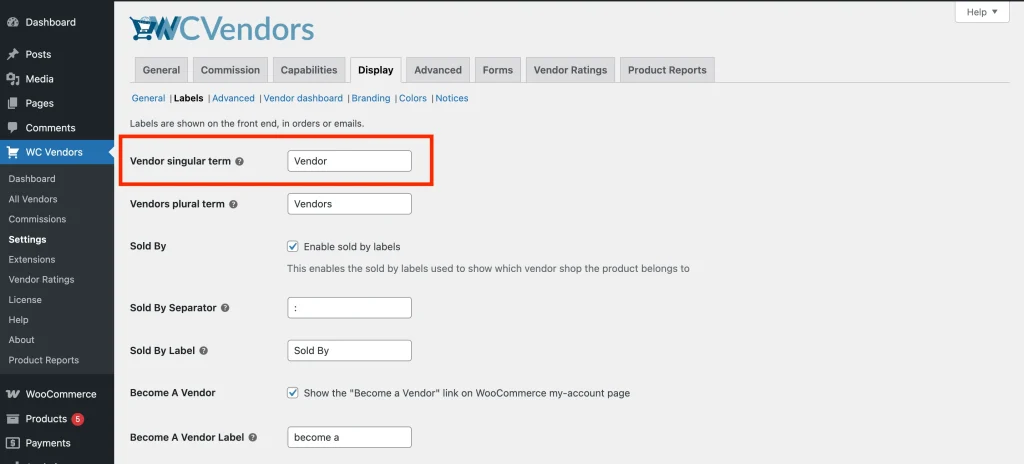
Vendor Singular Term
This setting allows the marketplace admin to customize the singular term used for vendors. For example, changing “Vendor” to “Merchant” will update all singular references across the marketplace accordingly.
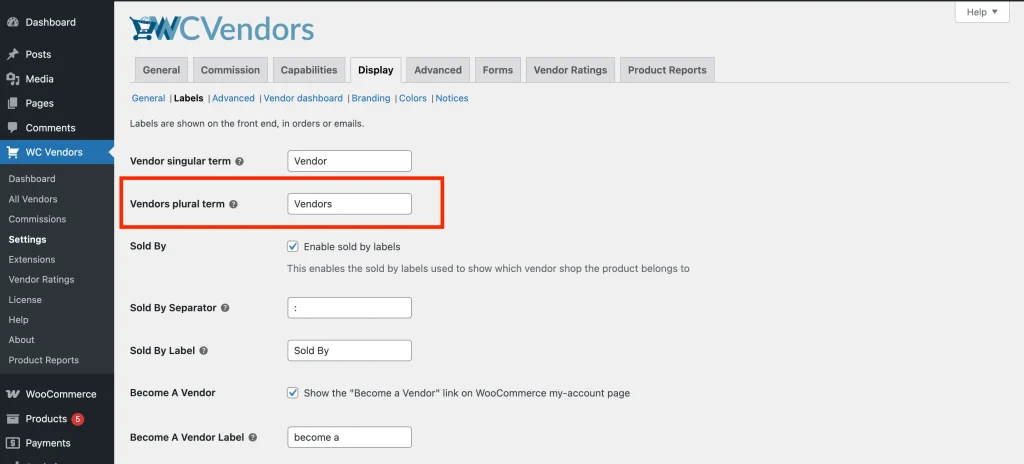
Vendors Plural Term
This setting lets you change the plural form of the vendor label. For instance, replacing “Vendors” with “Merchants” will reflect across all relevant areas in the marketplace.
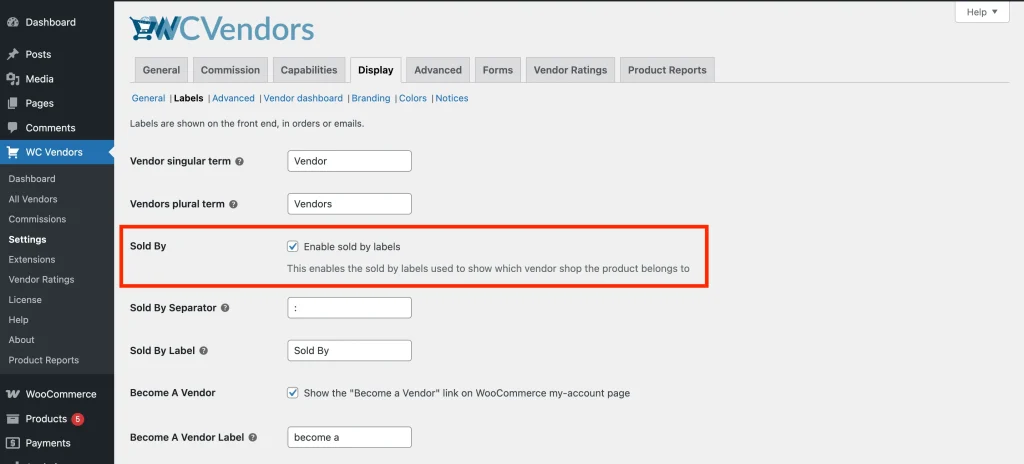
Sold by
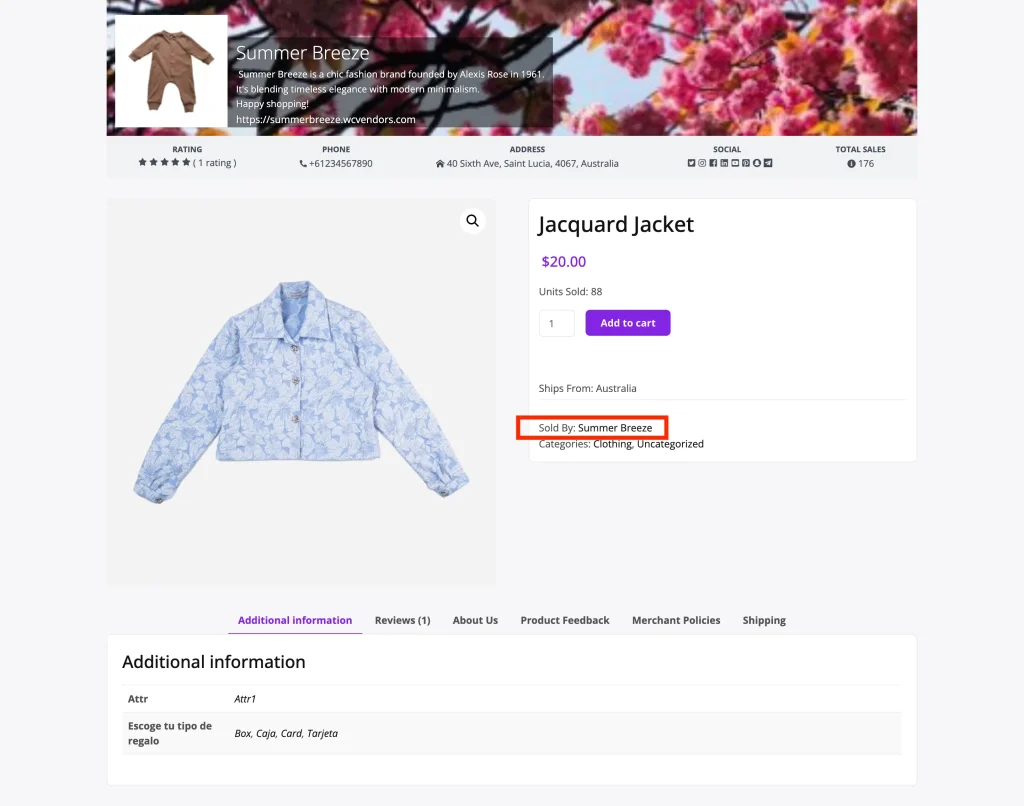
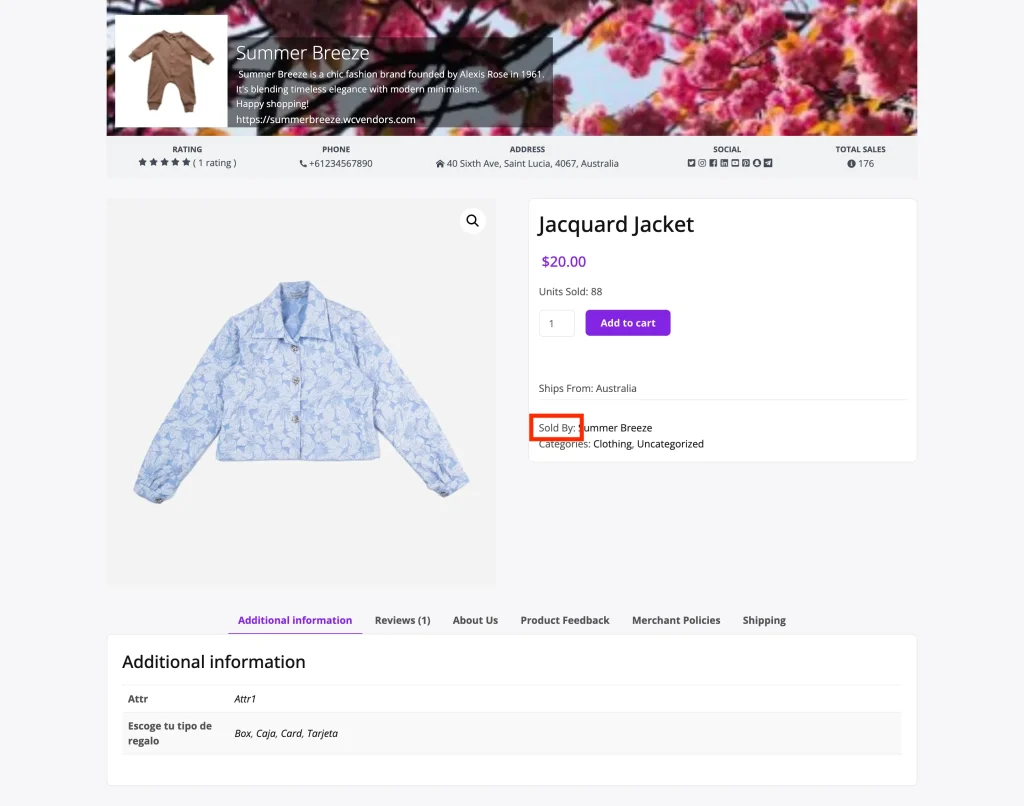
Enable or disable the “Sold By” label, which identifies which vendor a product belongs to. Disabling this label will effectively hide vendor store information across the marketplace.
Sold by Separator
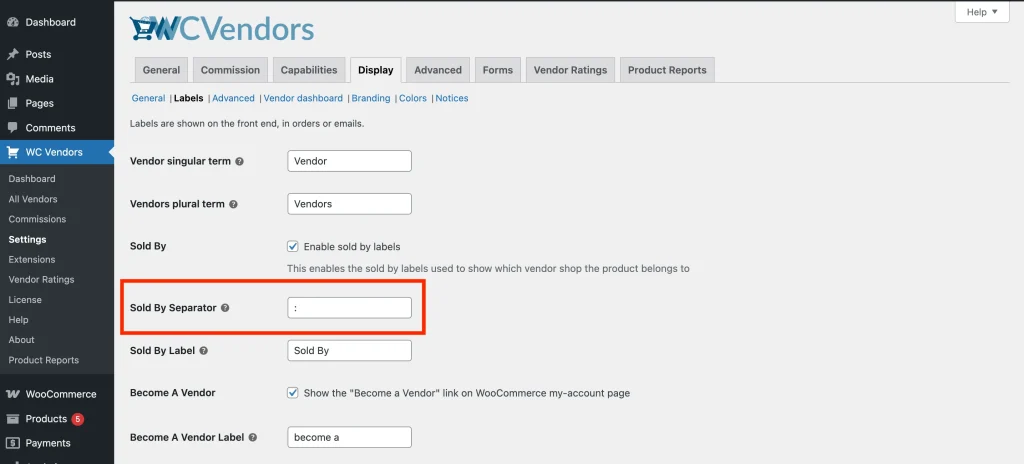
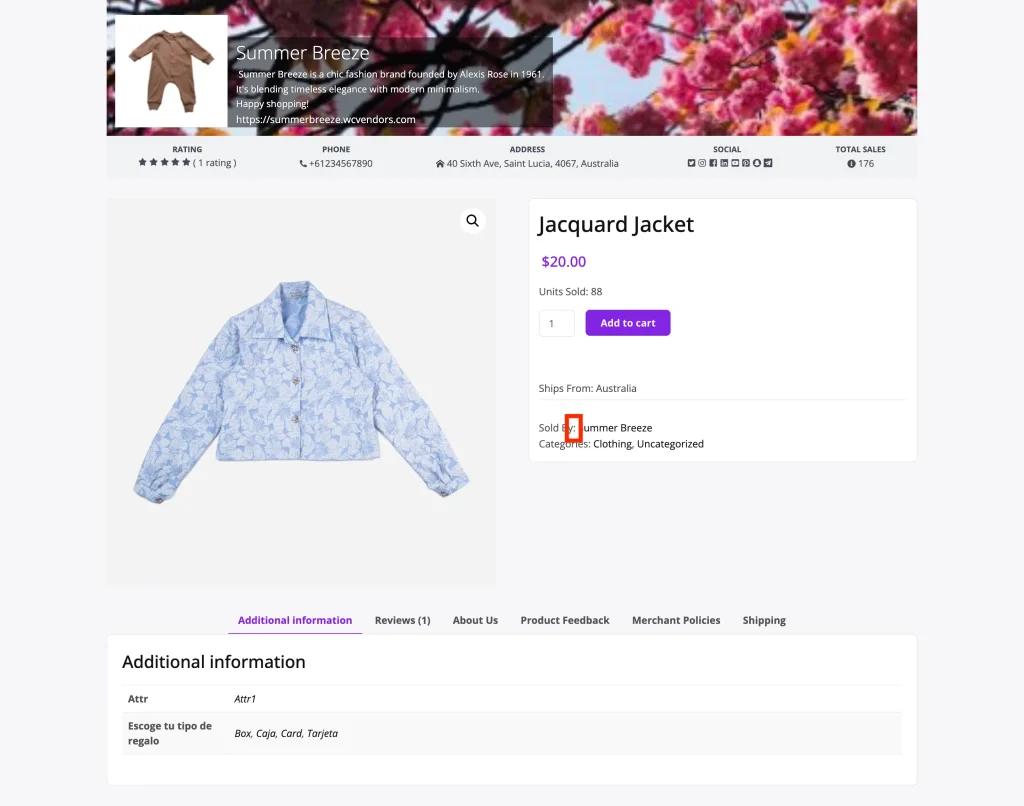
Customize the separator used in the “Sold By” label. For example, changing “Sold by: VendorName” to a different format.
Sold by Label
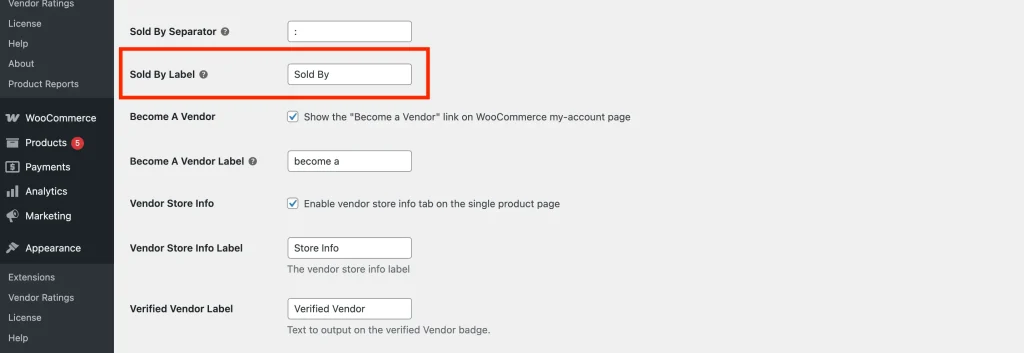
Modify the actual text of the “Sold By” label that appears on the front end.
Become a Vendor
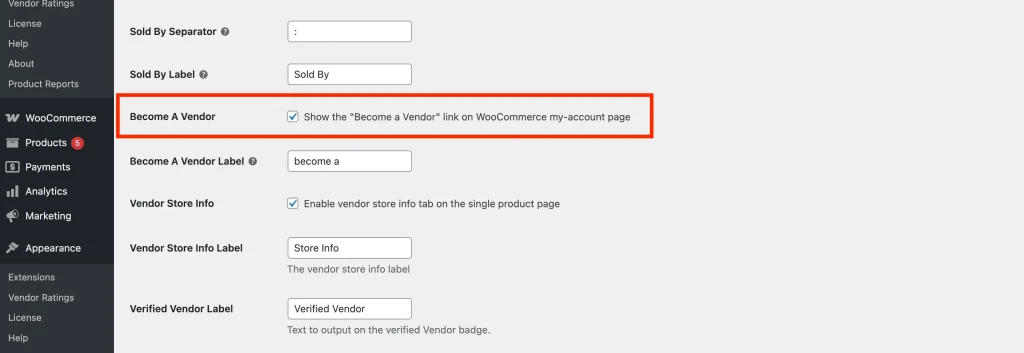
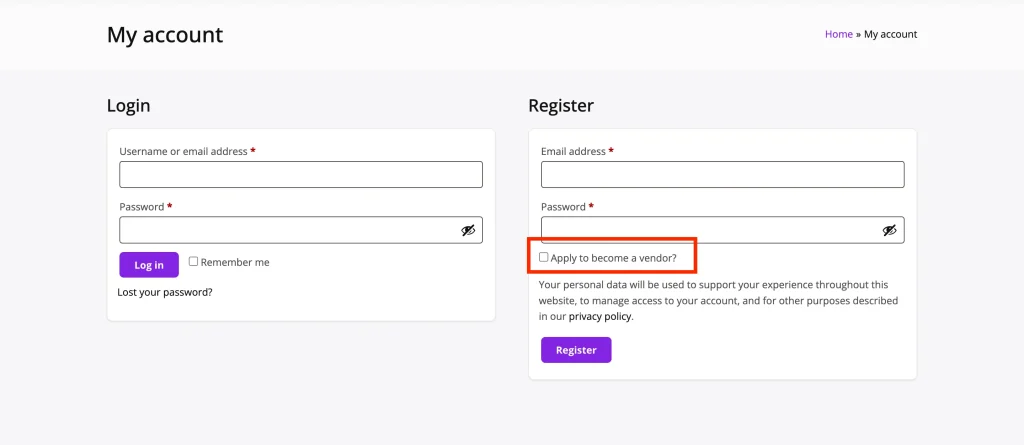
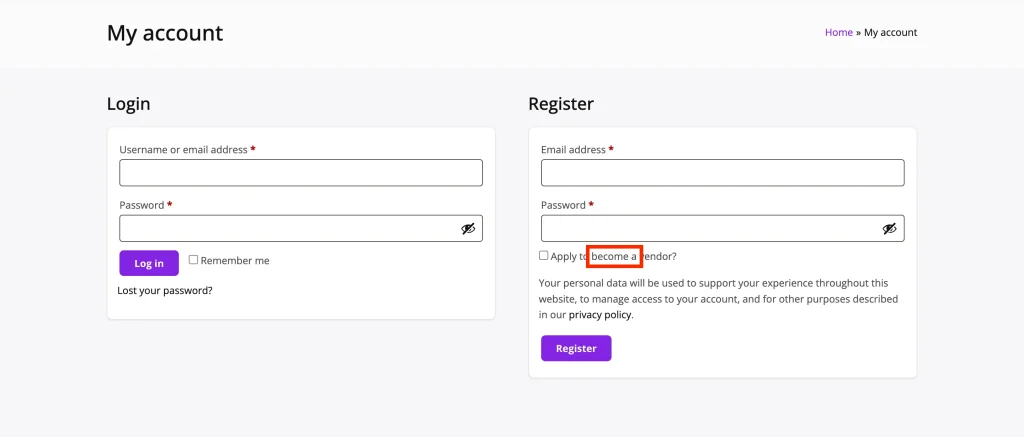
Display the “Become a Vendor” link on the WooCommerce My Account page.
Become a Vendor Label
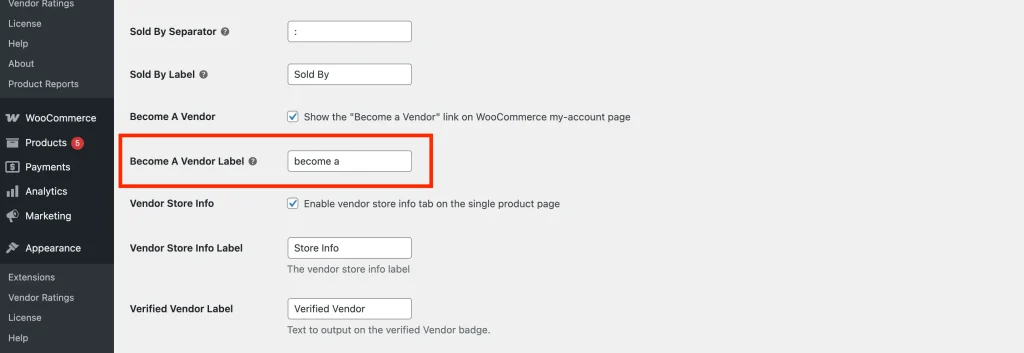
Update the text of the “Become a Vendor” call-to-action shown on the registration page.
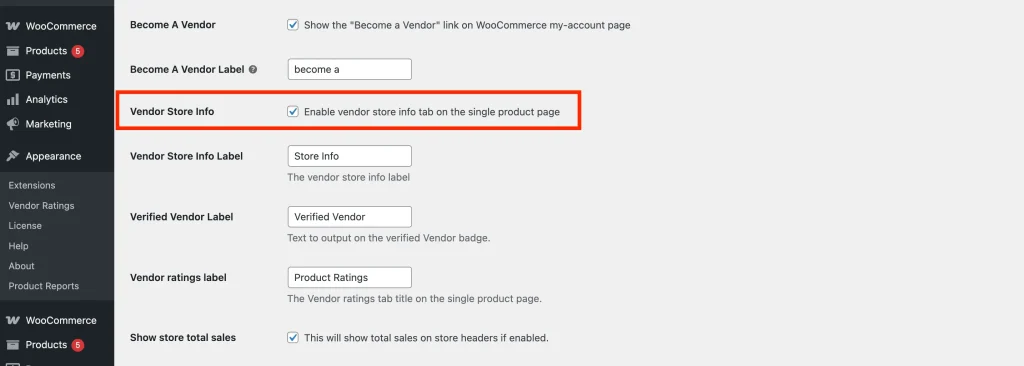
Vendor Store Info
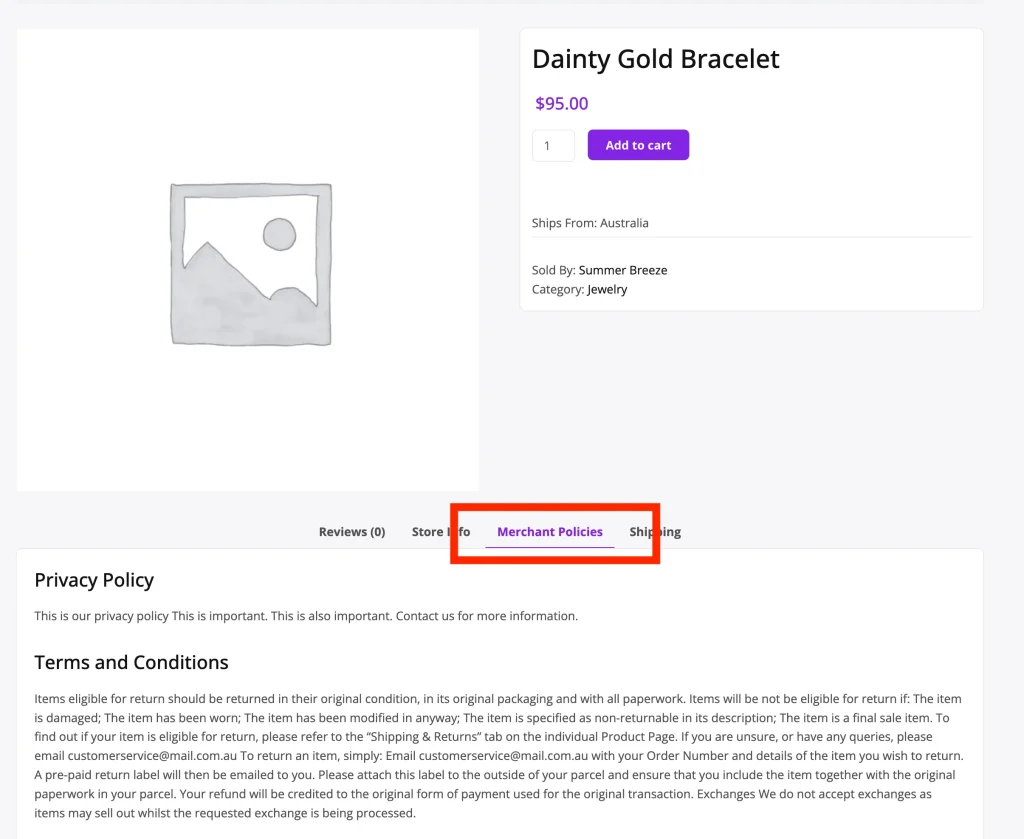
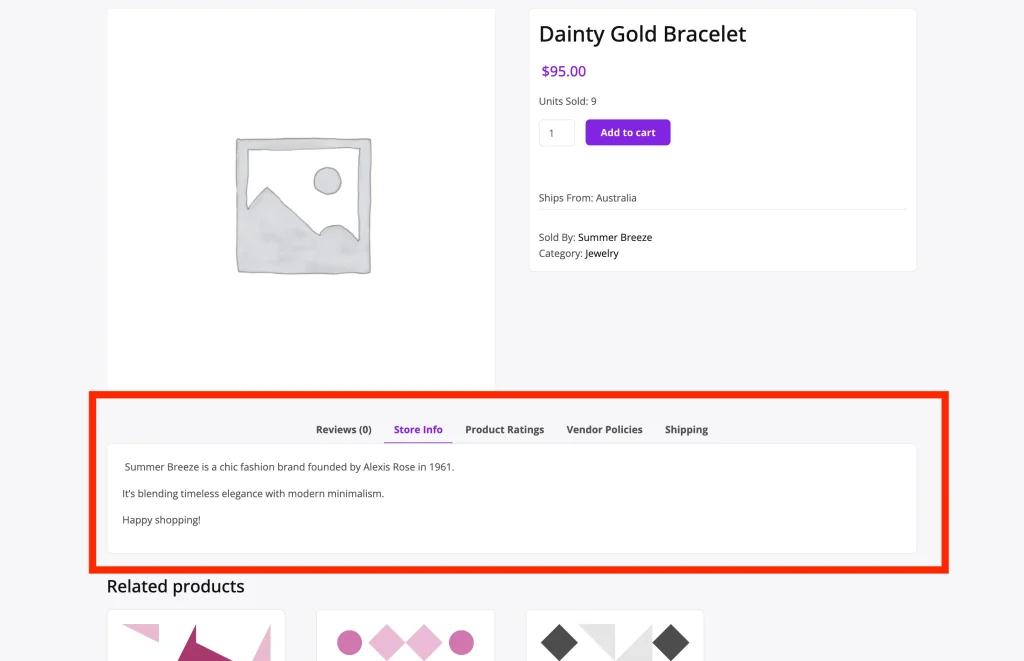
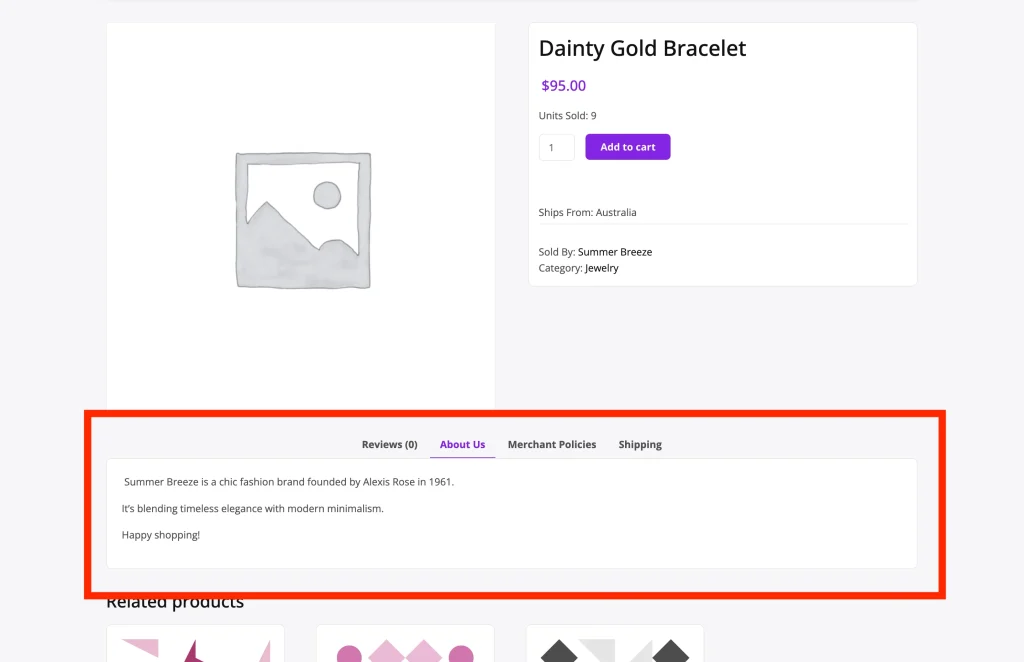
Enable the “Store Info” tab on the single product page to display vendor details.
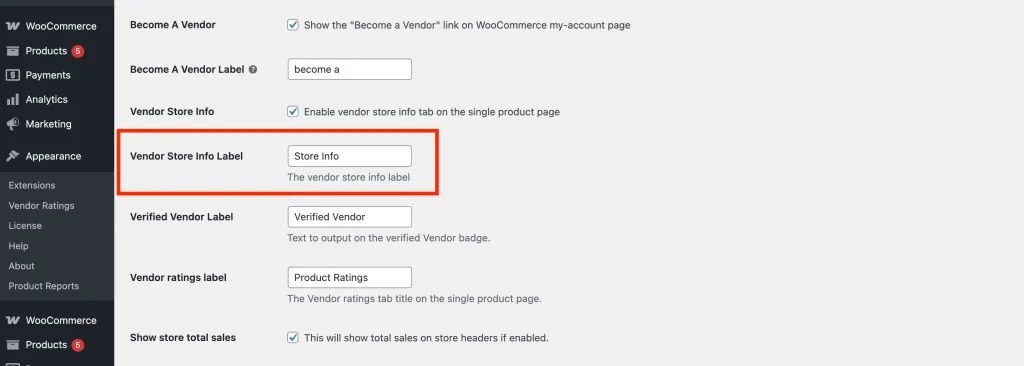
Vendor Store Info Label
Customize the “Store Info” label shown on the single product page for vendors.
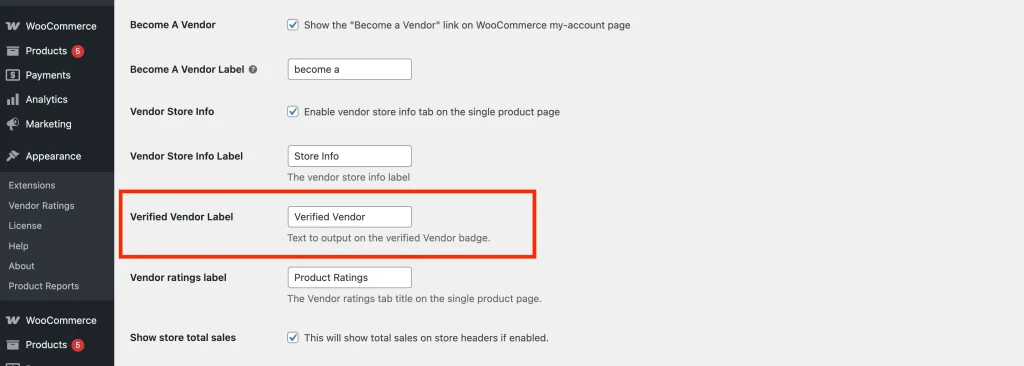
Verified Vendor Label (WC Vendors Pro)
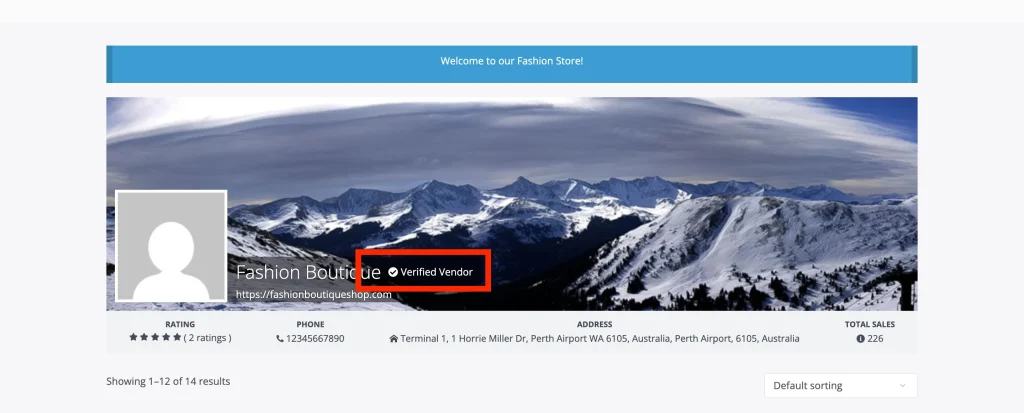
If a vendor is verified by the admin, a “Verified” badge appears on their shop header. Ensure shop headers are enabled and a Pro template is selected for this to be displayed.
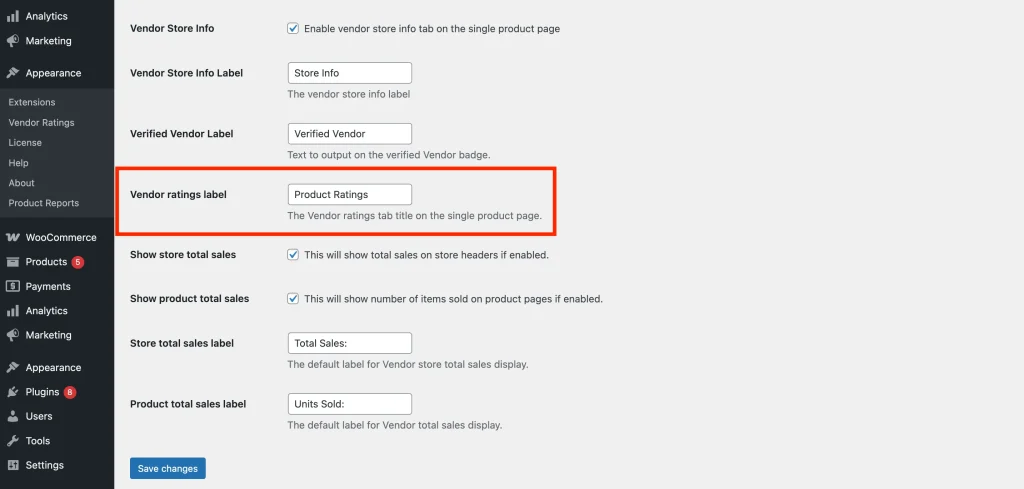
Vendor Rating Label (WC Vendors Pro)
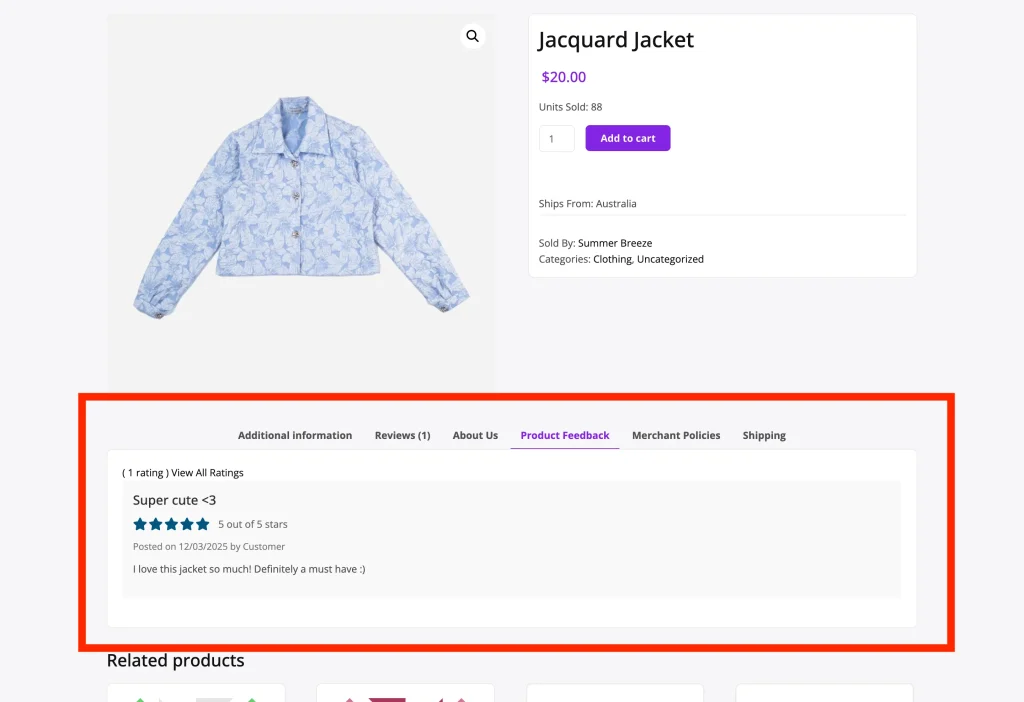
Change the title of the “Vendor Rating” tab on the vendor’s single product page.
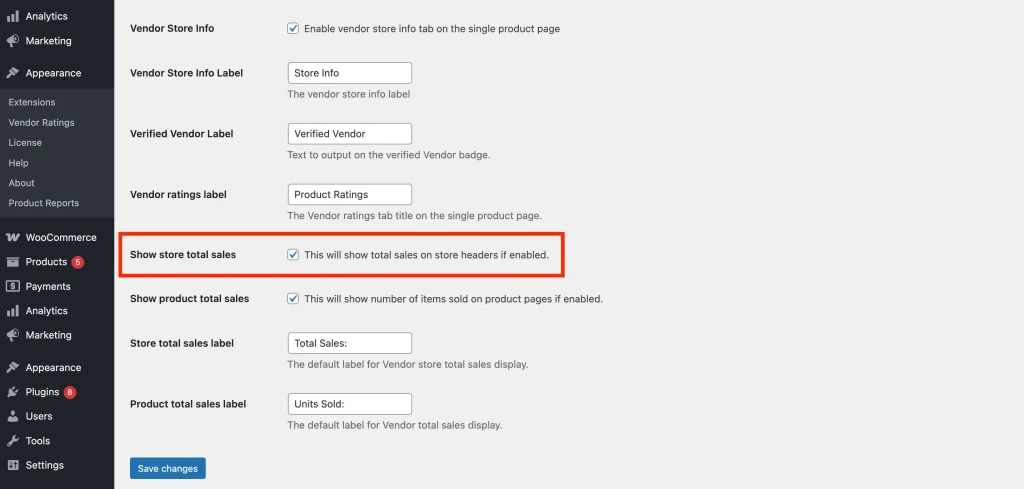
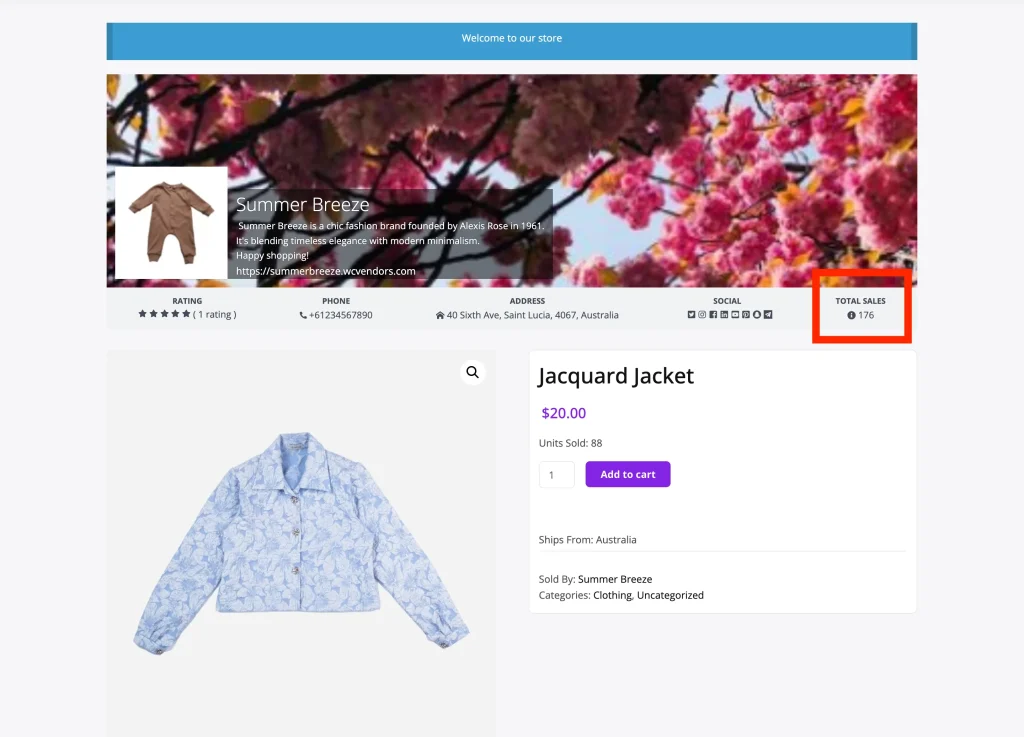
Show Store Total Sales (WC Vendors Pro)
Enable or disable the display of a vendor’s total sales on their shop header. This requires shop headers to be active and a Pro template selected.
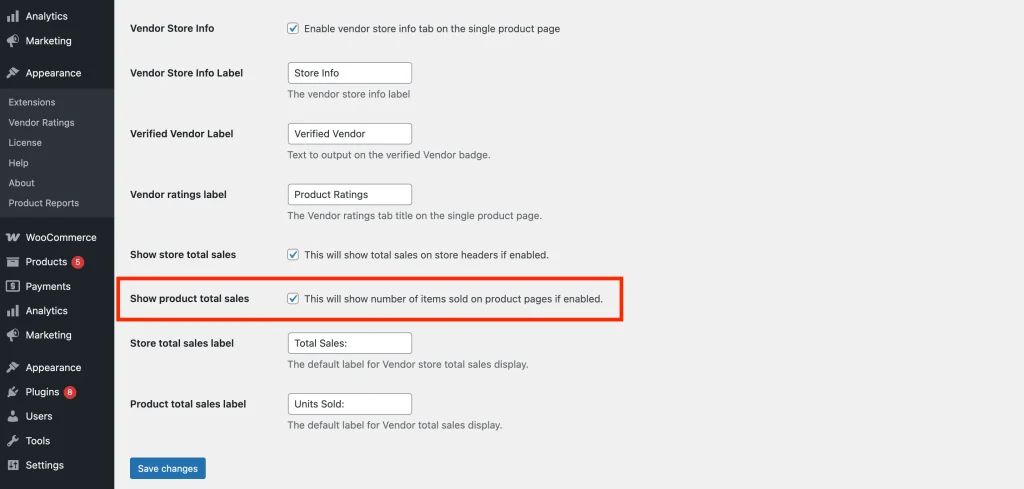
Show Product Total Sales (WC Vendors Pro)
Enable or disable the display of total product units sold on individual product pages. This shows how many units of a product the vendor has sold.
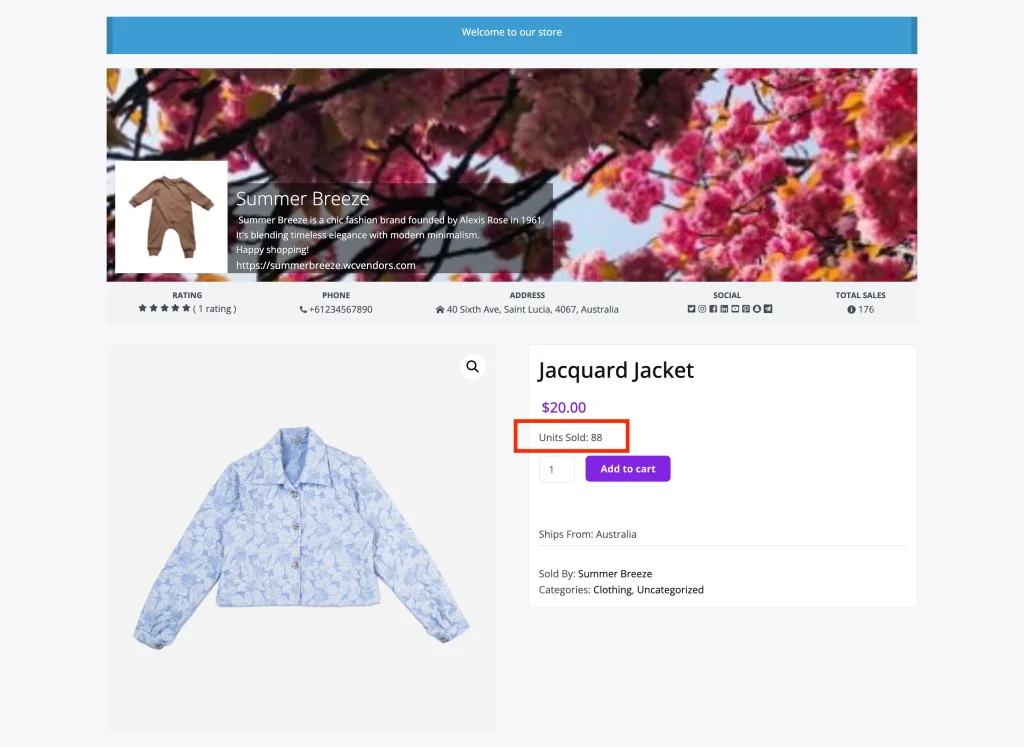
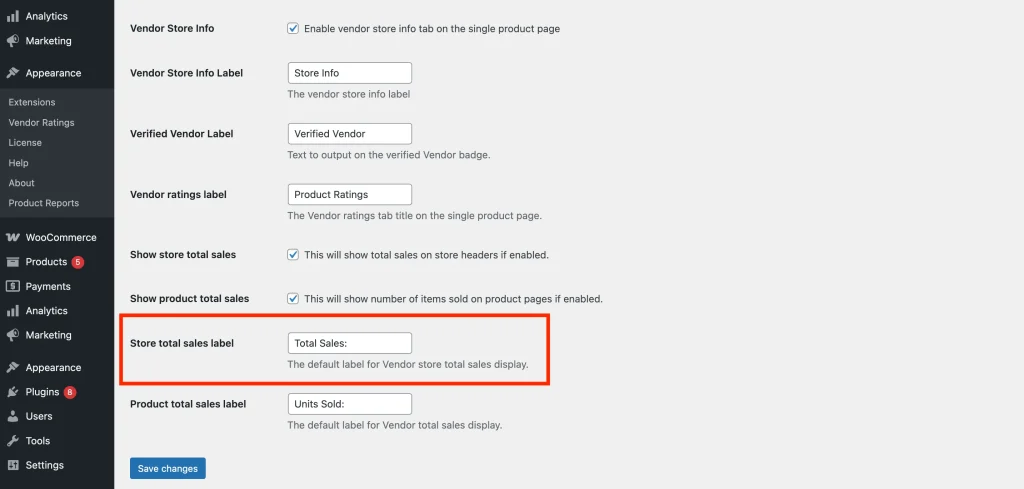
Store Total Sales Label (WC Vendors Pro)
Customize the label that appears for total store sales.
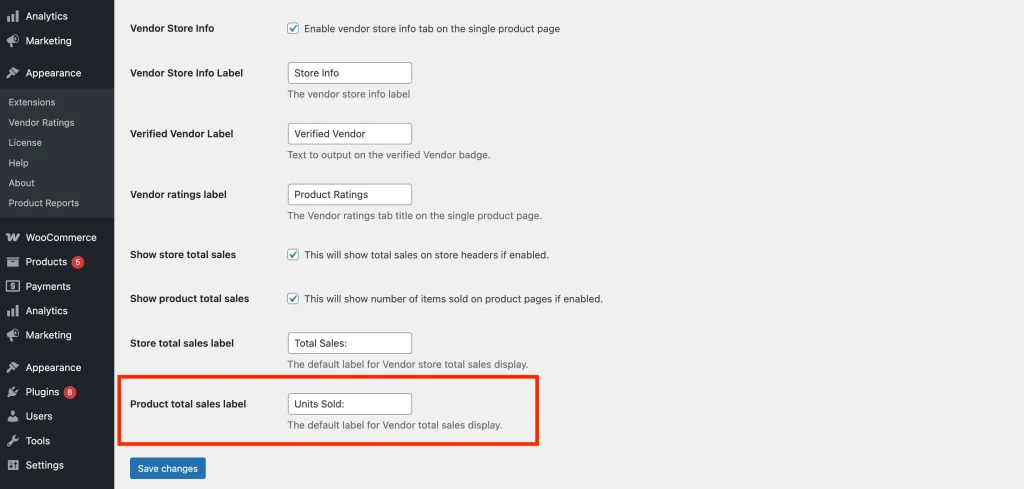
Product Total Sales Label (WC Vendors Pro)
Edit the label that appears alongside the total product sales figure.
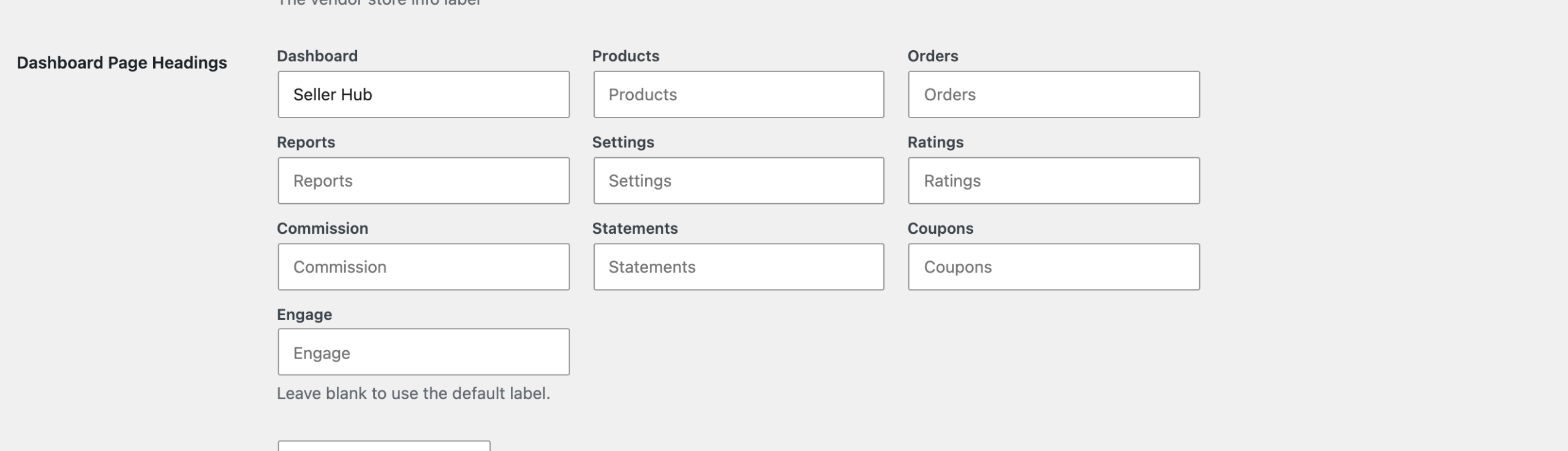
Dashboard Page Headings
Rename the headings shown on each page of the vendor dashboard. Use it to match the dashboard wording to your marketplace, for example changing Dashboard to Seller Hub.
Each dashboard page has its own field: Dashboard, Products, Orders, Reports, Settings, Ratings, Commission, Statements, Coupons and Engage. Leave a field blank to use the default label for that page.
Need help?
If you have a question or run into any issues, we’re here to help.
- Premium users: Open a support ticket
- Free users: Visit our community forum