Growing marketplaces eventually reach a point where certain plans should not be open to everyone. Maybe your top tier comes with hands-on support you can only offer a handful of sellers, or you want a premium plan to feel genuinely exclusive. With WC Vendors Membership 1.2.4, you can now limit vendors per membership plan and cap exactly how many sellers can hold each one.
This has been one of the more requested additions to the WC Vendors Membership add-on. In this guide, we will walk through what the feature does, who it helps, and exactly how to limit vendors per membership plan step by step. Along the way, we will cover how full plans behave for your sellers and two important limits worth understanding before you switch anything on.
What Capping A Membership Plan Actually Does
The feature lets you set a maximum number of vendors for any plan. Want exactly twelve sellers on your top-tier plan and nobody else? Set the number to twelve, and once twelve vendors hold that plan, the thirteenth sees it greyed out with an “Out of stock” label and cannot select it.
The trick is that the stock number counts places on the plan, not products sold. One vendor takes up one place, for as long as they stay on that plan. This is different from the product limits you may already use inside a plan, which control how many items a seller can list rather than how many sellers can join.
Before this update, the Inventory tab was missing from membership plans entirely, even though standard subscription products had it. That gap is exactly what the feature closes, giving each plan the same familiar stock controls that the rest of WooCommerce already uses.
Who Should Cap Places On A Vendor Membership Plan
There are plenty of reasons to limit vendors per membership plan, and most of them come down to protecting the value of a tier. If your premium plan includes onboarding calls, priority support, or a hard-to-scale perk, a cap keeps the promise realistic instead of overselling seats you cannot service.
Scarcity is another motivation. A genuinely limited plan tends to feel more desirable, which is the same psychology behind a well-run FOMO marketing strategy. When sellers can see that only a few places remain, joining starts to feel like an opportunity rather than a default.
Capped tiers also fit neatly into a broader pricing plan. If you are still deciding how to structure paid seller access, our guide to choosing your marketplace revenue model and our walkthrough on how to charge a WooCommerce monthly fee pair well with this feature. A tiered structure, similar to the ones covered in this tiered pricing structure breakdown, gives you room to make one or two tiers scarce while leaving the rest open.
How To Limit Vendors Per Membership Plan In WC Vendors
Setting a cap takes just a few minutes. Here is exactly how to limit vendors per membership plan from your WordPress dashboard, with the correct settings at each step.
Before you start
This feature needs WooCommerce, WooCommerce Subscriptions, and WC Vendors Pro, the same requirements as the rest of the membership add-on. It was tested against WordPress 7.1 and WooCommerce 11.0.
Step 1: Turn on WooCommerce stock management
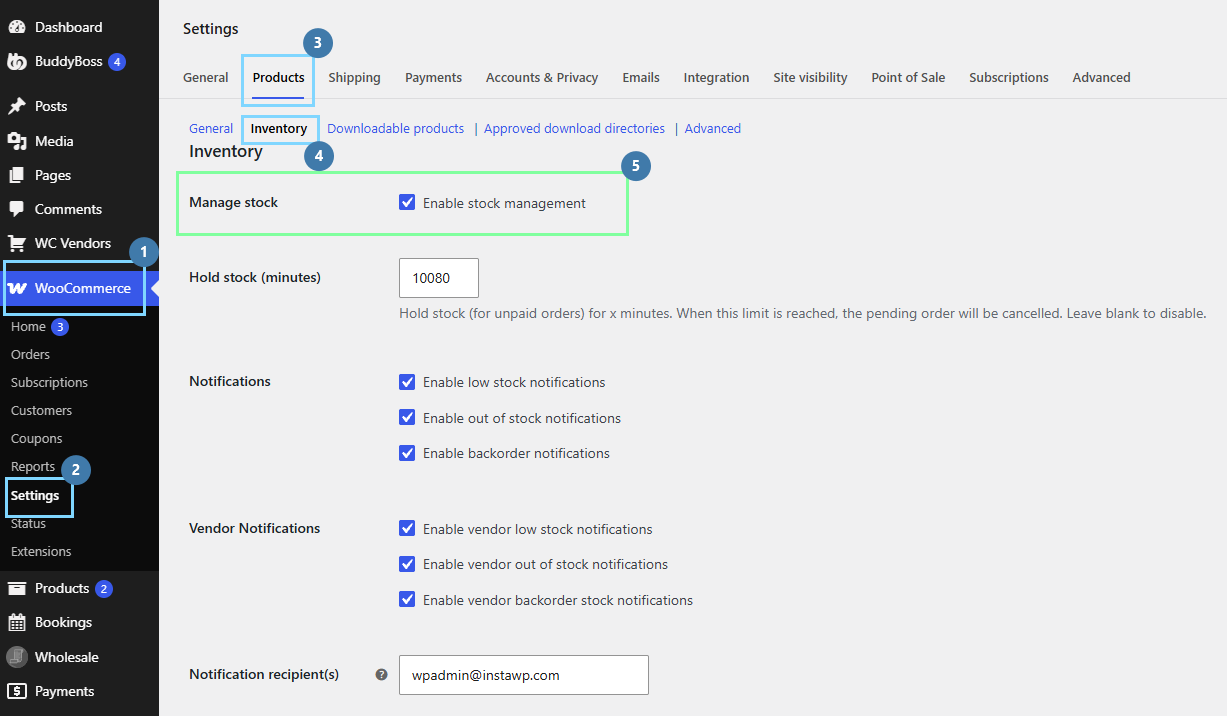
Go to WooCommerce > Settings > Products > Inventory, and confirm that “Enable stock management” is ticked. If this global setting is off, WooCommerce never draws the stock fields anywhere, so the Quantity box will not appear on your plan either.
Step 2: Open the membership plan
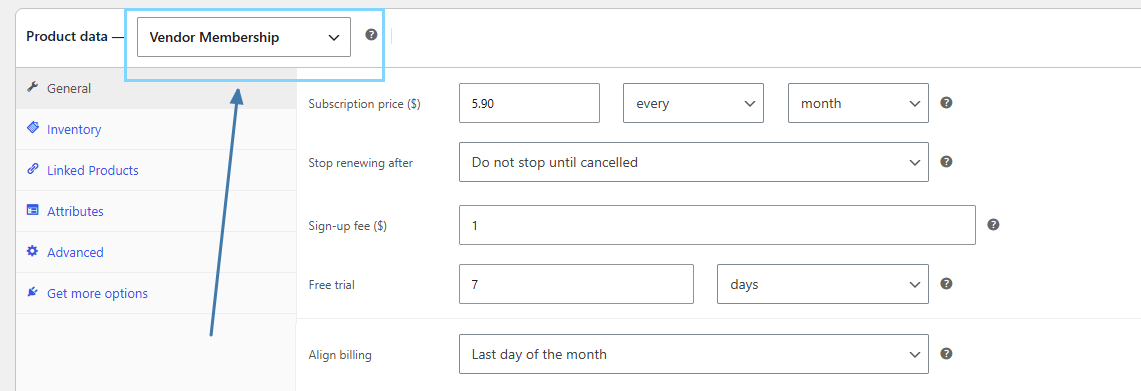
Head to Products and open the plan you want to cap. In the Product data dropdown, confirm it is set to “Vendor Membership” so you are editing a plan, not a regular product.
Step 3: Open the Inventory tab and enable stock management
Click the Inventory tab on the left of the Product data panel. It is there now, and this is the part that used to be missing. Tick “Stock management,” and three more fields appear: Quantity, Allow backorders, and Low stock threshold.
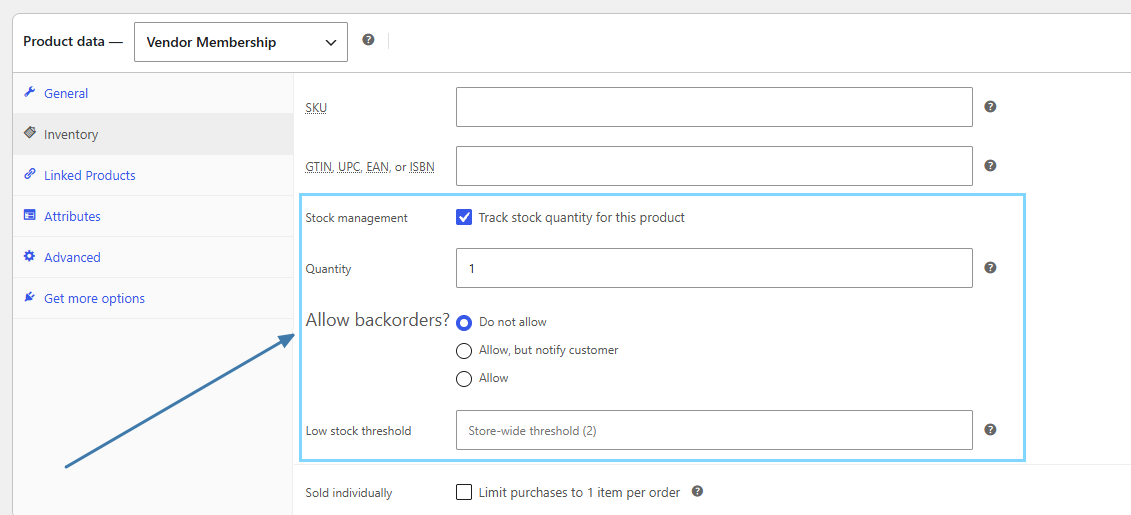
Leave “Allow backorders” set to “Do not allow.” If you permit backorders, sellers can join past your ceiling, which defeats the whole point of setting one. The full set of fields here mirrors an ordinary product, including SKU, Stock status, and Sold individually, so it should feel familiar.
Step 4: Set your vendor limit
In the Quantity box, type the total number of sellers you want on this plan. If some vendors are already on it, remember to subtract them, because the plugin does not retro-count existing members. Six sellers already signed up, and you want twenty total? Enter 14, then click Update.
Step 5: Check it from the vendor side
Open the vendor dashboard as a seller who isn’t on that plan and go to Settings, then Membership. To see the dimmed “Out of stock” state for yourself, set the Quantity to 0 for a moment. For any plan you want to keep unlimited, keep “Stock management” unticked, and it will behave exactly as it did before.
What Vendors See When A Plan Is Full
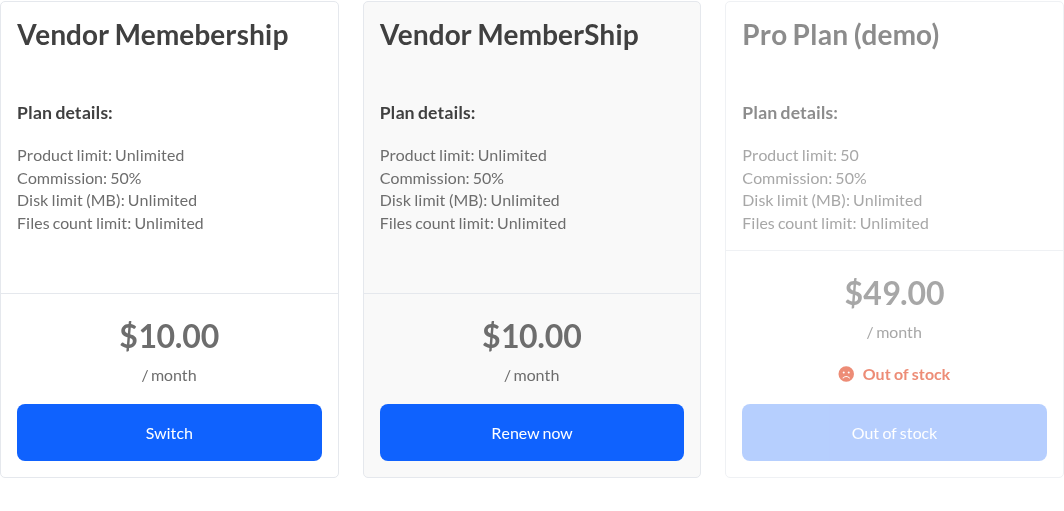
When a plan sells out, it still appears on the vendor dashboard and on the signup form. Rather than disappearing, it shows dimmed and unclickable, so sellers can see the plan exists and understand that it is currently full.
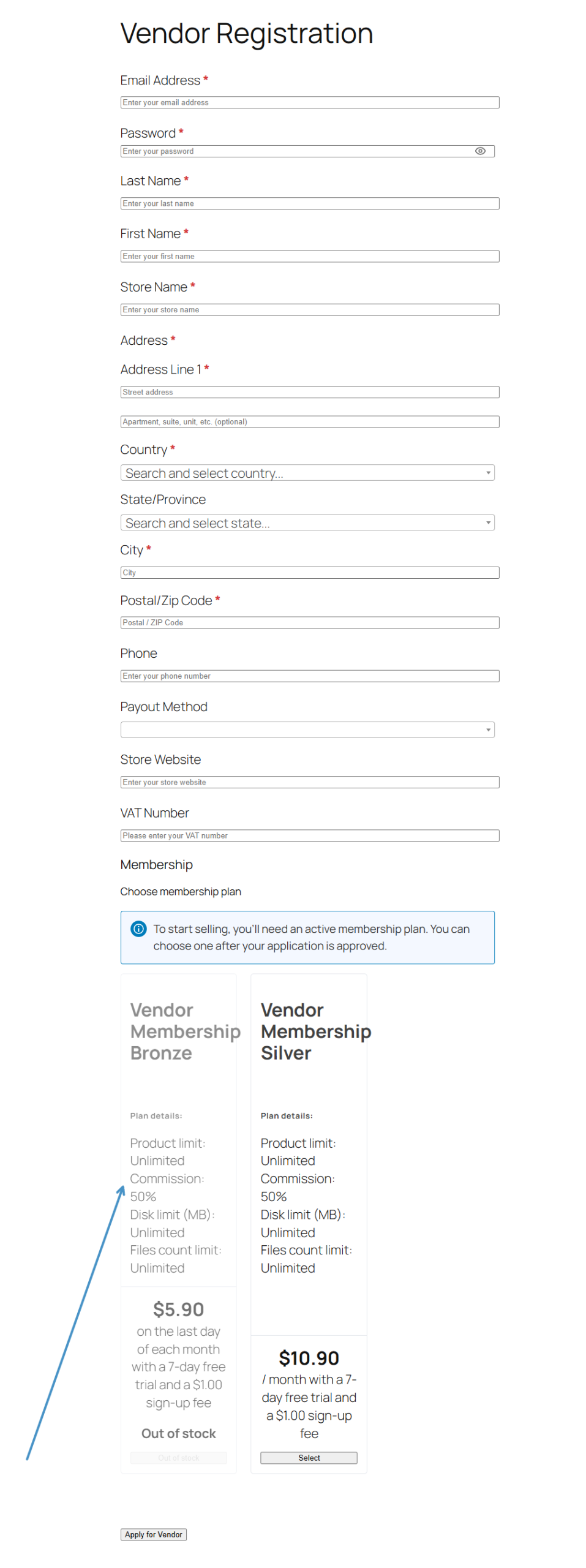
A seller’s current plan is never shown as full. Even if that plan is completely sold out, their “Renew now” button keeps working, and they can still switch or upgrade to any other plan that has places free. Nobody gets locked out of the tier they are already paying for.
Signing up for a plan uses one place, and renewing month after month does not use another, because the seller already has theirs. The check also happens behind the scenes at the moment of purchase, so a vendor cannot slip through by leaving the page open while the last place gets taken.
Best Practices For Capping Your Membership Plans
A few habits make it easier to limit vendors per membership plan without surprises. First, set “Allow backorders” to “Do not allow” for any capped tier, since that single setting enforces your ceiling at checkout.
If you approve sellers by hand and run tight caps, approve applicants for capped plans one at a time. Because the place isn’t reserved until the invoice is paid, approving several people at once for a nearly full plan can let more through than you intended.
Finally, put a recurring reminder in your calendar to review plan quantities. Canceled sellers don’t return to the pool, so capped numbers drift over time and need an occasional manual top-up to stay accurate. If you are layering caps onto paid tiers, our overview of membership subscriptions for marketplace vendors is a useful companion, and the membership getting started guide covers the wider settings.
Two Limits To Keep In Mind
Two behaviors were accepted on purpose in this release, and it helps to know them before customers do. First, places are not handed back. When a seller cancels, lets their membership lapse, or switches to a different plan, the old place is not returned to the pool, so the count only ever goes down.
The second is that the cap is soft if you approve sellers manually. In that workflow, the number is checked when you approve someone, but the place is not actually taken until they pay their invoice. Approve five applicants for a plan with one place left while none have paid, and all five can still complete payment. That is how WooCommerce treats manually created orders in general, so on tight caps it is safest to approve one applicant at a time.
Conclusion
The ability to limit vendors per membership plan gives marketplace owners a lever they have wanted for a long time. Instead of hiding a full tier or manually policing sign-ups, you set a number once and let the plugin enforce it, right through checkout. Full plans stay visible but locked, existing sellers keep their access, and your premium tiers hold the value you designed them to have.
Here is what we covered in this article:
- What capping a membership plan actually does
- Who should cap places on a vendor membership plan
- How to limit vendors per membership plan in WC Vendors
- What vendors see when a plan is full
- Best practices for capping your membership plans
- Two limits to keep in mind
Frequently Asked Questions
Where do I set the vendor cap for a plan?
Edit the plan under Products, set the Product data dropdown to Vendor Membership, then open the Inventory tab. Tick Stock management and enter your ceiling in the Quantity field.
Do renewals use up a place on a capped plan?
No. Signing up for a plan uses one place, but renewing does not consume another, since the vendor already holds theirs. A seller’s own plan is never shown as full, so their Renew button keeps working even when the plan is sold out.
Does a place free up when a vendor cancels?
Not automatically. Places aren’t returned when a seller cancels, lapses, or switches plans, so the count only goes down. You will need to raise the Quantity by hand from time to time to reflect who has actually left.
Can I limit vendors per membership plan on only some plans?
Yes. Only the plans where you tick Stock management are capped. Leave Stock management unticked on any plan you want to remain unlimited, and it behaves exactly as it did before.
What do I need to use this feature?
You need WooCommerce, WooCommerce Subscriptions, and WC Vendors Pro, with WooCommerce stock management enabled. Keep in mind that version 1.2.4 is currently a pre-release, so test it on staging before rolling it out.